Gateway Redundancy
Gateway redundancy lets two TGateway gateways take over collection and business workloads from each other. During stable operation, one gateway is Working and runs collection, data forwarding, alarm processing, and the rule engine. The other is Standby, receives synchronized data, and starts those workloads only when the takeover conditions are met.
The configured primary/standby identity is separate from the gateway currently handling work. Whether the original primary resumes work after restarting depends on shared arbitration and the state of both gateways. Recovery does not always cause automatic failback.
Configure redundancy
Navigation and Status Checks
Log in to TGateway Web, open System Management → System Settings, and select Gateway Failover on the left. The page provides Edit Config, Sync to Peer Now, Switch Active Gateway, and refresh actions.
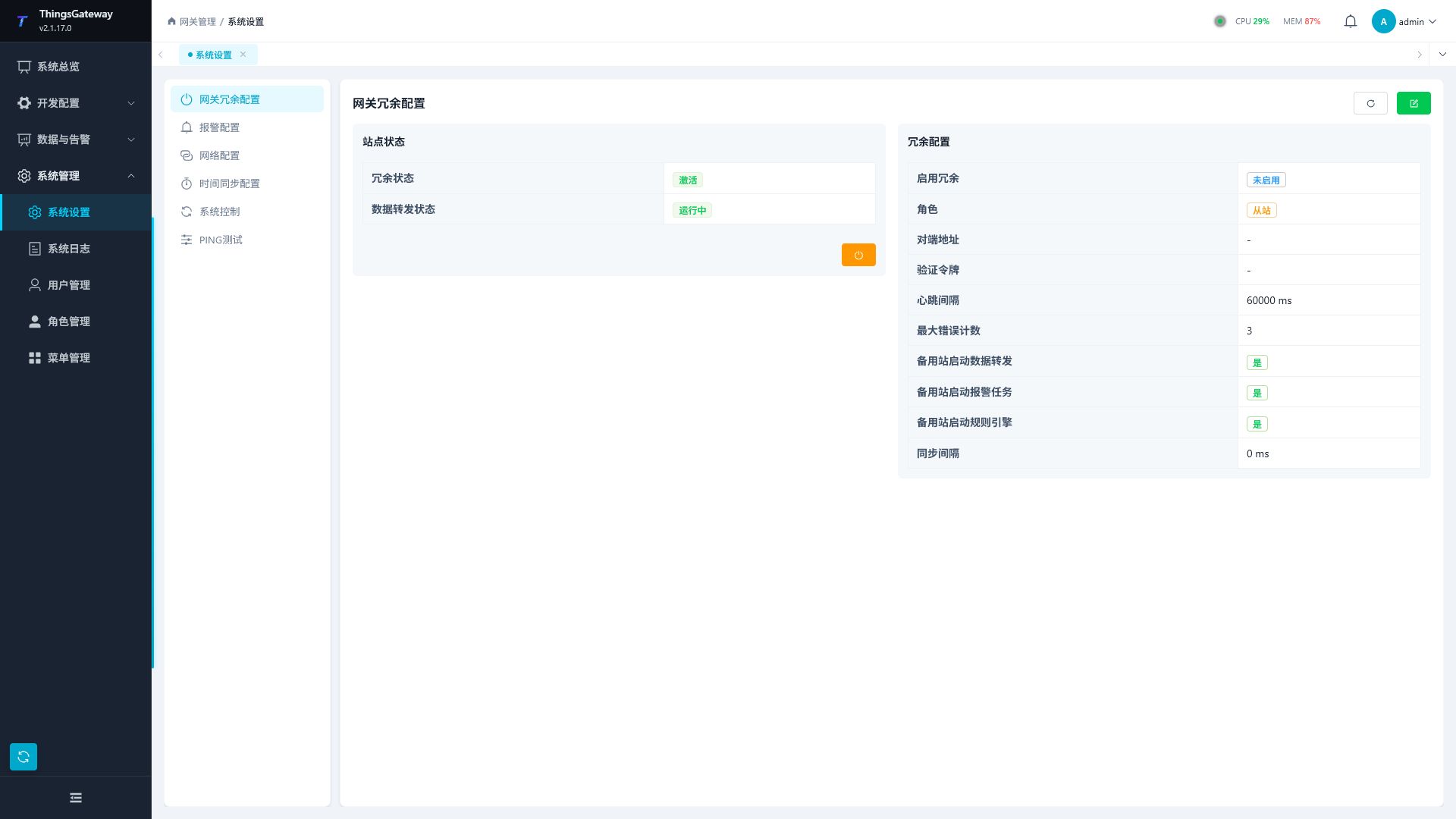
| Area | What to check |
|---|---|
| This Gateway | Check Local Role and the collection, forwarding, alarm, and rule engine task states. The gateway may be Working, Standby, Taking Over, Going Standby, Needs Attention, or Switch Failed. |
| Peer Connection | Check each link's connection and health, consecutive failures, peer identity, and role. A connection is fully healthy only after pair name, gateway identity, complementary roles, and security checks succeed. |
| Work Authorization | When shared arbitration is configured, confirm that only the working gateway holds authorization. Check its expiration, Failover Sequence, and Latest Switch Error. |
| History Data Protection | Check protected targets, pending replication and database writes, journal records, and database write authorization. |
Configuration Steps
Before configuring the pair, make sure both gateways can reach the field devices and forwarding destinations they need to take over. Prepare the required plugins, certificates, and runtime environment on each gateway. Back up both configurations and decide which gateway should initially handle work.
- Click Edit Config on each gateway and enter the same Failover Pair Name and Shared Connection Key.
- Assign different values for This Gateway Name. Set Peer Gateway Name to the other gateway's name on each side.
- Select Wait for Peer on A and Connect to Peer on B. Configure addresses and certificates as described in the parameter table below.
- Configure shared arbitration and a second link as required by the deployment. Shared arbitration must refer to the same shared file on both gateways.
- Turn on Enable Gateway Failover, click Save on each gateway, and confirm. Wait for the connections and roles to settle.
- Confirm that only one gateway is Working. Check its business configuration and click Sync to Peer Now there.
- Check collected values and device status on the standby. Confirm that its collection, forwarding, alarm, and rule engine tasks are stopped, then complete the switching checks below.
Parameters
Click Edit Config to maintain the following settings.
| Setting | Description |
|---|---|
| Enable Gateway Failover | Enables coordination and workload switching between the pair. When disabled, the local gateway runs independently without peer coordination or arbitration. Do not disable this option as a substitute for Switch Active Gateway; doing so may allow both gateways to work. |
| Failover Pair Name | Required. Use the same nonempty name on both gateways. Different names prevent the pair from establishing a control relationship. |
| This Gateway Name | Required stable, unique name for the local gateway. The two gateways must have different names. |
| Peer Gateway Name | Required. Must exactly match This Gateway Name on the other gateway. |
| Connection Mode | Select Wait for Peer on the configured primary and Connect to Peer on the configured standby. The modes must be complementary. This setting identifies the connection role, not a permanent working role. |
| Peer Address | First control-link address, usually IP:port, without http:// or https://. The listening gateway uses its local listening address; the connecting gateway uses the reachable address of the listening gateway. |
| Enable Dual Network / Second Link Address | The second address is required when dual networking is enabled and must differ from the first. Prefer separate network interfaces, switches, or network segments. Any fully healthy link can keep the peer reachable. |
| Shared Connection Key | Use the same complex string on both gateways for connection authentication. This key does not replace transport encryption. |
| Local Connection Certificate / Trusted Root Certificate | Both are required for mutual TLS when failover is enabled. The gateway using Wait for Peer needs a server certificate; the gateway using Connect to Peer needs a client certificate. Each gateway must trust the root that issued the peer's certificate. |
| Encryption Protocols / Check Whether Certificate Is Revoked | Select permitted TLS versions and certificate revocation behavior. Use System Secure Defaults unless the deployment requires otherwise. |
| Shared Arbitration File (Optional) | Point both gateways to the same SQLite file on shared storage to obtain exclusive work authorization through file locking and a short lease. Verify read/write and file-lock support. Leaving it empty selects link-only mode, which cannot prevent simultaneous operation during a network partition. |
| Work Authorization Duration | Shared authorization lifetime in milliseconds. Minimum 3000; default 15000. |
| Authorization Renewal | Renewal interval in milliseconds. Minimum 500 and no more than one third of Work Authorization Duration; default 3000. |
| Switch Safety Margin | Time reserved for stopping workloads before authorization expires, in milliseconds. Minimum 500; default 2000. Its sum with Authorization Renewal must be less than Work Authorization Duration. |
| Connection Check Interval | Connection maintenance setting affecting reconnection checks and idle-connection cleanup, in milliseconds. Minimum 1000; default 60000. It is not the complete takeover time; multiplying it by Checks Before Disconnect does not provide a guaranteed switching time. |
| Checks Before Disconnect | Consecutive failures across all configured links required before fault handling. Range 1–100; default 3. With shared arbitration, the gateway must also obtain authorization before starting workloads. |
| Data Sync Interval | Period for synchronizing collected values and device status from the working gateway to the standby, in milliseconds. Minimum 1000; default 1000. Use Sync to Peer Now on the working gateway when business configuration needs to be synchronized. |
| History Data/Alarm Recovery | Enabled by default. Supported history targets retain records locally, replicate them to the peer, and replay pending writes after switching or database recovery. This is independent of a target's dual-database mirroring. |
| History Protection Parameters | Configure batch size, peer confirmation timeout, local pending limit, database write authorization, renewal, and retry intervals according to expected outages, record volume, latency, database load, and disk capacity. |
Use one certificate authority (CA) to issue the primary gateway's server certificate and the standby gateway's client certificate. Import the CA public certificate as the trusted root on both gateways, and import each gateway's own connection certificate with its private key. Identify the CA by its certificate thumbprint rather than by its common name alone.
Each gateway presents its own certificate and uses its trusted root to decide which peer to accept. Supported selections are System Secure Defaults, TLS 1.2, TLS 1.3, or the combined TLS 1.2/1.3 selection. System defaults still use TLS; TLS 1.3 also depends on operating-system support. Revocation checking requires reachable revocation information; an unknown status does not mean a certificate has been revoked.
After TLS succeeds, verify the node names, pair name, and connection key on both sides. A wrong expected peer can leave a read-only heartbeat looking healthy on only one side. Check complete link health on both gateways. Arbitration protection applies within one redundancy group; different group names do not establish that protection between the two gateways.
Check the pair name, local and peer names, complementary connection modes, matching connection keys, and both required certificate fields on each gateway. Choose shared arbitration according to deployment requirements. After saving, check peer identity, link health, work authorization, and all four workload states before performing a switching drill.
Understand operation and takeover
Configured Identity and Working Role
The examples below use A as the configured primary and B as the configured standby.
| Term | Meaning |
|---|---|
| Configured primary A | Uses Wait for Peer as its Connection Mode and listens for the redundancy connection. |
| Configured standby B | Uses Connect to Peer and connects to the configured primary. |
| Working gateway | Actually runs collection, forwarding, alarm processing, and the rule engine. Either A or B can hold this role. |
| Standby gateway | Stops those four workloads while keeping redundancy communication and data synchronization available. |
Automatic takeover and Switch Active Gateway change which gateway handles work. They do not change either gateway's Connection Mode. Use Local Role and the four task states to identify the working gateway; its configured primary/standby identity alone does not tell you whether it is working.
Normal Operation and Data Synchronization
When A is Working and B is Standby, their responsibilities are as follows. The responsibilities reverse when B takes over.
| Function | Working gateway A | Standby gateway B |
|---|---|---|
| Connect to field devices and collect data | Runs enabled collection tasks | Does not actively collect from field devices |
| Data forwarding | Runs enabled forwarding groups and targets | Does not start forwarding workloads |
| Alarm processing and rule engine | Runs configured and enabled tasks | Stops these tasks |
| Display collected values and device status | Displays local collection results | Displays results synchronized from A |
| Redundancy communication, synchronization, and history recovery communication | Remains available | Remains available |
Displaying collected data on the standby requires matching business configuration, a healthy redundancy link, and successful synchronization. Updates follow Data Sync Interval, which defaults to 1000 ms, so the two displays can differ due to synchronization and network delay. Memory variables are outside this collected-value mirroring path. The standby display is not a complete copy of every runtime state on the working gateway.
Run Sync to Peer Now on the working gateway to synchronize business configuration to the standby and advance history recovery. Confirm the direction and back up both configurations first: synchronization updates the standby's business configuration. Collected values continue to update on the periodic schedule. Configure each gateway's identity, network settings, and certificates separately; business configuration synchronization is not a full machine backup.
Failure Takeover and Primary Recovery
If the working gateway crashes, shuts down, or restarts, the standby attempts takeover after all configured redundancy links reach Checks Before Disconnect through consecutive failed probes. With dual networking enabled, one fully healthy link is enough to keep the peer reachable; losing only the other link does not trigger takeover on that basis. When shared arbitration is configured, the standby must also obtain work authorization before starting collection, forwarding, alarm processing, and the rule engine.
Takeover includes failure detection, authorization, and workload startup time. It does not guarantee uninterrupted service. A single PLC or collection device communication failure is not equivalent to losing the gateway. Configure device-level redundancy separately in Collection Configuration.
Suppose A fails, B takes over, and A then restarts:
| Redundancy mode | What happens when A restarts |
|---|---|
| Shared arbitration configured | While B is working with valid authorization, A stays on standby and receives B's synchronized data. A does not take work back solely because it is the configured primary. To return work to A, restore connectivity and synchronization, then use Switch Active Gateway. |
| No shared arbitration; link-only mode | A attempts to start working during startup. After communication is restored, if both gateways are working, configured primary A has priority and the system attempts to put B on standby. This process does not guarantee the absence of a temporary period with both gateways working. |
If only the redundancy link recovers and the pair is already in a stable one-working, one-standby state, the system keeps that arrangement. It does not initiate failback solely because one gateway is configured as primary. Use Switch Active Gateway when you need to change the working gateway.
Link-only mode cannot reliably distinguish a failed peer from a network partition between two healthy gateways. Both may collect and forward data during a partition. To prevent simultaneous operation, point both gateways to the same arbitration file on shared storage that supports read/write access and file locking. Two separate local files with the same name do not provide shared arbitration. A working gateway stops its workloads if it cannot maintain valid authorization; if the other gateway cannot acquire authorization either, both may remain stopped.
Drills and acceptance
Manual Switching and Verification
Use Switch Active Gateway to change the gateway handling work, for example to return work from B to recovered primary A. The operation does not change the configured connection identities.
- Confirm healthy redundancy connectivity, access from the destination gateway to field devices and forwarding destinations, and no unresolved switching errors.
- Click Sync to Peer Now on the working gateway. Wait for success and check the standby's business configuration and collected-value display.
- Click Switch Active Gateway on the working gateway and confirm Switch the gateway currently handling work?
- Wait for stable roles. The former working gateway should become Standby, and the destination should become Working.
- Confirm collection and forwarding on the new working gateway and all four workloads stopped on the former one. With shared arbitration, verify that the new working gateway holds authorization.
- Check that data continues to update at the receiving system. If history recovery is enabled, check that pending records in History Data Protection decrease as they are processed.
If the operation reports no change or Switch Failed, refresh both pages and check the actual working role and Latest Switch Error. Then investigate peer connectivity, authorization, and workload startup conditions. Avoid repeatedly clicking the switch action or disabling failover to force the other gateway to start.
Failure Drills and Acceptance Checks
Perform these checks during a maintenance window that permits a brief interruption. Restore connectivity and a stable working state after each scenario before starting the next.
| Scenario | Acceptance criteria |
|---|---|
| Normal operation | One gateway is Working and the other is Standby. The standby displays synchronized collected values without collecting from devices or starting forwarding. |
| Stop the working gateway's application or shut down its host | The other gateway starts collection and forwarding after meeting takeover conditions. The receiving system resumes updating. Record the actual interruption duration. |
| Restart the original primary | With shared arbitration, the takeover gateway retains work while its authorization remains valid; the recovered gateway stays on standby. In link-only mode, check the final roles against Failure Takeover and Primary Recovery above. |
| Manually return work to the original primary | Only the original primary works after switching; the other gateway is on standby. Collection and delivery to the receiving system operate normally. |
| Disconnect one of two redundancy links | The current working gateway remains unchanged while the other link is fully healthy. |
| Disconnect all redundancy links, or make shared storage unavailable | With shared arbitration, both gateways must not hold authorization simultaneously. A gateway that cannot maintain authorization stops its workloads; a gateway that cannot obtain authorization does not start them. |
History recovery can replay only records that were saved and remain accessible. It cannot recreate values that were never collected during an outage, and it does not guarantee loss-free or duplicate-free delivery for every forwarding protocol. Check historical records and actual receiving-system results as part of acceptance.
Verify all workloads in one project
Prepare a safe temperature point, Boolean control point, MQTT destination, history target, alarm, and rule flow. After each switch, produce a new source value and verify these results:
| Workload | Acceptance check |
|---|---|
| Collection | The working gateway reads the new source value with advancing time and valid quality. The former gateway no longer collects. |
| Forwarding | An independent subscriber receives the new value on the expected topic with the expected source identity. |
| Alarms | The new input creates the expected event, then confirmation and recovery complete correctly. |
| Rules and control | The flow consumes the new input and the safe source control point agrees with the rule output. |
| History protection | Source records, journal peer/database flags, and destination rows correspond. |
Test normal primary operation, manual transfer, manual return, failure takeover, and restart from the original directory in that order. Record actual interruption windows. Test the two network links separately; a failure on one link does not establish peer loss while the other is fully healthy.
Use Project configuration and delivery for a complete example. Device redundancy switches device data sources, and Sync Bridge failover switches upload endpoints; each has a different scope from runtime workload takeover.
Historical recovery and diagnostics
History Data and Alarm Recovery
With gateway failover enabled, History Data/Alarm Recovery protects supported historical data and alarm targets. It is enabled by default. Events are retained in a local reliable journal and replicated to the peer. During takeover preparation, the gateway obtains work authorization and replays pending records. Standard SQL history writes use unique record keys to avoid inserting a record again when it has already been written.
After a switch, a temporary peer-link outage, or a runtime restart, records still available in the journal or offline cache can be replayed. This protection applies to saved records; it does not fill gaps for values that were never collected.
| Item | Description |
|---|---|
| Targets | Historical data targets and historical alarm targets. |
| Prerequisites | Enable Gateway Failover and keep History Data/Alarm Recovery enabled. |
| Supported databases | Standard SQL writes to SqlServer, MySql, Sqlite, and PostgreSql. |
| Exclusions | QuestDB, TDengine, IoTDB, custom SQL, history table scripts, time-series history scripts, history alarm table scripts, and other custom write paths are outside this replay and deduplication mechanism. |
| Deployment checks | Enable offline caching on history targets where required. Reserve space for expected outages, record volume, journal retention limits, and cache limits. Verify switching, disconnection, temporary database failure, and restart recovery before production use. |
History recovery parameters
| Parameter | Meaning |
|---|---|
| History Data/Alarm Recovery | Enables reliable journaling, peer acknowledgement, and replay. Disabling it does not delete existing history or journals. |
| Batch size | Default 2000 records per replication or replay batch. One scheduling round can process multiple batches. |
| Peer confirmation timeout | Default 3000 ms for peer acknowledgement; independent of database write timeout. |
| Local pending limit | Default 1000000. Cleanup removes old records already written and acknowledged by the peer. Incomplete records are not discarded merely because the limit is exceeded; monitor disk capacity. |
| Database write authorization duration | Default 15000 ms. This destination-database lease is separate from runtime work authorization. |
| Database write authorization renewal | Default 5000 ms, less than the lease duration. Renewal is checked during actual writes; idle operation does not guarantee an independent renewal timer. |
| Retry interval | Default 1000 ms for replay scheduling; it does not guarantee completion within that time. |
Both gateways must preserve target and variable identities and reach the same physical destination database. Each gateway keeps its own local journal. This is separate from a target's primary/backup database mirroring; identically named local SQLite files on different hosts are not a shared destination database.
Verify the journal-to-database result
- Synchronize configuration and compare target IDs, variable IDs, and relationships. Produce a new source value.
- Find the event by target key and record key in the journal. Check pending peer replication and pending database writing separately.
- In a maintenance environment, test peer disconnection and database write failure separately. Both pending states can exist together.
- Restore the peer and locate the exact record key in its journal. If the destination remains unavailable, database recovery is still incomplete.
- Restore the database and wait for replay. Query every recorded key, expecting one row per key, then check that pending database writes clear and new records continue arriving.
Keep the database and journals intact during acceptance. Completed old journal rows may be cleaned up, so use recorded identities and times rather than comparing only final totals.
History Data Protection Diagnostics
Use History Data Protection to check whether a target supports recovery, whether pending records are accumulating, and whether the gateway holds database write authorization. Review it during commissioning and after switching or recovery.
| Area | What to check |
|---|---|
| Overview | Current gateway, maximum sequence, pending peer replication, and pending database writes. If a backlog persists, check the redundancy connection, peer, destination database, and offline cache. |
| Filters | Narrow records by journal target key, source gateway, record type, unique record key, and pending peer/database status. |
| Target support | Supported targets, plugin and target type, unsupported reasons, and journal target keys. |
| Journal status | Record counts, pending replication and writes, oldest pending time, and latest event time, grouped by target, source, and record type. |
| Database write authorization | Authorization holder and expiration, to determine which gateway may replay writes to the destination database. |
| Journal events | Individual record sequence, source, type, unique key, peer/database flags, and payload, to investigate a value or alarm that has not yet been written. |
An unsupported target may use custom SQL, table scripts, QuestDB, TDengine, or another nonstandard SQL write path. Such targets can still use their own offline caching, but they are outside this failover history replay and deduplication coverage.
Troubleshooting
| Symptom | Checks and action |
|---|---|
| The standby displays values. Is it also collecting? | Not necessarily. It can display synchronized values. Check Local Role and Collection Task Status to determine whether it is collecting. |
| The primary has recovered, but the standby still handles work | Check shared arbitration first. This is expected while the takeover gateway holds valid authorization. Use Switch Active Gateway to return work. A stable one-working, one-standby arrangement is also retained in link-only mode. |
| Data on the standby is not updating | Check peer connectivity, matching variable configuration, and synchronization results. Run Sync to Peer Now on the working gateway and wait for periodic updates. Memory variables are outside collected-value mirroring. |
| The standby does not take over | Check whether all links have reached the disconnect threshold. With shared arbitration, check shared-file access and work authorization. Then inspect Latest Switch Error and device/forwarding-target startup conditions. |
| Both gateways collect or forward data | Check whether failover was disabled on one gateway or a network partition occurred in link-only mode. Restore redundancy connectivity. Where simultaneous operation must be prevented, configure the same reliable shared arbitration file and repeat acceptance checks. |
| The gateway switched, but the receiving system has not recovered | Check the new working gateway's forwarding connections and the receiving system's configuration. Clients that connect to a gateway service must also connect to the current working gateway; check their reconnection and address-switching arrangements. |
Related Operations
- System Settings: configuration backup, network maintenance, and restart operations.
- Collection Configuration: channels, devices, variables, and device-level redundancy.
- Data Forwarding: forwarding groups, targets, and historical caching.
- Certificate Management: connection certificates and trusted roots for both gateways.