Complete Modbus, MQTT/SQL, and Rule Engine Demo

This demo starts with a standard Modbus TCP variable, sequentially completing real-time collection, MQTT forwarding, SQLite historical data forwarding, and rule engine threshold checks, verifying the actual results of each segment of the link.

This is not DTU acquisition

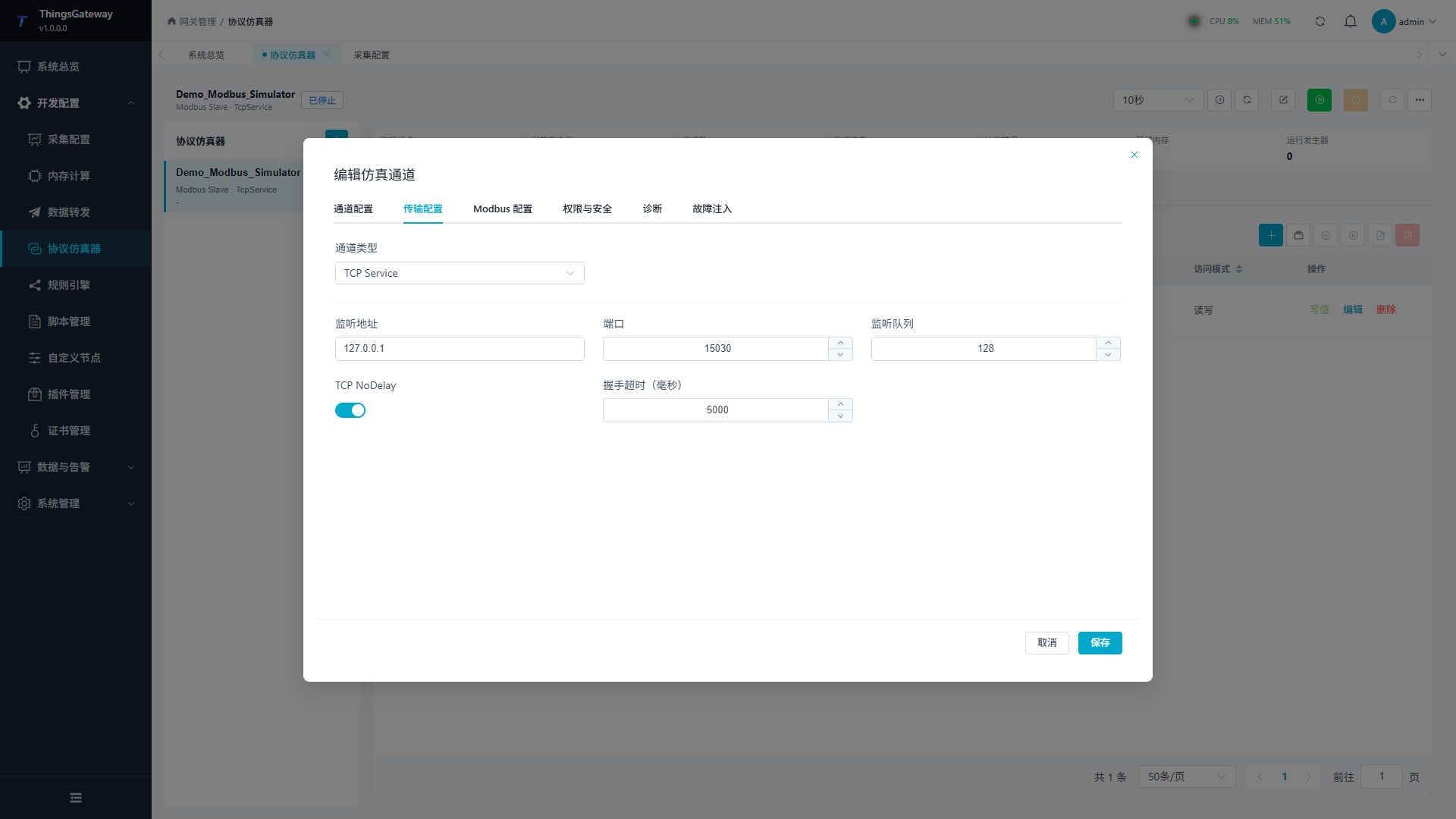
This page has channel type TcpClient, GatewayRuntime actively connects to Modbus TCP slave. The device plug-in DTU ID remains empty, without TCP server listening, DTU registration, or DTU ID connection assignment. For DTU access, please refer to DTU Service.

Actual Verification Environment

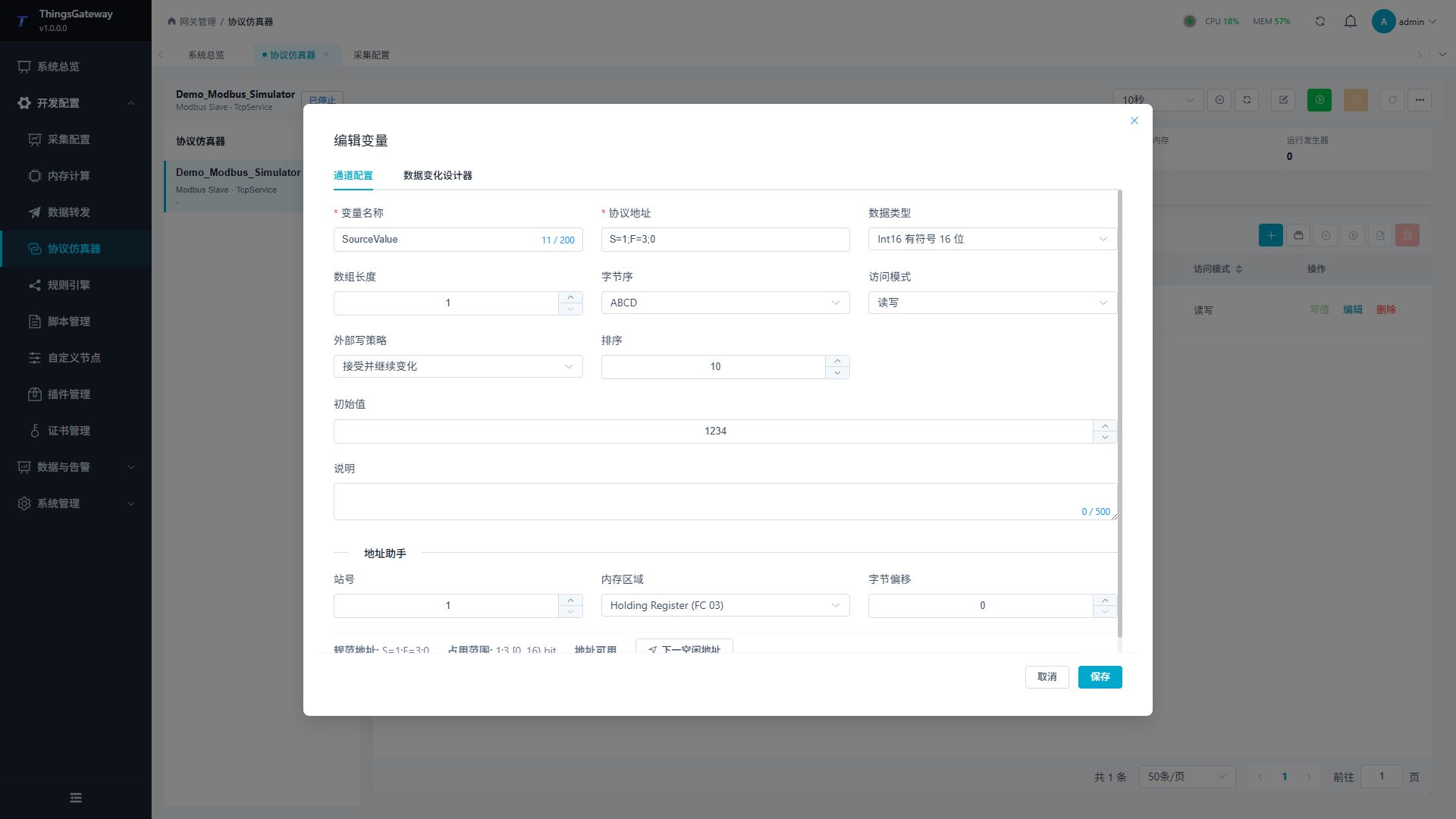
The screenshots on this page come from a real-time local debugging environment, not an empty form schematic. The test slave alternately returns values between 950 and 1234 per second to simultaneously verify the threshold's untriggered and triggered states.

ProjectActual configuration on this pageVerification Objective
Modbus TCP Slave127.0.0.1:15030Receives the real Modbus request from GatewayRuntime and returns 950, 1234
ChannelsDemo_Modbus_Channel, TcpClientGatewayRuntime Actively connects slave
deviceDemo_Modbus_Device, ModbusMasterExecute collection every 1000 ms Execute collection
variablesDemo_Modbus_Value,400001, Int16Refresh the true collected values online
MQTT Broker127.0.0.1:18885Receive topic thingsgateway/demo/modbus Release messages
SQLitenormal_full_demo.sqliteWrite real history records in historyNumberValue
Rule flowDemo_Modbus_RuleJudgment Demo_Modbus_Value > 1000
Rule Actionhttp://127.0.0.1:17502/ruleReceives actual Webhook requests generated by the rule engine.

127.0.0.1 Only applicable to demo environments where GatewayRuntime, simulated slaves, MQTT Broker, and authentication services are on the same computer. Production deployments must be replaced with IP addresses, ports, and database paths accessible to field devices or servers.

1. Generate Regular Modbus Test Data

Log in to GatewayRuntime Web, go to "Development Configuration → Collection Configuration," and click "Show more → test data" at the top right of the variable list.

  1. Select "Regular Test Data"; do not select "DTU Test Data".
  2. Set the number of variables to 1, and the number of devices to 1.
  3. Fill in the slave station address 127.0.0.1:15030.
  4. Click "Generate" to create a set of standard Modbus TCP channels, devices, and variables.

Generate standard Modbus test data

After generation, you can directly edit the automatically created object. This demo resets object names to Demo_Modbus_Channel,Demo_Modbus_Device, and Demo_Modbus_Value to facilitate accurate references in forwarding and rule flows.

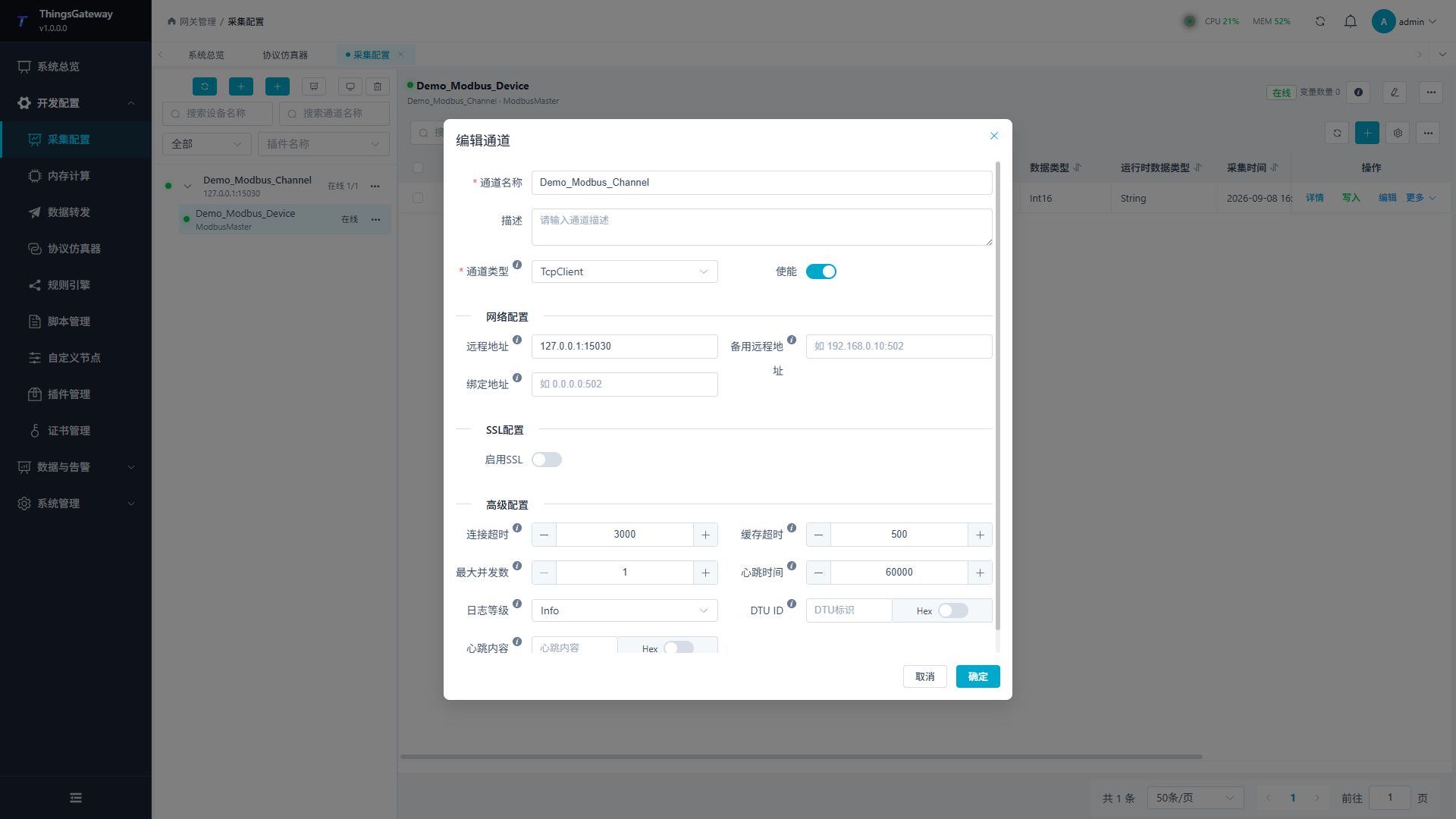
2. Configuring TCP Client Channels

Go to "Collection Configuration → Channel Management" and edit Demo_Modbus_Channel.

Configuration ItemInstance Value on This PageDescription
Channel NameDemo_Modbus_ChannelIdentify this link in collection, logging, and runtime
Channel typeTcpClientGatewayRuntime actively connects to Modbus slave
Remote address127.0.0.1:15030IP and port of Modbus TCP slave
Connection timeout:3000 msTimeout value for establishing and connecting operations
Cache timeout:500 msProtocol data reading and cache window used by package
Maximum concurrency1Maintains Modbus request order to avoid abnormal slave concurrency handling
Heart rate60000 msThis demo maintains default values

Ordinary Modbus TCP client tunnel configuration

How to confirm it is not a DTU channel

The key feature of ordinary Modbus TCP collection is that the channel type is TcpClient and the "remote address" is entered. DTU mode typically uses TcpService listening addresses, with the DTU actively connecting to the gateway.

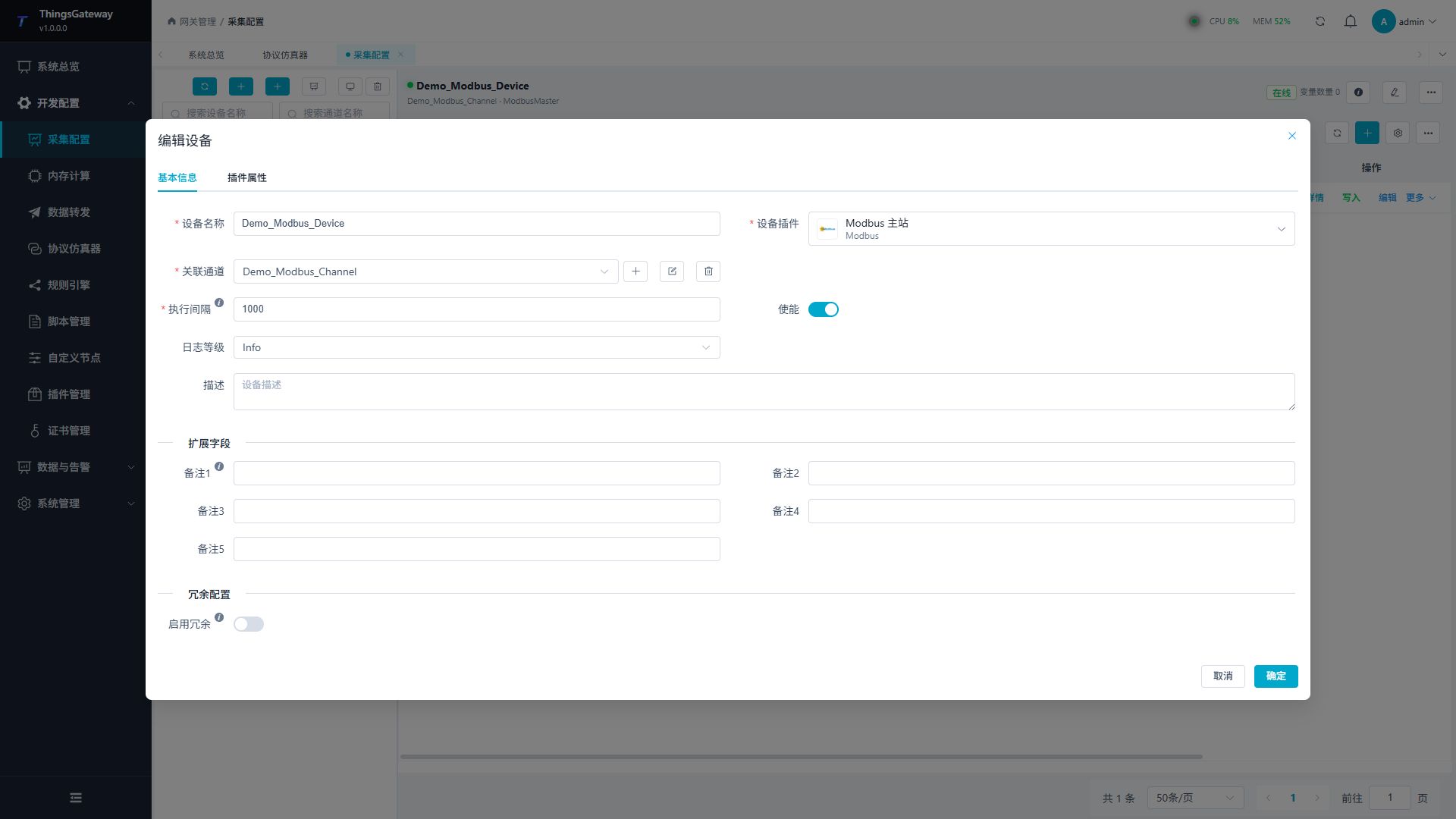
3. Configure ModbusMaster Device

Go to "Collection Configuration → Device Management" and edit Demo_Modbus_Device.

Configuration ItemsInstance Values on This PageDescription
Device NameDemo_Modbus_DeviceForwarding groups and rule nodes filter devices by this name:
Device pluginModbusMasterinitiates read requests as Modbus masters
Associate channelsDemo_Modbus_ChannelConnect using the TCP client from the previous step
Execution interval1000Execute acquisition once per second
EnableEnableSave, then start device runtime

ModbusMaster Device Basic Information

Switch to "Plugin Properties" and confirm use of regular Modbus TCP:

Configuration ItemsInstance value on this pageDescription
Modbus typeModbusTcpUse Modbus TCP packet
Default Station Number1Use this value when a variable is not specifically assigned Station Number
DTU IDEmptyOrdinary TCP client acquisition does not fill in DTU ID
Read/write timeout3000 msMaximum waiting time for a single Modbus request to respond
Data parsing orderABCDMulti-register data adjusted byte order by field device

ModbusMaster Standard TCP plugin properties

4. Configure variables and verify acquisition

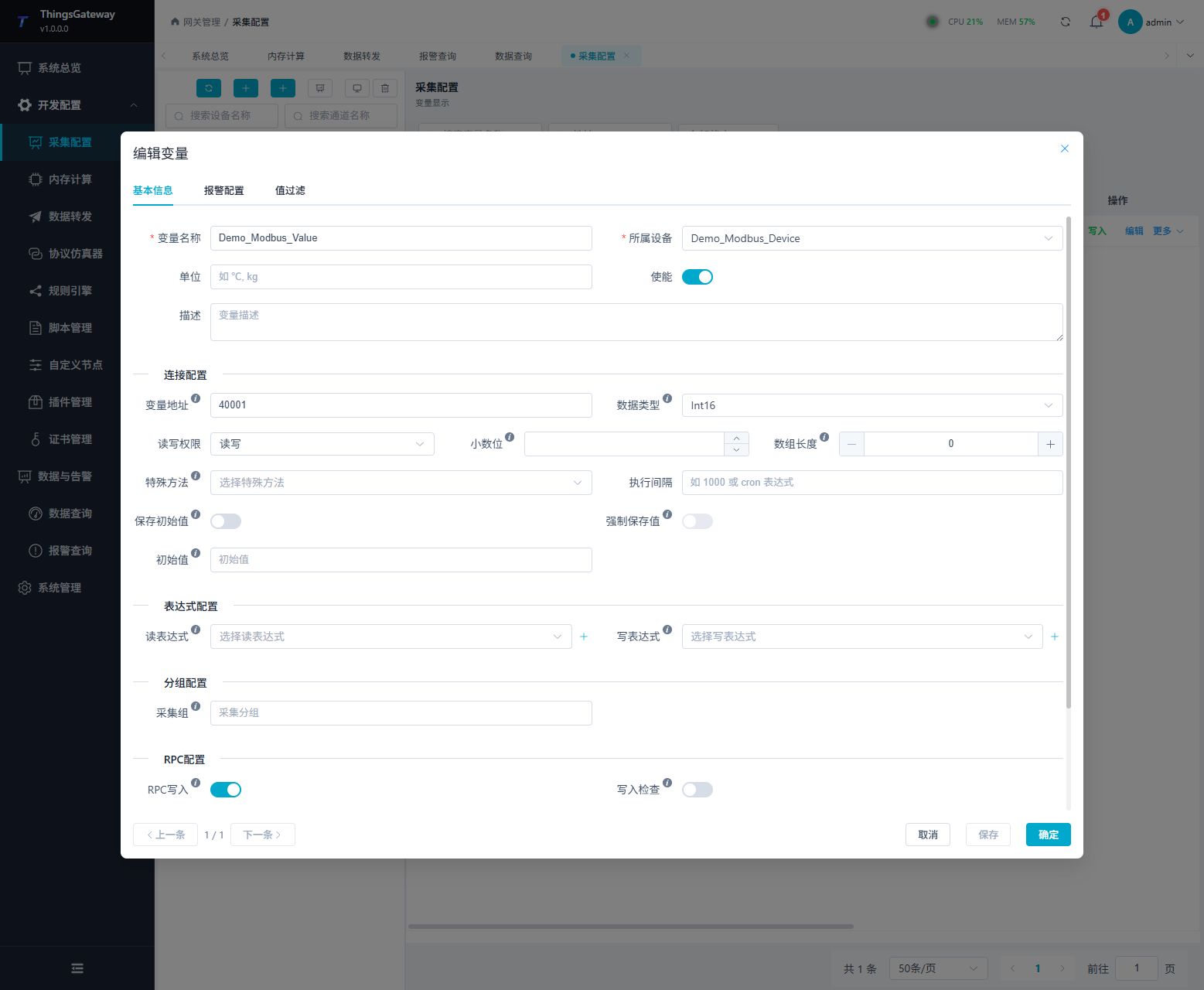
Return "Variable Display" and edit Demo_Modbus_Value.

Configuration ItemsExample Values on This PageDescription
Variable NamesDemo_Modbus_ValueUse the name uniformly in MQTT, SQLite, and rule engines
Associated deviceDemo_Modbus_DeviceModbusMaster device assigned to the previous step
Variable address400001Preserve the first address of the register
Data typeInt16Retain register from a 16-bit parse value
Read and write permissionsRead and writeThis demo maintains generation configuration; When only data is collected, set as read-only
RPC writeEnableNo direct dependencies for this read, forwarding, or rule verification

Configure standard Modbus variables

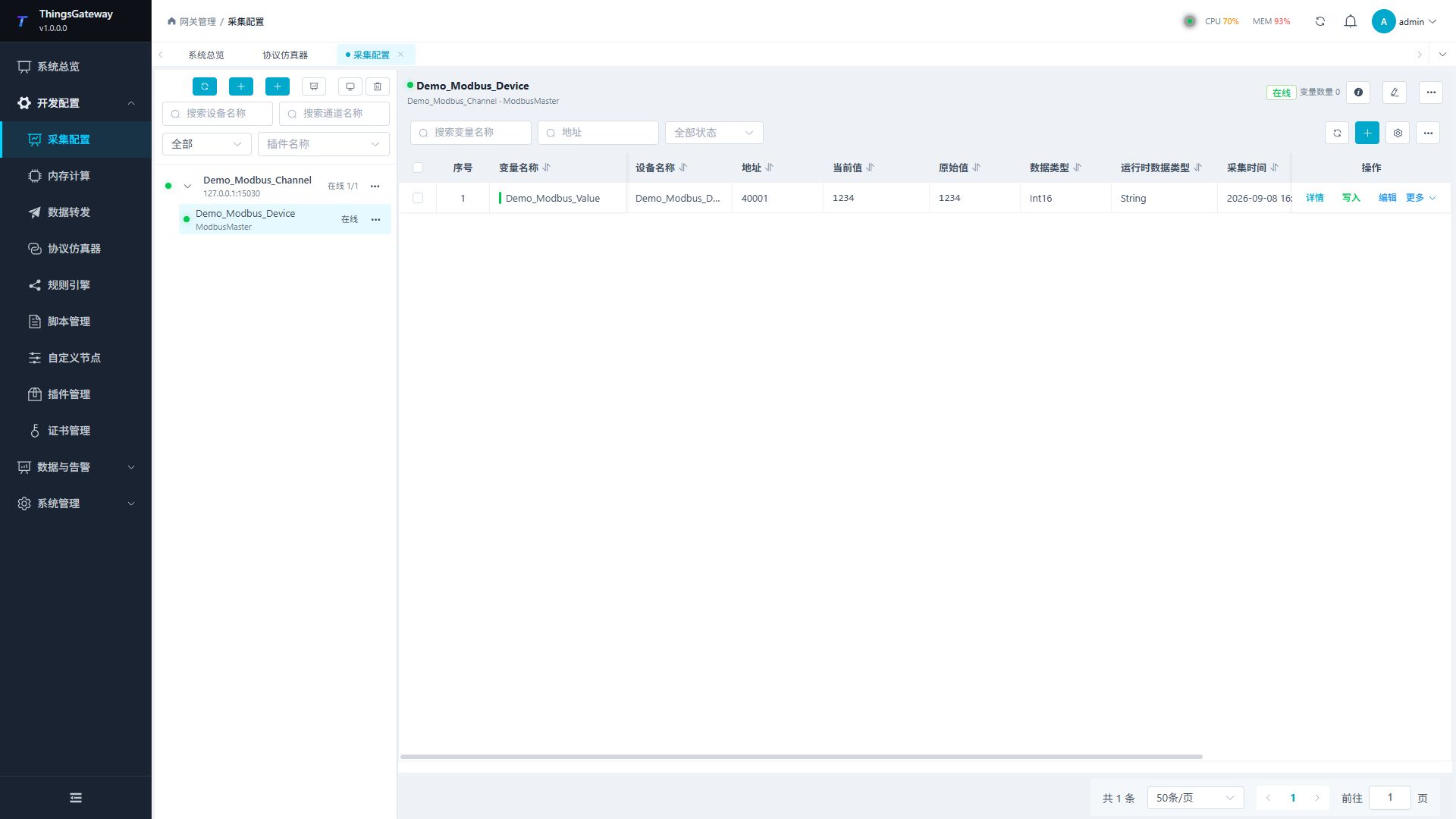
After saving, return to the collection page and accept in the following order:

  1. Demo_Modbus_Channel shows "Online 1/1".
  2. Demo_Modbus_Device Shows green online status.
  3. The current and original values of Demo_Modbus_Value fluctuate continuously between 950 and 1234.
  4. Collection time is continuously updated, error messages are empty.

Ordinary Modbus online collection results

Only after passing the collection status can the forwarding and rule engine be configured. Otherwise, even if subsequent targets appear online, there may be no forwardable data.

5. Create a Dual-Target Data Forwarding Group

Enter "Development Configuration → Data Forwarding" and add a new forwarding group Demo_Modbus_MQTT_SQL.

Configuration ItemsExample values on this pageDescription
Variable rangeCollection DeviceSelect forwarding variables from the collection device
Range configurationDemo_Modbus_DeviceForwarding only this demo Device Data
Trigger ModeTimer or ChangeImmediate trigger for value changes, with timed trigger replenished every second
Fixed Time Interval1000Timed Trigger Interval is 1 second
Online FilterEnableForward Only Online Variables
Batch ModeNo batchSingle-variable demo No need to batch
Maximum batch1000Maintain default limit

Data forwarding group configuration

After saving, confirm the forwarding group card shows 1 variable. This demo creates two independent targets within the same group; the online status, logs, and actual data of MQTT and SQLite must be accepted separately.

6. Create an MQTT Client Target

Select Demo_Modbus_MQTT_SQL, click Add in the "Forwarding Target" area, and choose MqttClientProducer.

Configuration ItemsInstance Values on This PageDescription
Target NameDemo_MQTT_TargetUnique name of the MQTT target
IP address127.0.0.1local MQTT Broker
Port18885TCP port of this Demo Broker
Client IDDemoGatewayRuntimeBroker to identify the GatewayRuntime client
MQTT protocol versionV311MQTT 3.1.1
Connection TypeTcpConnection Using Ordinary MQTT TCP
QoS LevelAtMostOnceThis demo uses QoS 0
detailed logsEnablejoint debugging phase to facilitate connection and publishing processes

MQTT client connection configuration

Enter the "Variable Topic Template" as thingsgateway/demo/modbus. This page does not use device names, so all selected variables are posted to a fixed Demo Topic.

MQTT variable Topic configuration

After saving, wait for the target card to display "Online". The message actually received by the broker includes the following key data:

[
{
"Name": "Demo_Modbus_Value",
"DeviceName": "Demo_Modbus_Device",
"Value": 1234,
"IsOnline": true,
"ChannelName": "Demo_Modbus_Channel",
"RegisterAddress": "400001",
"DataType": "Int16"
}
]

In the production environment, username, password, TLS certificate, QoS, message retention, and offline caching should be entered according to the Broker's security policy. Do not directly copy the server's unauthenticated parameters.

7. Create the SQLite Historical Data Target

C ontinue to add new targets in the same forwarding group, select HisDataForwardTarget, and choose Sqlite database type.

Configuration ItemsInstance Value on This PageDescription
Object NameDemo_SQLite_TargetUnique Name of SQLite Target
Database TypeSqliteValidate with Local SQLite File SQL Forwarding
Concatenate stringData Source=E:\tgall\src\.codex-runtime\gateway-full-demo-6125-20260729-01\normal_full_demo.sqliteFor this actual verification of the file path, the production environment must replace
numeric historical table_namehistoryNumberValuenumeric variable written to the table
string historical table_namehistoryStringValueString variable written to the table
Time zone offset+08:00Save according to current project time zone
Forced insertEnableDemo for continuous observation of new records
Default sampling strategyChangeGenerate history when variable changes

SQLite historical data target configuration

Save and wait for Demo_SQLite_Target to display "Online". The actual historyNumberValue record written this time includes fields such as VariableId,DeviceName,VariableName,Value,CollectTime, IsOnline, and CreateTime.

Methods to replace SQL forwarding

When writing to MySQL, PostgreSQL, or SQL Server, still use the historical data target, switch the "database type," and fill in the corresponding connection string. Table names, sharding strategies, sampling strategies, and historical retention policies should be reconfirmed according to the project database specifications.

8. Separately Accept MQTT and SQLite Forwarding

Return to the data forwarding details page and confirm:

  1. The forwarded group shows 2 target,2 online, 1 variable.
  2. Demo_MQTT_Target and Demo_SQLite_Target both show "online."
  3. The recent activity times of the repost group and two targets are continuously updated.

MQTT and SQLite dual target runtime states

Target online only indicates the target runtime state is started and cannot replace result acceptance. This page also uses the real receiver and database queries to simultaneously check two types of results: the MQTT Topic shows Demo_Modbus_Value, and the SQLite historyNumberValue shows the actual value of the same variable.

Actual acceptance results of standard Modbus, MQTT, and SQLite

Check ItemAcceptance Criteria
Modbus RequestsThe request count continues to increase, proving that GatewayRuntime is reading from the standard Modbus TCP slave.
MQTT message from a regular Modbus TCP slavemessage count greater than 0, topic is thingsgateway/demo/modbus
MQTT contentcontains Demo_Modbus_Value, Demo_Modbus_Device, and actual values 950 or 1234
SQLite recordshistoryNumberValue Records continuously increasing
SQLite contentThe most recent record VariableName is Demo_Modbus_Value , the value matches the value collected at the same time

9. Configure the Rule Engine

Enter the "Development Configuration → Rule Engine" and create or open Process Demo_Modbus_Rule. This demo uses three nodes:

  1. "Variable notification rules" listen for changes in Demo_Modbus_Value.
  2. "Threshold trigger" checks whether the variable value is greater than 1000.
  3. "Webhook push" sends the rule data to the local acceptance end.

The connection relationships are as follows:

StartEnd PointPurpose
Variable Notification Rules ResultThreshold Trigger InputSend real-time values to threshold judgment
Variable Notification Rules VariableBasicDataWebhook push DataSend complete variable objects into rule actions
Webhook role

MQTT and SQLite on this page are the two data forwarding targets in the "Data Forwarding" page. Webhooks are only used to demonstrate rule engine actions; they are not the data forwarding examples on this page, nor can they replace MQTT or SQL object acceptance.

Configure variable notification nodes

Select the "variable notification rule" node and fill in the following initial input parameters:

parametersinstance valuedescription
DeviceNamesDemo_Modbus_Deviceonly matches the demo collection device
VariableNamesDemo_Modbus_Valueonly matches the demo variable
CollectGroupsEmptyNo additional filtering by collection group

Rule Engine variable notification node

Configure threshold nodes

Select the "threshold trigger" node and set:

parametersinstance valuesdescriptions
Threshold1000threshold
Hysteresis0This demo does not use backlash
CompareOperator>Triggered when input value exceeds 1000

When input is 1234, actual running value shows Triggered=true,RisingEdge=true; When the input restores to 950, it displays Triggered=false, FallingEdge=true.

Rule Engine Threshold Node

Configure Rule Action Nodes

Select the "Webhook Push" node and fill in the following parameters:

ParameterInstance valueDescription
Urlhttp://127.0.0.1:17502/ruleLocal rule acceptance service address
EnabledEnableEnable rule action
DataConnect variable notification node VariableBasicDataPass current variable object

Request body template as follows:

{"source":"rule-engine","device":"{{DeviceName}}","variable":"{{Name}}","value":{{Value}}}

A t actual runtime, nodes show Success=true, ErrorMessage empty, and continuously update LastPushTime.

Rule Engine Webhook Action Node

After saving and enabling the process, the complete canvas is as follows. Real-time parameters on nodes refresh following the Modbus values.

Ordinary Modbus variable rule flow

The actual execution result of the rule action under high value is as follows: input 1234, threshold check triggered, Webhook action returns successfully.

Actual Running Results of the Rule Engine

10. Complete Acceptance Checklist

Accept according to the sequence of the link, without skipping the prerequisites:

StageResults that must be met
Ordinary Modbus channelTcpClient online, remote address points to the real slave station, no DTU ID is filled in
Modbus deviceModbusMaster online, execution interval remains active
variable acquisitionDemo_Modbus_Value at 950. Refresh between 1234, collection time updated with no errors
MQTT targettarget online, broker actually receives correct topic and variable JSON
SQLite targettarget online, historyNumberValue Actual new record with correct value
rule low valueEnter 950, Triggered=false When the falling edge switches, FallingEdge=true
Rule high valueEnter 1234, Triggered=true, when the rising edge switches, RisingEdge=true
rule actionSuccess=true, ErrorMessage is empty, receiver receives /rule Request

Production Environment Replacement Item

Demo ConfigurationProduction Environment Requirements
127.0.0.1:15030Replace with PLC, Instrument, Protocol Gateway, or Real Modbus TCP Slave Address
Single Variable 400001Import all variables as formal point tables and verify address, data type, byte order, and read/write permissions
MQTT 127.0.0.1:18885Replace with formal Broker, configure authentication, TLS, QoS, topic specifications, and offline caching
Local SQLite fileSelect formal database, table structure, sharding, and retention policies based on capacity and query requirements
Threshold 1000Set thresholds and tolerances according to process meaning, Edge triggering and anti-shake strategies
Replace native Webhookwith MES, alert platform, notification service, or other formal rule action addresses

Troubleshooting

PhenomenaFocus on checking
Channel offlineTest slave IP/port from GatewayRuntime host; Confirm the channel is TcpClient, remote address is not a bound address
Device online but variable abnormalVerify station number, function code address format, data type, byte order, timeout, and slave return packet
No variables in the forwarding groupConfirm the variable range is "Collection Device," with the range configuration exactly matching the Demo_Modbus_Device name
MQTT target offlineCheck Broker listening ports, client ID conflicts, authentication, TLS, Protocol version and target logs
MQTT online but no messagesCheck forwarding group trigger patterns, online filtering, variable counts, and topic templates, and verify real subscriptions on the broker side
SQLite target offlineCheck connection strings, directory write permissions, database types, and historical table names
SQLite online but no recordsCheck sampling policies, forced inserts, variable data types, and recent activity time of forwarding groups
No input on rule nodesCheck DeviceNames, VariableNames case and spaces to confirm variable changes
Thresholds never triggeredCheck input lines, thresholds, comparators, value types, and real-time Input Value
Webhook Success=falseCheck URL, receiving service, request body template, network policy, and node ErrorMessage
  • Collection configuration - Complete instructions for channel, device, and variable operation
  • Data forwarding - Forwarding groups, targets, logs, and debugging methods
  • Rule engine - Nodes, connections Input/Output, and Process Operation Instructions
  • Device Debugging - Protocol Read/Write and Variable Joint Debugging Methods
  • DTU Service - Independent access method for DTU active connection to GatewayRuntime