Script Management
Script management is used to maintain runtime scripts for gateways. Scripts can be used for variable data conversion, memory variable calculation, data forwarding templates, dynamic SQL (custom entry statements or table structures), MQTT RPC (MQTT reverse write or query requests), and other scenarios. After saving the script, it must be compiled successfully for related functions to use the latest content.
Convert a raw value to engineering units
For a numeric source that returns 1234, this example produces 123.4 without changing the source register layout.
- Open Development Configuration → Script Management → Local Scripts, add
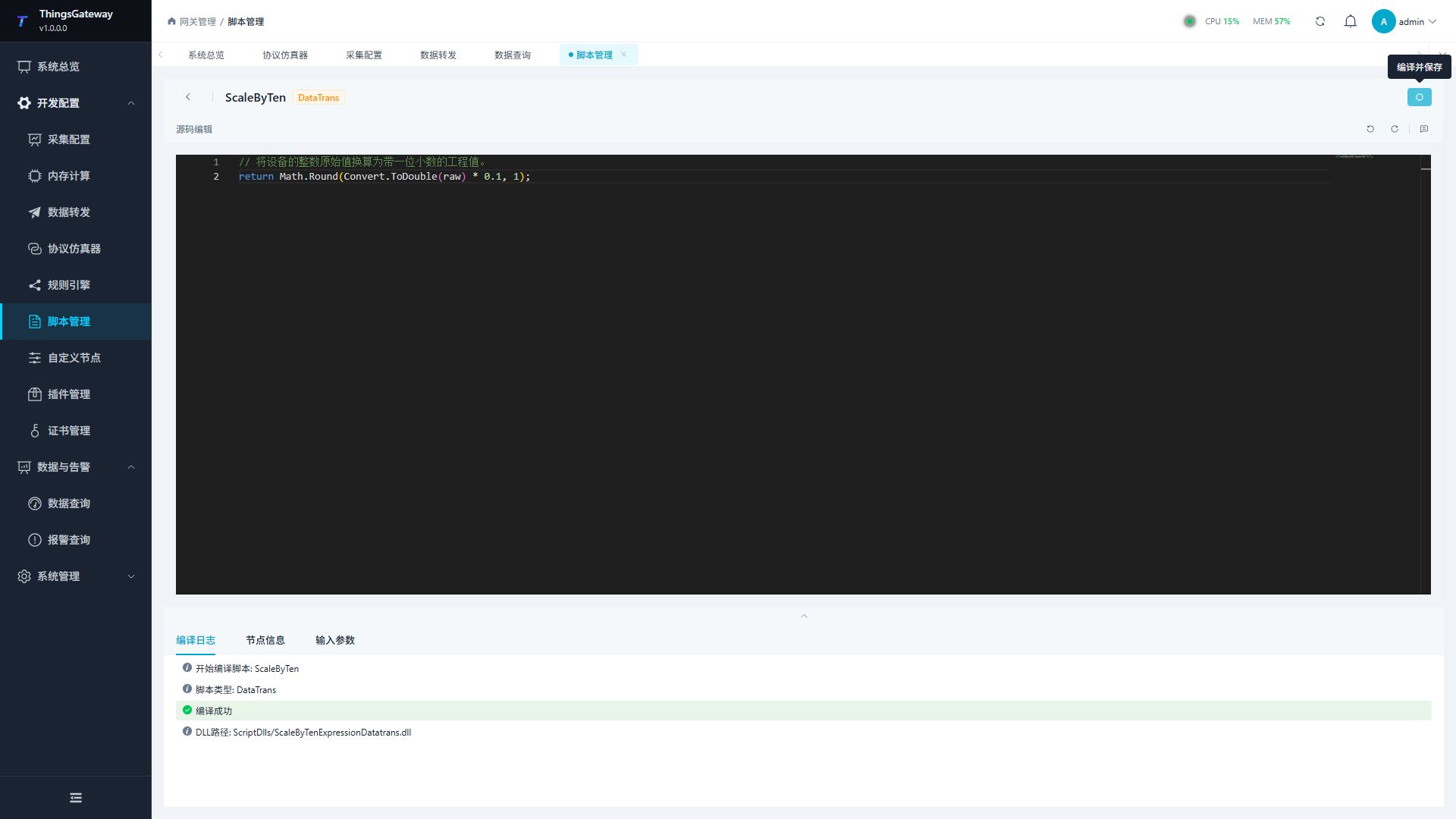
ScaleByTen, and select Data Conversion. - Enter the following method body; do not wrap it in another class or method.
// 将设备的整数原始值换算为带一位小数的工程值。
return Math.Round(Convert.ToDouble(raw) * 0.1, 1);
- Click Compile and Save. Confirm compilation, loading, and saving have all succeeded.
- Edit the collection variable, select
ScaleByTenas its Read Expression, and save. - Wait for the next sample. Raw value should remain
1234and current value should become123.4. Keep the source data type appropriate for its register; displaying a decimal does not make an integer register a Float.
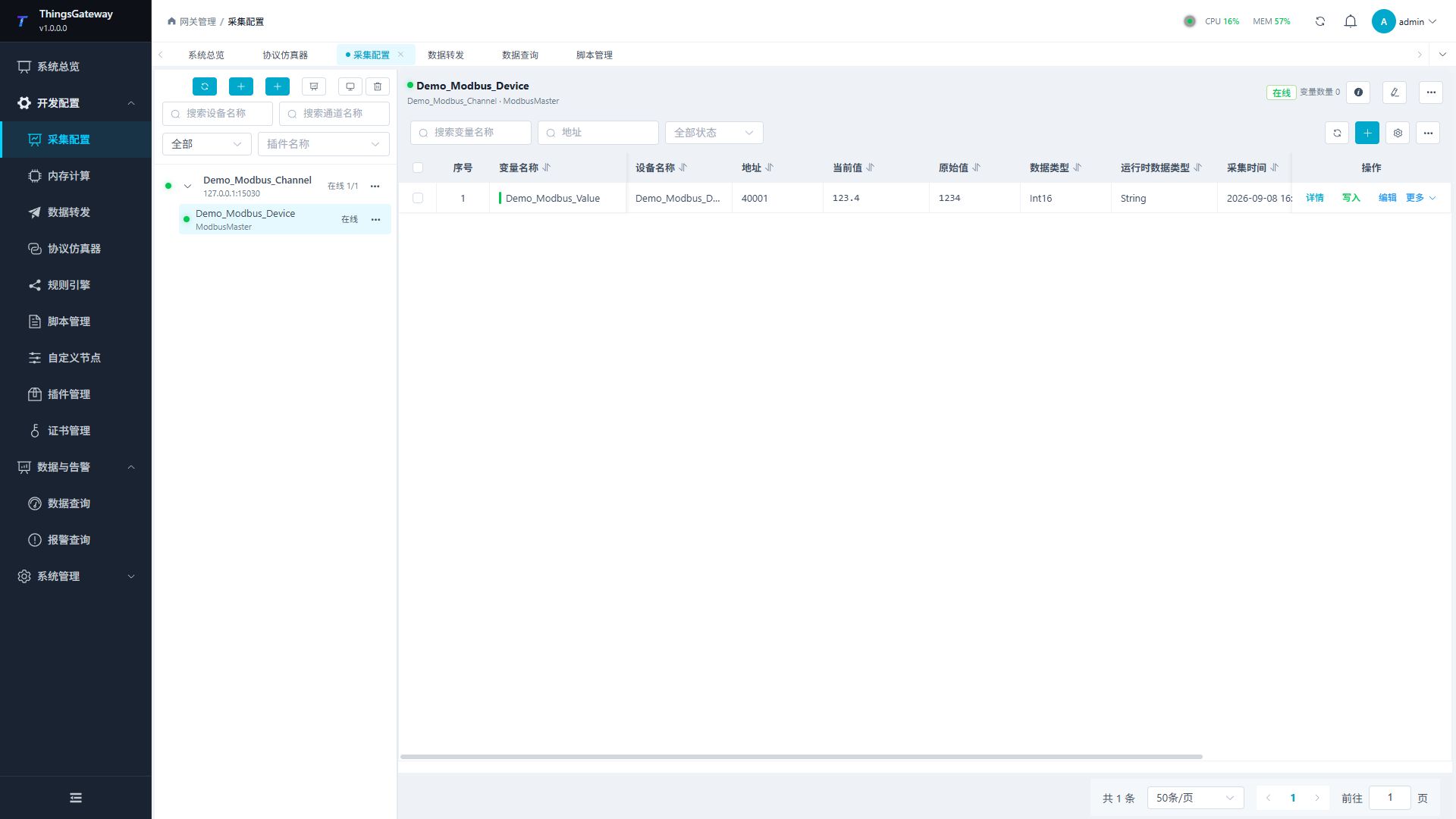
Compilation does not bind the script to a variable. A read expression changes its final runtime value, which is then used by memory calculations, alarms, rules, and forwarding. Raw value retains the device reading. This read conversion does not write to the field device or supply reverse write conversion. To remove it, clear the variable's read-expression selection, save, and verify the next sample. For configurable scale and offset, use the parameterized example.
Create and edit scripts
First, look at terminology
| terminology | On-site understanding |
|---|---|
| script | Internal reusable calculation or conversion logic within the gateway is used to process variable values, generate uploaded content, or handle external requests. |
| Compile | Validates and builds the code. Loading, consumer binding, and actual execution must also succeed before the new behavior is verified. |
| Data Conversion | Convert the original equipment values into engineering values required on site, such as scale conversion, unit conversion, and status text conversion. |
| Memory variable scripts | Scripts for calculating internal variables of the gateway, which do not read directly from the PLC but read existing variables or internal states. |
| Dynamic models / templates | Generate uploaded content in formats specified by external systems, such as custom JSON fields, device fields, or alarm fields. |
| Dynamic SQL | Custom statements or table structures written into the database, commonly used in scenarios where fixed-width tables or special field naming are required in projects. |
| MQTT RPC | receives write, query, or control requests from external systems via MQTT, and is parsed and returned by scripts. |
| Complete code | Advanced extension methods. You need to understand C# code and its operational impact; for regular field configurations, it's not recommended to start here. |
Page Entry
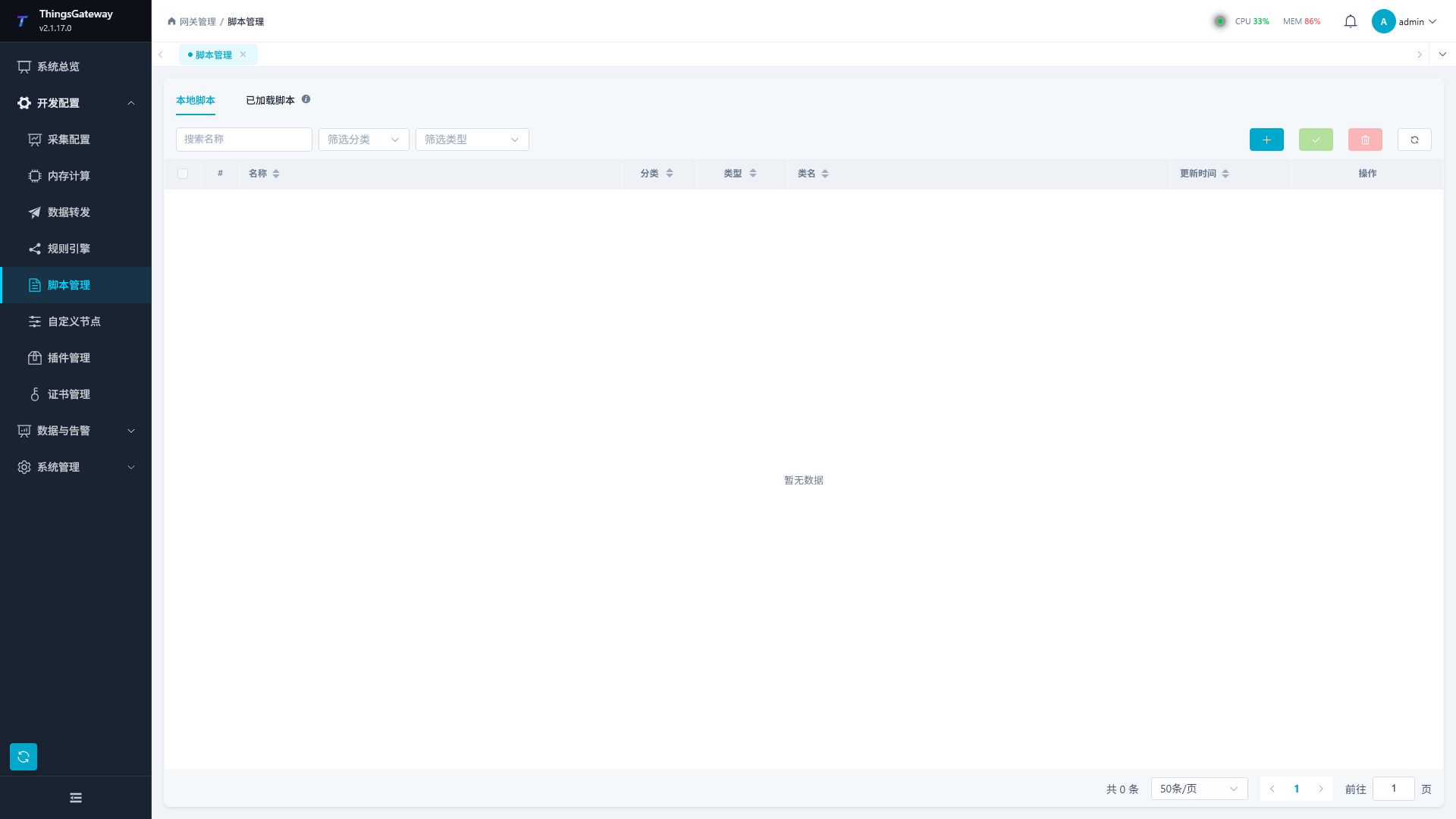
After logging into TGateway Web, click the "Development Configuration → Script Management" menu on the left.
Page Structure
| Area | Description |
|---|---|
| Local Scripts | Maintains scripts saved at the current runtime, supporting addition, editing, compilation, deletion, and batch operations. |
| Loaded script | View scripts that are already accessible to the gateway, displaying information such as name, class, type, and data type in read-only. |
| Name Search | Filter the list by script name. |
| Category Filtering | Filtering by script category, local categories come from saved scripts. |
| Type Filtering | Filtering by script type, such as data transformation, memory variable, MQTT RPC. |
| Tool buttons | Order: Add, batch compile, batch delete, refresh; For the batch button, you need to check the script first. |
List Field
| Field | Description |
|---|---|
| Name | The script's unique name in the system. |
| Classification | Used to organize scripts by business, device, or purpose, which can be empty. |
| Type | Script expression type, which determines the editor template, available inputs, and subsequent references. |
| Update Time | The last time the library was saved or compiled and written. |
| Operations | Edit, compile, or delete the current script. |
Create a new script
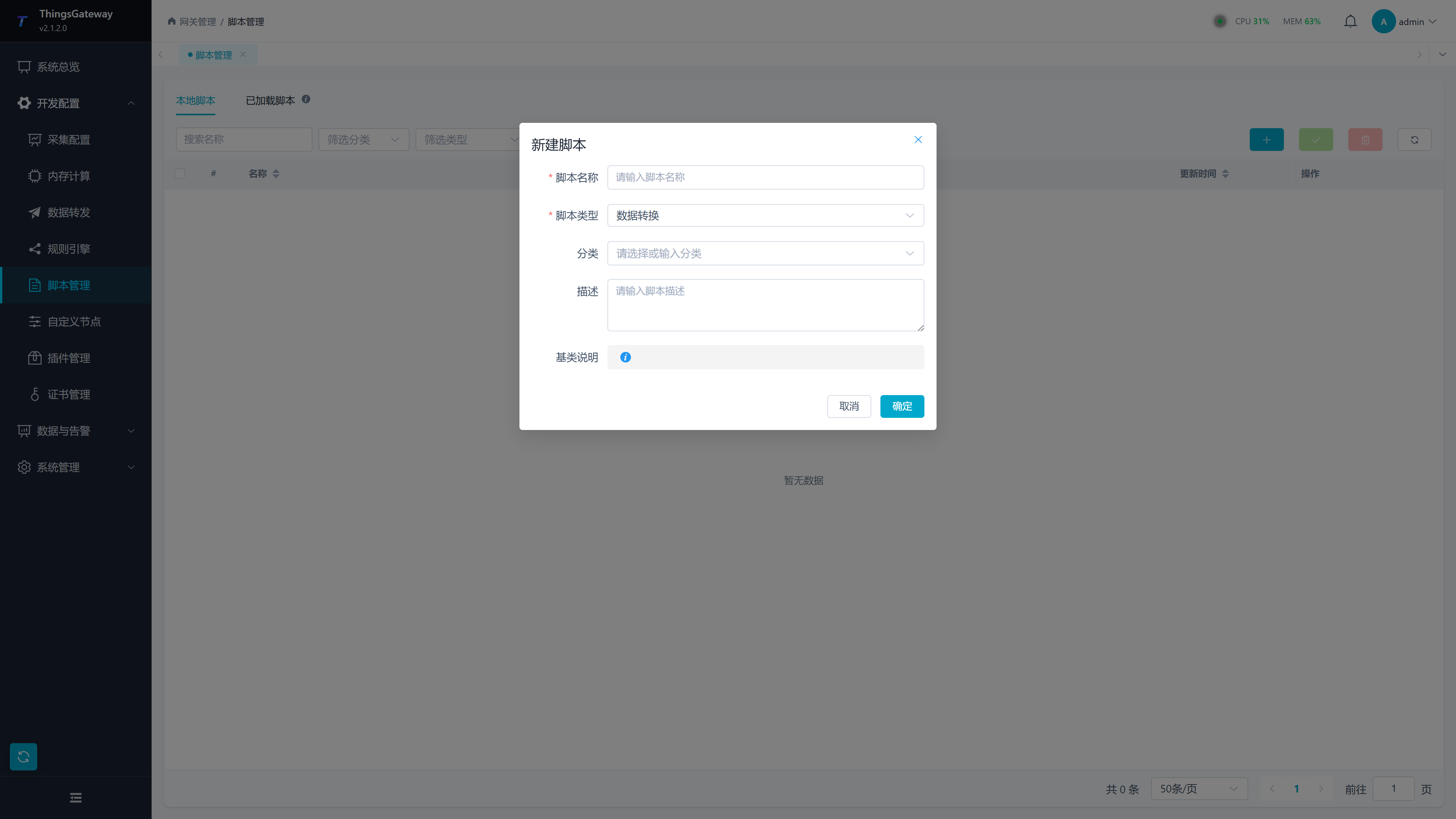
Click the 'Add Script' button in the top right corner of the list to open the "New Script" popup.
| Configuration Items | Description |
|---|---|
| Script Name | Required. It is recommended to use English, numbers, and underscores. After saving names, they will be referenced by variables, rules, data forwarding, or RPC configurations, so frequent modifications are not recommended. |
| Script Type | Required. After selecting, a corresponding writing prompt will appear at the bottom of the pop-up window. |
| Classification | Optional. You can select an existing category or directly enter a new category. |
| Description | optional. Record script usage, citation locations, and maintenance precautions. |
| Type Description | Read-only prompt explaining the purpose and writing requirements of the current script type. |
After clicking "OK," the system will create a script and automatically enter the script editor.
Script Type
| Type | Applicable Scenarios |
|---|---|
| Data Conversion | Perform unit conversion, formatting, range mapping, or state transformation on the original values of collected variables. |
| Memory Variables | Compute memory variables, which can be read from other variables to generate derived results. |
| Dynamic Model - Variable Data | Converts variable data into custom upload objects. |
| Dynamic Model - Device Data | Converts device status into a custom upload object. |
| Dynamic Model - Alarm Variable | Transforms alarm data into a custom upload object. |
| Dynamic Model - Plugin Event | Converts plugin event into a custom upload object. |
| Dynamic SQL-* | Custom relational storage by entity type; history alarm storage uses the alarm-data type. |
| Time-Series History Script | Custom QuestDB, TDengine, or IoTDB history schema and storage, mutually exclusive with custom SQL. |
| MQTT RPC | processes MQTT RPC messages, suitable for write scenarios where message parsing and organizing responses as agreed on the site are required. |
| Complete Code | Write complete C# code suitable for advanced extensions. Before use, confirm the compilation requirements and operational impact. |
Script Editor
The Script Editor includes the top operation bar, code editing area, and bottom information panel.
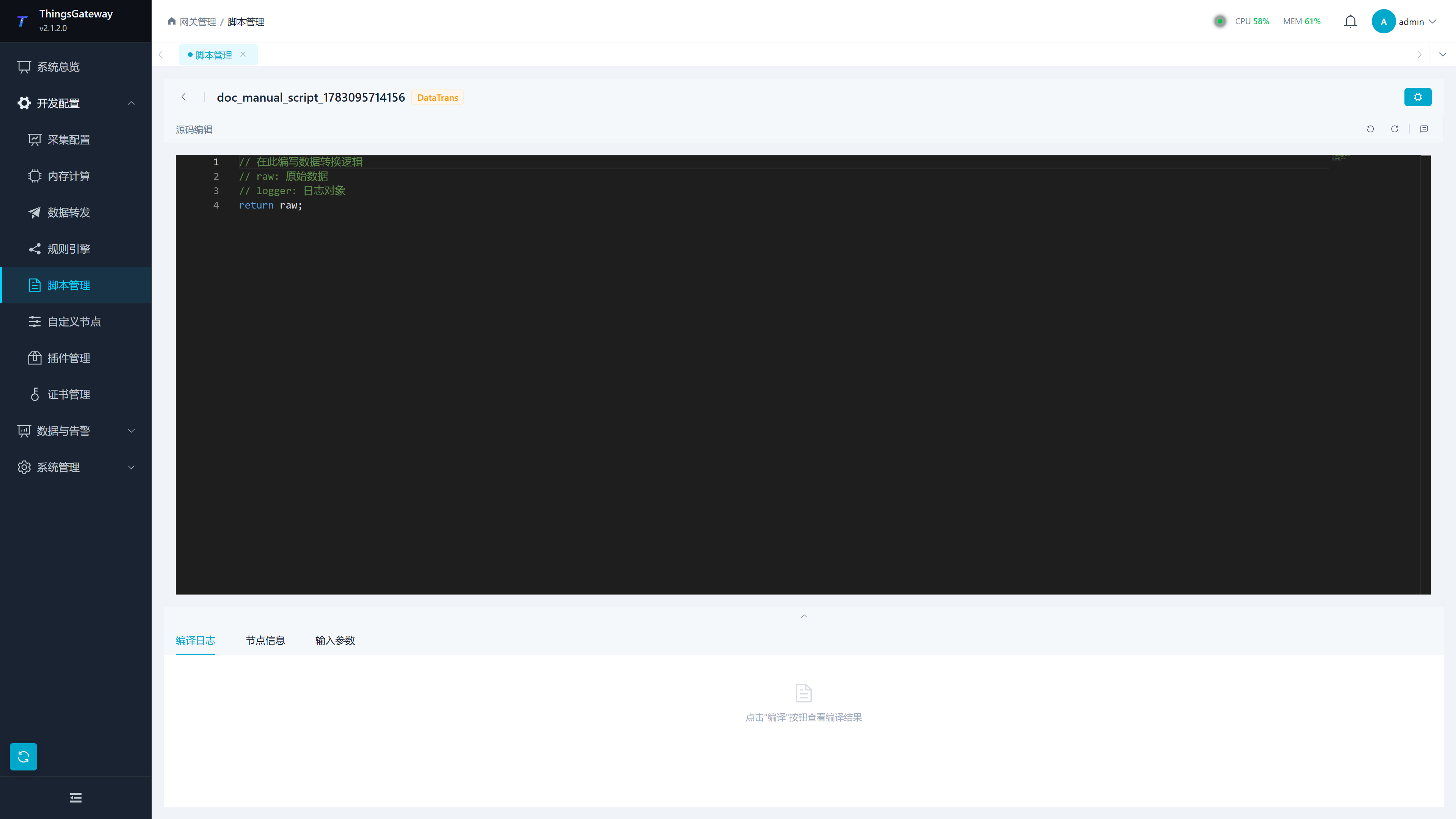
| Area | Description |
|---|---|
| Back Button | Return to Script List. Unsaved content should be compiled and saved first. |
| Script Name Tag | Displays the current script name, classification, and script type. |
| Compile and Save | Top-right action. Compile and load the result, then save the current source and parameters. |
| Code editing | Maintains C# code, supporting syntax highlighting, undo, redo, and comment switching. |
| Bottom panel | contains tabs for "Compilation," "Node Information," and "Input Parameters." |
Bottom tab
| tab | Description |
|---|---|
| Compilation log | Displays compilation process, errors, warnings, and success information. Clicking on errors or warnings can locate the corresponding code location. |
| Node information | Maintenance script names and categories. After modification, compilation and saving are required for persistence. |
| Input parameters | Only the types "Data Transformation" and "Memory Variable" are displayed. Used to define configurable parameters. |
Enter parameter field
| field | Description |
|---|---|
| Parameter name | Parameter identifier, read by this name in the script. |
| Data type | Parameter value type. For numbers, select integer or decimal type; for switches, select boolean type; for text, select string; for time, select date and time; It should match the actual input values in the script. |
| Initial value | C# initialization expression in the script definition. Consumer arguments are separate JSON values. |
| Description | Parameter usage description for easier subsequent maintenance. |
Definition defaults and binding arguments
| Type | Definition default | Consumer argument |
|---|---|---|
| Int32/Int64/Byte | C# numeric expression within range. | JSON number within range. |
| Float/Double/Decimal | C# expression, for example Decimal 19.95m. | JSON number 19.95, without a C# suffix. |
| Boolean | true or false. | JSON Boolean. |
| String | C# string such as "Alpha". | Quoted JSON string. |
| DateTime | Explicit-zone C# date expression. | ISO JSON string such as "2026-10-11T00:00:00Z". |
| Object | Appropriate C# initializer. | JSON object, array, or scalar consumed by the script. |
Explicit arguments override defaults. Empty text is not JSON null or a default argument. For a calculated sum of 40, Scale 0.5 should yield 20, then 2 should yield 80. Changing only argument values needs no recompilation; verify saving and the next execution. Renaming/adding/removing parameters requires code changes and compilation, then clear/reselect the binding to populate current keys.
Completion, documentation, and diagnostics
Undo, redo, formatting, and Compile and Save are grouped in the top row. Roslyn connection settings are hidden by default; expand Roslyn Service to view them. The default address is https://roslyn.thingsgateway.cn, and a self-hosted Studio can also be used.
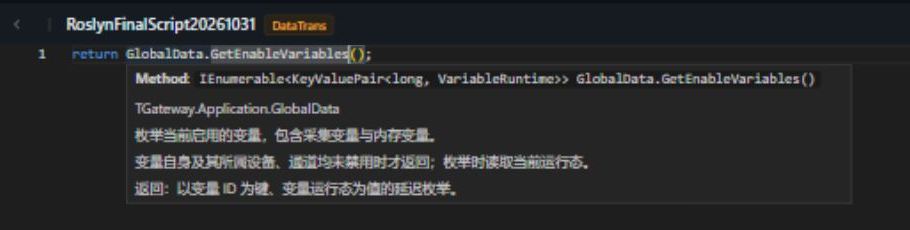
Type GlobalData. or press Ctrl+Space for gateway members. Members declared in the current user source also participate in completion. Hover over GlobalData.GetEnableVariables() to read its XML summary, remarks, and return documentation. See Code Completion, Documentation, and Diagnostics for connections, user-method comments, and signature help.
Verify a revised script
Compilation, registration, consumer binding, and execution are separate steps. A consumer can retain an earlier script instance after same-name compilation. Save/reload the referencing variable or target and test two inputs that distinguish the formulas. Check every consumer in the maintenance scope. Compilable code can still fail on runtime conversion or input errors. AOT runtimes cannot dynamically load these scripts; use a runtime package supporting dynamic loading.
Compile and maintain
An existing script keeps its saved type during compilation. To use another type, create a script with the required type and update its consumers.
Compilation Log
After clicking "Compile and Save" at the top, the "Compilation Log" tab at the bottom will display the complete process.
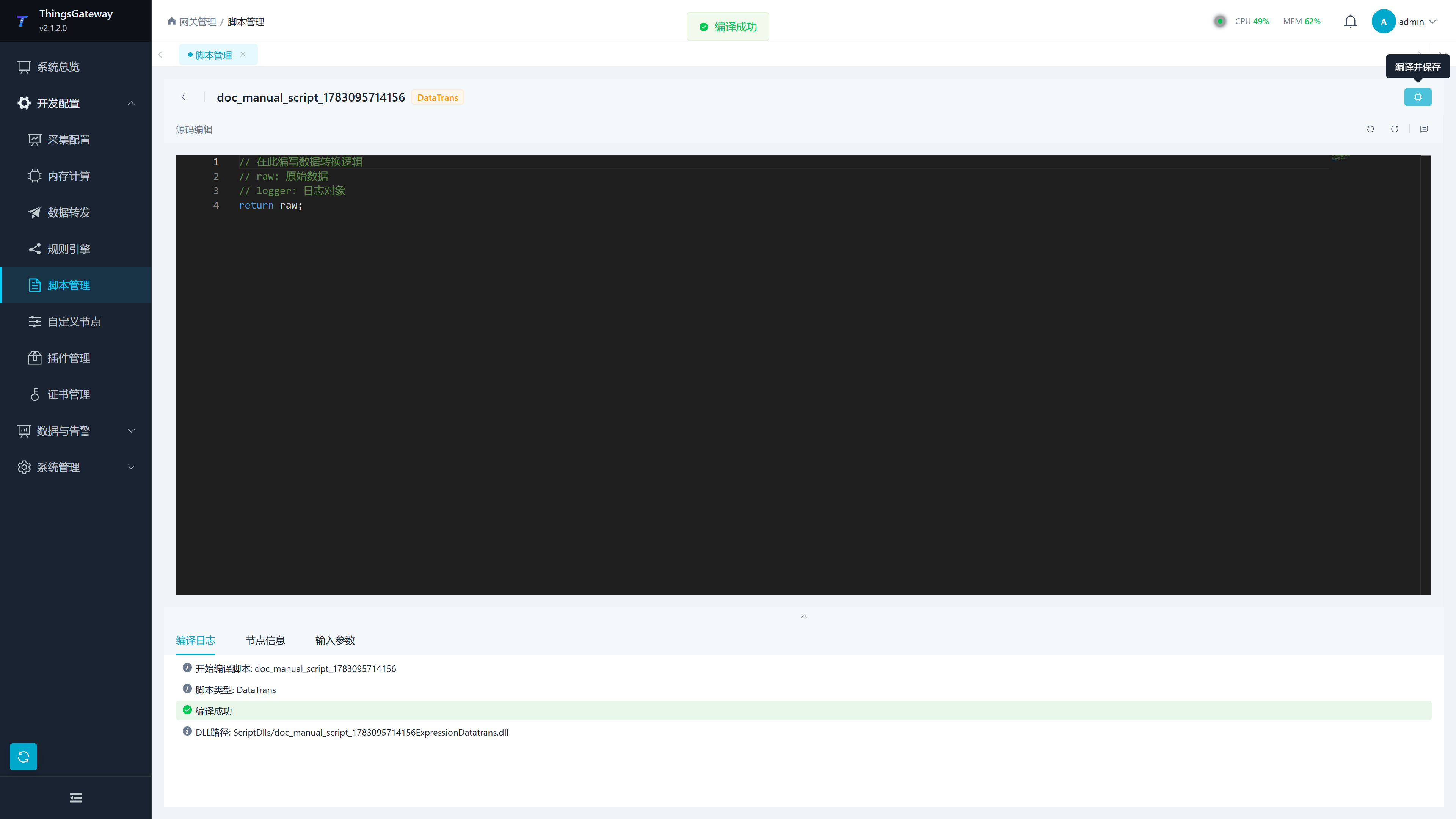
| Log Entries | Description |
|---|---|
| Start Compiling Scripts | Mark the start of this compilation and display the script name. |
| Script Type | Displays the current expression type, such as "Data Transformation". |
| Compilation successful | means the script has been compiled. |
| Compilation Output | Displays compiled output information for on-site troubleshooting of loading issues. |
| Error/Warning Statistics | The number of errors and warnings is displayed on the right side of the bottom panel. |
If compilation fails, the red error should be handled first; Warnings do not necessarily prevent compilation, but it is recommended to address them before going live.
Compile and Save validates and loads the compiled result before saving the current source and parameters. Failed compilation or loading preserves the previous published files and registrations; the failed source does not replace the saved source through this action. Keep the draft and correct the diagnostics. If publication succeeds but saving fails, keep the editor content, resolve the storage error, resubmit, and reopen to check saved source. Runtime publication and database saving have separate outcomes.
Common Operations
| Operations | Steps |
|---|---|
| Edit Script | Click "Edit" in the list, enter the editor, modify code or parameters, then click "Compile and Save". |
| Single Compilation | Click "Compile" in the list, which is suitable for quickly verifying whether existing scripts can still be compiled. |
| Batch Compilation | Check multiple scripts and click the Batch Compilation button on the toolbar. Commonly used for unified verification after upgrades. |
| Delete the script | Click "Delete" and confirm. Before deletion, confirm that the script is no longer referenced in variables, data forwarding, MQTT RPC, or rules. |
| View Loaded Scripts | Switch to the "Loaded Scripts" tab to confirm the currently available expressions at runtime. |
Use Note:
| Scenarios | Recommended |
|---|---|
| Script Naming | Use stable naming and avoid frequent renaming. Variables, rules, data forwarding, and RPC configurations may be referenced by script name. |
| Production modification | Before modifying the production environment script, export the configuration or record the original script content. |
| Compilation failure | Check the first error in the compilation log; usually, subsequent errors are chain results. |
| The loaded list is empty | First confirm that the script has been successfully compiled, then refresh the "Loaded Scripts" tab. |
| AOT runtime | Does not support dynamically loading these scripts. Use a Runtime package that supports dynamic code loading for Web script compilation and use. |