Custom Node Types
Custom node types are used to extend the orchestrated nodes of the rule engine. Users create nodes, maintain processing logic, and define parameters; after successful compilation, they can be dragged into the rule flow for use.
Before creating a node
First, look at the terminology
| Terminology | On-site understanding |
|---|---|
| Custom node type | Custom rule function blocks for on-site or project purposes can be dragged into the rule flow after successful compilation. |
| Node instance | The node actually dragged into a rule flow canvas and used node. It references a node type. |
| Input parameters | Data passed from upstream nodes to the current node. |
| Output parameters | Data passed to downstream nodes after processing by the current node. |
| Input/Output Parameters | Can receive upstream data and continue to pass data after modifications within the node. |
| Compile | Builds the node code and parameter definitions. Check registration and reload the consuming flow before verifying the new behavior. |
| Classification | Grouped nodes in the rule node panel for quick on-site search. |
Page Entry
After logging into TGateway Web, click the "Develop Configuration → Custom Node" menu on the left.
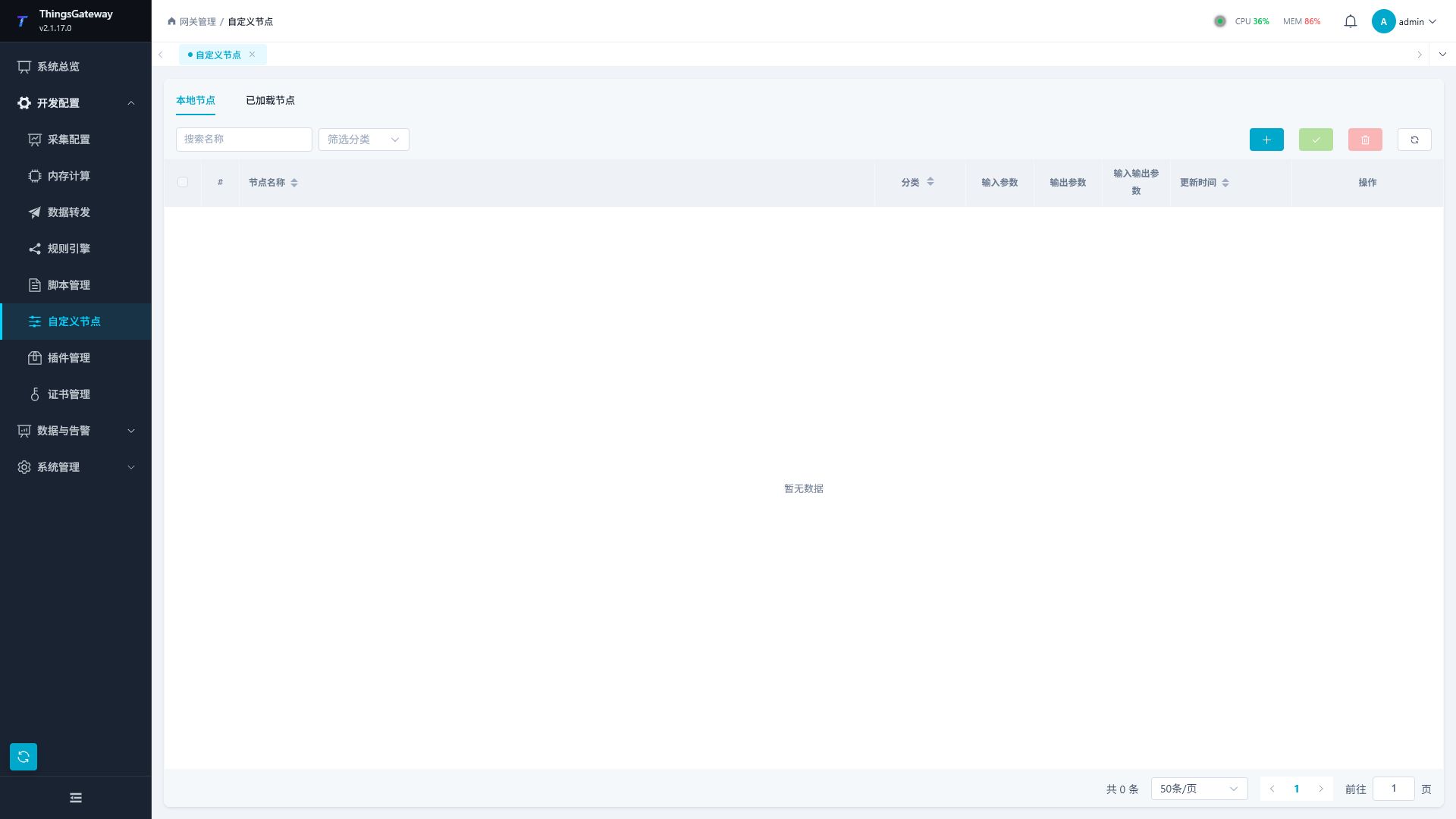
Configure and compile the node
Page Structure
| Area | Description |
|---|---|
| Local nodes | Manage saved custom node types, supporting addition, editing, compilation, deletion, and batch operations. |
| Loaded nodes | View the types of nodes already available in the rule flow, suitable for confirming whether the compilation result is effective. |
| Name Search | Filter by node name. |
| Filter by category | Filter by node classification. |
| Tool buttons | Order: Add, batch compile, batch delete, and refresh; For batch operations, you need to check the node first. |
List Field
| Field | Description |
|---|---|
| Node Name | Node Type Name, which is used in the rule flow to find and use this name. |
| Classification | Node classification makes it easier to organize nodes during rule orchestration. |
| Input Parameters | Number of input parameters defined by the current node. |
| Output parameters | Number of output parameters defined by the current node. |
| Input/Output Parameters | The number of parameters that can be both input and output. |
| Update Time | Last saved or compiled time. |
| Operations | Edit, compile, or delete the current node. |
Create a new node
Click the 'Add Node' button at the top right of the list to open the "New Custom Node" pop-up.
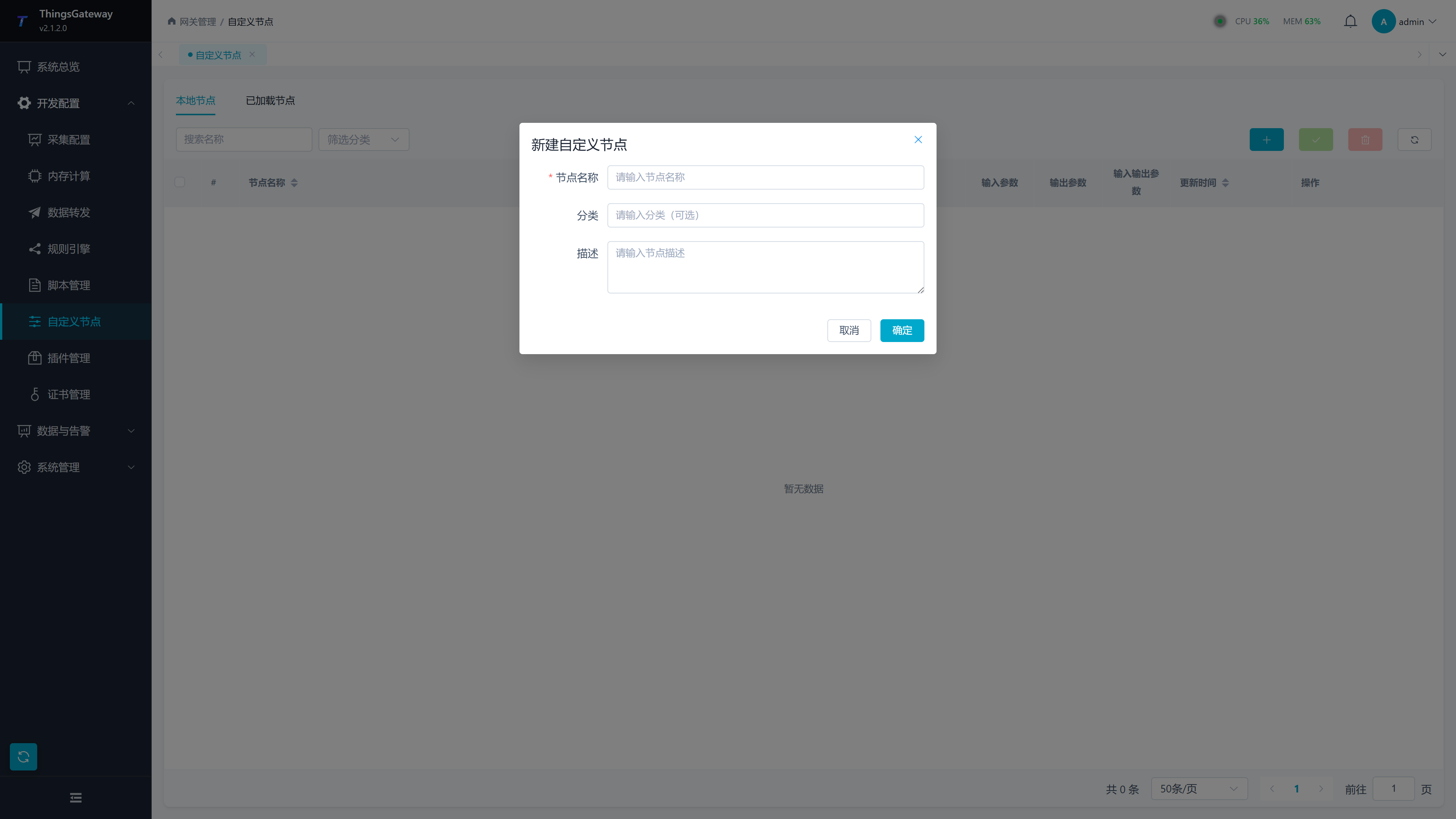
| Configuration Items | Description |
|---|---|
| Node Name | Required. It is recommended to use English, numbers, and underlines to keep the rule flow references stable. |
| Classification | Optional. Used to organize nodes by business or processing type. |
| Description | optional. Record node usage, input/output agreements, and maintenance precautions. |
After clicking "OK," the system will create a node and automatically enter the node editor.
Node Editor
The node editor includes the top operation bar, code editing area, and bottom information panel.
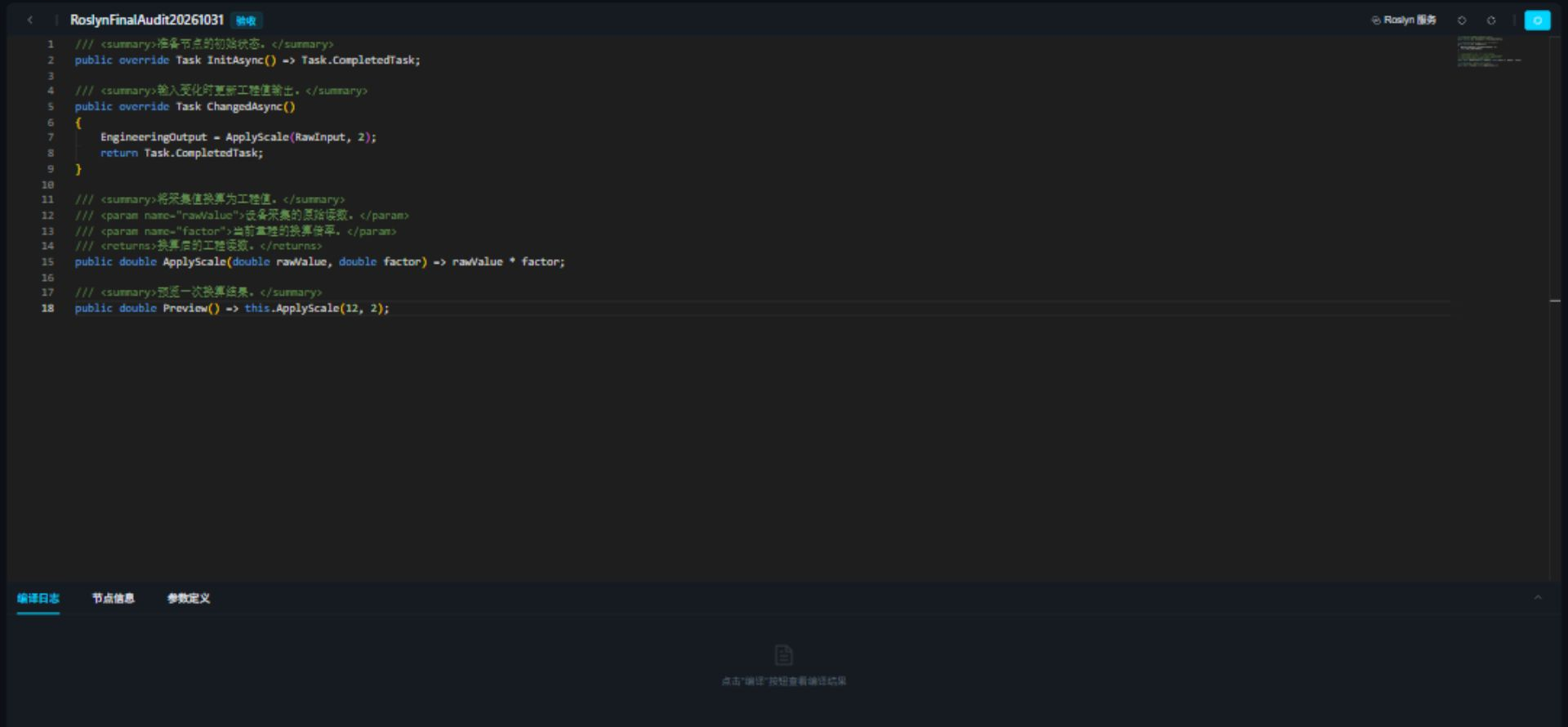
| Area | Description |
|---|---|
| Back Button | Returns a custom node list. |
| Node Name Tag | Displays the current node name and classification. |
| Top toolbar | Roslyn Service, undo, redo, and compilation share one row. Connection settings are hidden by default; click Roslyn Service to expand or collapse them. |
| Compile and Save | Top-right action that saves node information and logic before compiling. |
| Code editing | Maintaining node processing logic. |
| Bottom panel | contains the "Compilation" tabs, "Node Information," and "Parameter Definitions." |
Type this. to complete user methods, fields, and generated parameter properties in the node. Signature help follows the call's parentheses and commas. Add /// XML comments to describe methods, fields, and properties in suggestions and hover. The default service is https://roslyn.thingsgateway.cn; a self-hosted Studio is also supported. See Code Completion, Documentation, and Diagnostics.
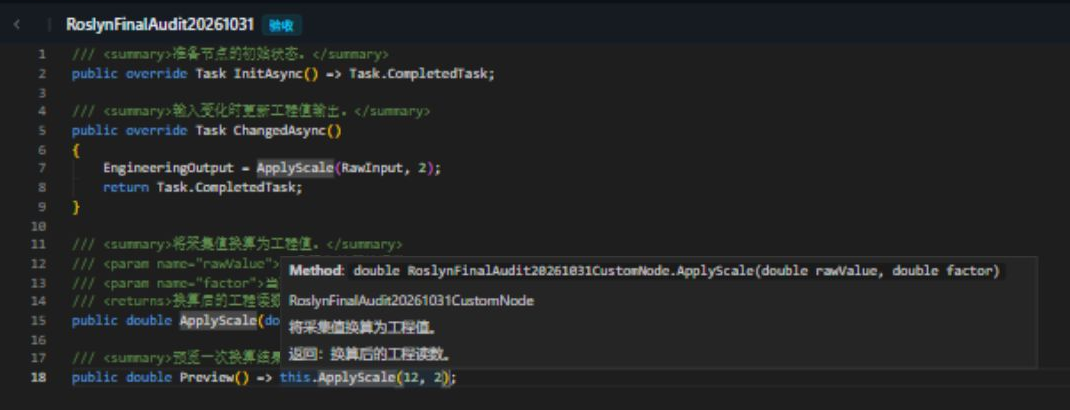
Node Information
The "Node Information" tab is used to maintain basic information.
| Fields | Description |
|---|---|
| Node Name | Node Display and Reference Name. After modification, you need to compile and save. |
| Classification | Node classification. |
| Description | Node purpose, input/output contract, and maintenance notes. |
Parameter Definition
The "Parameter Definition" tab maintains three types of parameters: input, output, and input/output. Parameter definitions affect node connections and data transfer in the rule flow.
| Parameter Type | Description |
|---|---|
| Input Parameter | Passed from the upstream node and read internally by the node. |
| Output parameters | Processed by nodes and output for downstream nodes. |
| Input/Output Parameters | Serves as both input and output, suitable for values that need to be passed after internal node modification. |
| Parameter field | Description |
|---|---|
| Parameter name | Parameter identifier, It is recommended to use clear English or pinyin for the name. |
| Data Type | Parameter Value Type. For numbers, select integer or decimal type; for switches, select boolean type; for text, select strings; and when passing structured content, select object type. |
| Description | Parameter Usage Description. |
The Web editor offers Int16, Int32, Int64, UInt16, UInt32, UInt64, Byte, Float, Double, Decimal, Boolean, String, Object, and DateTime. Define the type separately for each input, output, and input/output port. Renaming a parameter also requires updating its code references and every consuming flow.
Initial Value Expression is C#, for example Decimal 1m + 1m. An explicit instance input or upstream connection overrides that starting value. Validate integer ranges, use an explicit timezone for dates, and preserve object structure. Event parameters have no state initial value.
Compilation Log
After clicking "Compile and Save" at the top, the "Compilation Log" at the bottom will display the saving and compilation process.
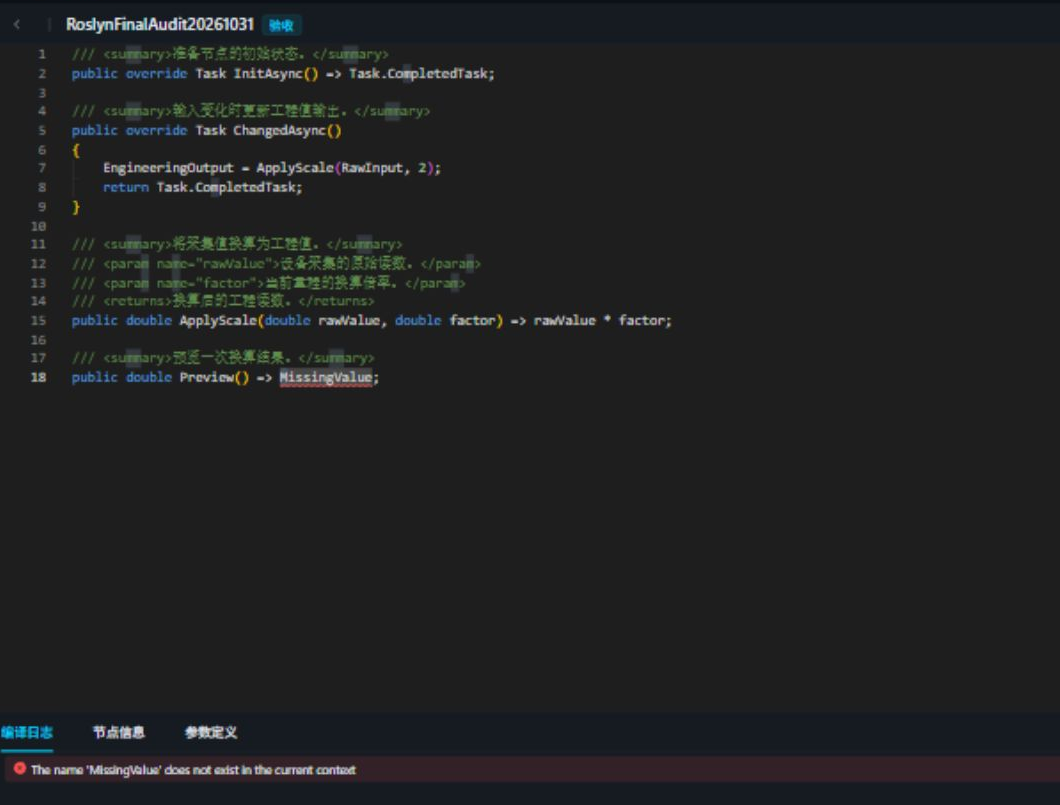
| Log entries | Description: |
|---|---|
| Saving nodes | Save current node information, code, and parameter definitions before compilation. |
| Node saves successfully | Compilation begins after successful save. |
| Compilation successful | Custom node code is compiled. |
| Output | Displays compiled output information for easy troubleshooting of loading issues. |
| Error/Warning Statistics | The right side of the bottom panel displays the current number of errors and warnings. |
When a compilation error occurs, first handle the first red error; Click the error item to locate the corresponding code location.
Node saved successfully means the draft source and parameters were stored; compilation can still fail afterward. Reopening retains that draft. Failed output does not replace the previous published node files or registration. Correct the code, compile again, check Loaded Nodes, and reload and verify flows using the type as described below.
If another editor has changed the node, preserve your draft before reading the current revision and comparing changes. Do not overwrite another maintainer's update.
Common Operations
| Operations | Steps |
|---|---|
| Edit Nodes | Click "Edit" in the list to enter the editor for maintaining code, node information, or parameter definitions. |
| Single Compilation | Click "Compile" in the list to verify whether the current node can compile. |
| Batch compile | After checking multiple nodes, click batch compile. Suitable for unified verification after upgrades. |
| Delete the node | Click "Delete" and confirm. Before deletion, confirm that the rule flow no longer references this node. |
| View Loaded Nodes | Switch to "Loaded Nodes" to confirm that nodes are registered at runtime. |
Verify node behavior
Initial values, state, and event ports
The Web editor generates parameter properties. Do not redeclare them or wrap its member code in another complete class. Use the full-source entry for complete C# node classes and follow Custom Node Development.
Inputs receive upstream values; without a connection use the instance input. State outputs propagate only when their value changes by default. Event ports represent occurrences and can propagate equal payloads repeatedly; do not enter state initial values for event parameters. For inputs 10.1 and 10.2 both rounded to 10, a state receiver may run once while an event receiver runs twice. Check execution and downstream counts.
Verify a revised node
- Compile/save and check name, category, and port types in Loaded Nodes.
- Use a disabled test flow with scoped input, numeric extraction, this node, and a downstream receiver. For gain
2and offset5, verify10 → 25and20 → 45. - After same-name recompilation, existing flows can retain old instances. Save/reload the consumer and test an input distinguishing the formulas.
- Recheck every connection after parameter changes. Disabling stops consumption; reenabling creates fresh state and counters unless persistence is explicitly designed.
- Remove all flow references before deletion. A disabled flow still contains references.
Compilation, registration, binding, and downstream feedback all require verification.
Usage Notes
| Scenarios | Recommended |
|---|---|
| Parameter Modification | After modifying parameters, the rule flow connection referencing the node should be checked simultaneously. |
| Category maintenance | Classification affects node search efficiency; it is recommended to classify by business domain or function type. |
| Compilation failure | First check the save log, then check the compilation diagnosis; If a save fails, the actual compile will not begin. |
| node does not appear in the rule | Confirm the node has been successfully compiled and refresh the rule engine page or reopen the flow editor. |
| Production deletion | Export or back up the rule flow before deleting to avoid leaving unresolved node references. |