Code completion, documentation, and diagnostics
The script and custom-node editors provide C# member completion, signature help, hover documentation, and diagnostics. The language service assists editing; Compile and Save on the target gateway and a business test determine whether the code works in that deployment.
Open an editor
Sign in to TGateway Web, open Development Configuration → Script Management or Development Configuration → Custom Nodes, and edit a record.
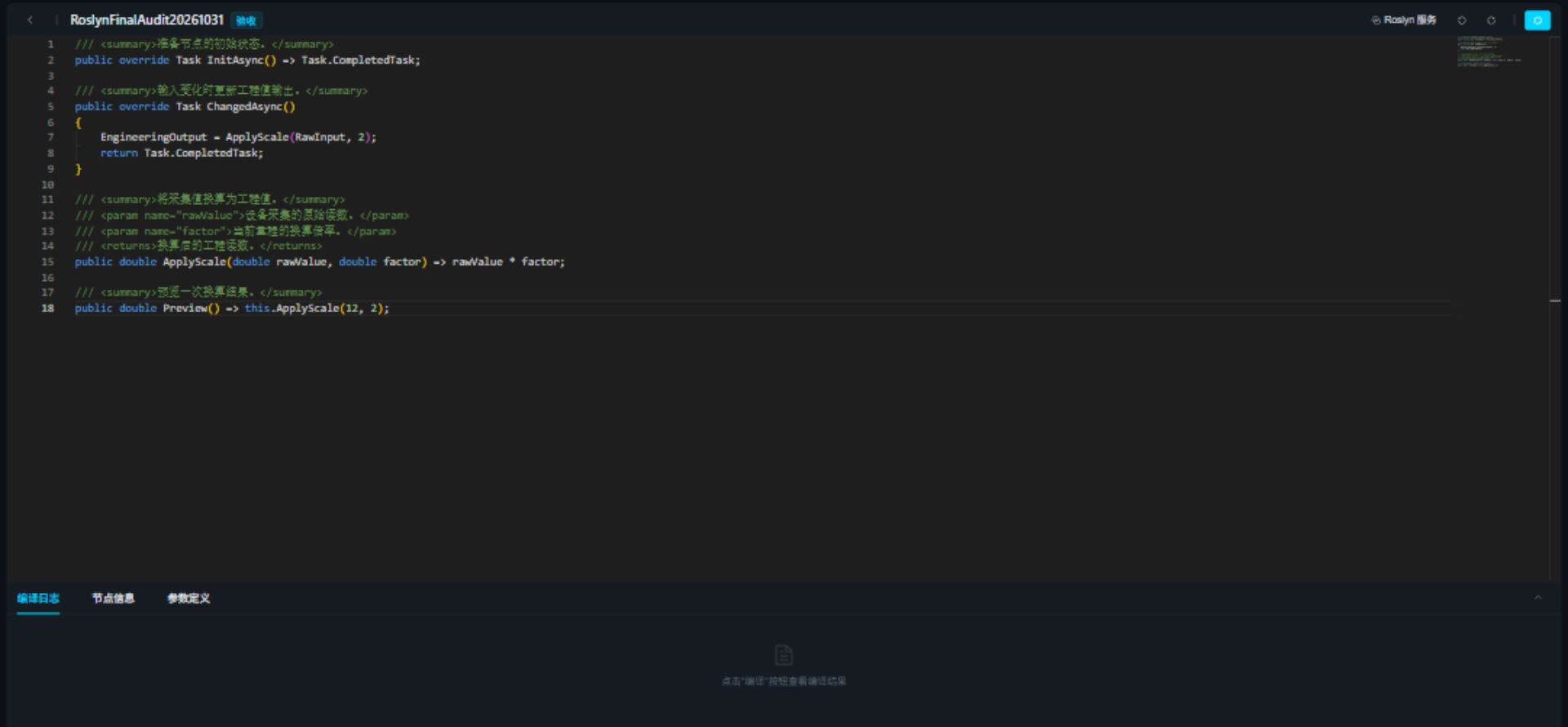
The top row groups Roslyn Service, undo, redo, and compilation actions. Connection settings are collapsed by default. Bottom tabs contain compilation logs, basic information, and parameters.
| Action | How to use it |
|---|---|
| Undo and redo | Use the top buttons or Ctrl+Z and Ctrl+Y. |
| Member completion | Type an object name and . or press Ctrl+Space at the caret. |
| Accept a suggestion | Select it with the arrow keys and press Enter or Tab, then complete the arguments and statement. |
| Suggestion documentation | Read the selected item's details; press Ctrl+Space again to expand or collapse them. |
| Signature help | Enter arguments inside a call; press Ctrl+Shift+Space to reopen the hint. |
| Hover documentation | Hover over a type, method, field, or property to read its signature and comments. |
| Compile and Save | Submit the current code and parameters, then check the editor's compilation log. |
Connect a language service
On first use, the editor connects to https://roslyn.thingsgateway.cn. Expand Roslyn Service to use a self-hosted Studio or troubleshoot the connection.
- Click Roslyn Service to show the connection row.
- Enter the service root, such as
http://192.168.10.20:5100. Do not append/api/completion. - Click Connect and wait for Available. Editing the address alone does not apply it.
- Use Restore Default to return to the official address. Click the top button again to collapse the row.

| Setting or state | Meaning |
|---|---|
| Service address | HTTP, HTTPS, and reverse-proxy path prefixes are supported. Do not include credentials, query parameters, or fragments. |
| Available | The address returned a valid service check. Continue by testing completion and analysis. |
| Unavailable | Check the displayed timeout, network, or HTTP reason. The active editor retries automatically; manual connection is also available. |
| Saved address | Stored for this website in the current browser. Check it again after changing browser, domain, or port. |
The browser contacts this address directly. localhost and 127.0.0.1 mean the computer displaying the page. Remote users need an address reachable from their own computer. Use an HTTPS language service with an HTTPS gateway page to avoid mixed-content blocking.
Analysis sends the current source code and required parameter definitions to that service. To keep source processing on an internal network, get the Studio image and startup command from Downloads, deploy your service, and connect to that address.
You can keep editing and submit formal compilation to the gateway while the language service is unavailable. This address does not change the gateway management address or where scripts and nodes run.
Complete gateway members
In a Data Conversion script, enter:
return GlobalData.
Wait for suggestions, select GetEnableVariables, press Enter, and append ();.
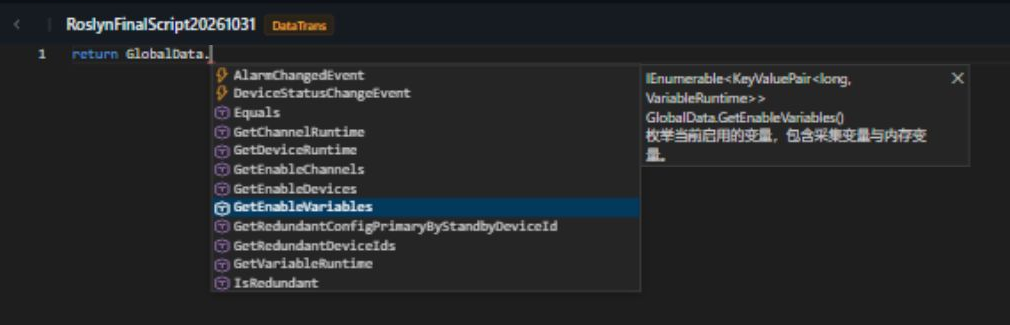
The completed statement is:
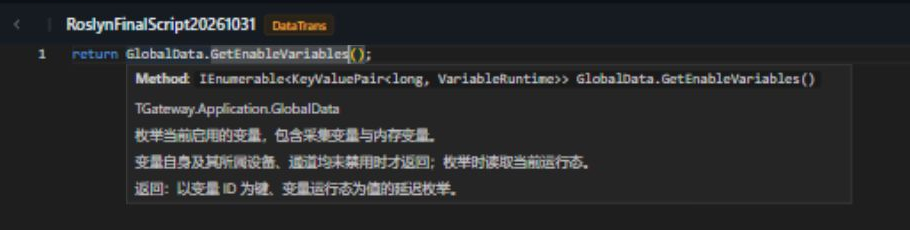
return GlobalData.GetEnableVariables();
This method enumerates enabled variables and returns pairs of variable IDs and runtime variables, rather than a single numeric value. Use it to practice completion; select or calculate a value matching the consumer's expected type before binding the script.
Hover over the method to view its summary, remarks, and return documentation.
Document user code with XML
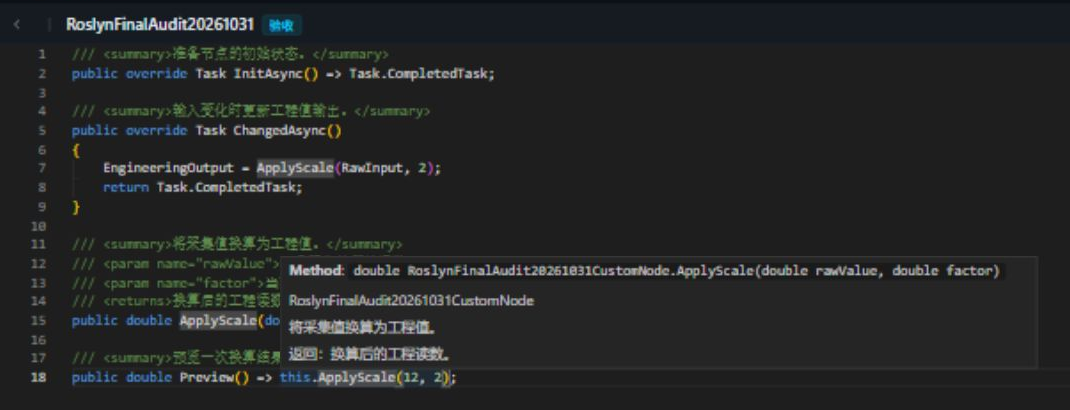
Completion also analyzes types, methods, fields, and properties declared in the current source. Add /// XML comments to show their documentation in suggestions, hover, and signature help. User methods do not need to become built-in gateway APIs first.
For example, add this class member in a custom-node editor. Do not paste a method declaration into a Data Conversion script that accepts calculation statements only.
/// <summary>将采集值换算为工程值。</summary>
/// <param name="rawValue">设备采集的原始读数。</param>
/// <param name="factor">当前量程的换算倍率。</param>
/// <returns>换算后的工程读数。</returns>
public double ApplyScale(double rawValue, double factor)
    => rawValue * factor;
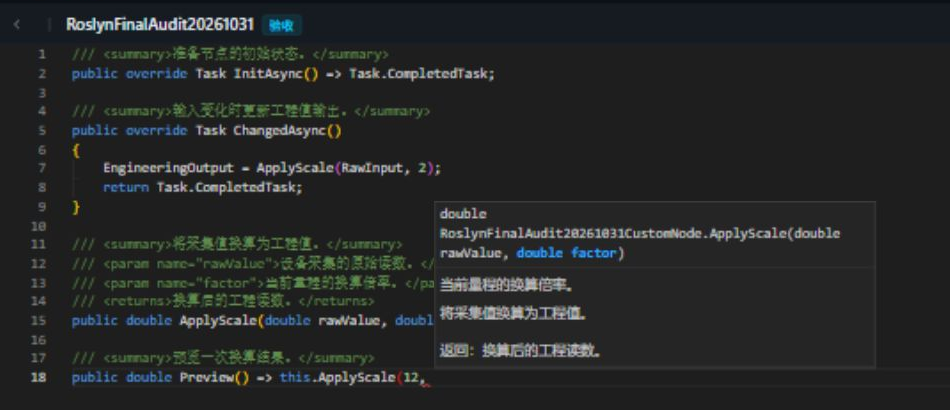
- In another method of the same node, type
Apply, open completion, and selectApplyScale. - Read the method description, accept the suggestion, and continue entering the call.
- At
ApplyScale(12,, check thatfactoris the active parameter and its description is displayed.
| XML tag | Recommended content |
|---|---|
summary | Purpose, inputs, outputs, and business meaning. |
param | Parameter meaning, units, or range; name must match the parameter. |
returns | Meaning of the return value. |
remarks | Applicable conditions, timing, or other necessary details. |
value | Meaning of a property value. |
Documentation for external assemblies requires their matching XML files alongside the DLLs on the service. If only a signature appears, check the member's comments and XML file, then use a service with matching reference versions. Project-specific references must be available to the Studio managing that project; a remote service does not automatically have private field assemblies.
Navigate and fix diagnostics
Analysis marks syntax and type errors in the current draft. Open Compilation Log at the bottom and click an error to select its source position.
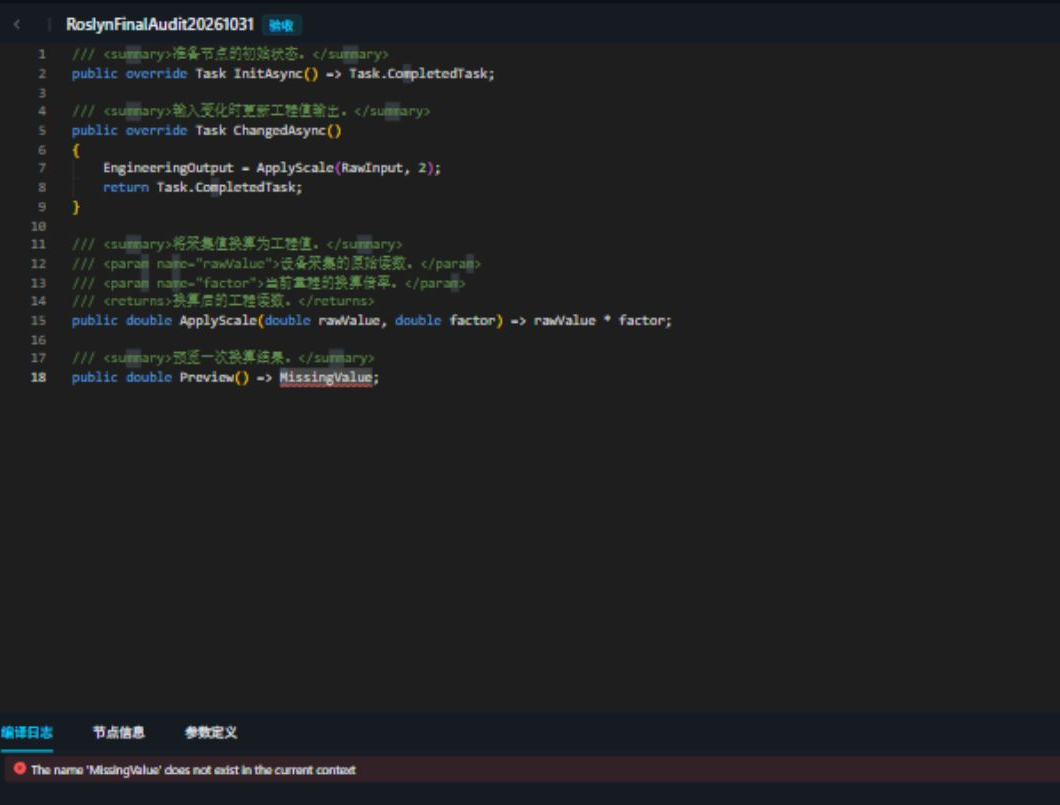
- Fix the first error and check the indicated name, argument type, or missing symbol.
- Wait for diagnostics to update. An incomplete statement can temporarily produce errors.
- Click Compile and Save and check compilation, loading, and saving results.
- Verify outputs with real inputs in the consuming configuration. Clean diagnostics do not prove the business logic is correct.
Scripts save the current source after successful compilation and loading. Nodes save a draft first, then compile that saved revision. A node's successful save followed by failed compilation does not activate the new code. See Script Management and Custom Node Types.
Troubleshooting
| Symptom | Action |
|---|---|
No suggestions after GlobalData. | Check service availability, then press Ctrl+Space after the dot. If needed, check browser connectivity and CORS responses. |
| User method is missing | Check its declaration, scope, source form for the script type, and preceding syntax errors. |
| Only a signature appears | Check XML comments. External assemblies also require matching XML documentation and reference versions. |
| Parameter documentation does not match | Check the overload, caret position, and param name; reopen signature help if necessary. |
| HTTP 200 but the browser reports CORS errors | Check allowed-origin headers and OPTIONS preflight. A proxy's HTML page is not a valid service response. See browser CORS. |
| Analysis passes but compilation fails | Use the target gateway's compilation log and verify the script type, parameters, and assembly versions. |
| No automatic using fix | Method-body and node-member snippets do not provide file-level using fixes. Add namespaces in the source form supported by the script, then compile again. |