Import, Export, Copy, and Batch Configuration
Batch operations support similar devices, point lists, and shared configuration changes. Export the original configuration from Development Configuration → Collection Configuration first and define the intended scope.
Prepare an exported workbook
Choose the export scope
| Operation | Contents and purpose |
|---|---|
| Current collection configuration | Variables matching the current device, name, address, quality, page, and page-size filters, plus their related devices, channels, and plugin properties. Use for a limited edit. |
| Export all collection configuration | The whole project's collection configuration, including empty channels not referenced by variables. Use for backups and delivery. |
| Data Query export | Queried data records, subject to the rules in Data Query. This is not a configuration workbook. |
With 1000 variables and 50 rows per page, exporting the current page returns its 50 variables. A different page exports a different set. Use the explicit full-export action for a complete backup.
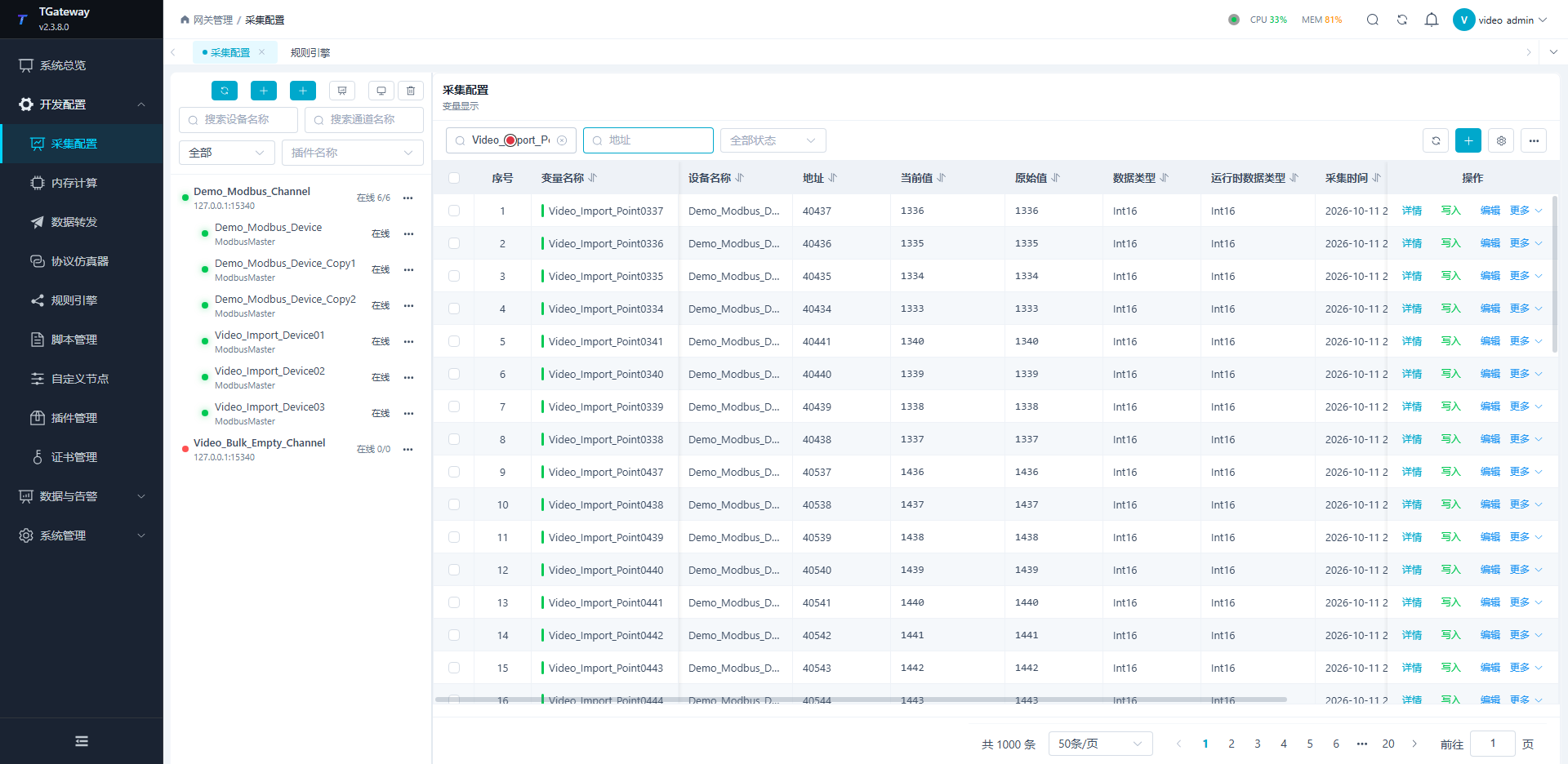
Preserve workbook relationships
- Export a working device from the current software version and use that workbook as the template.
- Keep worksheets, headers, and type names. Edit only the required names, associations, addresses, and business fields.
- Check each device's channel and the device names referenced by plugin properties and variables.
- Import a small sample, inspect every worksheet result, and verify collection before importing the full list.
Selecting a file starts submission immediately. There is no shared preview-and-confirm stage. Check names, associations, and control permissions before selecting it.
| Worksheet contents | Relationship to check |
|---|---|
| Channels | Names and transport settings referenced by devices. |
| Devices | Channel names and device settings. |
| Plugin properties | Device names and fields specific to each plugin. |
| Variables | Device/name, address, type, permissions, unit, and expressions. |
A successful device sheet does not establish success for plugin properties or variables. Keep the template's name-based associations rather than adding database IDs. To append only variables to an existing device, retain the other sheet headers and clear their data rows. Identify columns by name, not a fixed position.
Import and batch editing
Add by new name or update by existing name
New device or variable names create objects; existing names update their corresponding configuration. Import adds or updates objects; leaving an existing object out of the workbook does not delete it. A partial workbook is not a complete project restore.
- Keep an unmodified export before updating points.
- Change only the intended fields while preserving names and relationships.
- Select the file once and inspect per-sheet counts and failed rows.
- Refresh and verify totals. An update should not unexpectedly create copies.
- Reopen the configuration and verify saved fields, then check new samples from any changed address.
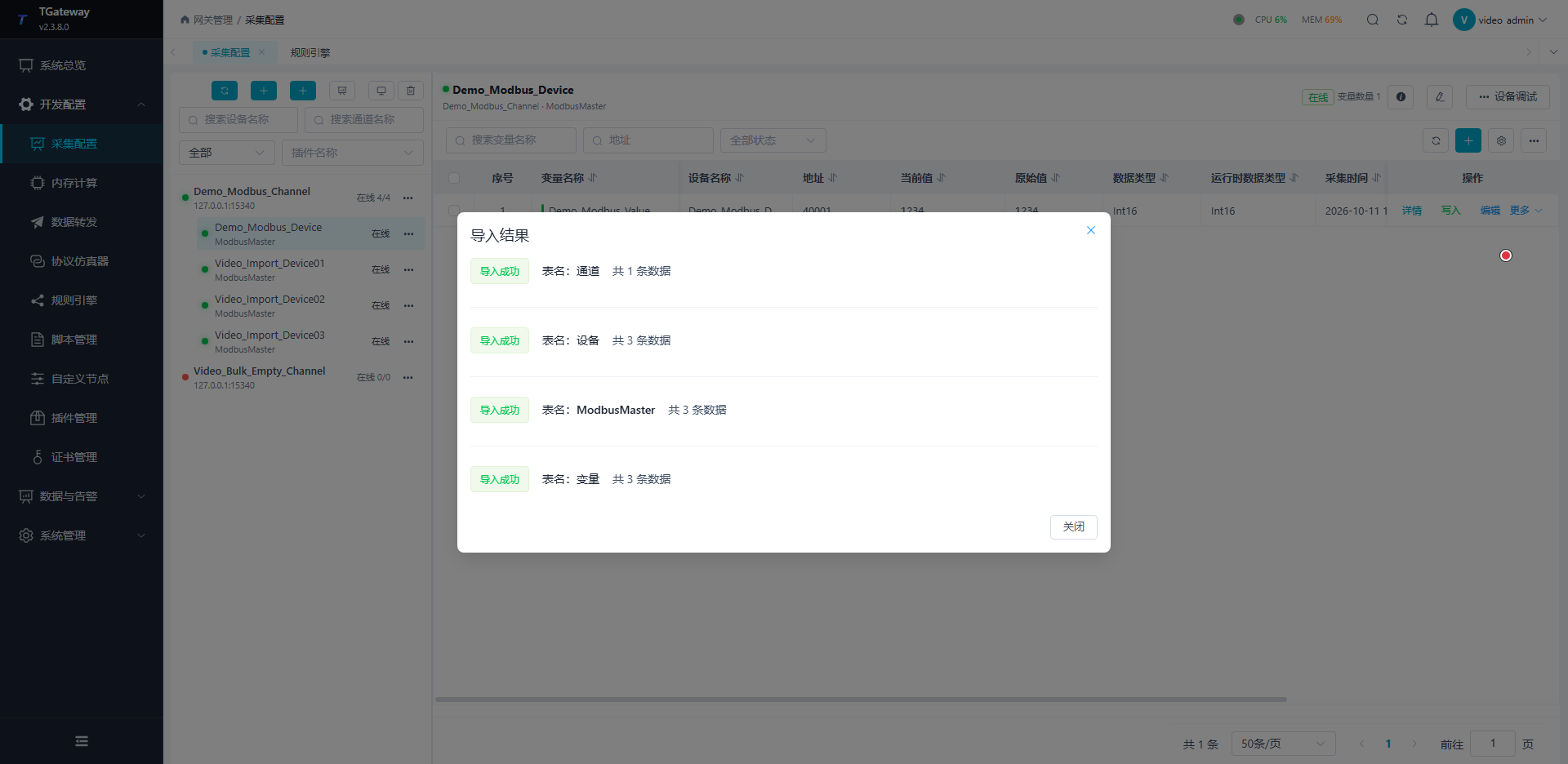
Channels, devices, and variables are processed in dependency order. An earlier error can leave later stages unexecuted, while a later failure does not roll back earlier successful saves. Distinguish omitted, failed, and successful worksheet results.
Misspelled names, spaces, or wrong associations can reject individual rows. Check objects already accepted before resubmitting corrections.
Copy and batch edit
| Operation | Check afterward |
|---|---|
| Copy variable | The copy has its own identity. Change its name and address as required; copies can otherwise read the same register. |
| Copy device | Child variables are included. Check every copy's channel, station, protocol properties, and addresses. |
| Batch edit variables | Confirm selected rows and edit only intended fields. Cancel does not submit. Check selected rows and an unselected control row after saving. |
| Batch edit devices | Uses the common fields actually offered by the dialog. Do not assume dynamic plugin properties can be edited in bulk; check station addresses and other specific options per device. |
| Batch edit channels | Check all referencing devices. Disabling a channel affects their collection. |
Copy count means additional copies; the original remains. Copies inherit the settings at copy time. Later changes to the original do not propagate, and each copied device owns independent child variables.
Verify a large point list
- Establish the target channel/device and verify one point.
- Use unique names and correctly incremented addresses in the current template.
- Check totals and every worksheet error; page one only shows its own records.
- Check first, middle, and last points for addresses, real values, and new sample times.
- Check name, address, and quality filters, then archive a full export.
For Modbus Int16, one element occupies one register, so addresses can increment from 40101 by one. Wider types such as Float need the appropriate span. Incrementing names does not increment addresses. A deliberately invalid association in an isolated sample can verify rejection; confirm totals before importing the corrected file.
Changing units or descriptions does not convert source values. Old values can remain after disabling; wait for new online samples after enabling again.
Troubleshooting
| Symptom | Action |
|---|---|
| Only fifty exported rows | Check page size; use full export for a backup. |
| Devices imported but variables failed | Check device names, types, addresses, and reported rows. |
| Unexpected new objects | Check whether intended updates used new names. |
| Copies have identical readings | Check endpoints, station numbers, and addresses. |
| Unexpected disabled objects | Check selection, enable fields, and parent channel state; restore the verified configuration. |
See Collection Configuration, Collection Debugging, and Project Delivery.