ZeroMQCollectClient
ZeroMQ subscription reception, topic filtering and variable mapping collection driver
Open the plugin
Enter "Development Configuration → Collection Configuration", create a device and select "ZeroMQCollectClient" in "Collection Plugin".
Supported channels and data types
| Channel type | Pre-configuration check |
|---|---|
| Plugin built-in connection | Connection parameters are configured in the device dynamic properties and do not use public TCP, UDP or serial channel parameters. |
Optional data type: Object (determined by protocol node or payload)
Plugin properties
ZeroMQ Collection Client connects or binds a NetMQ socket directly and does not use ordinary TCP, UDP, or serial channel fields. Configure common timeout, retry, and data-format fields through Collection Configuration.
Connection configuration
| Setting | Description |
|---|---|
| Connection address | Default: tcp://127.0.0.1:5555; fill in: text input. Set the connection address used when establishing a connection. |
| Socket type | Default: 0; fill in: drop-down selection. Set the Socket type used when establishing a connection. |
| Binding mode | Default: No; fill in: switch. Controls whether the "bind mode" feature is enabled. |
Socket type options are Sub (subscribe to a publisher), Pull (receive from a Push peer), and Router (pair with Dealer and reply by identity). The default is Sub. When Binding mode is enabled this side binds; otherwise it connects. Only one side may bind the same endpoint.
Message configuration
| Setting | Description |
|---|---|
| Subscription topic prefix | Fill in: text input. Sets the subscription topic prefix used for message publishing or subscription. |
The prefix is used only in Sub mode when the socket is created. Variable Topics are added as subscriptions after a variable reload; Pull and Router ignore this field.
Capacity limit
| Setting | Description |
|---|---|
| High water mark | Default: 1000; Fill in: Numeric input. Limits the high water mark allowed for the current target runtime. |
The high-water mark limits the socket receive buffer; it is not a durable queue. When it is exceeded, ZeroMQ may drop older messages. The default check-and-clear interval is 60000 ms; variables with no message during that interval are marked offline.
Log diagnostics
| Setting | Description |
|---|---|
| Detailed log | Default: No; fill in: switch. When enabled, more detailed connection, template or sending and receiving logs are recorded. After troubleshooting is completed, it can be turned off to reduce the amount of logs. |
Caching and reliability
| Setting | Description |
|---|---|
| Check clearing time | Default: 60000; Fill in: Numeric input. Sets the check clear time used for cache, retry, or connection recovery. |
Address rules
- Variable address:
${zmq_topic};${payload_item};${Condition} - Topic: device/data
- Load example:
- {
- "Temperature": 25.6,
- "Humidity": 60.5,
- "Status": "Running"
- }
- For example, device/data;Temperature, the result is 25.6
- For example, device/data;Status;Condition name (the script determines that Temperature is greater than 20), and the result is "Running"
payload_itemsupports a dot-separated JSON property path such asdata.temperature; property names are matched case-sensitively.- Messages use two frames: Topic followed by a UTF-8 JSON Payload.
Routermessages also contain identity and empty delimiter frames; the plugin sends an empty reply automatically.
Special methods
| Method | Purpose | Parameters |
|---|---|---|
| SendDebugMessage | Send ZeroMQ debug message | topic=message topic, payload=message text |
Device debug
Enter "Development Configuration → Collection Configuration", select the current device and click "More Functions", then open "Debug".
Dedicated debugging page
The protocol debug page is used to view ZeroMQ subscription connections, topics, and receive status.
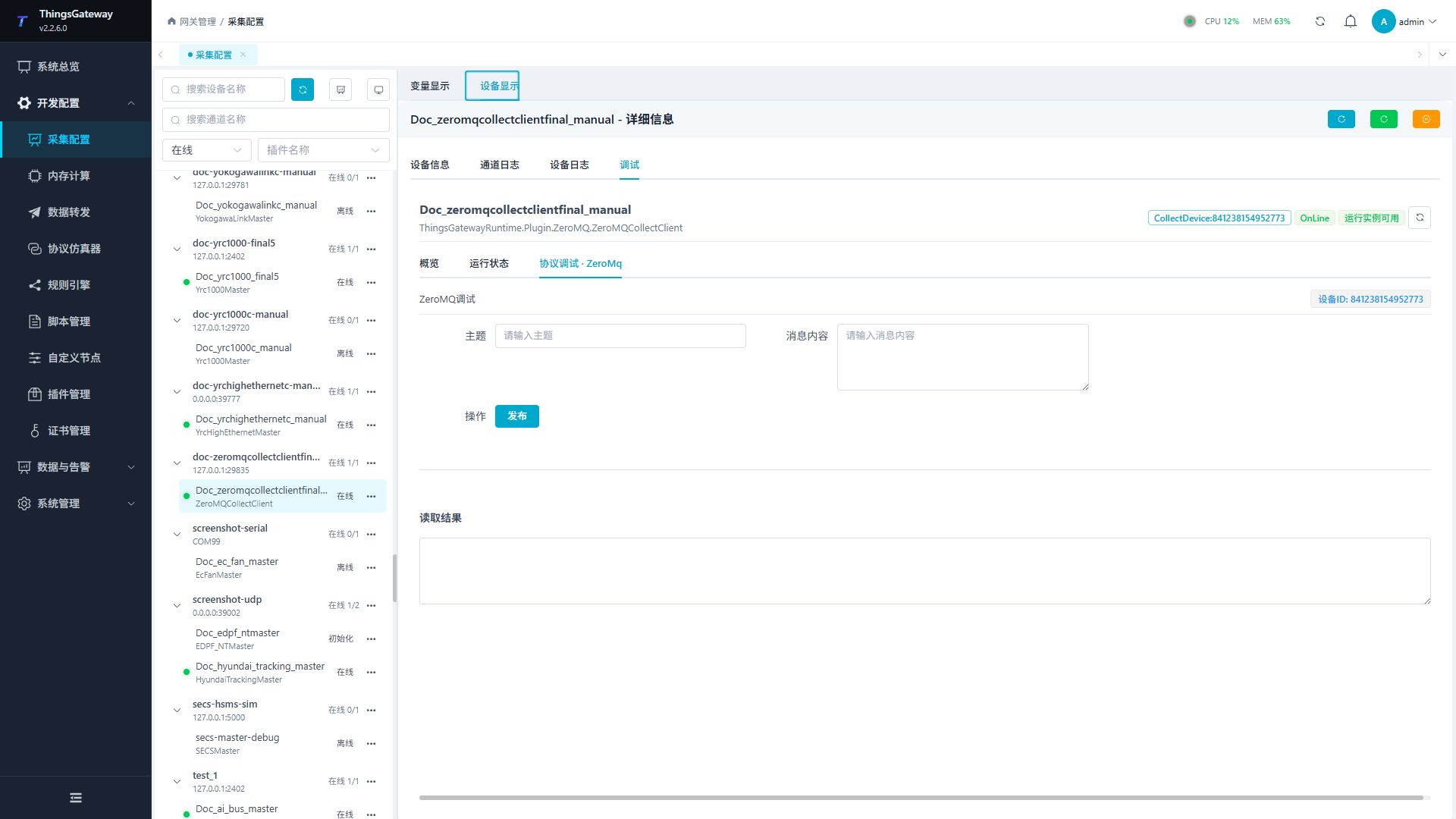
Debugging notes
Use SendDebugMessage or the protocol page to send a test Topic/Payload and verify the subscription, topic filtering and variable mapping results.
Functions
| Function | Purpose |
|---|---|
| Publish test message | Use Publish test message with an approved test point and confirm site safety before execution. |
| Debug result | View the returned value, success state, or error message. |
| Subscription | Create, refresh, or remove subscriptions and inspect the received updates. |
Verify the configuration
- Use the plugin-specific debug panel with one confirmed test point or test message.
- Confirm that the returned value or received message matches the device point list.
- Perform writes or control operations only with an approved test point and the site safety procedure.
Troubleshooting
- The debug panel shows no result: Check the required inputs and plugin parameters, then inspect the device or target log for a response or error.
- A Connect socket appears online but the peer receives nothing: this state only confirms socket setup, not peer reachability. Confirm message logs on both ends.
- Special method execution fails: Check method parameters and permissions; control, write or reset methods also need to confirm that the device is in a state that allows operation.
Related links
- Collection configuration: View channel, device and common variable configuration.
- Plugin Index: Find other collection or data-forward plugins.