BarcodeIngressMaster
Receives active TCP connections from the scanner and maps consecutive barcodes into variables
Open the plugin
Enter "Development Configuration → Collection Configuration", create a device and select "BarcodeIngressMaster" in "Collection Plugin".
Supported channels and data types
| Channel type | Pre-configuration check |
|---|---|
| TCP server | Confirm that the local listening address and port are available, and allow on-site devices to actively connect to the gateway. |
Optional data type: String
Plugin properties
Connection configuration
| Setting | Description |
|---|---|
| Source IP | Fill in: text input. Set the source IP used when establishing connections. |
Address rules
- barcode, source
Device debug
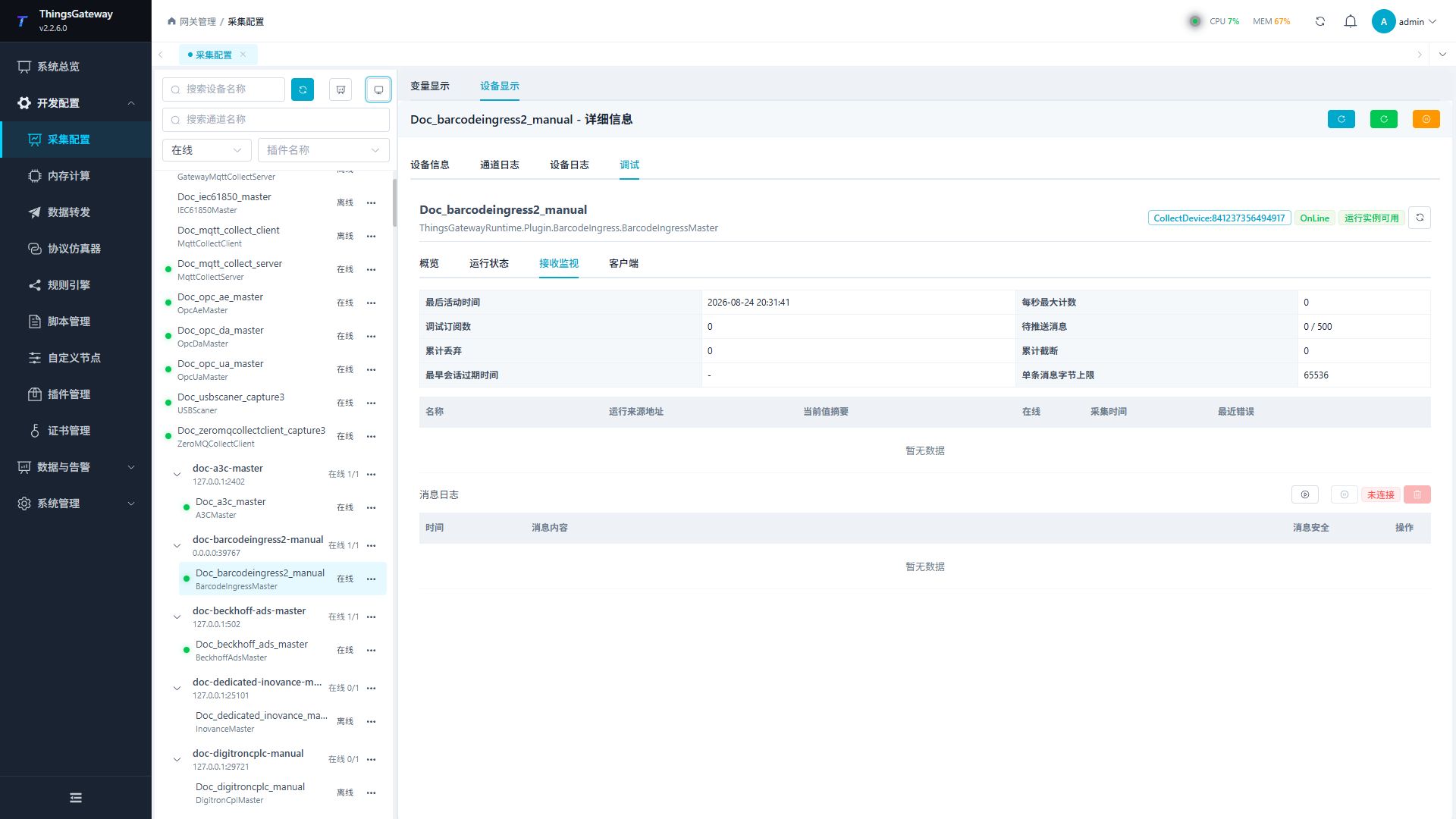
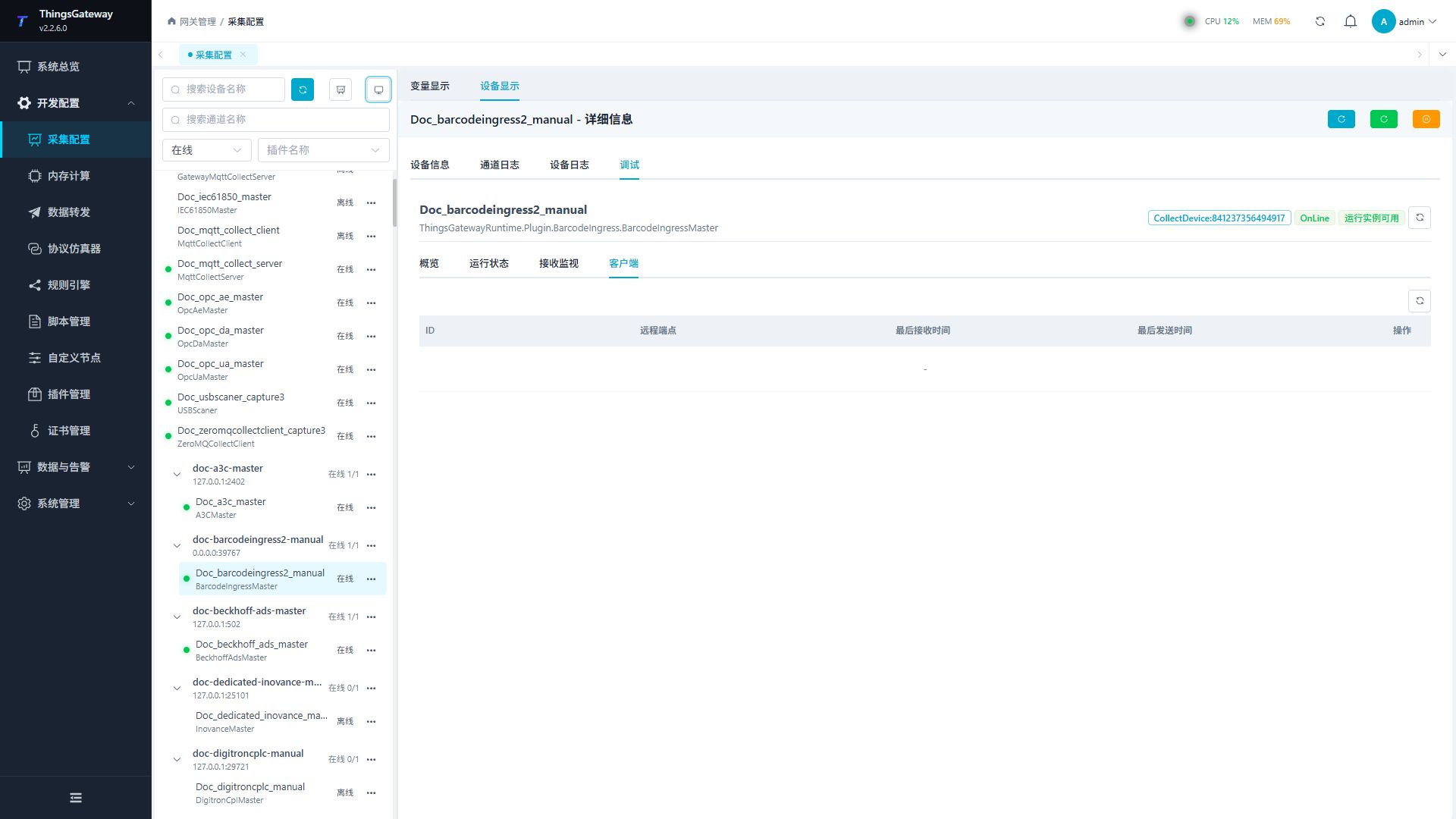
Enter "Development Configuration → Collection Configuration", select the current device and click "More Functions", then open "Debug".
Dedicated debugging page
"Receive Monitor" to view scanner reception statistics, variable mapping and message logs; "Client" to view connected scanners.
Functions
| Function | Purpose |
|---|---|
| Reception monitoring | Use Reception monitoring to inspect mapped values, status, counters, recent messages, or the latest result. |
| Client | Check the connection state and the latest connection result. |
| Message log | View the latest messages received by the current debug session. |
Verify the configuration
Let the field device send a test message; a new reception record should appear in "reception monitoring", and the corresponding variable value and collection time should be updated synchronously.
Troubleshooting
- There are no new messages in receiving monitoring: Confirm that the field device is actively reporting, and check the monitoring channel, message format, and variable field mapping.
- The device is not connected: Confirm that the device has actively connected to the gateway listening address and port, and check the firewall permission rules.
Related links
- Collection configuration: View channel, device and common variable configuration.
- Plugin Index: Find other collection or data-forward plugins.