VibrationStreamMaster
VibrationStreamMaster receives real-time and peak reports from a vibration sensor and maps the fields to variables.
Open the plugin
Enter "Development Configuration → Collection Configuration", create a device and select "VibrationStreamMaster" in "Collection Plugin".
Supported channels and data types
| Channel type | Pre-configuration check |
|---|---|
| TCP Client | Confirm network reachability of the device IP, port, and gateway to the device. |
Optional data types: Int32, Double, String
Plugin properties
Protocol parameters
| Setting | Description |
|---|---|
| Station number | Default: 1; Range: 1~65535; Fill in: text input. Set the station number used for protocol communication. |
Address rules
- actual.x, actual.y, actual.z, peak.accelerationx, peak.accelerationy, peak.accelerationz, peak.speedx, peak.speedy, peak.speedz, peak.offsetx, peak.offsety, peak.offsetz, peak.temperature, peak.voltage, peak.interval, address
Device debug
Enter "Development Configuration → Collection Configuration", select the current device and click "More Functions", then open "Debug".
Dedicated debugging page
Use reception monitoring to check the latest vibration report and mapped variables.
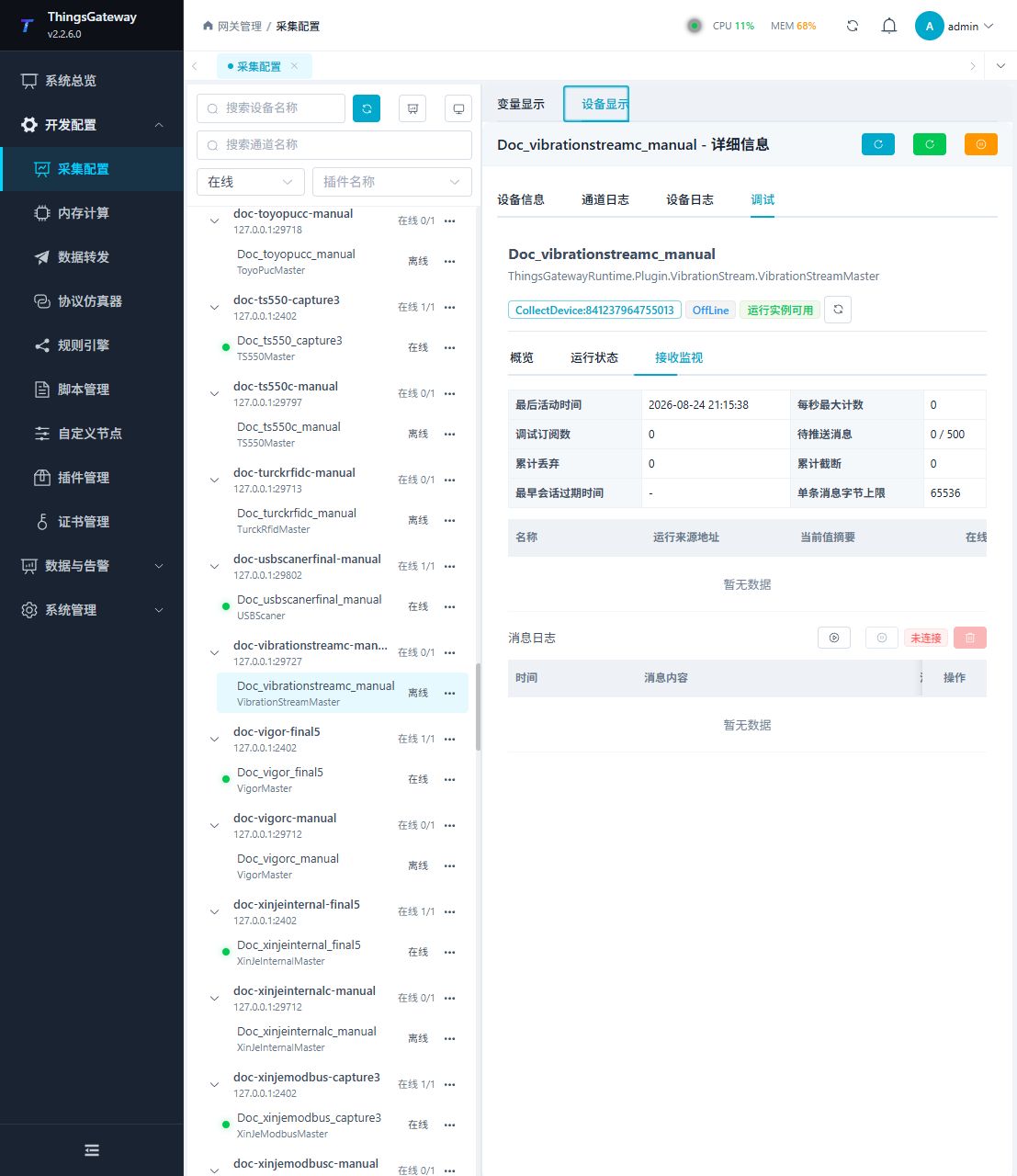
Functions
| Function | Purpose |
|---|---|
| Reception monitoring | Confirm that vibration reports reach the gateway. |
| Variable table | Check real-time axes, peak acceleration, speed, offset, temperature, voltage, and update time. |
| Message statistics | Review received and discarded report counts. |
| Message log | Inspect the latest sensor frames when mapping does not update. |
Verify the configuration
- Make the sensor send one known test report.
- Confirm that reception monitoring shows a new frame.
- Check that the expected axis or peak variables and collection time update together.
- Compare a second report with the sensor display to confirm station number and field mapping.
Troubleshooting
- No new frame appears: Confirm sensor reporting, station number, TCP address, port, and firewall.
- Frames arrive but values do not update: Check the address field names, report format, data type, and variable mapping.
- Values are implausible: Confirm units, axis order, station number, and the sensor's scaling settings.
Related links
- Collection configuration: View channel, device and common variable configuration.
- Plugin Index: Find other collection or data-forward plugins.