Yrc1000Master
Yaskawa YRC1000 text protocol status, program, servo and motion control driver
Open the plugin
Enter "Development Configuration → Collection Configuration", create a device and select "Yrc1000Master" in "Collection Plugin".
Supported channels and data types
| Channel type | Pre-configuration check |
|---|---|
| TCP Client | Confirm network reachability of the device IP, port, and gateway to the device. |
Optional data types: Select by page options
Plugin properties
Protocol parameters
| Setting | Description |
|---|---|
| Controller type | Default: 0; fill in: drop-down selection. Controller type; YRC1000 does not contain Re field, YRC100 contains seven-axis Re field |
Address rules
- YRC1000 does not support register variable addresses. Please select the dynamic method among other methods of variables to read alarm, position, status, program, controller variable or IO. The corresponding dynamic method should also be used for control operations.
Special methods
| Method | Purpose | Parameters |
|---|---|---|
| ReadByCommandAsync | Execute YRC1000 original command | command=command, commandData=optional data |
| ReadAlarmAsync | Read YRC1000 alarm | No parameters |
| ReadJointPositionAsync | Read YRC1000 joint position | No parameters |
| ReadPositionAsync | Read YRC1000 coordinate position | coordinate=coordinate system,hasExternalAxis=external axis |
| ReadStatusAsync | Read YRC1000 status | No parameters |
| ReadJobSequenceAsync | Read YRC1000 program sequence | No parameters |
| ReadUserFrameAsync | Read YRC1000 user coordinates | frame=user coordinate number |
| ReadVariableAsync | Read YRC1000 variable | type=0 byte/1 integer/2 double word/3 real number/7 string, address=number |
| HoldAsync | Set YRC1000 HOLD | status=switch |
| ResetAsync | Reset YRC1000 alarm | No parameters |
| CancelAsync | Cancel YRC1000 error | No parameters |
| SetModeAsync | Set YRC1000 mode | number=1 teach/2 reproduce |
| SetCycleAsync | Set YRC1000 cycle | number=1 step/2 single cycle/3 continuous |
| SetServoAsync | Set YRC1000 servo | status=switch |
| SetInterlockAsync | Set YRC1000 interlock | status=switch |
| DisplayMessageAsync | Display YRC1000 message | message=message |
| StartAsync | Start YRC1000 program | programName=optional program name |
| DeleteAsync | Delete YRC1000 program | programName=program name or asterisk |
| SetMainJobAsync | Set YRC1000 main program | programName=program name |
| SetJobSequenceAsync | Set YRC1000 program sequence | programName=program name, line=line number |
| MoveJointAsync | Execute YRC1000 joint motion | robotData=position model |
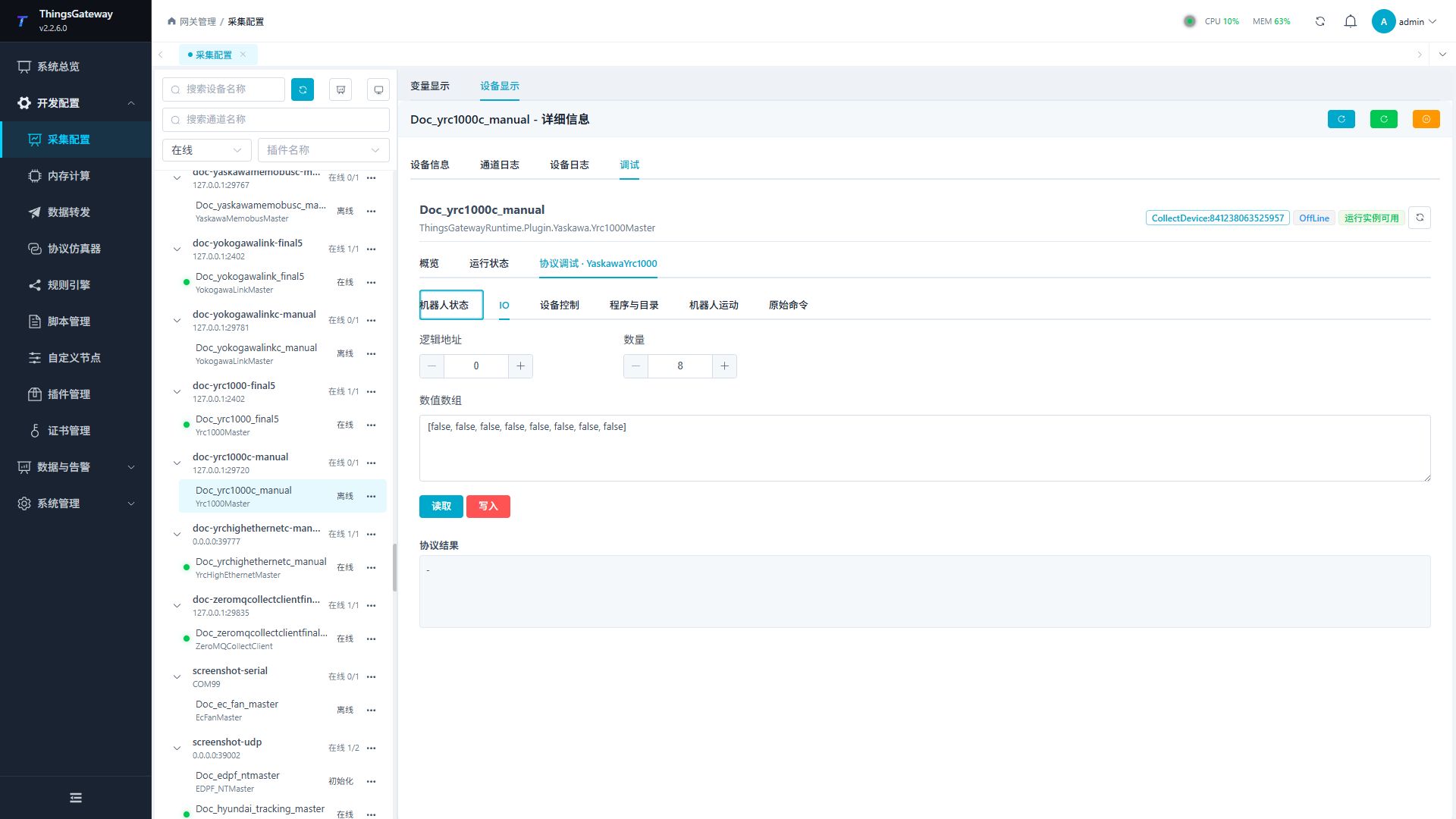
| ReadIoAsync | Read YRC1000 IO | address=starting point, length=multiple of eight |
| WriteIoAsync | Write YRC1000 IO | address=starting point, value=Boolean array of multiples of eight |
Write, start/stop, reset, load, delete or control methods will change the status of field devices. Before execution, confirm that the equipment is in an operable state and prepare for stop or rollback measures.
Device debug
Enter "Development Configuration → Collection Configuration", select the current device and click "More Functions", then open "Debug".
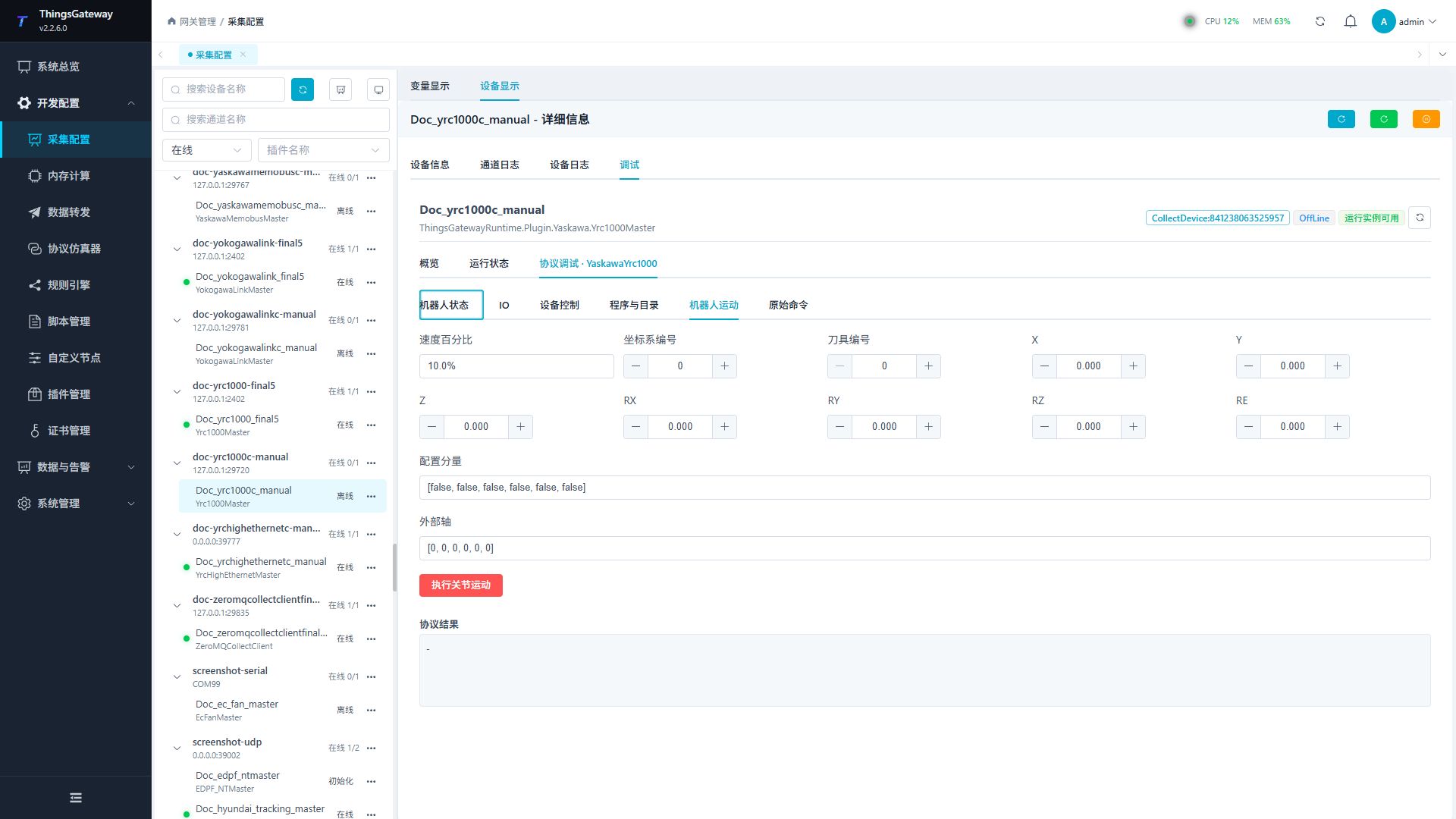
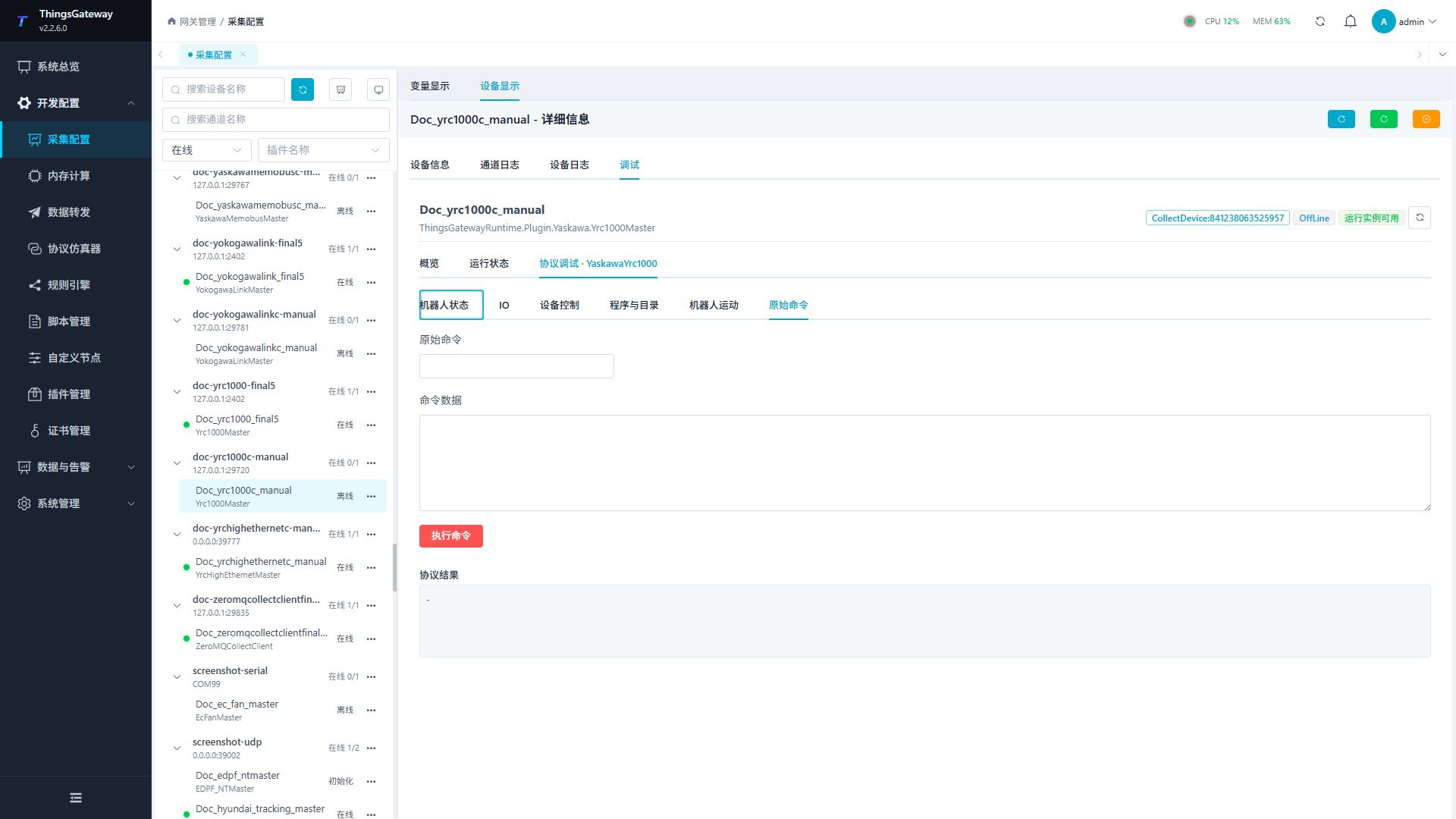
Dedicated debugging page
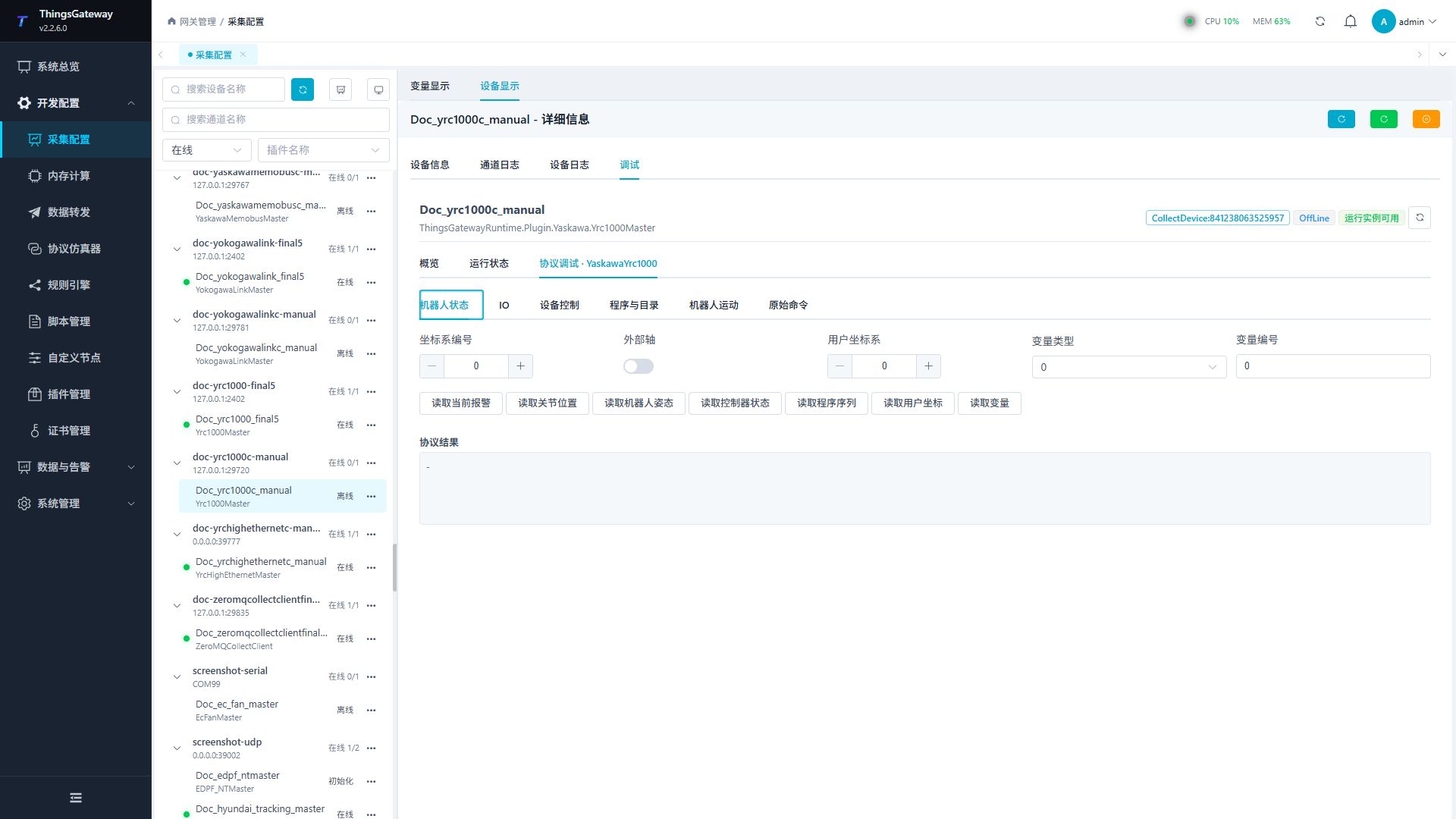
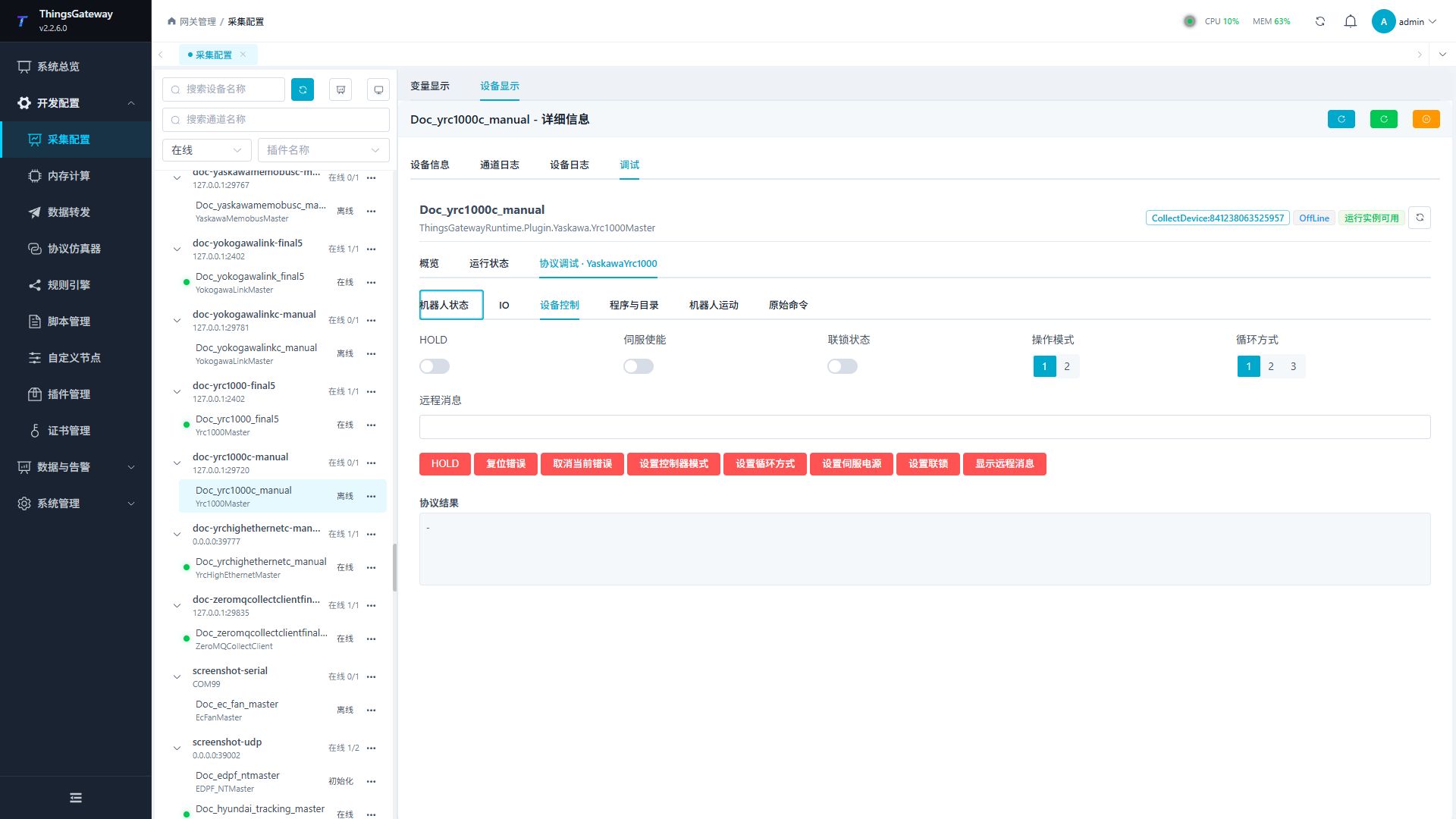
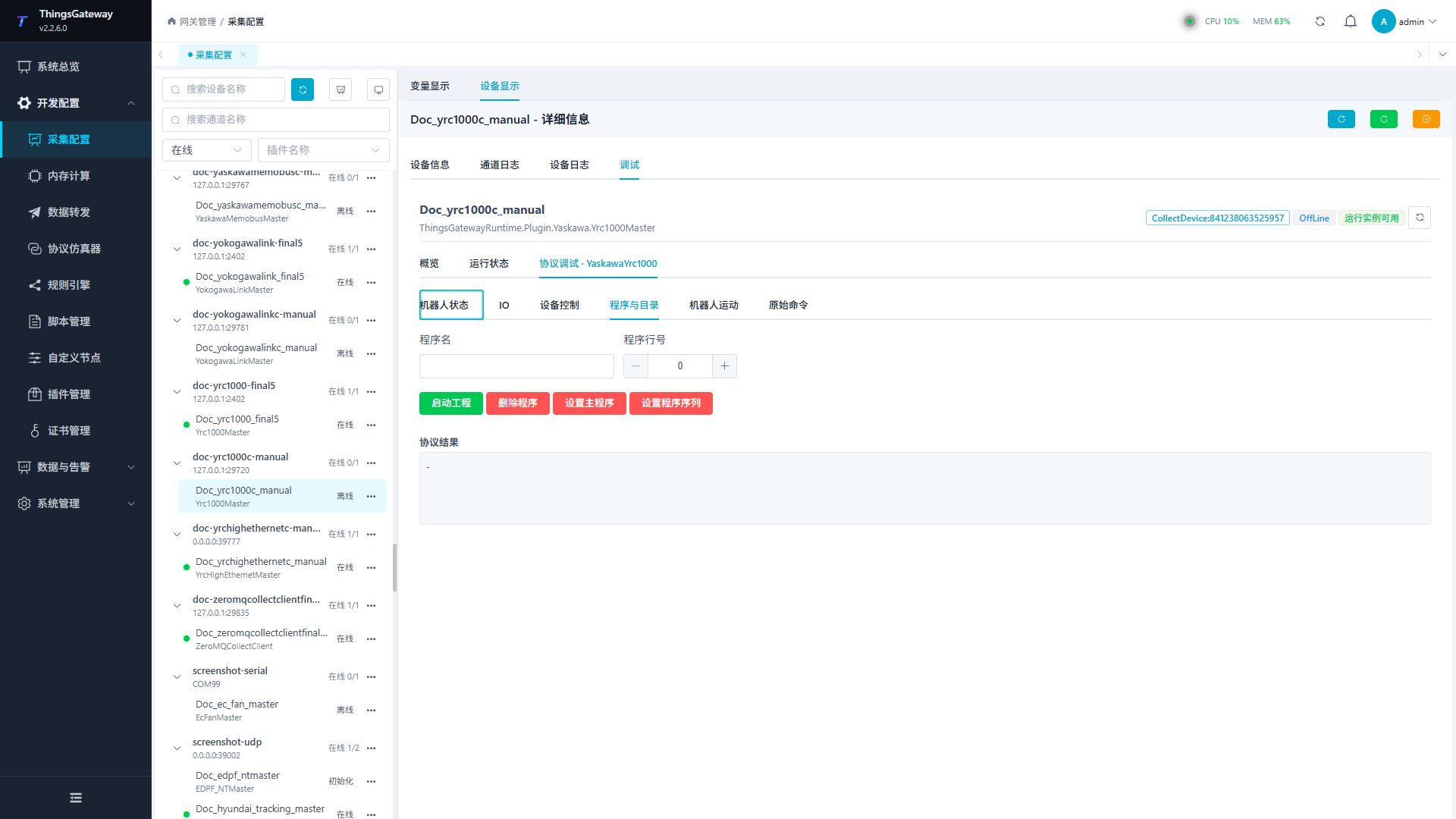
Robot status, IO, device control, programs and directories, robot movement and original commands respectively correspond to the common diagnostic and control operations of YRC1000.
Debugging notes
Read alarms, attitude, status, jobs, coordinates and variables first; IO, servo, mode, program, motion and original commands must be confirmed twice before.
Functions
| Function | Purpose |
|---|---|
| Robot status | Use Robot status to inspect mapped values, status, counters, recent messages, or the latest result. |
| Plugin operation | Use the controls on this plugin page and review the returned result. |
| Device control | Use Device control with an approved test point and confirm site safety before execution. |
| Program and directory | Use Program and directory and review the returned result. |
| Robot motion | Use Robot motion and review the returned result. |
| Raw command | Use Raw command to send or inspect protocol frames and view the device or target response. |
Verify the configuration
- Use the plugin-specific debug panel with one confirmed test point or test message.
- Confirm that the returned value or received message matches the device point list.
- Perform writes or control operations only with an approved test point and the site safety procedure.
Troubleshooting
- The debug panel shows no result: Check the required inputs and plugin parameters, then inspect the device or target log for a response or error.
- Special method execution fails: Check method parameters and permissions; control, write or reset methods also need to confirm that the device is in a state that allows operation.
Related links
- Collection configuration: View channel, device and common variable configuration.
- Plugin Index: Find other collection or data-forward plugins.