IEC61850 Managed Client
The managed IEC61850 client reuses a standard Gateway TCP/TLS channel to establish COTP, ACSE, and MMS associations. It supports model browsing, batch reads and writes, reports, data sets, files, Journals, control blocks, and controls. Its dedicated debug page can also observe GOOSE, SV, and R-Session traffic on a physical interface.
Select IEC 61850 Managed Client (IEC61850NetMaster) when creating the device. See Collection Configuration for common channel, device, and variable operations.
Connect and configure variables
Create the connection
- Open Development Configuration → Collection Configuration and create a TCP Client channel.
- Set the channel remote address to
IED IP:port. Plain MMS commonly uses port102. - Create a device on that channel and select IEC 61850 Managed Client.
- Enter the ACSE authentication password when the IED requires it.
- Start the channel and device, then open the dedicated debug page after the device becomes online.
Device settings
| Setting | Default | Description |
|---|---|---|
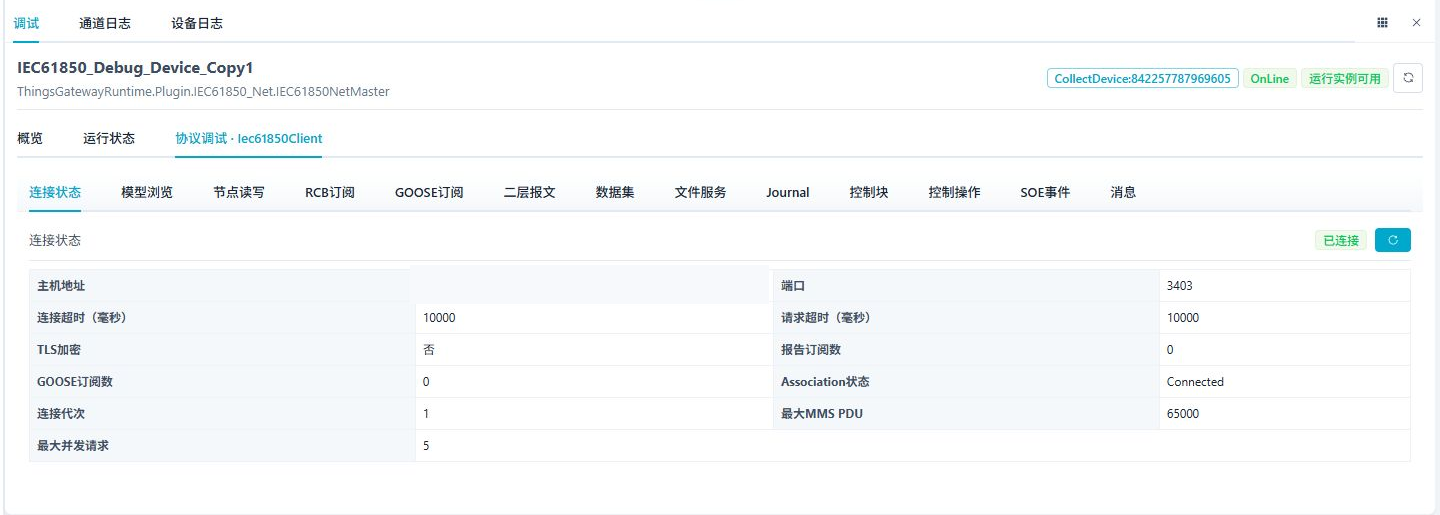
| MMS request timeout | 10000 ms | Maximum wait for one confirmed request. |
| Association timeout | 10000 ms | Time limit for COTP, ACSE, and MMS association setup. |
| Maximum MMS PDU | 65000 | Maximum PDU size declared and accepted by the client. |
| Maximum outstanding calls | 5 | Confirmed requests that may wait concurrently. |
| Batch read count | 50 | Maximum variables in one batch read plan. |
| Data-set member limit | 100 | Maximum members accepted for remote or dynamic data sets. |
| Maximum file size | 134217728 bytes (128 MiB) | Maximum bytes streamed into one backend temporary file. This bounds disk use and abnormal responses without preallocating an equally sized memory buffer. |
| ACSE authentication password | - | Enter only when required by the IED. Keep production passwords out of screenshots and logs. |
Configure TLS on the standard TCP Client channel. See Certificate Management.
Variable address
Use the strict address format:
LD/LN.DO.DA;FC=XX
Example: PRS778LD0/MMXU1.A.phsA.cVal.mag.f;FC=MX.
The driver supports Gateway Boolean, integer, floating-point, and string types. Match the configured type to the actual MMS data attribute. Keep monitoring points read-only and enable writes only for approved objects.
Browse and verify the model
Device debug
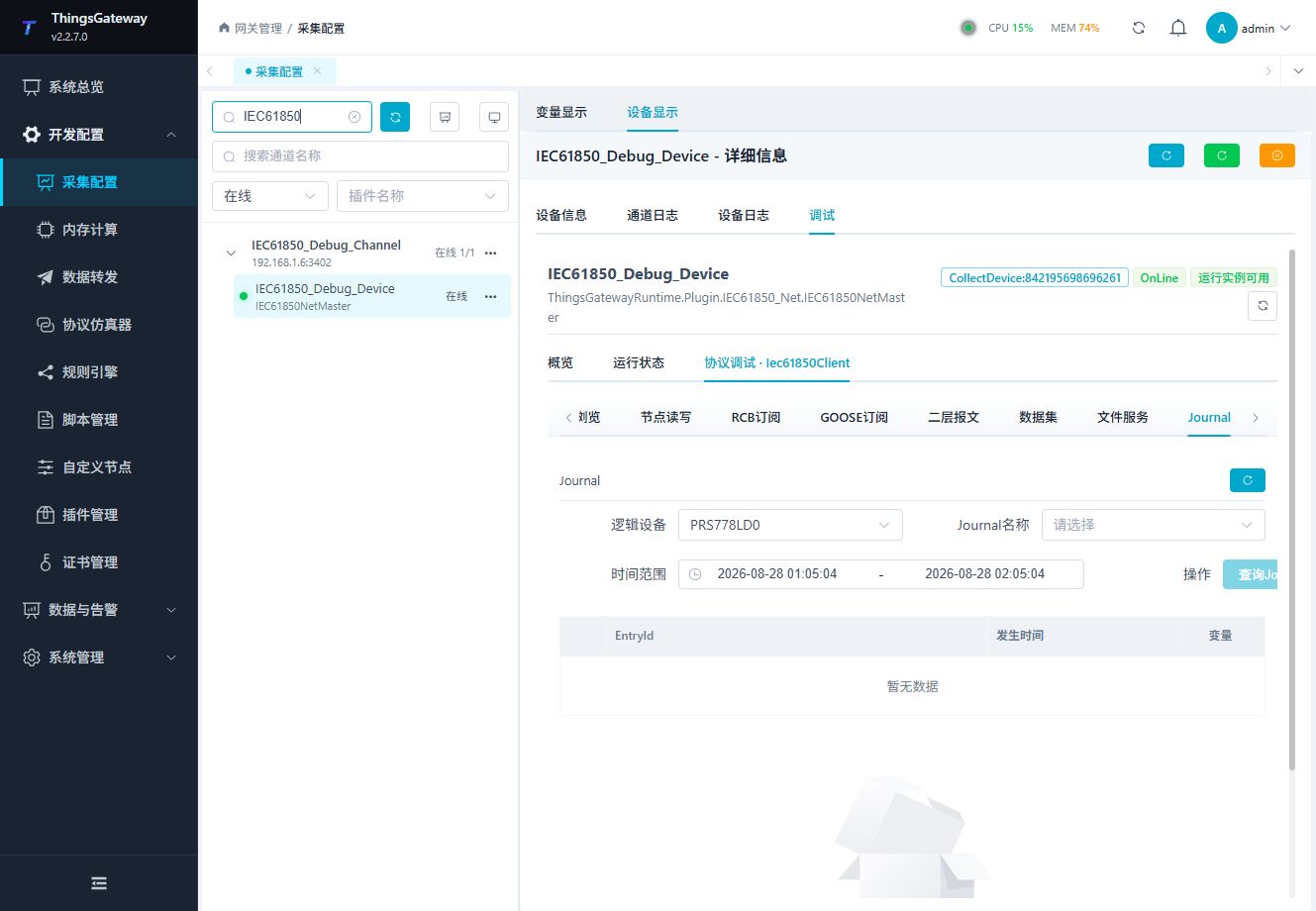
Open Development Configuration → Collection Configuration, select the online IEC61850 device, then open Debug → Protocol Debug · Iec61850Client.
| Tab | Purpose |
|---|---|
| Connection Status | Remote address, timeouts, TLS, association state, and negotiated parameters. |
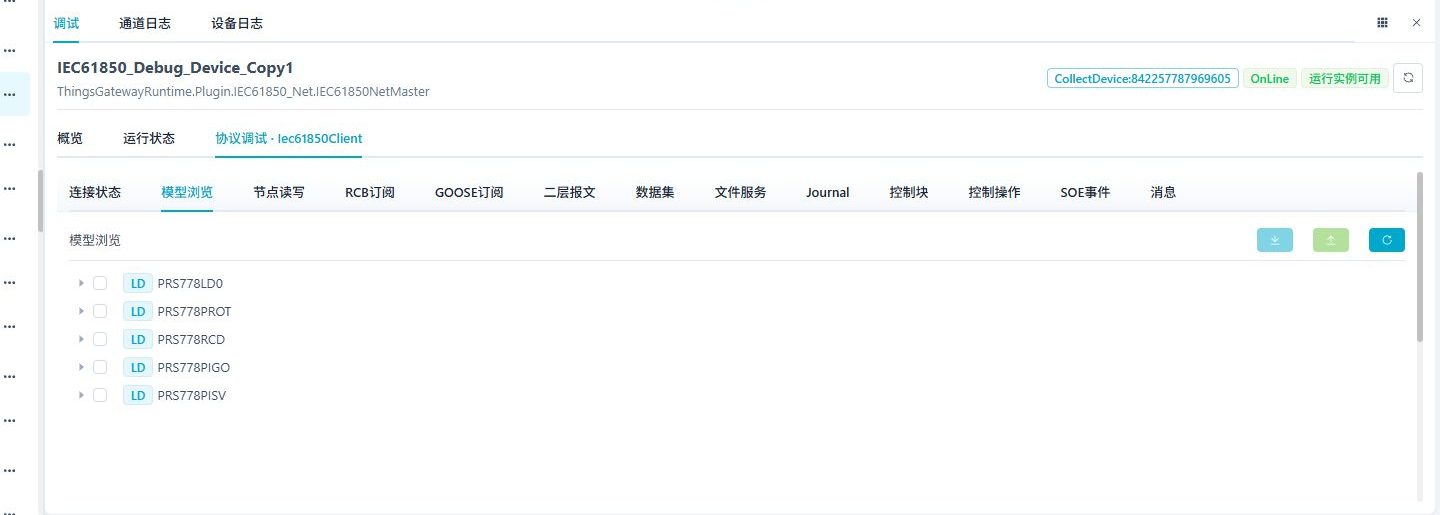
| Model Browser | Lazily browses LD, LN, FC, DO, and DA nodes and exports or imports selections. |
| Node Read/Write | Reads or writes MMS values by canonical reference and FC. |
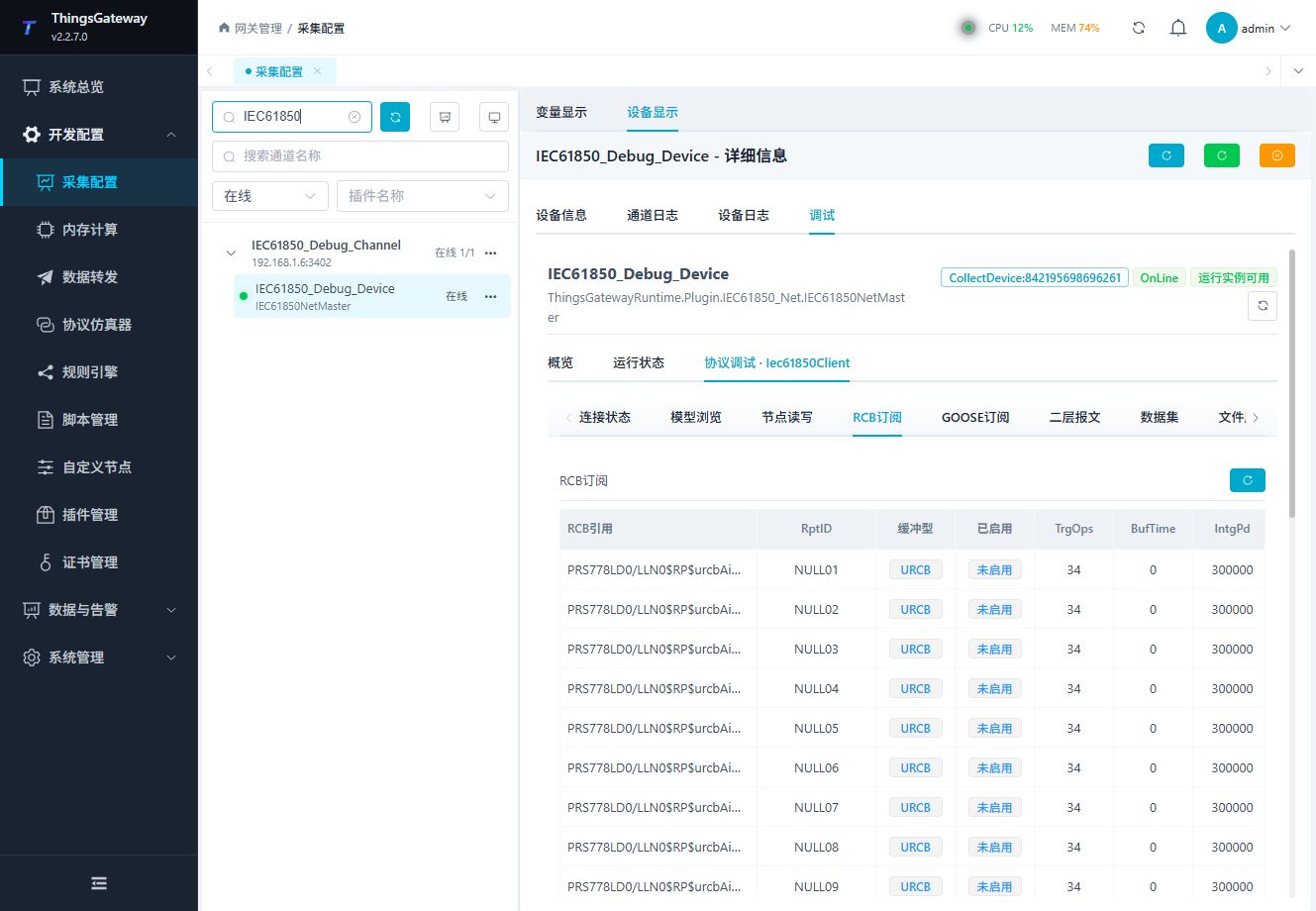
| RCB Subscriptions | Shows RCB state and the latest report for the current connection generation. |
| GOOSE Subscriptions | Merges MMS GoCB state with real Layer 2 frames and shows current data-set values. |
| Layer 2 Frames | Captures and decodes GOOSE, SV, and R-Session on a selected interface. |
| Data Sets | Reads values and directories and creates or deletes dynamic data sets. |
| File Service | Lists, downloads, deletes, renames, and obtains files. Downloads are written block by block to a backend temporary file and then returned as a file stream. |
| Journal | Scans all LDs for Journal names and reads entries over a UTC time range. |
| Control Blocks | Reads or writes RCB, SGCB, GoCB, and SVCB fields. |
| Control Operations | Reads the control model and executes a confirmed control. |
| SOE Events | Queries, pages, and exports stored SOE events. |
Collect a point from the model
- Refresh the model and expand one LD, LN, FC, DO, and leaf DA.
- Copy the complete reference and functional constraint, then read it in Node Read/Write.
- Create a regular variable with the copied address and compatible data type. For example,
VideoLD/MMXU1.TotW.mag.f;FC=MXillustrates a Float leaf; replace it with an object that exists on your IED. - Use array length
0for a scalar. Compare the direct read with periodic collection, then change a test source value and verify a new sample.
An ICD/SCD model is a reference; the online directory and returned value determine the actual object. Public register byte-order and string-reversal fields do not convert typed MMS values.
Configure an RCB
Read the control block and dataset first. Disable RptEna before changing fields in the order permitted by the IED, then enable it and wait for a new report.
| Field | Check |
|---|---|
| Resv / ResvTms | Boolean reservation for URCB versus reservation seconds for BRCB. A remaining-time readback can already be lower. |
| RptID / DatSet | Report identity and dataset. Match the new report's member count and order. |
| OptFlds / TrgOps | Use hexadecimal bytes with the declared bit-string width; verify fields and reasons in the received report. |
| BufTm | Milliseconds for change-report aggregation, separate from offline queue capacity. |
| IntgPd | Milliseconds for integrity reporting, which also requires its trigger to be enabled. |
| GI | Requests one general interrogation after reporting is enabled; the IED can reset it to false. |
| EntryID / TimeofEntry | Buffered-entry identity and entry time. Remote capabilities determine whether they can be written. |
| PurgeBuf | Deletes remote buffered reports and can discard pending data. |
Visible RCB rows are not all active subscriptions. Distinguish data-change reports, integrity, and GI, then release the temporary subscription and reservation after testing.
Model, report, and file verification
Browse the real LD/LN/FC/DO/DA model and copy a leaf reference with its functional constraint; a dataset or structure is not interchangeable with a scalar point. Verify direct reads and periodic collection separately. Association timeout, request timeout, negotiated MMS PDU, outstanding-request limits, and read batch counts constrain different stages.
For URCB/BRCB, read the current DatSet, ConfRev, TrgOps, OptFlds, reservation/ownership, and enabled state before changing them. Follow the displayed units for buffer and integrity times. Request a general interrogation, then change a real source value and inspect report reasons and member order. A valid GI/integrity snapshot does not establish a data-change event.
Enable SOE storage in the device, configure its database, retention, offset, and retry cache, then save the parent device as well as the subdialog. Current SOE storage records report change events; GI/integrity snapshots are not directly stored as SOE. Compare the latest report, SOE query, and database commit. Capacity is event rows, not report count; eviction can lose older pending rows.
Datasets preserve remote member order. Read the directory before interpreting values. Exceeding the member cap rejects the complete set rather than silently truncating it. Raising a cap does not add remote members or enable reporting.
For files, an empty specification lists the visible directory; an explicit specification is sent to the remote service. Maximum file size limits the whole file, not each block. Verify downloaded length and available SHA256, rather than a success prompt alone. A readable directory does not grant FileOpen permission. Reestablish the session after MMS PDU changes and verify the same complete content. Long downloads use a separate session and still require valid authentication and timeouts. Query/download and remote mutations require their respective Web and IED permissions.
GOOSE data and Journal queries
Current GOOSE data
GOOSE/SV require a physical network interface and Npcap on Windows or AF_PACKET permissions on Linux. For Layer 2 Frames, start with a five-second capture and 100-frame limit, then inspect the decoded fields and raw bytes. MMS-only collection does not require a Layer 2 subscription.
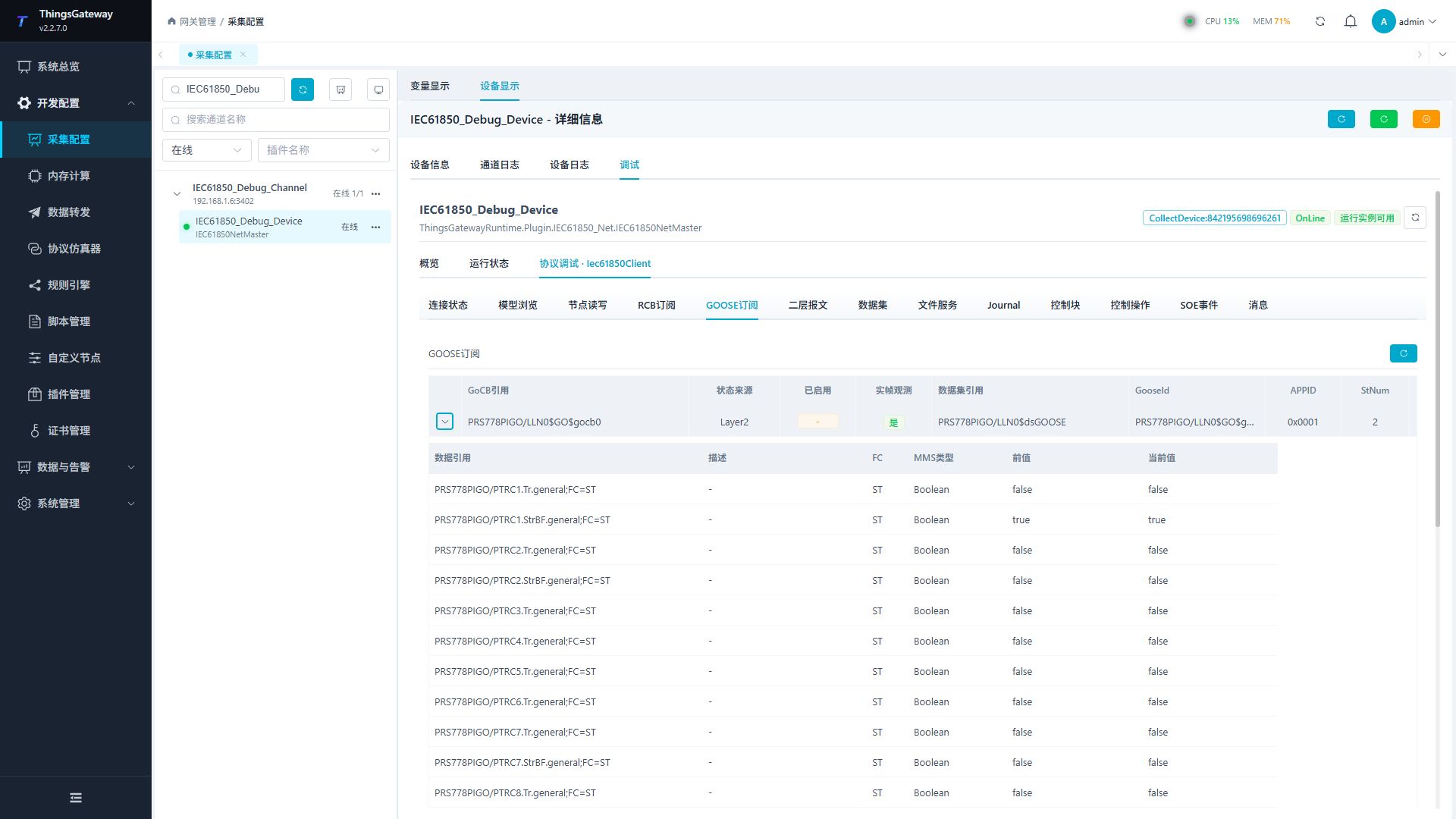
Opening GOOSE Subscriptions briefly listens on the physical interface routed to the current IED. A valid 0x88B8 frame remains visible even when the IED does not answer MMS GoCB directory requests. The row shows GoCB, DataSet, GooseId, APPID, StNum, SqNum, and value count.
Expand the row to compare data reference, description, FC, MMS type, previous value, and current value. References and FCs come from the GOOSE data-set directory. Descriptions are matched from Gateway variables on the current device; - means no description is configured.
Journal queries
The Journal tab scans every logical device returned by the server and selects the first LD that actually exposes a Journal name. Choose a name and time range, then run Query Journal.
When all LDs successfully return empty directories, the page explicitly reports that no logical device returned a Journal name. This is a server-model condition, not a client parsing failure. You may enter a known Journal name manually when the server accepts direct reads but omits the directory entry.
Verification
- Confirm that Association State is
Connected. - Expand a responsive LD in Model Browser, copy a leaf reference, and read it under Node Read/Write.
- If reports are configured, verify an actual report's time, reason, DataRef, and member order.
- If Layer 2 functions are used, verify the receiving NIC, decoded GOOSE/SV/R-Session fields, references, and current values.
- Check the Journal directory. Treat an all-empty result as a server that publishes no Journal.
- File mutations, data-set changes, control-block writes, and controls change IED state. Run them only on approved test objects.
Troubleshooting
| Symptom | Check |
|---|---|
| Association cannot be established | Remote address, port, network, firewall, ACSE password, channel TLS, and certificates. |
| Only some LDs fail to expand | Whether those domains answer paged GetNameList requests and whether dynamic control blocks are registered correctly. Do not treat successful LDs as offline. |
| GOOSE status is empty | Physical NIC, VLAN, multicast, APPID, Npcap/AF_PACKET permission, and cyclic publishing. |
| GOOSE values lack canonical references | Data-set existence and permission to read GetNamedVariableListAttributes. |
| Journal list is empty | Check every LD directory. An all-empty result means the server publishes no Journal. |
| File service fails | IED file-service support, file name, permission, and maximum file size. |
| Write or control fails | Object FC, control model, IED permission, variable protection mode, and site interlocks. |
Related links
- Collection Configuration: Common channel, device, variable, import, and debug entry points.
- Certificate Management: Client certificates and CAs used by TCP/TLS channels.
- IEC61850 Server: Publish MMS models and GOOSE from the Gateway.