OPC DA client
OPC DA Client connects to a Windows OPC DA server, browses ItemNames, reads and writes test items, imports variables, and maintains subscriptions.
Prerequisites
Before using this plugin, you must install OPC Core Components (OPC Core) on the Windows hosts running the gateway and the OPC DA server. Match the component architecture to the corresponding process.
Open the plugin
Enter "Development Configuration → Collection Configuration", create a device and select "OPC DA Client" in "Collection Plugin".
Supported channels and data types
| Channel type | Pre-configuration check |
|---|---|
| Plugin built-in connection | Connection parameters are configured in device properties and do not use public TCP, UDP, or serial fields. The plugin is Windows-only. |
Optional data type: The OPC DA Item's actual Canonical Type. Read a node in the debug page first, then choose the matching Boolean, integer, floating-point, or String type.
Plugin properties
The following fields are OPC DA-specific. Configure common retry and write-priority fields through Collection Configuration.
Connection configuration
| Setting | Description |
|---|---|
| OPC server IP | Default: localhost; fill in: text input. Set the OPC server IP used when establishing a connection. |
| OPC server name | Default: Kepware.KEPServerEX.V6; fill in: text input. Set the OPC server name used when establishing a connection. |
Data format
| Setting | Description |
|---|---|
| Server time | Default: Yes; fill in: switch. When enabled, the variable collection time uses the OPC DA Source Timestamp; when disabled, it uses the gateway receive time. |
Subscription configuration
| Setting | Description |
|---|---|
| Subscription mode | Default: Yes; fill in: switch. When enabled, OPC DA DataChanged events push values; when disabled, the gateway polls at the subscription update rate. |
Running parameters
| Setting | Description |
|---|---|
| Detection reconnection frequency (min) | Default: 10; fill in: number input. Reconnection checks run in minutes after a disconnect. |
| Subscription update frequency | Default: 1000; fill in: number input. Requested OPC DA subscription update period in milliseconds. |
Variable configuration
| Setting | Description |
|---|---|
| Dead zone | Default: 0; fill in: number input. Passed to the OPC DA subscription group; units and limits are defined by the OPC DA server. 0 disables the deadband. |
Request packing
| Setting | Description |
|---|---|
| Maximum group size | Default: 500; fill in: number input. Maximum Items in one OPC DA subscription group; larger sets are split into multiple groups. |
Address rules
- ItemName
Device debug
Enter "Development Configuration → Collection Configuration", select the current device and click "More Functions", then open "Debug".
Protocol Debugging · OpcDa
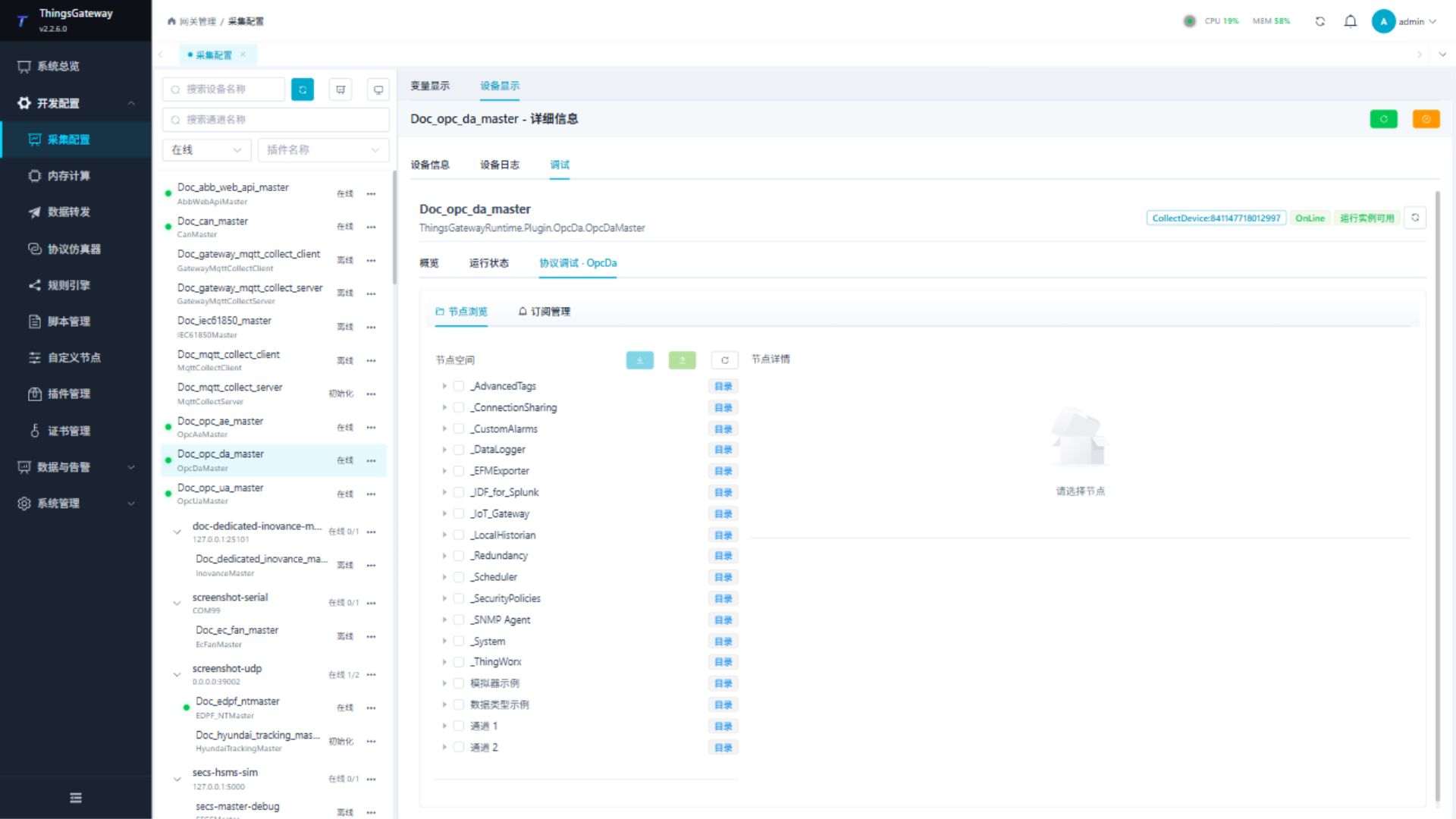
Browse an ItemName and read its value before creating a subscription or importing variables. Use writes only for an approved server test item.
Debugging notes
Browse the OPC DA node and read the values before establishing a subscription; review the address and data type after importing the variables.
Functions
| Function | Purpose |
|---|---|
| Browse nodes | Browse the OPC DA address space and inspect ItemName, value, quality, and timestamp. |
| Read and write nodes | Read one selected item; writing changes the server value and requires an approved test item. |
| Export and import | Export selected nodes to a variable file or import them into the current device. |
| Subscription management | Create, inspect, or cancel subscription groups for selected items. |
Verify the configuration
- Browse to a known ItemName and read the current value. Confirm that the quality is good.
- Change the approved test item on the server and confirm that a read or subscription update appears.
- Import a small set of test nodes and check ItemName, data type, value, and timestamp.
- When subscription mode is enabled, keep the group within Maximum group size and confirm the update rate and deadband.
- Write only to a server-approved test item, then read it again.
Troubleshooting
- The server cannot be browsed: Confirm that TGateway runs on Windows and check OPC server IP, ProgID, DCOM permissions, and the server process.
- Browsing works but quality is bad: Check ItemName, the server-side device connection, and item quality rather than only the numeric value.
- Subscription does not update: Check Subscription mode, update frequency, deadband, and group size.
- Imported variables have no value: Confirm the ItemName matches the server and check the variable data type and device log.
- Remote OPC DA connection fails: Check DCOM identity, permissions, and Windows firewall rules on both hosts.
Related links
- Collection configuration: View channel, device and common variable configuration.
- Plugin Index: Find other collection or data-forward plugins.