RabbitMQ Producer
This target publishes variables, devices, alarms, and plugin events to a RabbitMQ exchange and routes them to queues.
Configure the forwarding group and target through Data Forwarding. This page covers RabbitMQ connection, exchange behavior, Topic templates, and debug operations.
Open the plugin
Open Development Configuration → Data Forwarding and:
- Configure and save the forwarding group range, trigger, interval, online filter, and batching.
- Add a target, choose RabbitMQ Producer, and fill in the basic target information.
- Open Target properties and configure connection, authentication, exchange, routing keys, templates, and cache.
- Save and enable the group and target, then use Target debug to verify routing and payloads.
Basic target information
| Setting | Default | Configuration |
|---|---|---|
| Group | - | Select a saved forwarding group. |
| Target name | - | Required and unique within the group. Include the RabbitMQ cluster or environment. |
| Enable | Enabled | Disable to stop the producer from connecting. |
| Log level | Info | Temporarily use Debug for connection, declaration, or publish diagnostics. |
| Start timeout | 60 seconds | Valid range is 1 to 3600 seconds. |
Target properties
Connection and authentication
| Setting | Default | Configuration |
|---|---|---|
| IP address | localhost | RabbitMQ host or IP without a scheme. |
| Port | 5672 | AMQP endpoint. Changing it to 5671 does not enable TLS in this target. |
| Virtual host | / | Virtual Host containing the exchange, queues, and bindings. |
| Username | guest | RabbitMQ restricts guest to local connections by default. Use a dedicated account with the required vhost permissions for a remote gateway. |
| Password | guest | Change the default in production; never expose it in templates, screenshots, or logs. |
The current target has no TLS switch or certificate configuration. A TLS-only listener cannot be enabled merely by changing the port.
Exchange and publishing
| Setting | Default | Configuration |
|---|---|---|
| Declare queue | Disabled | Startup declares durable queues for non-empty Topic templates and binds each queue using the same routing key. Use only with broker permission. |
| Declare exchange | Disabled | Startup declares a durable, non-auto-delete exchange. Existing type must match. |
| Publisher confirmations | Enabled | Waits for Broker publisher confirmations. |
| Require routing success | Enabled | Uses AMQP mandatory publishing. Keep publisher confirmations enabled as well to assess unroutable failures from the send result; with confirmations disabled, a publish-success result does not prove routing. |
| Exchange type | topic | Must match RabbitMQ: direct, fanout, topic, or headers. |
| Exchange name | TG | Exchange receiving the messages. Create it in the selected vhost when declaration is disabled. |
| Publish timeout | 5000 ms | Positive timeout for publishing and channel acquisition. |
Routing-key templates
| Setting | Default | Configuration |
|---|---|---|
| Device Topic template | Empty | Empty disables device records; use a fixed key when queue declaration is enabled. |
| Variable Topic template | TGateway/Variable | Variable routing key; ${DeviceName} and ${Name} may be used. |
| Alarm Topic template | Empty | Empty disables alarm records. |
| Plugin-event Topic template | Empty | Empty disables plugin-event records. |
${field} must exist on the upload entity or entity-script result. The forwarding group controls membership; exchange, routing key, and queue binding control delivery.
Target-variable properties
RabbitMQ inherits the optional text fields Data1 to Data10, all empty by default. They are metadata only and are not added to messages automatically. Configure variable membership, aliases, trigger, and batching in Data Forwarding.
| Setting | Default | Configuration |
|---|---|---|
| Data1 to Data10 | Empty | Fill project-specific metadata when needed; leave empty otherwise and never store passwords or tokens here. |
Messages, templates and cache
Data and scripts
| Setting | Default | Configuration |
|---|---|---|
| Detail log | Disabled | Send counts use Debug when off and Trace when on, subject to the log threshold. Read full messages at the consumer. |
| JSON indentation | Enabled | Disable to reduce payload size. |
| Ignore JSON nulls | Enabled | Controls default entity null properties; explicit nulls generated by content templates remain. |
| Device list upload | Enabled | Publish device records as a list; disable for one message per record. |
| Variable list upload | Enabled | Publish variable records as a list; disable for one message per record. |
| Variable dictionary upload | Disabled | In list mode, device and variable names are the two keys. Leaves contain complete entities, script outputs, or content-template results. |
| Alarm list upload | Enabled | Publish alarm records as a list; disable for one message per record. |
| Alarm dictionary upload | Disabled | Applies only to alarm-list mode; groups by device and variable. |
| Plugin-event list upload | Enabled | Publish plugin events as a list; disable for one message per event. |
| Entity scripts | Empty | Select saved device, variable, alarm, or plugin-event scripts before routing-key and payload rendering. |
Upload template fields
In Upload Template Configuration, choose Text or Json for each entity and insert ${field} placeholders. Empty content uses default JSON serialization; preview before saving.
| Entity | Available fields |
|---|---|
| Variable | Id, Name, DeviceName, Value, RawValue, LastSetValue, CollectGroup, CollectTime, CreateTime, ChangeTime, IsOnline, DataType, Unit, RegisterAddress, OtherMethod, Description, ProtectType, RpcWriteEnable, Remark1 to Remark5, ValueInited, IsMemory |
| Device | Id, Name, ActiveTime, DeviceStatus, PluginName, Description, LastErrorMessage, Remark1 to Remark5 |
| Alarm | AlarmId, VariableId, Name, DeviceName, AlarmCode, AlarmLevel, AlarmLimit, AlarmText, RecoveryCode, AlarmTime, EventTime, FinishTime, ConfirmTime, ConfirmText, AlarmType, EventType, Remark1 to Remark5 |
| Plugin event | DeviceName, ObjectValue |
An entity script runs before routing-key and template rendering; its output must contain every referenced field. An empty Topic template disables that entity type.
Cache and capacity
| Setting | Default | Configuration |
|---|---|---|
| Enable failed-write retry cache | Enabled | Retains failed publishes in CacheDB for replay after recovery. Disabling it stops retaining failures for retry. |
| Cache file maximum rows | 262144 | Maximum CacheDB outbox rows; oldest rows are removed after the limit. |
| Upload chunk size | 2000 | Read limit for cached change records. Whole interval snapshots can retain their group boundary, so this does not determine every message's point count. |
| Memory queue limit | 100000 | At capacity, persist pending records to CacheDB first. If persistence fails, retain accepted records and reject new records for upstream retry. |
| Filter offline data | Disabled | Filters offline variables at dequeue; the forwarding-group filter also applies. |
| Upload concurrency | 1 | RabbitMQ maintains a channel pool using this value; keep 1 until parallel load is tested. |
Target debug
Open Development Configuration → Data Forwarding, select the forwarding group and target, and open Debug.
RabbitMQ protocol panel
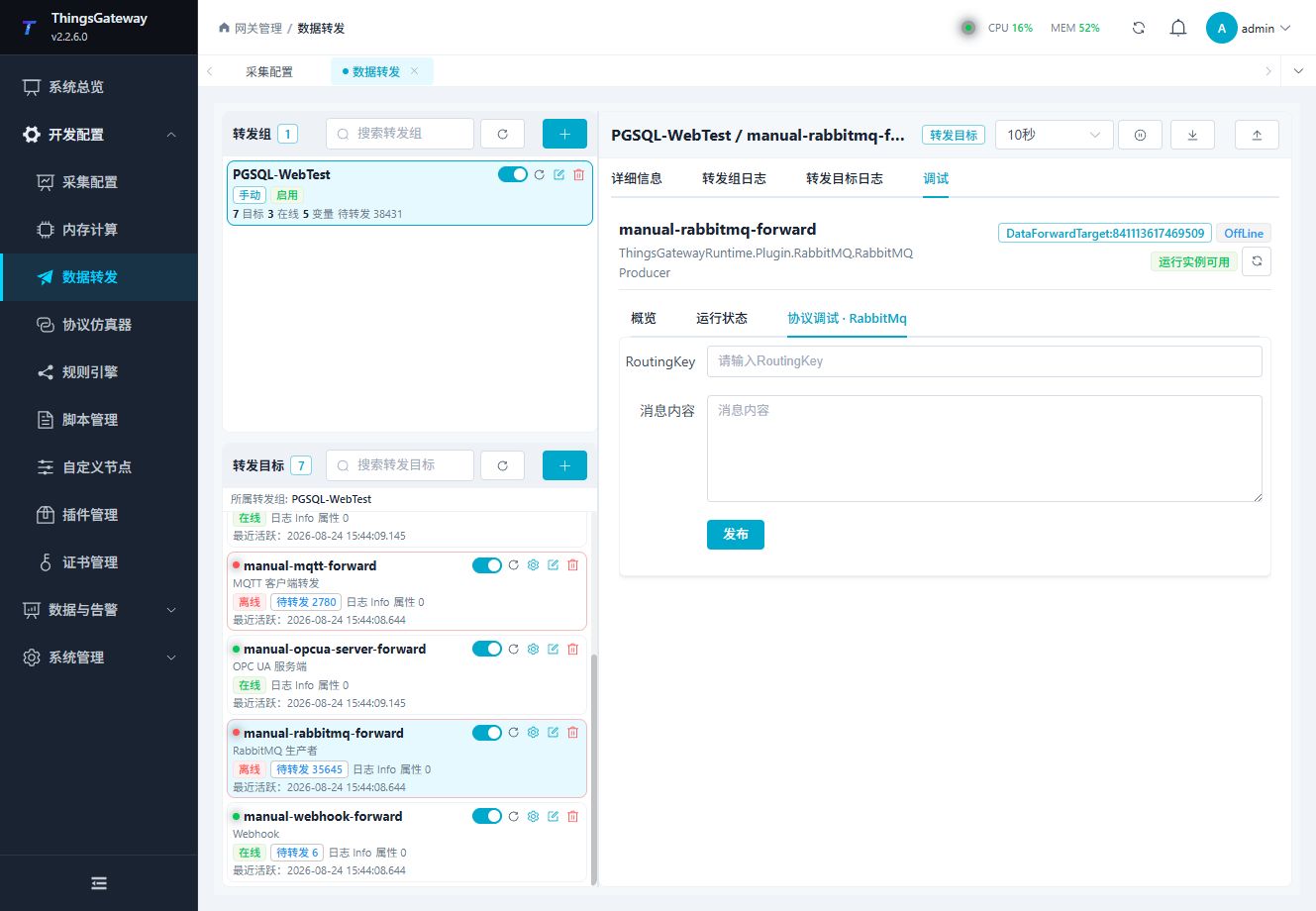
Use the panel to perform the plugin-specific connection or publish operation and inspect the result.
Routing and delivery checks
Direct exchanges match exact routing keys; topic exchanges match dot-separated words with */#; fanout ignores the key; headers exchanges require matching headers/bindings. The empty default exchange routes by exact queue name. Slash-separated MQTT names do not create topic-exchange word boundaries.
Declaration, publisher confirmation, mandatory routing, and consumer processing are separate. An existing durable queue does not establish persistent messages. Verify the actual exchange/binding and consume a new source value independently, preserving identity and times. Debug text is JSON-string encoded. Content-template single mode and full-entity dictionary behavior follow Upload Templates.
For a first live test, use exchange tgateway.demo, type direct, and fixed variable routing key tgateway.variables. Create the exchange, queue, and matching binding beforehand, or enable declarations with an account allowed to manage them. Forward one real value, change the source, and read the new value from that queue. After changing Virtual Host, verify its topology and permissions again; same-name queues in different vhosts are separate resources.
Verify the target
- Confirm host, port, virtual host, credentials, exchange, and exchange type.
- Confirm that the exchange and queue/binding are managed by the target or already exist in RabbitMQ.
- Use a test routing key and small payload.
- Consume the queue and compare message count and payload.
- Check publisher confirmations, routing results, and target logs.
Troubleshooting
| Symptom | Check |
|---|---|
| Queue receives no message | Host, virtual host, exchange, exchange type, routing key, queue binding, and target state. |
| Authentication fails | Username, password, virtual host permissions, and the RabbitMQ listener. |
| Routing is rejected | Exchange type, routing key, queue binding, and Require routing success. |
| Declaration fails | Broker account permissions, existing resource type, queue/exchange name, and declaration switches. |
| Publish times out | Broker reachability, publisher confirmations, network latency, publish timeout, and broker load. |
| Payload is invalid | Template preview, JSON syntax, placeholder names, and entity-script output. |
Do not declare or delete production queues and exchanges during a routine debug session unless the broker owner has approved the change.
Related links
- Data Forwarding: Forwarding groups, triggers, cache, redundancy, and common target operations.
- Plugin Manual Index: Other collection and data-forwarding plugins.