OPC DA Server
Expose variables within a forwarding group's scope as OPC DA 2.05a / 3.0 items. External clients can browse, read, subscribe, and write when permitted. The same target also provides OPC AE 1.10 alarms and events, including condition browsing, subscriptions, refresh, and acknowledgement. DA and AE share one COM ProgID. This Professional data-forwarding plugin requires a Windows host without AOT. To collect from another server, use the OPC DA Client or OPC AE Client.
Entry and prerequisites
- Before using this plugin, you must install OPC Core Components (OPC Core) on the gateway and client hosts for the required process architectures, including the standard OPC COM proxies. Enumeration also requires OPCEnum. A 32-bit client needs the corresponding 32-bit components.
- Confirm the gateway's Professional plugin authorization and that source variables have valid values.
- Sign in to the web configuration page and open Development Configuration → Data Forwarding. Create or select a group and save the variable scope to expose.
- Click Add Target, select OPC DA Server, enter a target name, and open Plugin Properties.
Create a server target
Assign a unique, stable COM ProgID and keep Register on Start enabled. Current-user automatic registration is suitable for a local demonstration. Enable Machine-wide Registration for Component Services, OPCEnum, or remote access, and run the gateway with permission to write machine registration.
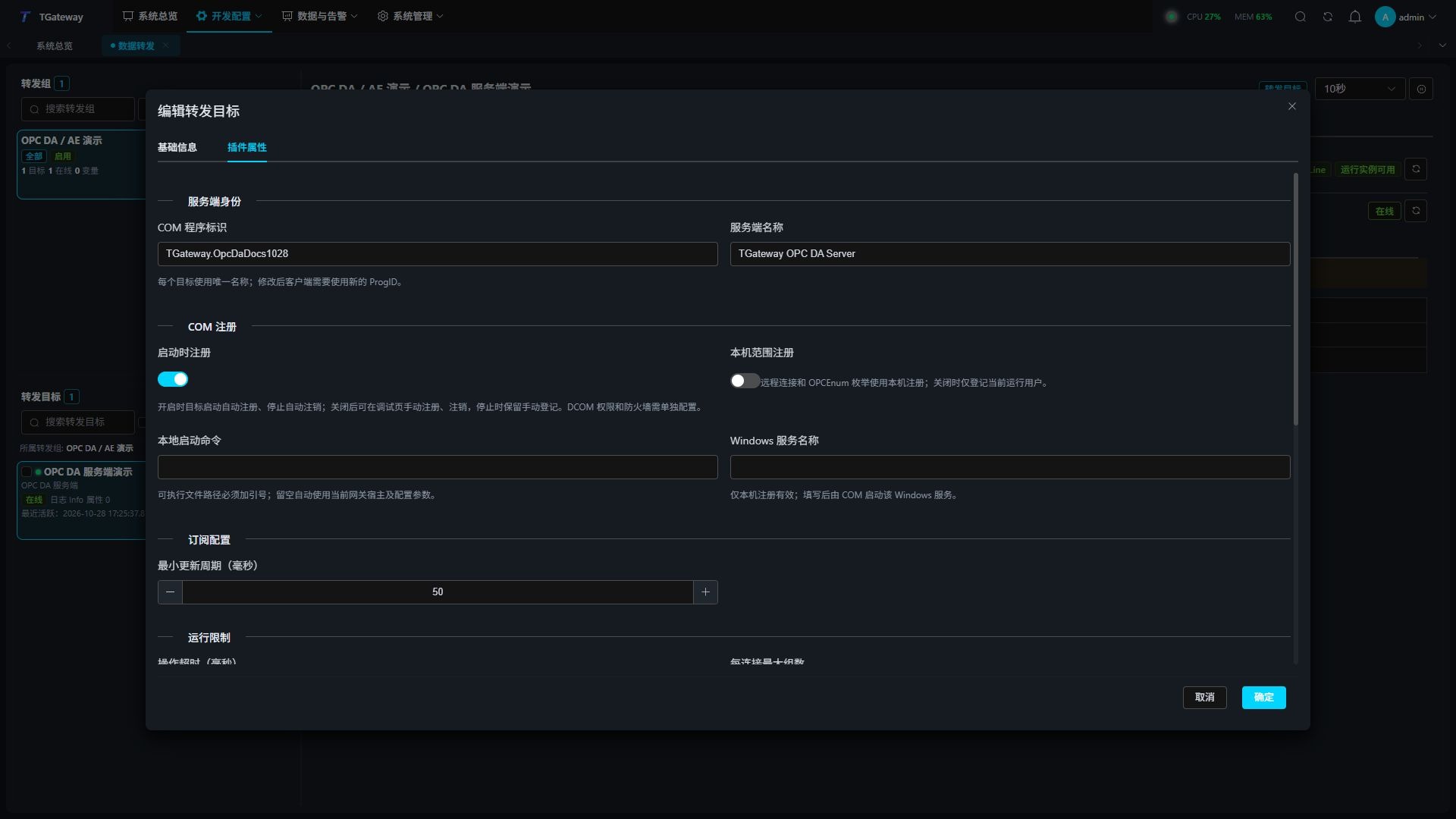
Identity and registration
| Parameter | Description |
|---|---|
| COM ProgID | Default TGateway.OpcDaServer, up to 39 characters. Each target needs a different ProgID. Clients connect by this name or its CLSID; update clients when changing it. |
| Server Name | Default TGateway OPC DA Server, displayed to clients as the server description. |
| Register on Start | Enabled by default. Registers when the target starts and removes this automatic registration when it stops, is disabled/deleted, or the gateway exits normally. When disabled, use the dedicated debug page to register or unregister manually. Manual registration survives target shutdown. |
| Machine-wide Registration | Disabled by default, registering for the gateway's account only. Machine-wide registration requires administrator write access and is used for OPCEnum and remote connections. |
| Local Server Command | Empty by default, using the current gateway host command. For an explicit command, use the deployment path, quote the executable path, and retain required arguments. |
| Windows Service Name | Empty by default. For service deployment, enter the actual installed service name. Requires machine-wide registration and does not install a service. |
Loading the plugin without starting an OPC DA target does not initialize its COM security or register a server identity. The first target start initializes process-wide COM security and a running COM class factory. Process-wide security remains until the gateway process exits. Registration does not change DCOM permissions or firewall rules.
Subscriptions, limits, and writes
| Parameter | Description |
|---|---|
| Minimum Update Rate (ms) | Default 50, range 10–60000. Limits group update and item sampling rates. Clients should use the revised rate returned by the server. |
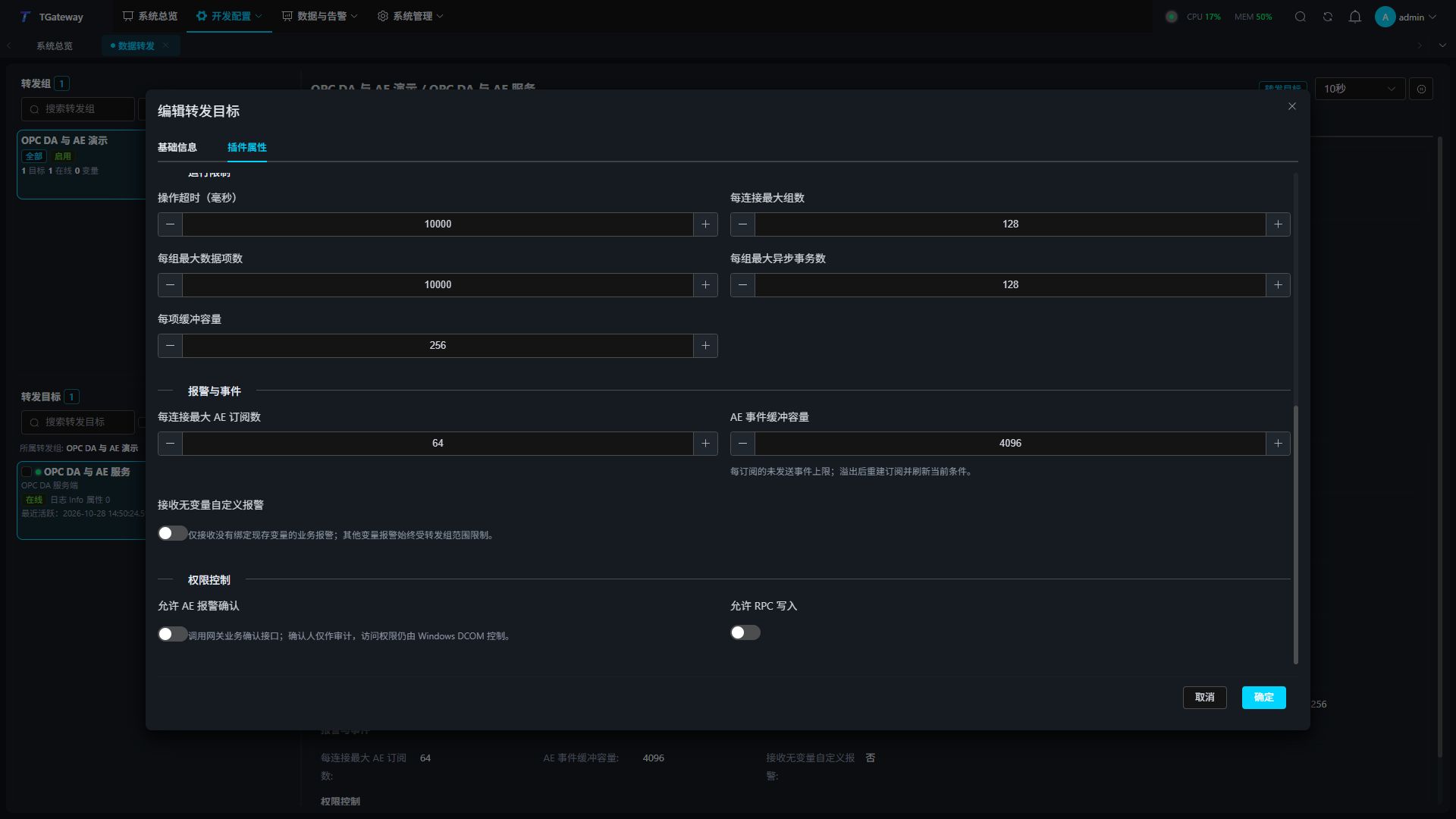
| Operation Timeout (ms) | Default 10000, range 100–300000. Bounds source operations and client callback waits. |
| Maximum Groups per Connection | Default 128, range 1–10000. |
| Maximum Items per Group | Default 10000, range 1–100000. |
| Maximum Async Transactions per Group | Default 128, range 1–10000, for unfinished requests. |
| Buffer Capacity per Item | Default 256, range 1–10000, for items with sampling buffering enabled. |
| Allow RPC Writes | Disabled by default. Target-level write permission; mapping and source permissions must also allow writes. |
Set item addresses
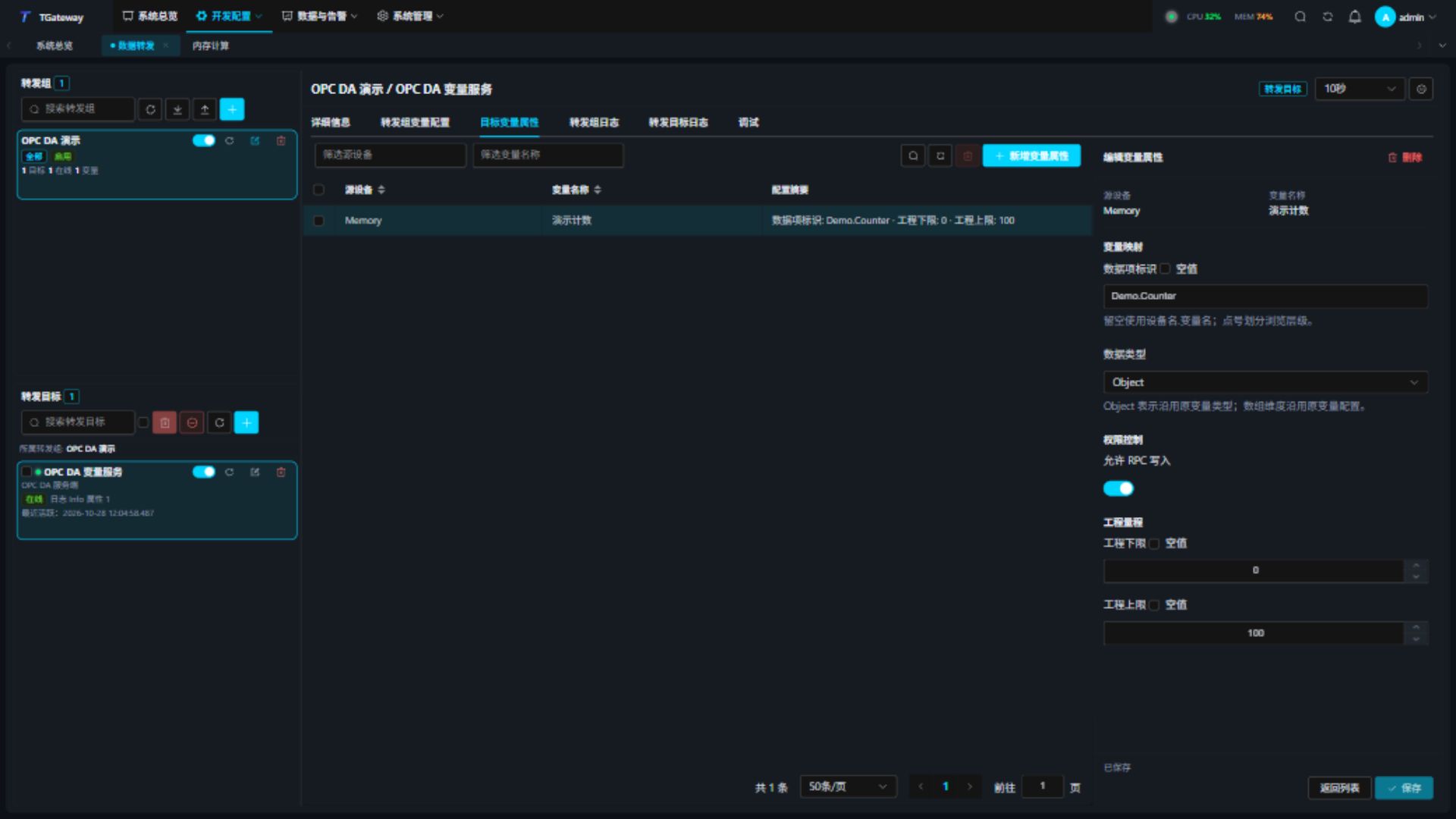
Save the target, open Target Variable Properties, and click Add Variable Properties. Select the source device and variable, configure the ItemID, and save. The variable must already be within the forwarding group's scope; adding properties does not expand that scope.
The example maps the memory variable “演示计数” to Demo.Counter with an engineering range of 0–100.
| Parameter | Description |
|---|---|
| ItemID | Empty by default, using DeviceName.VariableName. An explicit ItemID provides a stable external address. Dots form browse levels; IDs must be unique within the target. |
| Data Type | Default Object, retaining the source type. Array dimensions follow the source configuration. Clients must use the selected type for I/O. |
| Allow RPC Writes | Enabled by default for this mapping. Target-level and source-variable permissions must also allow writes. |
| Engineering Low / High | Empty by default. Set both with high greater than low to enable percentage deadband for continuous numeric variables. |
Start and verify a client
- Save and enable the group and target. Open Details and check Online, Healthy, and the forwarding variable count.
- In an OPC DA client, select the gateway computer and connect using its ProgID. Current-user registration supports direct local access under the same account. Use machine-wide registration for OPCEnum discovery.
- Browse to
Demo.Counteror the configured ItemID. Create an active group and items, then compare value, quality, and source timestamp with the gateway's source variable. - Establish a data-change subscription and change a test source value. Check the subsequent value, quality, and timestamp notification. The initial notification alone does not verify later changes.
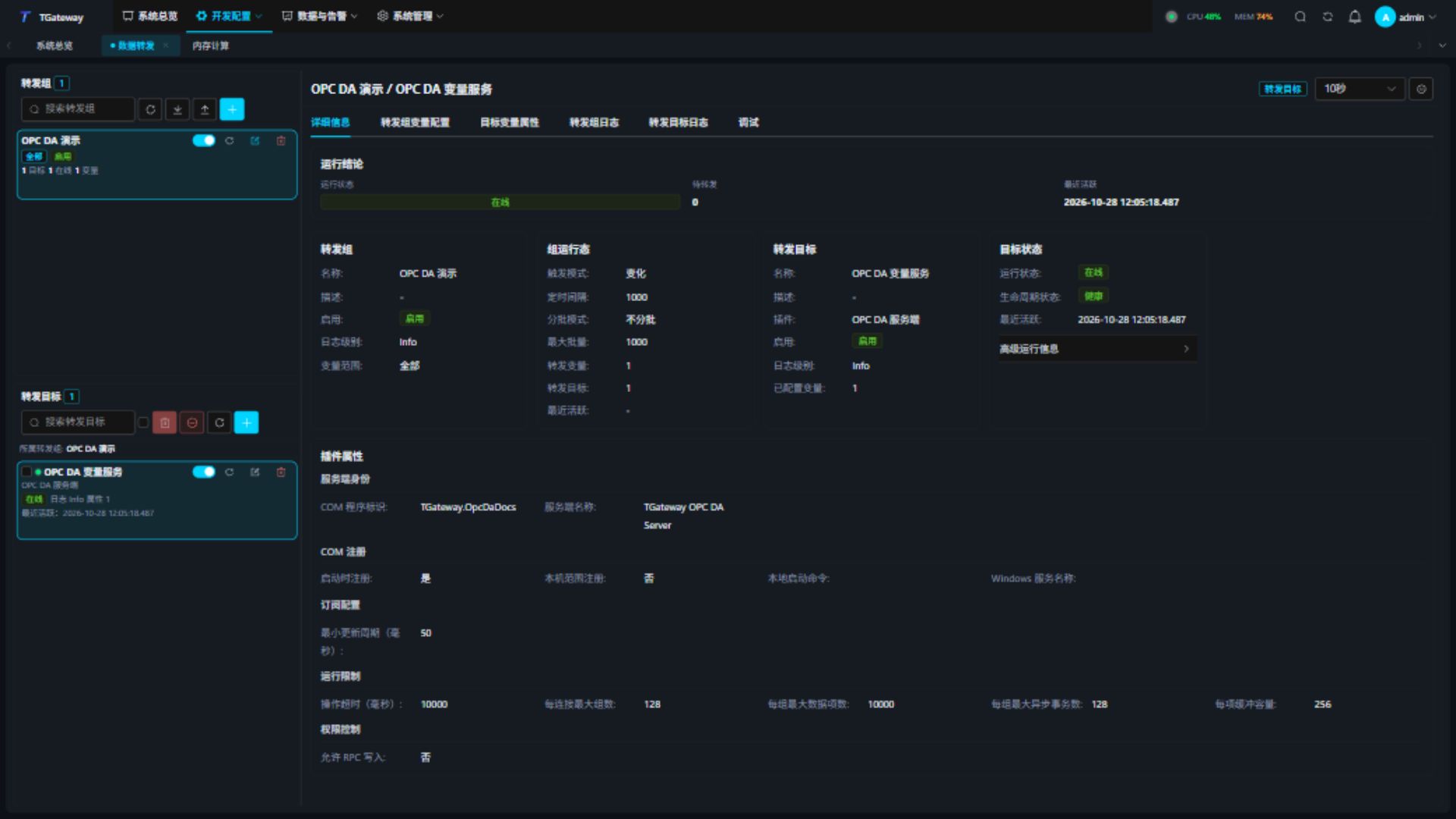
Reads return the actual sampled value and source timestamp. Quality is 0xC0 for an initialized online value, 0x18 when offline, and 0x20 while waiting for an initial value. Device reads refresh the current gateway snapshot; they do not bypass the collection driver to access a PLC directly.
Verify writes
Use a permitted test point. Enable writes at the target, mapping, and source variable, and confirm the source is not read-only. After a client write, check the request result, source execution, and collected readback. A successful write does not immediately replace the sampled value.
Disable each permission in turn and confirm writes are denied. A write-only source cannot be read. DA 3 VQT writes accept the value only; requests specifying quality or timestamp are rejected because the gateway owns sampling quality and time.
Configure AE alarms and events
- Enable the required alarm types on each source variable, save the settings, and include the variable in this target's forwarding group. The AE condition directory follows the enabled variable alarm settings.
- Open the target's Plugin Properties and configure Alarms and Events and Permissions. Leave Receive Unbound Custom Alarms disabled when only variable alarms are required.
- In an OPC AE client, select the same computer and COM ProgID used for DA. Browse areas, sources, and conditions, then create an event subscription.
- Trigger a test alarm and compare its message, severity, value, quality, and time with the gateway's live alarm. Restore the source value and check the recovery notification.
| Parameter | Description |
|---|---|
| Maximum AE Subscriptions per Connection | Default 64, range 1–10000. Limits subscriptions held by one client. |
| AE Event Buffer Capacity | Default 4096, range 1–100000. Maximum pending events per subscription. Overflow revokes that subscription and records an error; recreate it and refresh conditions. |
| Receive Unbound Custom Alarms | Disabled by default. Also receives business alarms without an existing bound variable. Other variable alarms remain restricted to the forwarding group. |
| Allow AE Alarm Acknowledgement | Disabled by default. Allows acknowledgement of in-scope alarms through the gateway's actual alarm service. This permission is independent of Allow RPC Writes. |
Alarm types and values
| Variable alarm setting | AE condition |
|---|---|
| Open and close alarms | Open, Close |
| High-high, high, low, and low-low | HH, H, L, LL |
| Custom alarm | Custom |
| State alarm | State, with enabled state values as subconditions |
Gateway levels 0–10 map to AE severity 1–1000. Filter subscriptions by event type, category, severity, area, or source. Select returned attributes such as value, data type, alarm type, lifecycle, alarm ID, limit, device, and acknowledgement details. Plugin events use simple events; successful acknowledgements produce tracking events.
Alarm values support all 13 gateway types and their arrays: Object, String, Boolean, Byte, Int16, UInt16, Int32, UInt32, Int64, UInt64, Float, Double, and Decimal. Integers and Decimal retain precision. Complex objects use JSON text and dates use Automation dates. Write-only variables do not expose their values; revoking read access also applies to existing condition snapshots.
Acknowledge, refresh, and recover
Enable Allow AE Alarm Acknowledgement before acknowledging from a client. Submit the condition's activation time and cookie, then verify the gateway's live alarm state and acknowledgement text. Recovered but unacknowledged alarms can still be acknowledged. Credentials from an earlier activation cannot acknowledge a new alarm round. Client-supplied actor names are audit text; Windows DCOM controls access.
After creating or recreating a subscription, refresh the currently active or unacknowledged conditions and wait for the final-refresh marker before continuing normal event processing. Refresh returns current condition state rather than historical events. Each callback connection supports one outstanding refresh, which can be cancelled. Disabling an area or source in the AE client controls this server's condition notifications without disabling the gateway alarm engine.
Stopping the target disconnects AE subscriptions. After restart, activate the same identity, create a new subscription, restore filters and returned attributes, and refresh conditions. Use the same recovery sequence after buffer overflow. Simple and tracking events have no historical replay.
Restart and reconnect
Keep the ProgID, registration scope, and ItemIDs unchanged to retain the server identity after restart. Restart invalidates old COM objects, group handles, and subscriptions. Enable the client's reconnection feature so it performs these steps after recovery:
- Release old connections, groups, and callbacks, then activate the same ProgID or CLSID again.
- Recreate groups, add items, and establish subscription callbacks.
- Verify the current value, quality, and timestamp, followed by an actual data-change notification.
Automatic registration has a gap between shutdown and restart. Clients can receive “class not registered” during this interval and should retry until the target is online. Manual persistent registration retains discovery and startup information, but clients must still wait for the gateway and target to become ready. Configure the gateway to start with Windows, or set its installed Windows service to start automatically. Automatic recovery depends on the client's reconnection support; repeatedly reading old handles will not restore a session.
Registration modes and Windows services
The plugin manages registration with the target lifecycle. No additional program is required:
- Keep Register on Start enabled. Starting the target registers its ProgID, CLSID, AppID, and startup information.
- Enable Machine-wide Registration for Component Services, OPCEnum, or remote access, and run the gateway under an account with machine registry write permission.
- For Windows service deployment, install the gateway service first, enter its actual name in Windows Service Name, and enable Machine-wide Registration. Set the service to start automatically and grant its account access to configuration, databases, and required ports.
- Save and start the target, then verify the client connection. Stopping, disabling, or deleting the target removes this automatic registration. Stop the target or gateway normally before removing the deployment.
In automatic mode, normal shutdown removes registration and its AppID settings. The target registers again after the gateway restarts. Use manual mode below to retain registration and AppID permissions.
For a desktop gateway registered machine-wide, an AppID without an explicitly configured identity defaults to Interactive User, so clients share the running gateway. A client can run with normal privileges while the gateway runs as administrator. For operation without a logged-on user, install the gateway as a Windows service and enter its actual service name. Repeated registration preserves explicitly configured DCOM identities and permissions.
Register and unregister in the dedicated debug page
- Disable Register on Start in the target's Plugin Properties. Verify the ProgID, scope, deployment startup command, and Windows service name, then save and restart the target.
- Open the target's Details → Debug and select COM Registration in the dedicated OPC DA / AE server page. Status queries require debug query permission; registration changes also require dangerous debug operation permission.
- Verify the identity, scope, and 32/64-bit states. Click Register Manually, confirm, and wait for each view to show Registered. Machine scope requires registry write permission for the gateway account.
- Manual registration survives normal target shutdown and gateway restart. Configure AppID launch and activation permissions in Component Services as needed. Keep the target saved as enabled so it can start after COM activation launches the gateway.
- Before removing the deployment, click Unregister Manually while the target is still online, confirm, then stop or delete the target. This removes registration and AppID settings owned by this plugin. Existing connections continue, but new clients may fail to discover or activate the identity.
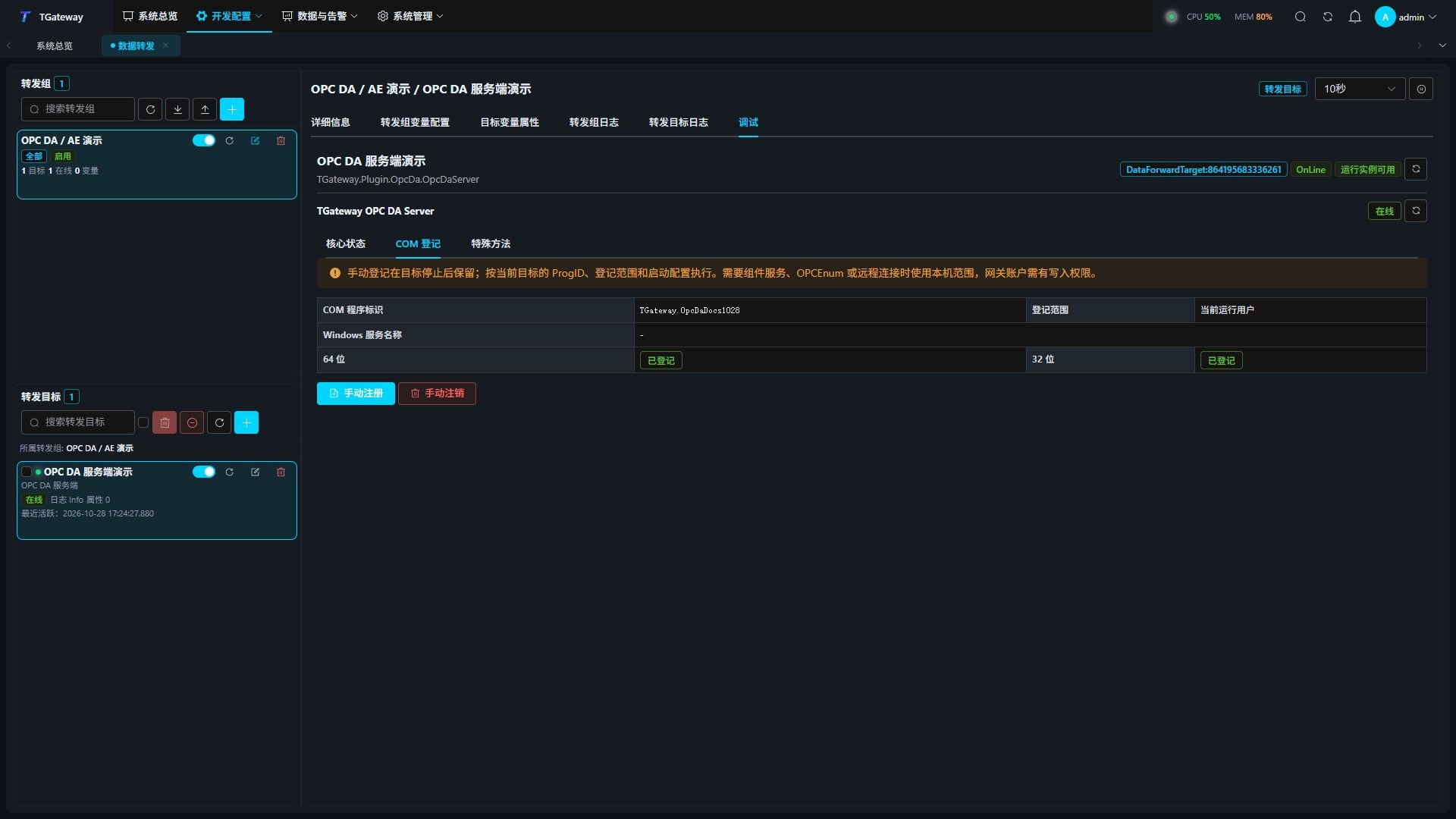
Manual actions are unavailable in automatic mode. After changing Register on Start, save and restart the target to change its active mode. Start a stopped target before using the page to unregister. If a view reports Incomplete or Owned by another component, verify the ProgID and gateway account; residual keys do not establish complete registration.
Before changing the ProgID or registration scope in manual mode, unregister the old identity while the original target is online. Then update the configuration, save, and restart to avoid leaving an unused identity behind.
Manual registration also refreshes the running server's activation identity. Clients can reconnect after the operation completes; existing connections, groups, and subscriptions continue running.
Forced process termination or power loss can leave automatic registration behind. Restore the same ProgID and scope, then start and stop normally to clean automatic registration, or switch to manual mode and unregister in the dedicated page. Use only one target for a given ProgID on a computer to avoid competing gateway instances.
Remote DCOM configuration
Complete local verification before configuring remote access:
- Register machine-wide. In Component Services, locate the AppID and grant the actual accounts the required local/remote launch and activation permissions. Verify the process or service identity.
- Open Component Services → Computers → My Computer → Properties → COM Security. Under Access Permissions, edit the defaults to grant the required local and remote access. The system access limits must also allow these accounts.
- Use Windows accounts that can authenticate between both machines. The client must satisfy Windows DCOM hardening requirements for packet-integrity authentication.
- Allow TCP 135 and the required RPC traffic. Subscriptions require reverse callbacks, so the client also needs callback permissions and firewall rules for the server account.
- Reconnect remotely and verify browsing, reads, and data-change subscriptions separately. Restart the target and confirm reads and subscriptions recover.
OPC targets in the same gateway process share its access policy. An AppID access-permission setting does not create a separate access policy for that target. Restart the gateway after changing the default access permissions; restarting only the target does not reload process permissions. If the host already provides its own COM access policy, configure access through that policy.
Troubleshooting
| Symptom | Checks |
|---|---|
| OPC DA Server missing from plugin selection | Professional authorization, Windows platform, non-AOT host, and plugin synchronization. |
0x80040154, class not registered | Target state, automatic-registration gap, ProgID, registration scope, and OPC Core Components for the client architecture. |
| Server missing from OPCEnum | A system-account OPCEnum service usually cannot see interactive-user registration. Use machine-wide registration and check the OPCEnum service. |
| Activation timeout or server execution failure | Deployment command and quotes, installed service name, account access, enabled target, and gateway startup logs. |
| Connecting starts another gateway process | Check the DCOM identity. Use machine-wide Interactive User registration for a desktop deployment, or enter the actual service name for a Windows service. Restart the target to register automatically, or register again in its dedicated debug page, then reconnect. |
0x80070005, access denied | Machine-registration write permission, both accounts, and DCOM access/launch/activation permissions. |
| Reads work but change notifications do not | Active groups/items, established callbacks, source changes, client callback permissions, and firewall. |
| Reads keep failing after restart | Release old COM objects and rebuild the connection, groups, items, and subscription. Retry while the target initializes. |
| Item not found | Group scope, exact ItemID and case, duplicate addresses, and saved mappings. |
| Write denied | Target, mapping, and source permissions, read-only protection, and no quality/timestamp override in VQT. |
| Variable alarms missing from AE | Check group membership, enabled alarm types, active subscription, and filters; refresh after connecting. |
| AE acknowledgement fails | Check Allow AE Alarm Acknowledgement, current group membership, activation time, and cookie. |
| AE subscription revoked or buffer overflow | Check client consumption speed and buffer capacity, recreate the subscription, and refresh current conditions. |
Related operations
- Data Forwarding: Group scope, target lifecycle, and logs.
- OPC DA Client: Collect data from other OPC DA servers.
- Plugin Manuals: Other collection and forwarding plugins.