OmronHostLinkCModeMaster
Omron Host Link C-Mode address reading and writing and PLC status diagnostic driver
Open the plugin
Enter "Development Configuration → Collection Configuration", create a device and select "OmronHostLinkCModeMaster" in "Collection Plugin".
Supported channels and data types
| Channel type | Pre-configuration check |
|---|---|
| Serial Port | Confirm that the serial port is not occupied by other programs and maintains the same baud rate, data bits, stop bits and parity bits as the device. |
| TCP Client | Confirm network reachability of the device IP, port, and gateway to the device. |
| TCP server | Confirm that the local listening address and port are available, and allow on-site devices to actively connect to the gateway. |
Optional data types: Boolean, Int16, UInt16, Int32, UInt32, Float, String
Plugin properties
Protocol parameters
| Setting | Description |
|---|---|
| PLC station number | Default: 0; fill in: text input. Set the default station number used when the station number is not specified separately in the variable address. |
Address rules
- HostLink C-mode WORD address: D/DM, C/CIO, LR, H/HR, A/AR, TIM, CNT, E hexadecimal area code. Address, such as D100, CNT20, E1.100.
- TIM/CNT Boolean variable reading completion status; C-mode does not support ordinary bit area writing.
- The address can use s=2;D100 to overwrite the default station number; the station number ranges from 0 to 255.
- Reads are automatically split by up to 30 points, WORD writes are automatically split by up to 30 WORDs; TCP variants use the same wire frame.
Special methods
| Method | Purpose | Parameters |
|---|---|---|
| ReadPlcTypeAsync | Read PLC model | No parameters |
| ReadPlcModeAsync | Read PLC mode | No parameters |
Device debug
Enter "Development Configuration → Collection Configuration", select the current device and click "More Functions", then open "Debug".
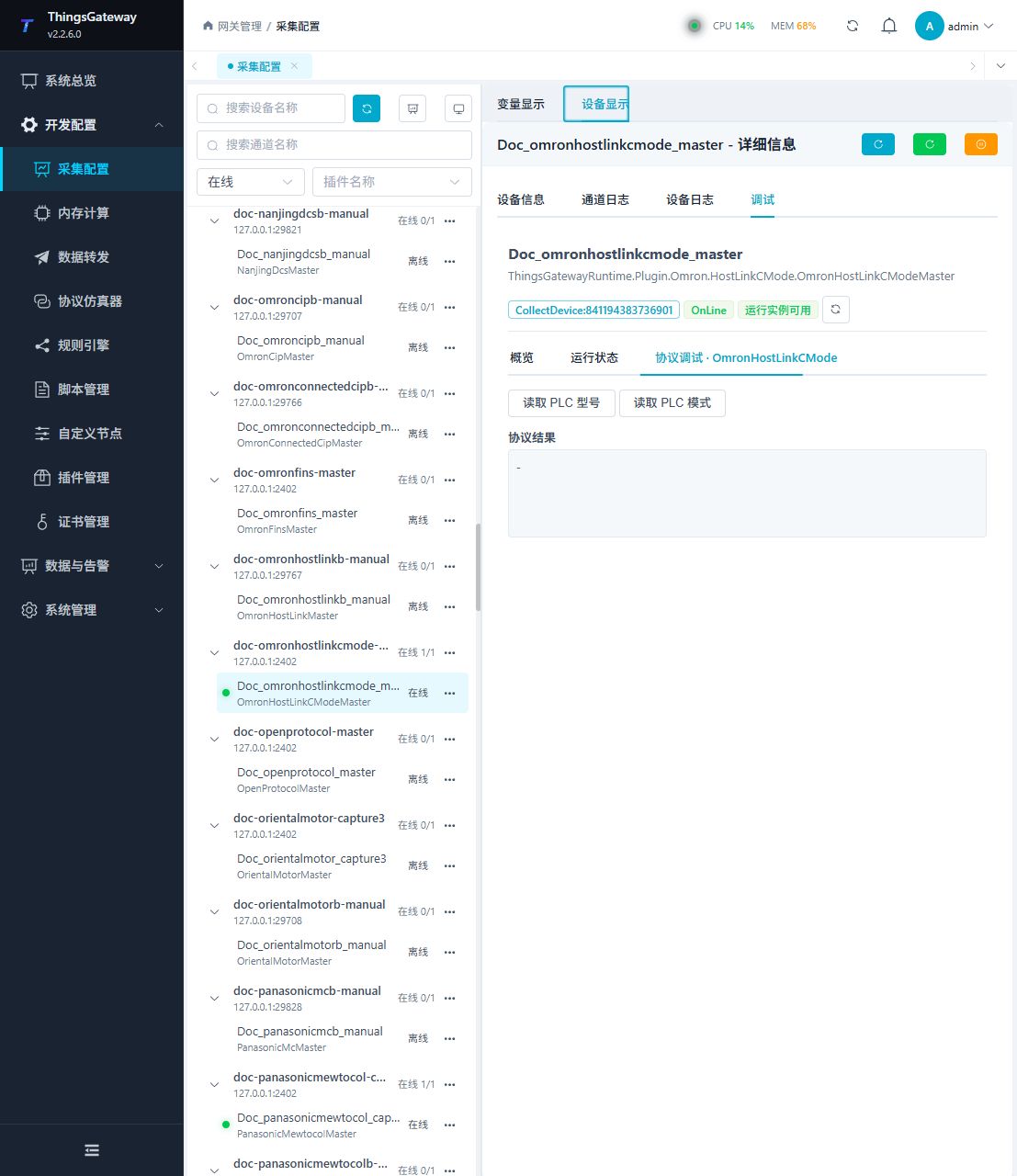
Debugging notes
The dedicated page verification can be completed by reading the PLC type and mode. The current page only provides query operations.
Functions
| Function | Purpose |
|---|---|
| Read PLC model | Use Read PLC model to inspect mapped values, status, counters, recent messages, or the latest result. |
| Read PLC mode | Use Read PLC mode to inspect mapped values, status, counters, recent messages, or the latest result. |
Verify the configuration
- Use the plugin-specific debug panel with one confirmed test point or test message.
- Confirm that the returned value or received message matches the device point list.
- Perform writes or control operations only with an approved test point and the site safety procedure.
Troubleshooting
- The debug panel shows no result: Check the required inputs and plugin parameters, then inspect the device or target log for a response or error.
- Special method execution fails: Check method parameters and permissions; control, write or reset methods also need to confirm that the device is in a state that allows operation.
- The serial port device does not respond: Confirm that the serial port is not occupied, and check the baud rate, data bits, stop bits and parity bits.
Related links
- Collection configuration: View channel, device and common variable configuration.
- Plugin Index: Find other collection or data-forward plugins.