KeyenceSr2000Master
KEYENCE SR-2000 code scanning, status, reset and lock control driver
Open the plugin
Enter "Development Configuration → Collection Configuration", create a device and select "KeyenceSr2000Master" in "Collection Plugin".
Supported channels and data types
| Channel type | Pre-configuration check |
|---|---|
| Serial Port | Confirm that the serial port is not occupied by other programs and maintains the same baud rate, data bits, stop bits and parity bits as the device. |
| TCP Client | Confirm network reachability of the device IP, port, and gateway to the device. |
Optional data types: Select by page options
Address rules
- Keyence SR-2000 does not support register variable addresses, please use dynamic methods such as reading barcodes, status, version, input or reset, and indicator light control.
Special methods
| Method | Purpose | Parameters |
|---|---|---|
| ReadBarcodeAsync | Read barcode | No parameters |
| ResetScannerAsync | Reset scanner | No parameters |
| OpenIndicatorAsync | Open the indicator light | No parameters |
| CloseIndicatorAsync | Close the indicator light | No parameters |
| ReadVersionAsync | Read version | No parameters |
| ReadCommandStateAsync | Read command status | No parameters |
| ReadErrorStateAsync | Read error status | No parameters |
| CheckInputAsync | Read input terminal | Terminal number |
| SetOutputAsync | Set output terminal | Terminal number, on-off status |
| ReadRecordAsync | Read scan code records | No parameters |
| LockAsync | Lock the scanner | No parameters |
| UnlockAsync | Unlock the scanner | No parameters |
| ExecuteCommandAsync | Execute custom command | Command text |
Write, start/stop, reset, load, delete or control methods will change the status of field devices. Before execution, confirm that the equipment is in an operable state and prepare for stop or rollback measures.
Device debug
Enter "Development Configuration → Collection Configuration", select the current device and click "More Functions", then open "Debug".
Dedicated debugging page
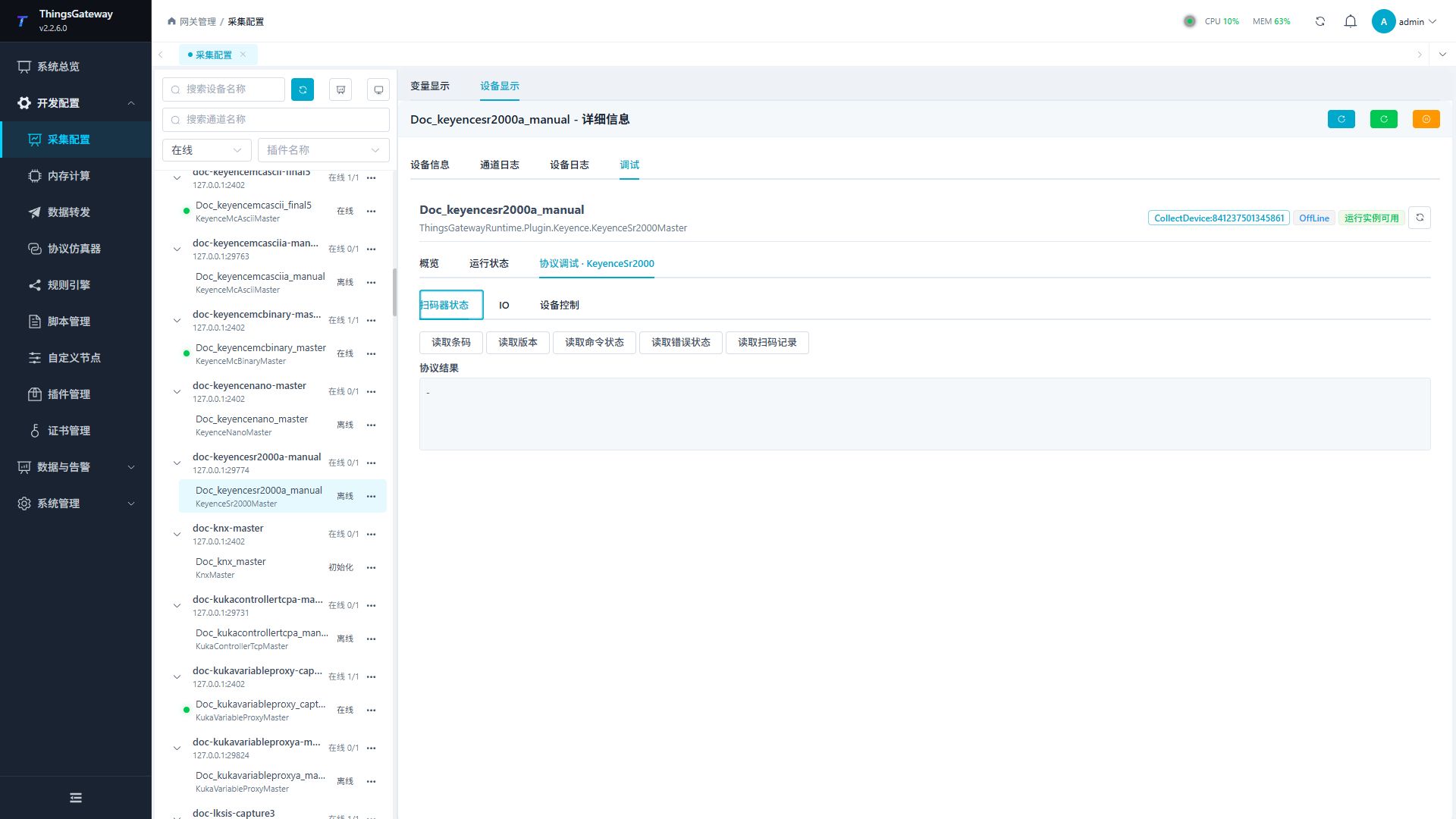
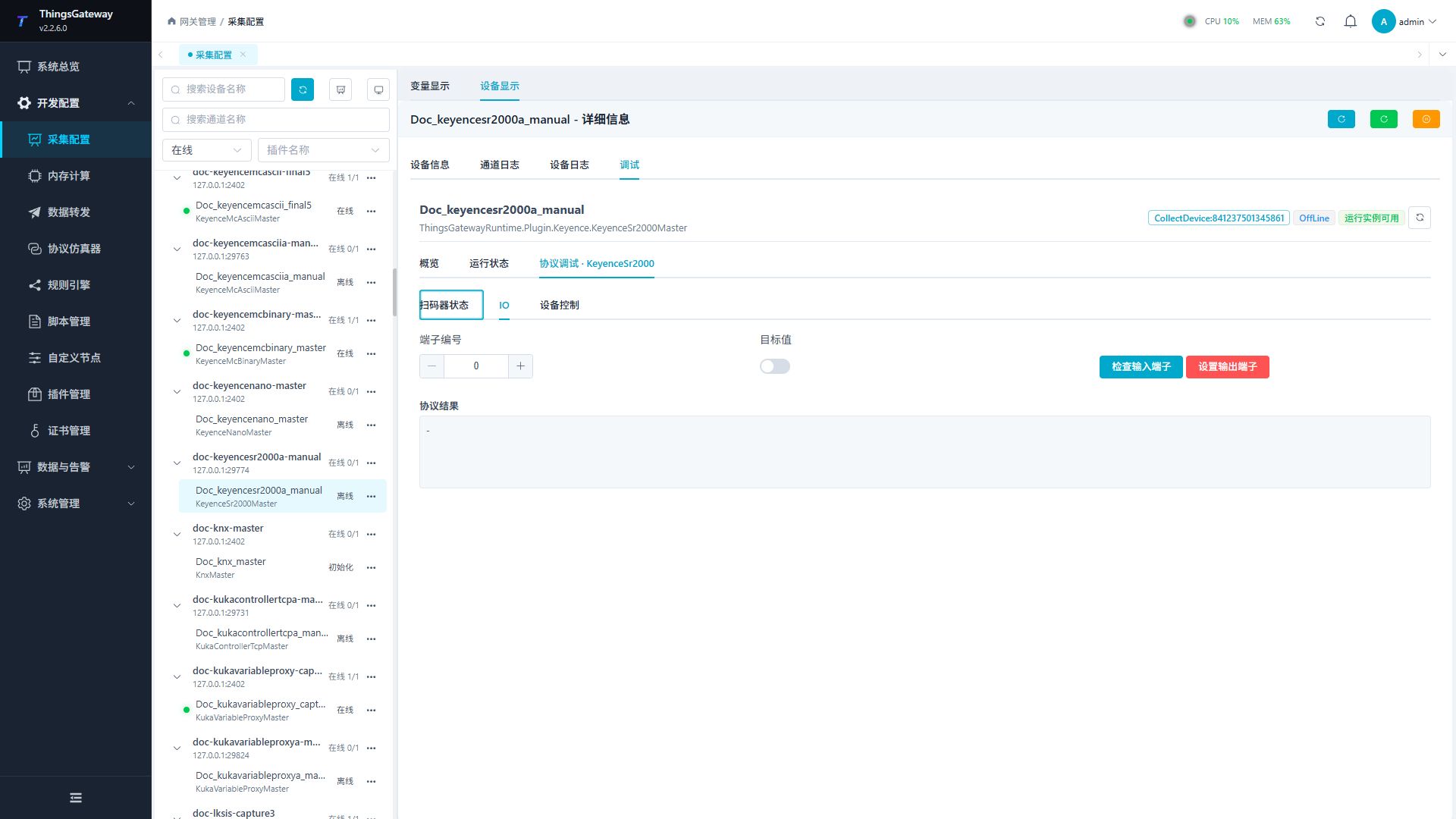
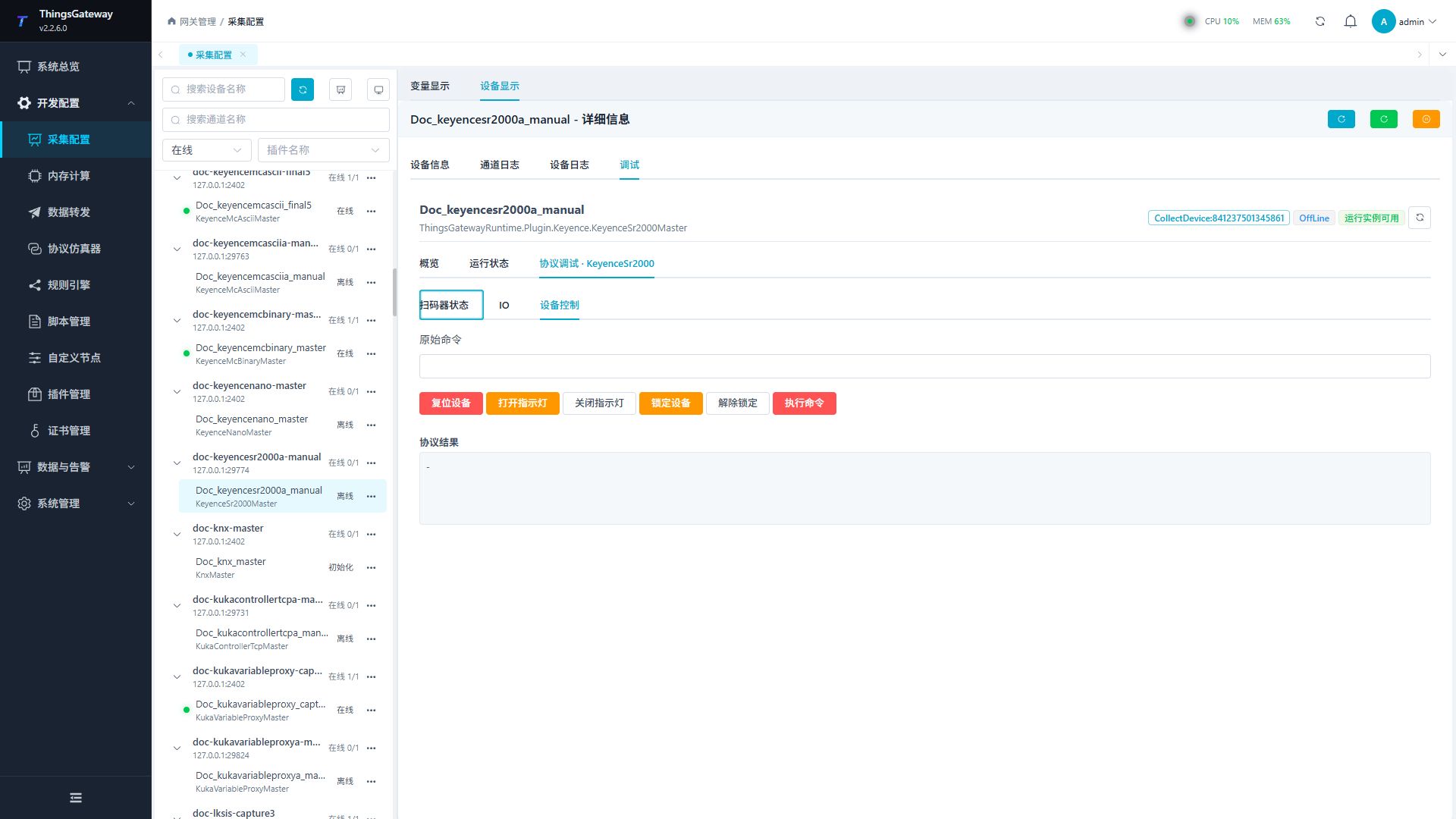
Scanner status is used to read the current status, IO is used to view input and output, and device control is used to perform reset, indicator light, and lock operations.
Debugging notes
Read the barcode, version and error status first; output, indicator light, reset, lock/unlock and any command require secondary confirmation.
Functions
| Function | Purpose |
|---|---|
| Scanner status | Use Scanner status to inspect mapped values, status, counters, recent messages, or the latest result. |
| Plugin operation | Use the controls on this plugin page and review the returned result. |
| Device control | Use Device control with an approved test point and confirm site safety before execution. |
Verify the configuration
- Use the plugin-specific debug panel with one confirmed test point or test message.
- Confirm that the returned value or received message matches the device point list.
- Perform writes or control operations only with an approved test point and the site safety procedure.
Troubleshooting
- The debug panel shows no result: Check the required inputs and plugin parameters, then inspect the device or target log for a response or error.
- Special method execution fails: Check method parameters and permissions; control, write or reset methods also need to confirm that the device is in a state that allows operation.
- The serial port device does not respond: Confirm that the serial port is not occupied, and check the baud rate, data bits, stop bits and parity bits.
Related links
- Collection configuration: View channel, device and common variable configuration.
- Plugin Index: Find other collection or data-forward plugins.