PanasonicMewtocolMaster
Panasonic Mewtocol PLC address reading and writing and status diagnostic driver
Open the plugin
Enter "Development Configuration → Collection Configuration", create a device and select "PanasonicMewtocolMaster" in "Collection Plugin".
Supported channels and data types
| Channel type | Pre-configuration check |
|---|---|
| Serial Port | Confirm that the serial port is not occupied by other programs and maintains the same baud rate, data bits, stop bits and parity bits as the device. |
| TCP Client | Confirm network reachability of the device IP, port, and gateway to the device. |
| TCP server | Confirm that the local listening address and port are available, and allow on-site devices to actively connect to the gateway. |
Optional data types: Boolean, Int16, UInt16, Int32, UInt32, Int64, UInt64, Float, Double, String
Plugin properties
Protocol parameters
| Setting | Description |
|---|---|
| PLC station number | Default: 238; fill in: text input. PLC station number; two-digit hexadecimal station number, default EEH |
Request packing
| Setting | Description |
|---|---|
| Maximum number of bits to pack | Default: 400; fill in: digital input. Maximum number of bit packs; consecutive bit read plan single pack points, range 1 to 400 |
Address rules
- Panasonic PLC Mewtocol bit address: X, Y, R, L use decimal WORD and hexadecimal digits, such as R10.A; T and C use decimal contacts, such as T100.
- WORD addresses: DT, LD, F, T, C, K, S, IX, IY, ID; WORD views of X, Y, R, L must be aligned with .0, for example R10.0.
- Continuous bit reading of a single frame is up to 400 points; continuous WORD reading of a single frame is up to 500 WORD, and if it exceeds 27 WORD, the extended frame is automatically used.
- WORD writing must provide complete even-numbered bytes; normal frames have a maximum of 98 business bytes, and extended frames have a maximum of 2028 business bytes.
- Supports serial port, TCP client and transparent TCP server sessions, does not support UDP.
Special methods
| Method | Purpose | Parameters |
|---|---|---|
| ReadPlcModelAsync | Read PLC model | No parameters |
Device debug
Enter "Development Configuration → Collection Configuration", select the current device and click "More Functions", then open "Debug".
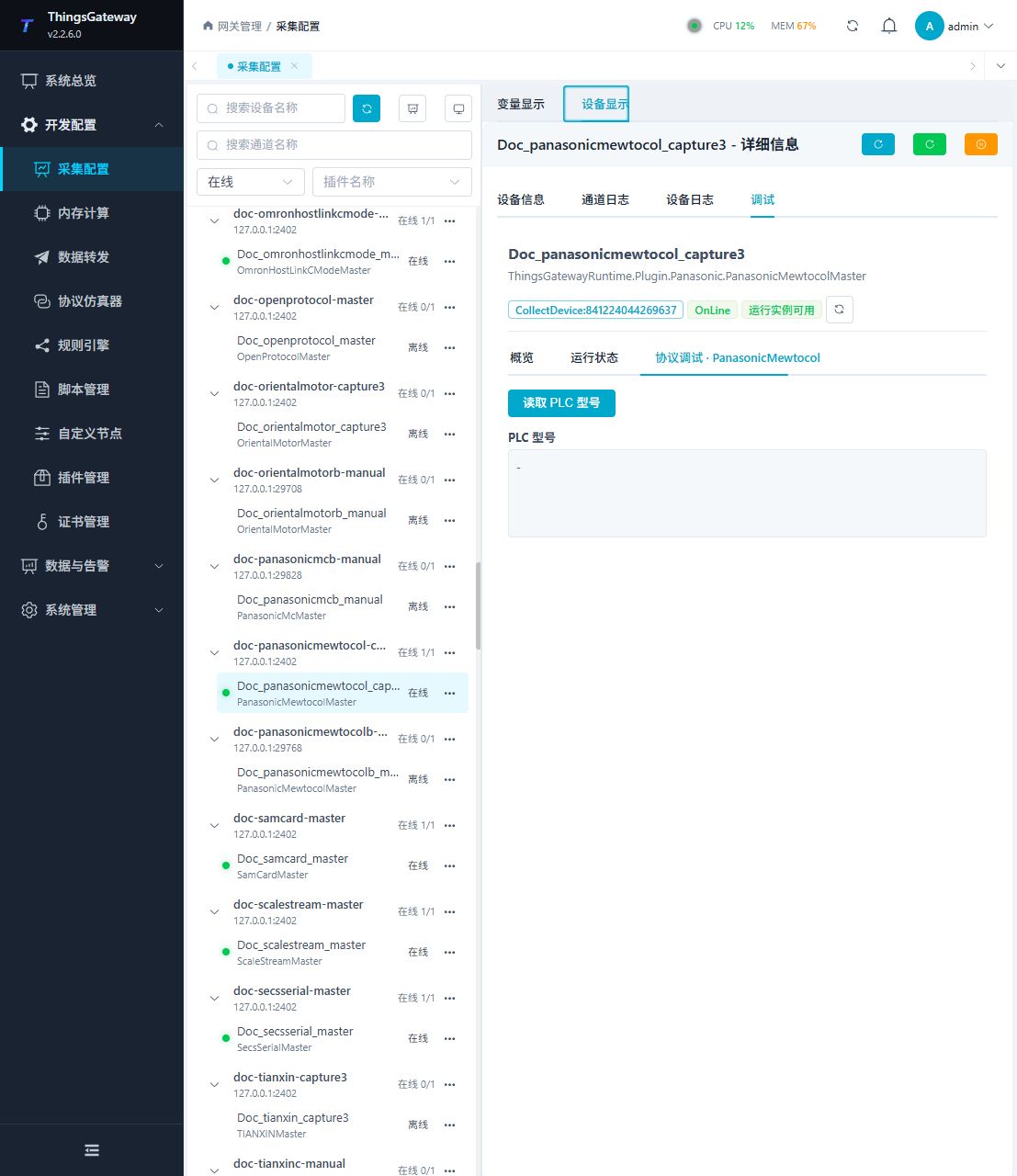
Debugging notes
The dedicated page verification can be completed by reading the PLC model number. There is no writing operation on this page.
Functions
| Function | Purpose |
|---|---|
| Read PLC model | Use Read PLC model to inspect mapped values, status, counters, recent messages, or the latest result. |
Verify the configuration
- Use the plugin-specific debug panel with one confirmed test point or test message.
- Confirm that the returned value or received message matches the device point list.
- Perform writes or control operations only with an approved test point and the site safety procedure.
Troubleshooting
- The debug panel shows no result: Check the required inputs and plugin parameters, then inspect the device or target log for a response or error.
- Special method execution fails: Check method parameters and permissions; control, write or reset methods also need to confirm that the device is in a state that allows operation.
- The serial port device does not respond: Confirm that the serial port is not occupied, and check the baud rate, data bits, stop bits and parity bits.
Related links
- Collection configuration: View channel, device and common variable configuration.
- Plugin Index: Find other collection or data-forward plugins.