VigorMaster
Fengwei PLC address read and write driver
Open the plugin
Enter "Development Configuration → Collection Configuration", create a device and select "VigorMaster" in "Collection Plugin".
Supported channels and data types
| Channel type | Pre-configuration check |
|---|---|
| Serial Port | Confirm that the serial port is not occupied by other programs and maintains the same baud rate, data bits, stop bits and parity bits as the device. |
| TCP Client | Confirm network reachability of the device IP, port, and gateway to the device. |
Optional data types: Boolean, Byte, Int16, UInt16, Int32, UInt32, Int64, UInt64, Float, Double, String, Decimal
Plugin properties
Protocol parameters
| Setting | Description |
|---|---|
| Default station number | Default: 1; fill in: text input. Set the default station number used when the station number is not specified separately in the variable address. |
Connection configuration
| Setting | Description |
|---|---|
| DTU ID | Fill in: text input. Sets the identifier used to identify the current device connection through the DTU service. |
Address rules
- Fengwei VS bit device area: X, Y, M, SM, S, TS, TC, CS, CC, such as M100; up to 1024 bits at a time.
- Word device area: D, SD, R, T, C, such as D100; the normal area can have up to 64 WORD at a time.
- C0-C199 are 16-bit counters, C200-C255 are 32-bit counters and the maximum number is 32 at a time. The reading range cannot span C199/C200.
- The address value uses a decimal number not exceeding six digits. You can use s=1..255; to overwrite the default station number, such as s=2;D100.
Device debug
Enter "Development Configuration → Collection Configuration", select the current device and click "More Functions", then open "Debug".
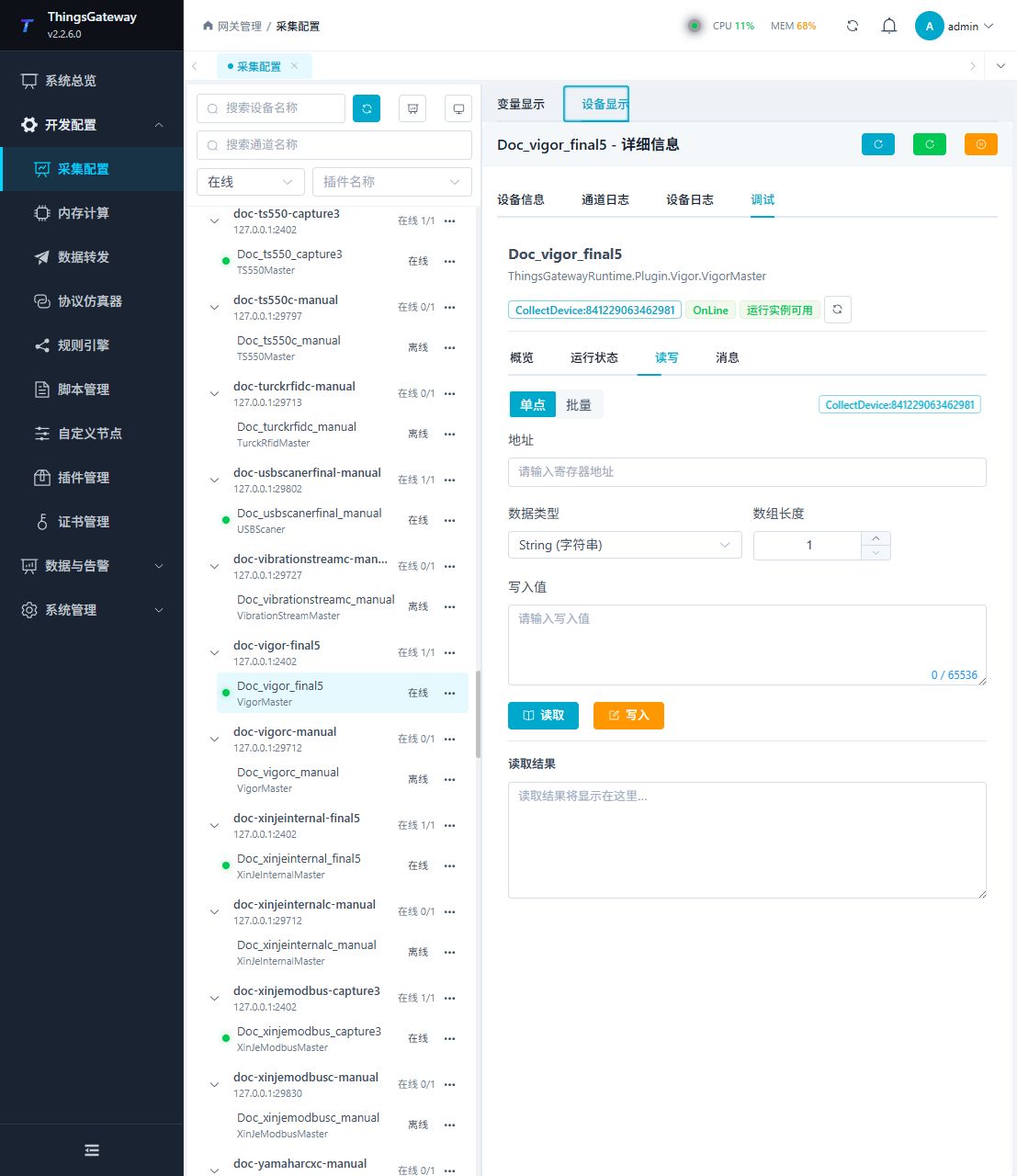
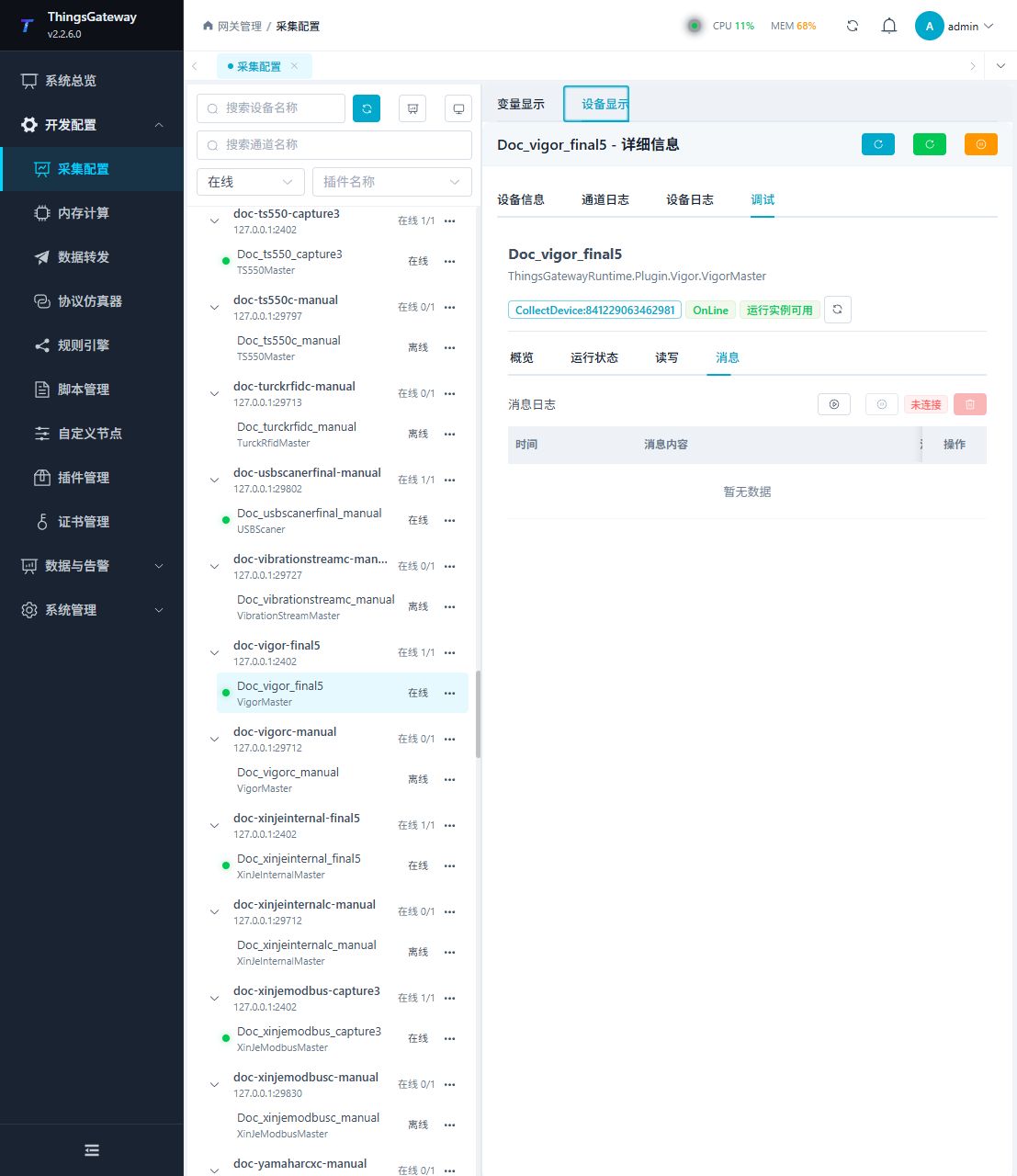
Functions
| Function | Purpose |
|---|---|
| Read and write | Read a confirmed point and write only to an approved test point. |
| Messages | View sent and received frames, protocol fields, and error details. |
Verify the configuration
Use a confirmed on-site address to perform reading. The return value, data type and byte order should be consistent with the point list; after the writable point is written, it should be read back according to on-site requirements.
Troubleshooting
- Address reading failed: Check the station number, register or node ID one by one according to the address rules on this page, and confirm that the data type is consistent with the device point list.
- The serial port device does not respond: Confirm that the serial port is not occupied, and check the baud rate, data bits, stop bits and parity bits.
Related links
- Collection configuration: View channel, device and common variable configuration.
- Plugin Index: Find other collection or data-forward plugins.