On this page
Role Management
Use roles to grant API, menu and button permissions. A user can have multiple roles. Missing permissions can hide menus or buttons, or cause API requests to be rejected.
Maintain roles
Permission types
| terminology | on-site understanding |
|---|---|
| role | a set of permissions, For example, “read-only monitoring,” “operation and maintenance,” and “project administrator.” |
| API permissions | Background interface call permissions. If the page button is visible but API permissions are missing, the operation may still fail. |
| Menu permissions | Visible permissions for left navigation and page entrances. Without menu permissions, users usually cannot see the page. |
| Button Permissions | Operation permissions for adding, editing, deleting, exporting, authorizing, and other buttons within the page. |
| Authorization | The process of checking API, menu, and button permissions for roles. |
| Least permissions | Only grant the necessary permissions to complete the work. Don’t configure ordinary users as super administrators in the production environment. |
Page Entry
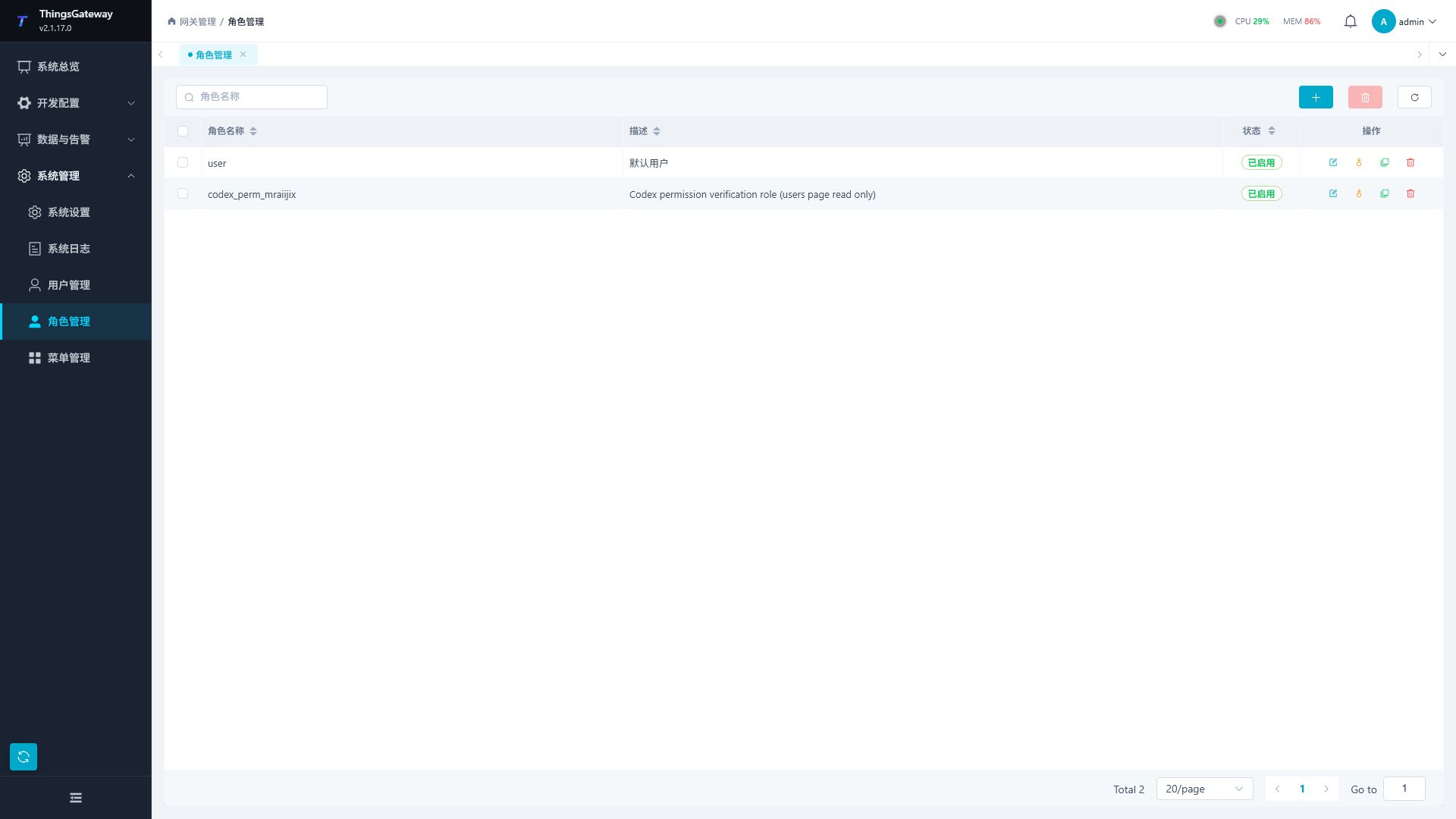
After logging into TGateway Web, enter “System Administration → Role Management.”
Page Structure
| Area | Description |
|---|---|
| Role Name Search | Filter List by Role Name. |
| Tool buttons | are Add, Batch Delete, and Refresh in order. To delete in bulk, you need to check the role first. |
| Role List | Displays role names, descriptions, enabled statuses, and action buttons. |
| Operations column | includes editing, authorizing, copying, and deleting. The Super Administrator role cannot be deleted. |
List Fields
| Fields | Description |
|---|---|
| Role Name | Role display name, which is also the name the user sees when assigning roles. |
| Description: | Role Description, such as “Operation and Maintenance,” “Read-Only Monitoring,” “Project Administrator.” |
| Status | Enabled or Disabled. Disabling roles will no longer grant permissions. |
| Operations | Edit, authorize, copy, delete. |
Add and edit roles
- Open System Management → Role Management, click Add, and name the role for its responsibility, for example
Shift Viewer. - Enter an optional description, keep it enabled, and save.
- Find the new role and open Authorize. Creating a role alone does not grant access to business pages.
- Configure menu/button and API permissions as described below, then save each tab’s changes.
- Assign the role in User Management. Sign in as that user in a private window or another browser and verify the required pages and operations.
Use Edit to change an existing role. Changes affect every user assigned that role.
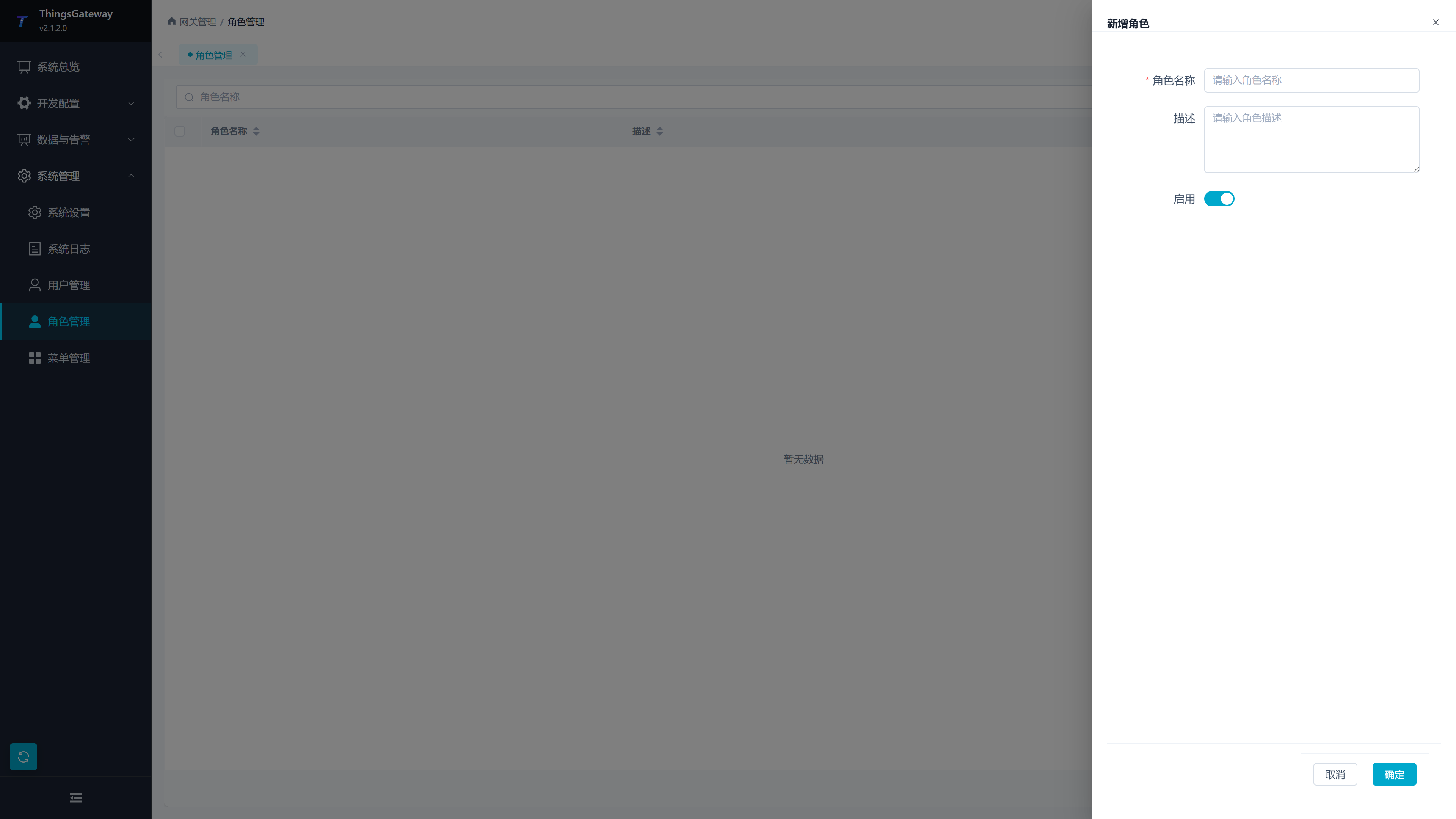
| Configuration Items | Description |
|---|---|
| Role Name | Required. It is recommended to name according to job responsibilities and not use personal names as long-term role names. |
| Description | optional. Explain the role to which it applies, permission boundaries, and maintenance considerations. |
| Enable | to check if the role is active. This switch can be turned off when temporarily disabling a role. |
Copy a role
Click the copy button in the role row to create a new role based on an existing one. Copying is suitable for the following scenarios:
| Scenarios | Suggestions |
|---|---|
| Create similar responsibilities | Copy existing roles first, Further increase and decrease permissions. |
| Temporary Authorization | After copying frequently used roles, add a separate temporary permission, which can be disabled or deleted after completion. |
| Permission Comparison | After copying, confirm the adjustment scope via “Preview Differences.” |
After copying a role, immediately modify the role name and description to avoid confusion between multiple roles’ uses.
Disable or delete a role
To suspend a role, edit it, turn off Enable, and save. Before deletion, check its assigned users and give them the required replacement roles. The Super Administrator role cannot be deleted.
Configure and verify permissions
Authorization Drawer
Click the authorization button in the role row to open the “Role Authorization” drawer. The drawer contains tabs for “API Authorization” and “Menu Button Authorization,” with options at the bottom for “Cancel,” “Preview Difference,” and “Save.”
API Authorization
Which service interfaces can the API authorization control role call. Even if the page buttons are visible, if the corresponding API permissions are missing, interface calls may still fail.
| Area | Description |
|---|---|
| Search API | Filter the list of interfaces by permission code, interface URL, or description. |
| Select All | Select all interfaces in the current API permission list. |
| Clear | Clear current API permission selections. |
| Permission encoding | Business permission identification, such as variable writing, user maintenance, log export, etc. |
| Interface URL | The interface path corresponding to the current permission. |
| Description | Interface Purpose Description. |
API authorization is suitable for minimizing allocation by function. For example, read-only monitoring roles usually only retain query interfaces; The operations role can add interfaces for write, restart, import/export, and log export.
Menu Button Authorization
Menu button authorization controls which menus users can see and which buttons within the menus can be operated.
| Area | Description |
|---|---|
| Search for menus or buttons | Filter permission trees by menu name or button name. |
| Select All | Select all menu and button nodes. |
| Clear | Clear all menu and button selections. |
| Menu Node | controls whether the left navigation menu and page entry are visible. |
| Button nodes | Control whether buttons for adding, editing, deleting, exporting, authorizing, etc. are visible on the page. |
Selecting a menu can also select its child buttons. After searching and selecting a menu, clear the search and expand it to remove unneeded edit, delete, write, and control buttons. Menu/button selections do not grant the corresponding API permissions.
Example: allow only System Overview
Use Shift Viewer without collection editing, writes, restarts, or account management.
- In API Authorization, search
overview:get, check that the results retrieve status, statistics, or lists, and select them. Do not select every result for the broader wordoverview, which also includes test-data insertion. - Search for and select each of the following codes separately, waiting for the filtered results before selecting.
| Permission code | Purpose |
|---|---|
system:get_system_info | System resources and software-license state. |
project:get_project_info | Project information. |
network_config:get_network_configs | Network interfaces. |
real_alarm:get_real_alarm_variables | Top-bar alarm count. |
- Save, reopen authorization, and use Menu Button Authorization to select System Overview. Retain only its refresh, top-bar system status, top-bar alarm badge, and workspace project-information buttons.
- Preview the differences, save, and assign the role to an ordinary user. Sign in with an independent browser session.
The user should see System Overview, device statistics, and system resources, without Collection Configuration, User Management, or runtime-restart actions. Do not use admin to verify restricted permissions.
If switching tabs prompts about unsaved authorization, cancel the switch, save the current tab, then reopen authorization for the other tab.
Debug Permission Levels
The Collection Configuration and Data Forwarding menus each provide five independent debug button permissions. They are split by risk, so a role can receive view or query access without also receiving writes or controls.
| Button permission | API permission code | Scope |
|---|---|---|
| Debug View | debug:view | View the Debug tab, object overview, runtime state, and redacted summaries. |
| Read-only Debug | debug:query | Perform reads, node browsing, state queries, and read-only diagnostics. |
| General Debug Write | debug:write | Write ordinary points, publish messages, maintain subscriptions, and run low-risk protocol commands. |
| Dangerous Debug Control | debug:dangerous | Start or stop PLCs, reset equipment, move robots, perform batch I/O, send arbitrary commands, delete datasets, or disconnect clients. |
| Sensitive Debug Data | debug:sensitive | View certificate trust information, identity information, and other sensitive debugging content. |
When authorizing, first select the corresponding debug buttons under Menu Button Authorization, then verify the same codes under API Authorization. The default user role contains only Debug View and Read-only Debug; the other three permissions must be granted by separate roles.
Recommended role split:
| Role | Suggested debug permissions |
|---|---|
| Read-only Debug | Debug View and Read-only Debug. |
| General Write | Read-only Debug plus General Debug Write. |
| Dangerous Control | Add Dangerous Debug Control for approved equipment-maintenance staff; do not include Sensitive Debug Data by default. |
| Sensitive Data Review | Add Sensitive Debug Data for the business need; do not include writes or dangerous controls by default. |
Note
Do not select all debug permissions merely to make one button available. Dangerous controls and sensitive data are separate responsibilities and should be approved, granted, and audited separately.
Preview Differences and Save
After clicking “Preview Differences,” the bottom of your drawer will display the statistics for this permission adjustment.
| Difference Item | Description |
|---|---|
| Add Menu / Cancel Menu | The number of menu permissions that will be added or canceled after this save. |
| Add button / Cancel button | Number of button permissions added or canceled after this save. |
| Add API / Cancel API | The number of interface permissions that will be added or removed after this save. |
After confirming the discrepancies, click “Save”. After saving, logged-in users usually need to refresh the page or log in again to see the latest menus, buttons, and interface permission effects.
Role design and precautions
Common Role Suggestions
| Role Types | Permission Suggestions |
|---|---|
| Read-only monitoring | read-only APIs and menus for system overview, data queries, real-time alarms, and log queries. |
| Operations and maintenance personnel | On top of read-only monitoring, permissions such as variable writing, device debugging, log export, and runtime restart are added. |
| Configure administrators | Collect configurations, data forwarding, scripts, nodes, rules, and plugin maintenance permissions. |
| Security Administrator | User management, role management, menu management, audit log permissions. |
Usage Notes
| Scenarios | Recommended |
|---|---|
| Super Administrator | Super Administrator has the highest privileges, so account sharing should be restricted, and login audits should be checked regularly. |
| API and button inconsistency | If only the button is authorized but the API is not authorized, page operations may fail; If only the API is authorized but the button is not authorized, users may not be able to trigger it from the page. |
| Delete Role | Before deleting, check the user’s binding relationship to avoid having no available permissions after logging in. |
| Batch deletion | Only performs on regular roles that are not used as deleted; super administrator roles cannot be deleted. |
| Permission Adjustment Audit | View audit records in the system log after important permission adjustments. |