On this page
User Management
Open System Management → User Management to add login accounts, assign roles, reset passwords, or disable accounts.
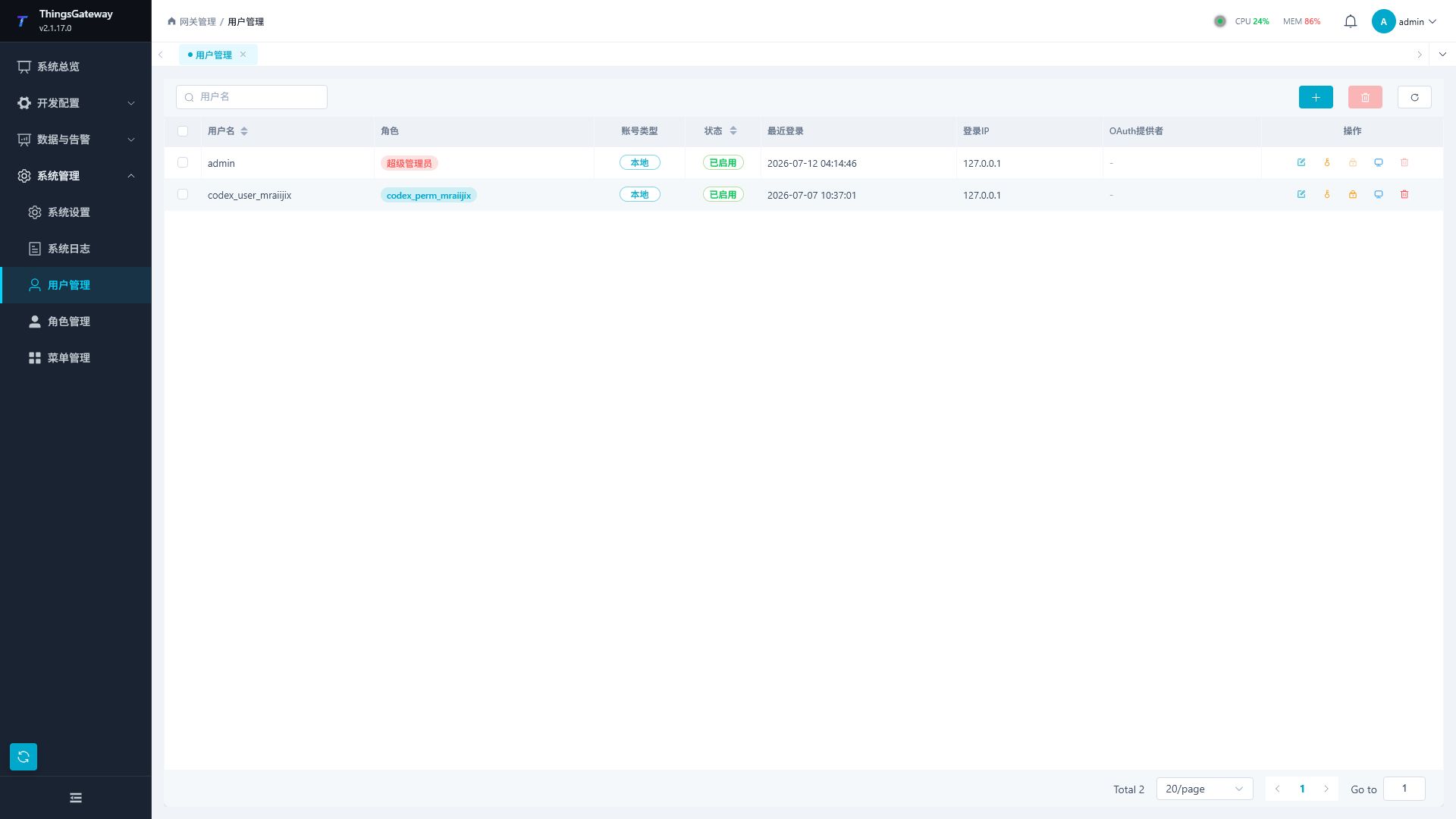
Maintain accounts
Add a user
Prepare the required roles in Role Management. Users without assigned roles may see no menus after login.
- Click Add and enter the username and display name.
- Set an initial password and enable Password Login and Enable.
- Select one or more prepared roles.
- Enable Force Password Change when handing the account to another user.
- Click OK and confirm the user appears in the list.
- Test in a private session or a different browser, checking accessible pages and completing any required password change. Another ordinary tab can reuse the administrator session.
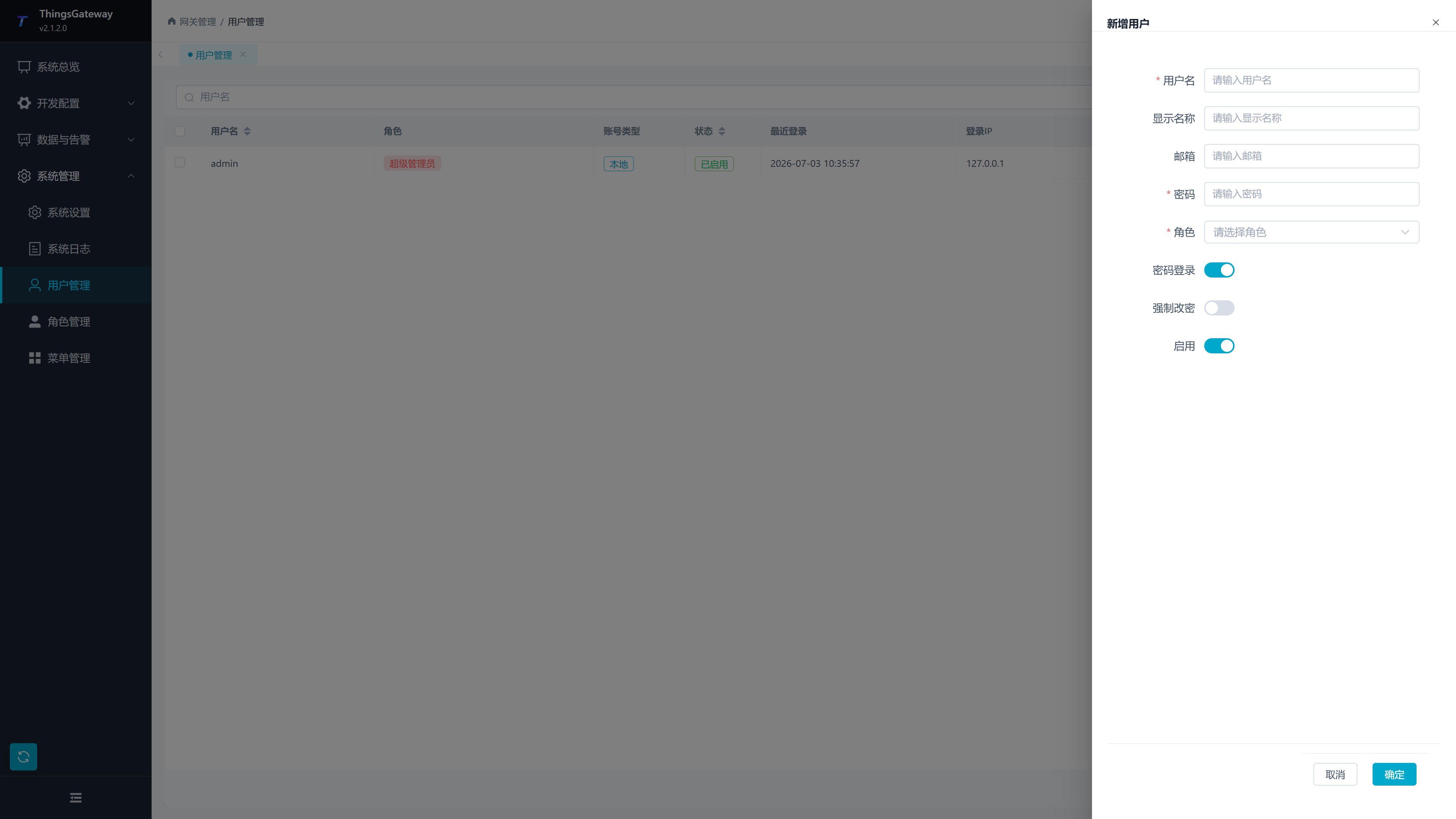
| Field | Description |
|---|---|
| Username | Login identifier; it cannot be changed in the editor after creation. |
| Display name | Person, position, or team name. |
| Optional contact address. | |
| Password | Initial local password meeting the displayed requirements. |
| Roles | Determine accessible pages and operations. |
| Password Login | Enables username/password login. |
| Force Password Change | Requires a personal password on the next login. |
| Enable | Disabling prevents login. |
Edit a user
Find the account, click Edit, make changes, and click OK. Change roles to adjust permissions and have the user log in again. External platform passwords are maintained by that platform.
For providers, SSO policy, binding, and link review, see Identity Authentication. Users can inspect external accounts and login devices under Account and Security in the account menu.
Passwords, locks, and sessions
Reset a password
- Find the user and click Reset Password.
- Enter the new password. Enable Force Password Change when resetting for someone else.
- Save and communicate the password through a secure channel.
- Have the user sign in and complete any required password change.
Change the built-in admin password rather than continuing to use 111111.
Lock, unlock, and delete
| Task | Operation |
|---|---|
| Immediately block an account | Click Lock and confirm; existing sessions are revoked. |
| Restore a locked account | Click Unlock and have the user sign in again. |
| Prevent login | Edit the account, disable Enable, and save. |
| Remove an unused account | Click Delete and confirm, or select accounts for batch deletion. |
Check usernames before acting and retain a usable administrator. The built-in admin username, roles, enable state, and deletion are protected; its password can be changed.
Manage sessions
Click Session Management and identify the intended login by IP address, device, and recent activity.
| Action | Result |
|---|---|
| Revoke session | Invalidates a specified login; the current session cannot be revoked directly here. |
| Revoke other sessions | Retains the current session and invalidates the user’s other active logins. |
| Revoke all sessions | Invalidates all active logins for this user. |
| Refresh | Reloads session state. |
Troubleshooting
| Symptom | Check |
|---|---|
| No menu after login | Assigned roles and their menu permissions. |
| Menu visible but buttons missing | Role button permissions. |
| An operation returns permission denied | Role API permissions; save and sign in again. |
| Forgotten password | Ask an administrator to reset it. |
| Suspected unauthorized login | Lock the user and inspect login audits in System Logs. |