On this page
Watchdog Web Operation Manual
Watchdog Web is used to guard the TGateway process and provides package management, runtime logs, backup recovery, tunnel client, and runtime parameter configuration. During on-site maintenance, the dashboard status is usually checked first, followed by project applications, backup recovery, or tunnel configuration.
This page covers project application and process supervision at one site. Use Studio Site management for remote updates across sites, and Projects for local validation and packaging. Watchdog and the TGateway it supervises share the same site machine and runtime environment.
Sign in and inspect
Login
Open http://<gateway-ip>:6200 and enter your Watchdog username and password. The bundled configuration officially supports standard HTTP access by IP address; it does not require changing the address to localhost or using a browser secure context.
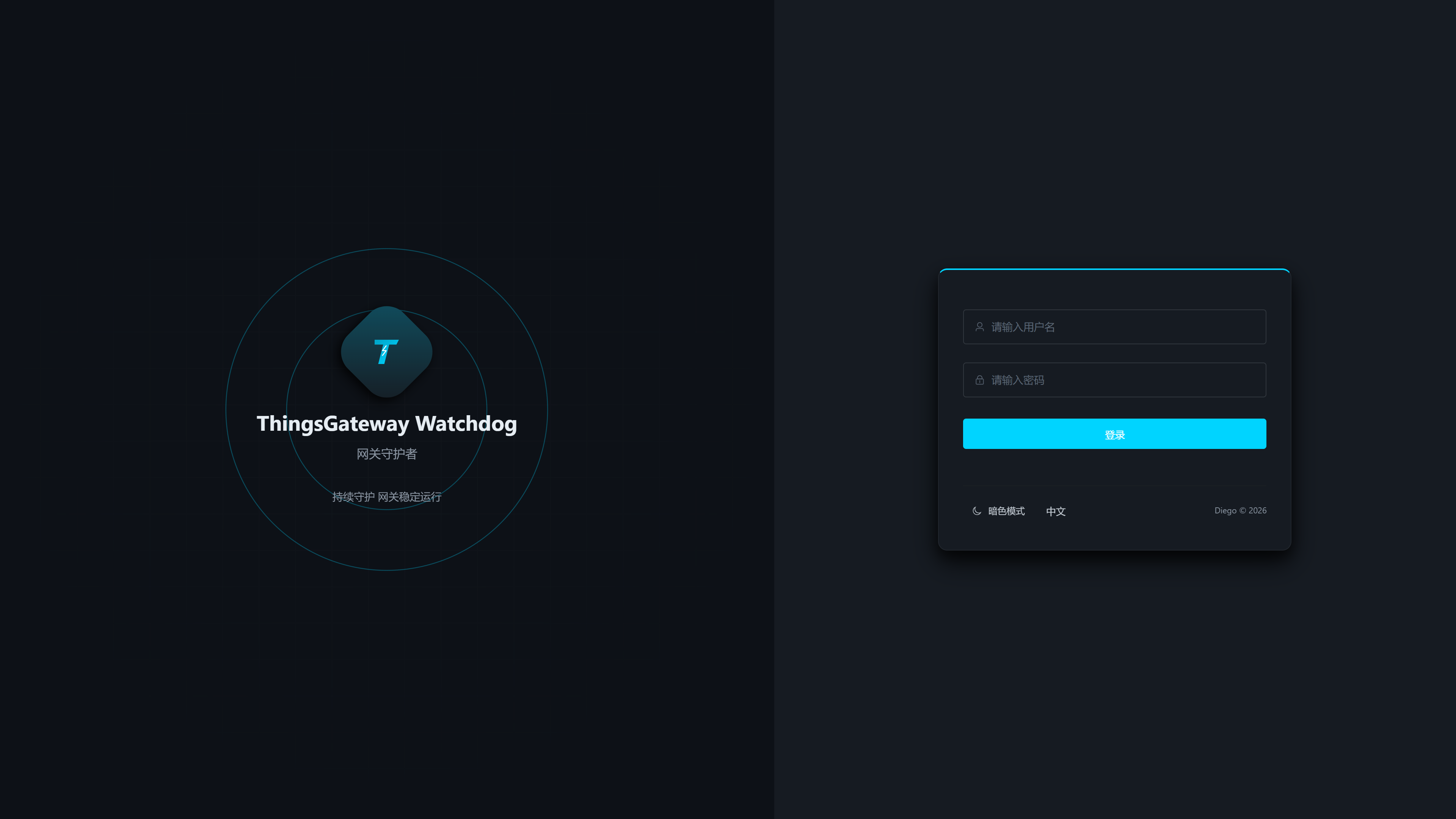
| Configuration Items | Description |
|---|---|
| Username | The default account is admin, which can be modified on the “Settings” page. After modification, you need to log in with a new username. |
| Password | The default password is 111111; it is recommended to change it immediately after initial deployment. |
The page automatically encrypts your login password. Login remains valid for eight hours. Log in again after logging out or restarting Watchdog.
After logging in, first access the “Dashboard”. If the browser jumps directly back to the login page, it means the session has expired, Watchdog just restarted, or the account and password are incorrect, requiring re-login.
HTTP security boundaries
Login password encryption protects only the password. With plain HTTP, project packages, backups, and other data are still sent without transport encryption. Use HTTPS on public or untrusted networks.
Appearance
The initial theme is dark, with primary-background text set to automatic contrast. Open Theme Configuration in the upper-right user menu to change it. Restore Defaults returns to dark mode and automatic contrast. Explicitly saved preferences remain in effect in the current browser.
Top search
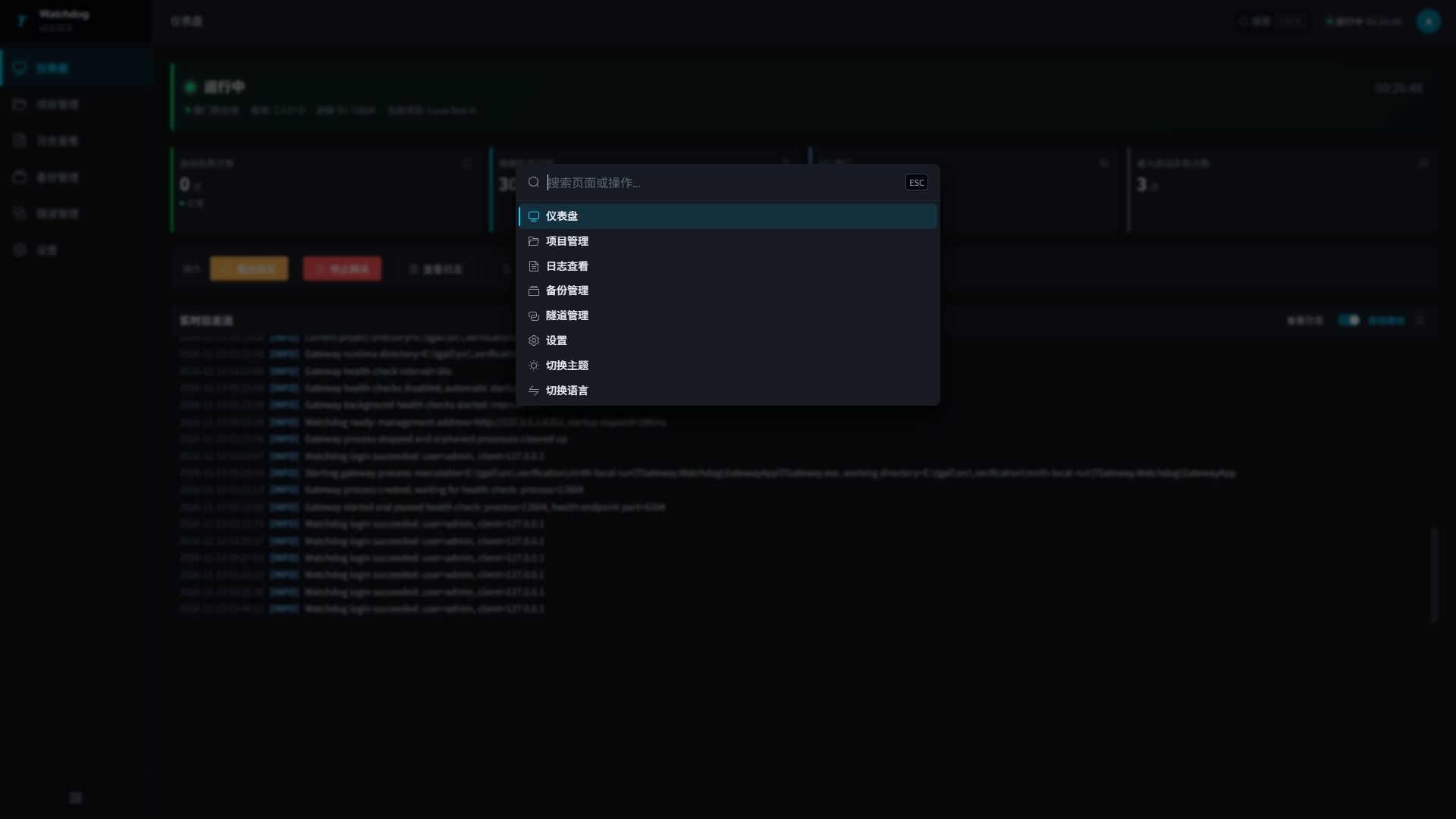
Click Search in the header, or press Ctrl+K (⌘+K on macOS). Search for Dashboard, Projects, Logs, Backups, Tunnel, or Settings, or find the theme and language actions. Use the arrow keys and Enter to select a result; press Esc to close. The search button also works on phones.
Use Tab to focus sidebar links and Enter to open them, including when the menu is collapsed to icons. On phones, open the navigation menu first; it closes after you select a page.
Dashboard Inspection
Menu Path: Dashboard.
dashboard is used to confirm whether Watchdog is online, whether TGateway is running, whether the current project is correct, and whether API ports and health check policies meet expectations.
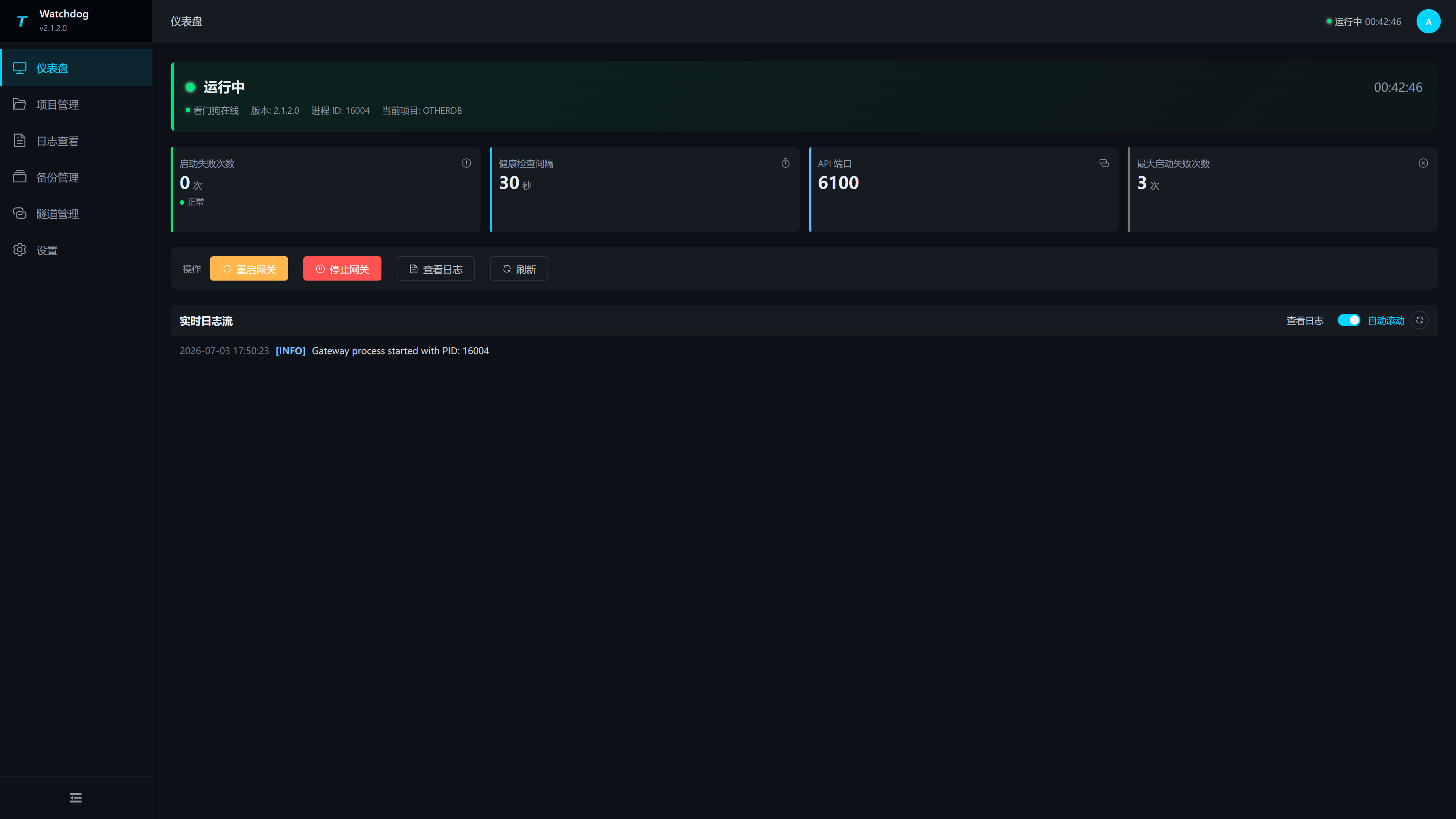
| Area | Description |
|---|---|
| Top Status Banner | Displays Watchdog online status, TGateway running status, runtime, version, process ID, current item, and last error. |
| Number of Startup Failures | Counts the number of consecutive startup failures, which should normally be 0. |
| Health Check Intervals | Watchdog checks the health status of TGateway from the “Settings” page. |
| API Port | Watchdog is used to check the API port for TGateway, and should match the actual listening port of the TGateway Web/API. |
| Maximum number of startup failures | After reaching this threshold, focus on checking package usage, runtime files, and port usage. |
| Action Buttons | Supports restarting gateways, stopping gateways, viewing logs, and refreshing status. |
| Real-time Logs | By default, the most recent logs are read and automatically scrolled to observe start, stop, and exception information. |
Restart or Stop TGateway
- On the dashboard, click “Restart Gateway” or “Stop Gateway.”
- Read the confirmation prompt before proceeding.
- After the operation is completed, observe the top status banner, process ID, and real-time log.
- If the status remains unchanged, click “Refresh” and then go to the “View Logs” page to read a more complete log.
When you select Restart Application in the gateway interface, Watchdog starts and tracks the successor, and the dashboard process ID updates. This explicit restart also works with periodic health checks disabled. The project directory and on-site cache location remain unchanged.
Operation Impacts
Restarting or stopping TGateway interrupts acquisition, rule processing, and data forwarding. Before executing in the production environment, confirm that the upper-level system, field equipment, and data receiving end allow for short-term interrupts.
Projects and backups
Project Management
Menu Path: Project Management.
Project management is used to upload, apply, download, and delete the TGateway package. The current project will have a “Current” label; the current project cannot be deleted or reapplied.
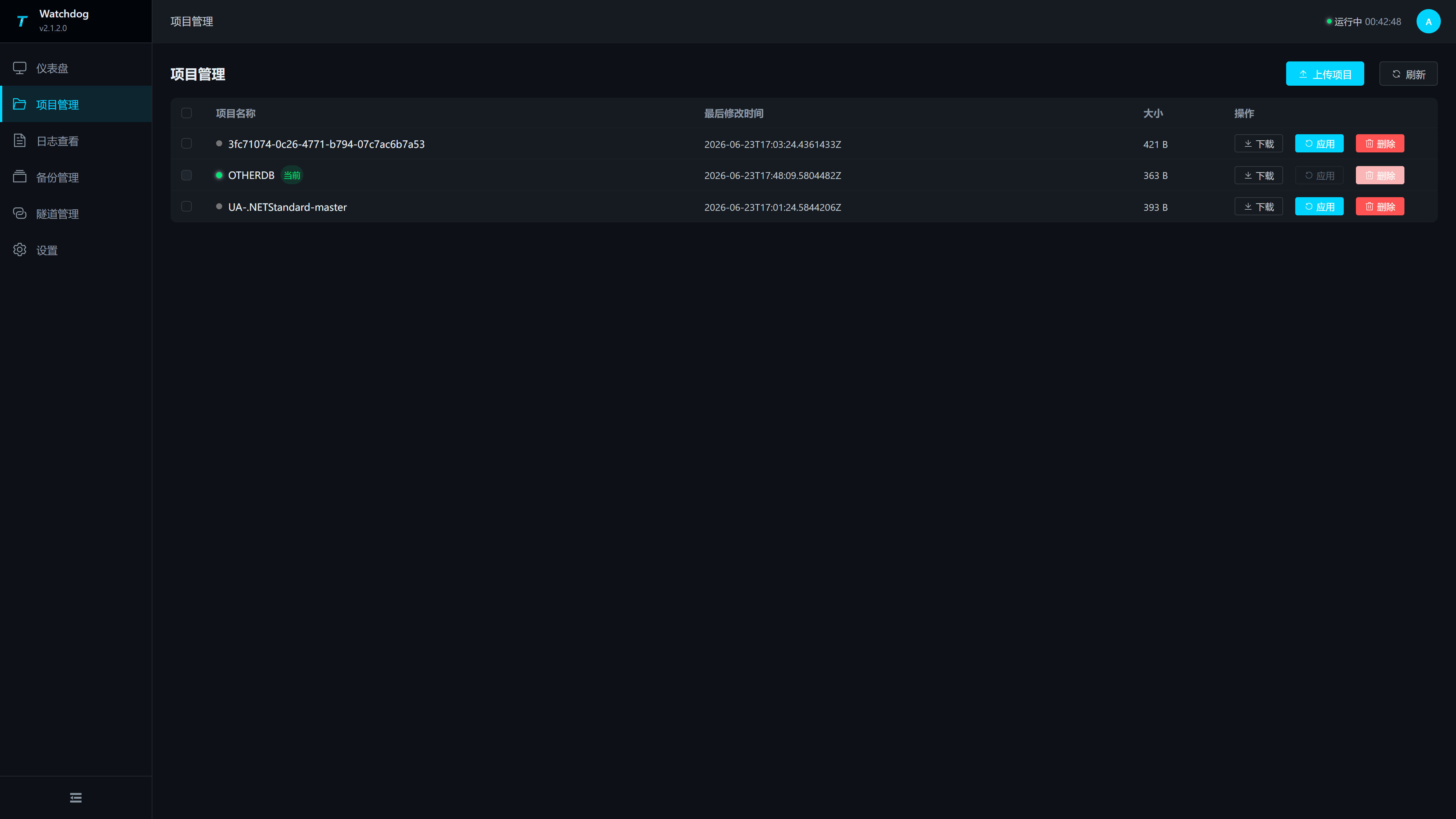
| Column or Operation | Description |
|---|---|
| Check the box | After selecting a non-current project, you can perform batch deletion. |
| Project Name | Display the package name; The currently running project displays the status point and the “Current” identifier. |
| Last Modification Time | The last modification time of the project package, used to identify the order of uploads or updates. |
| Size | Package file size. |
| Download | Download a complete ZIP project package. Names containing a dot still receive the .zip suffix. The current project returns its latest live content; other projects return saved content. |
| Application | applies this project as the current TGateway project. |
| Delete | Delete non-current items. The delete button for the current project is disabled. |
| Upload | Open the project upload popup. |
| Refresh | Reload the item list and current project status. |
Upload Project Package
Click “Upload Project” to open the upload popup. The pop-up window supports dragging files and also clicking to select files.
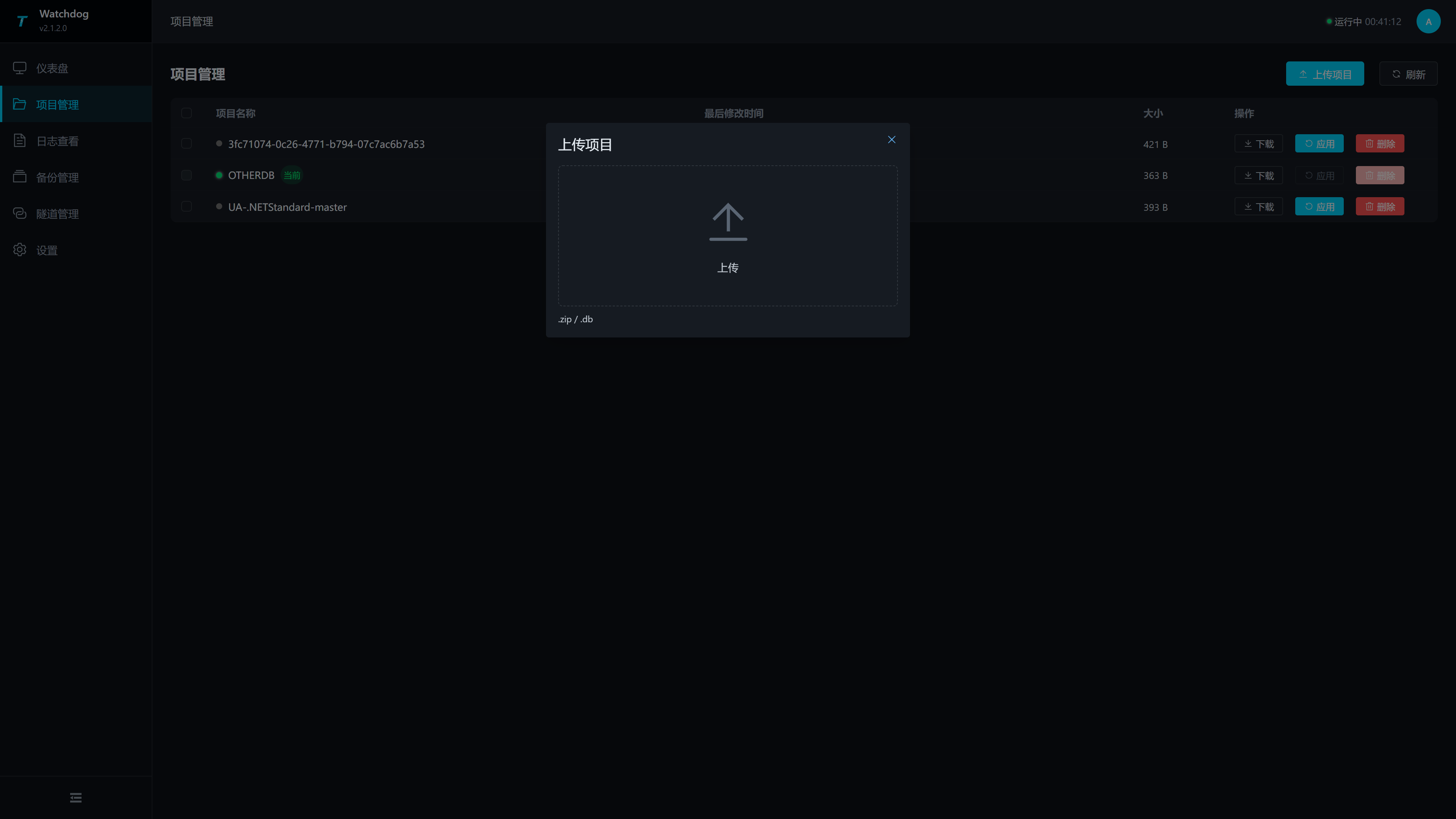
| Configuration items | Description |
|---|---|
| Project file | Only complete .zip project packages are supported, including Studio exports and Watchdog downloads. Do not upload a database file alone. |
| Upload Region | Drag files into the area and upload immediately; After successful upload, the list will automatically refresh. |
The archive root must directly contain project.json and the project directories, without an outer folder. Missing or corrupt project metadata is rejected; a program-only package cannot be uploaded as a project. The ZIP filename determines the target project name, and an upload with the same name replaces that project.
A successful upload applies the project. Check its name, Current label, size, and modification time, then inspect the dashboard. If the gateway was manually stopped before upload, it stays stopped; start or restart it when operation is permitted.
Application Project
- Find the target project in the project list.
- Click “Apps”.
- Confirm the operation in the confirmation box.
- After waiting for the operation to complete, refresh the list and dashboard.
- On the “Log View” page, confirm whether TGateway is starting as a new project.
Pre-application check
Applying a project saves the latest content of the project being left and switches to the selected project. Databases, scripts, custom nodes, user extensions, rules, and OPC UA certificates switch together. An empty project does not reuse the previous project’s files. PluginCache at the root uses the existing on-site cache. Project upload, download, backup, and restore do not transfer it, and the Studio cache is never copied to Watchdog. Switching projects on the same Watchdog keeps using the on-site cache without switching, clearing, or overwriting it. Restoring a project does not roll back the cache. Folders with the same name inside project resources remain part of the project. Create a backup first and check that Web/OPC UA ports, external databases, and device connections suit the selected project.
Download and Delete Projects
| Operations | Usage Scenarios | Notes |
|---|---|---|
| Download | Return a project to Studio or archive a site version. | Import the ZIP into Studio, or download directly from Studio, then edit, validate locally, and upload again. The package does not include Watchdog host configuration or runtime logs. |
| Delete | Clean up historical project packages and free up disk space. | The current project cannot be deleted; Batch deletion will only select non-current items. |
Backup Management
Menu Path: Backup Management.
Backup management is used to create, restore, and delete current project backups. The bottom of the page will display the current number of backups and the maximum number of backups configured in “Settings.”
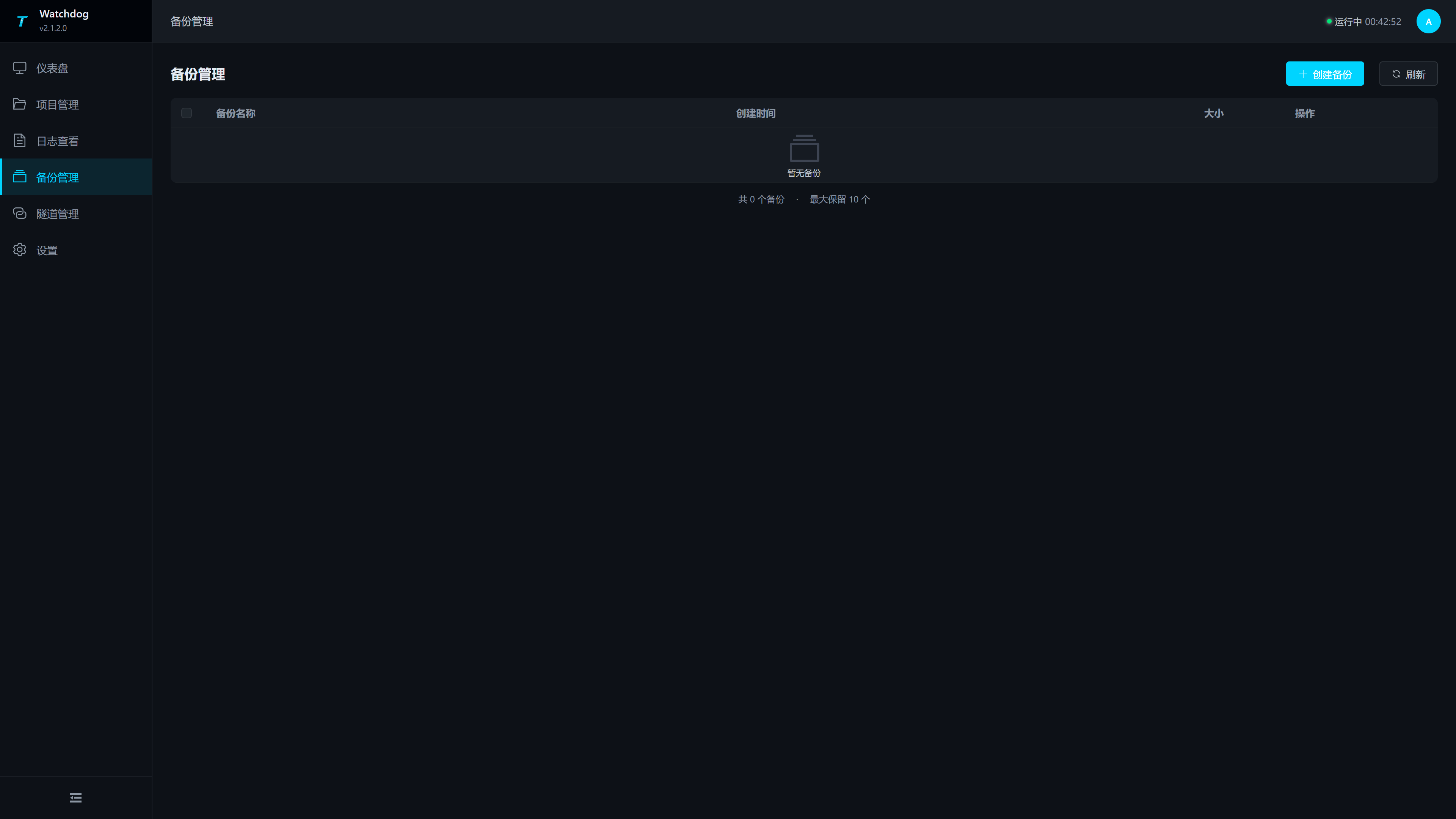
| Column or Operation | Instructions |
|---|---|
| Create a backup | Create a backup for the current project, which must be confirmed before execution. |
| Check the box | Select Backup to perform batch deletion. |
| Backup Name | Explicit backup name; do not infer restoration scope from its name. |
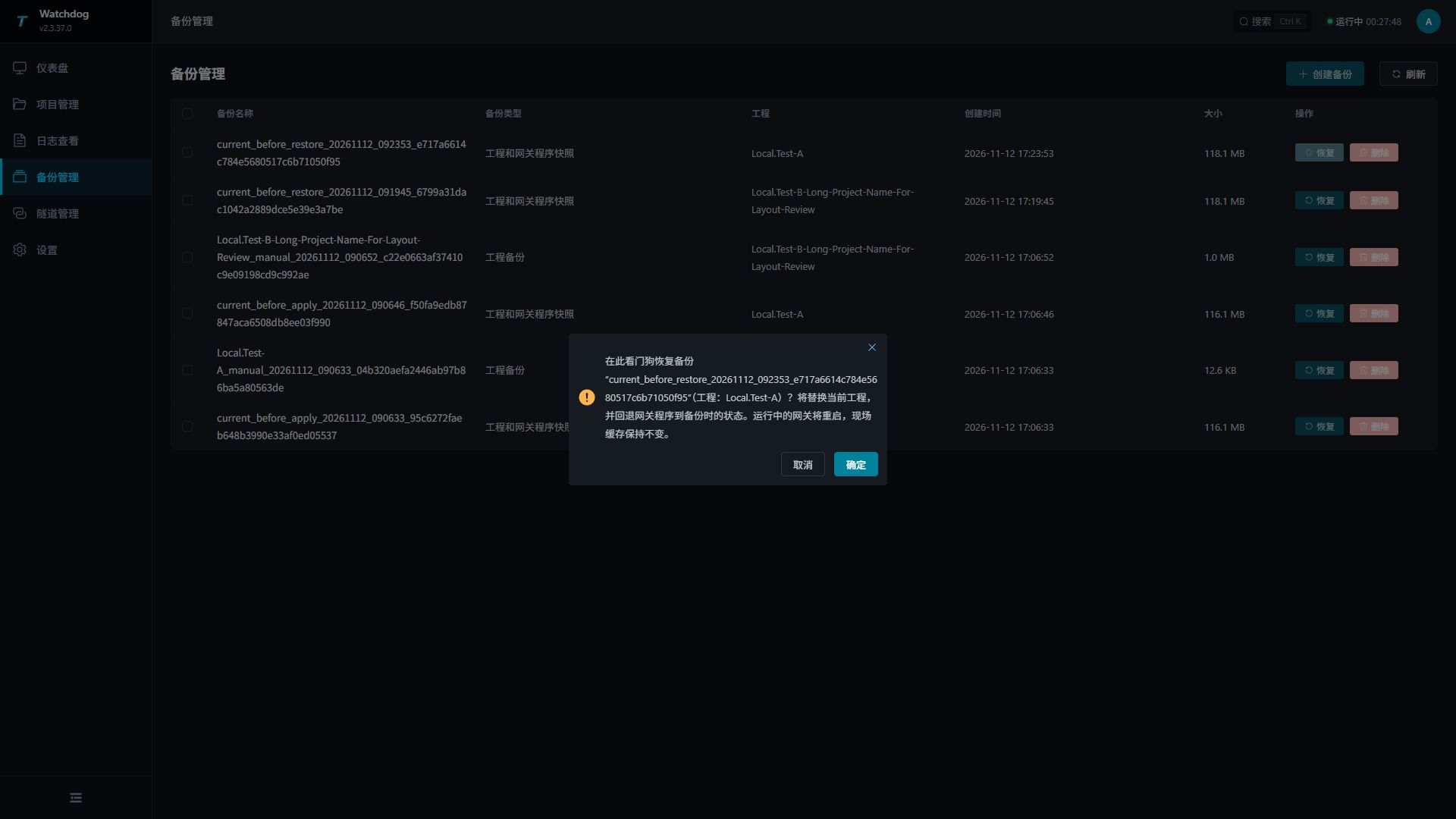
| Backup Type | A project backup restores only the project. A project program package also overwrites its packaged program files. A complete snapshot restores the project and the entire gateway program. |
| Project | Project recorded in the backup; an initial snapshot may have no project. |
| Creation time | Back up creation time. |
| Size | Backup file size. |
| Restore | Restore the project represented by the selected backup. A backup from another project switches the current project. Confirmation is required. |
| Delete | Delete a single backup, which requires warning confirmation. |
| Batch delete | Delete multiple selected backups. |
| Maximum Number of Backups | Set under Settings → Backup Policy; default 10. Manual and automatic safety backups share this count. Setting 0 still retains at least one backup and does not disable backups. |
Before confirming restoration, check the backup name, project, and actual scope. A running gateway restarts. On-site caches remain unchanged; download the project again to update the Studio local copy.
Recommended Backup Strategy
| Scenarios | Recommended |
|---|---|
| Before uploading a new project, | create a backup and keep the current runnable version. |
| Before restoring the backup, | confirm whether the current project still needs to be retained; if necessary, create a new backup first. |
| Backup count reaches the limit | Older backups are cleaned according to policy. New backups, restore sources, and pending rollback backups are protected, so the count can temporarily exceed the limit. Archive important versions separately with Project Management → Download. |
| Running abnormally after restoration | Immediately review the logs and restore to the previous confirmed run-ready backup. |
Recovery affects
Restoration saves the latest state of the project being left before restoring the selected backup. It affects only the target Watchdog and does not update the Studio local copy; download again to edit the restored site project. Check the current project, runtime state, scripts, nodes, rules, and OPC UA certificates, then sample collection and forwarding. Manual backups primarily restore project content, so ensure the installed gateway version matches. Automatic safety backups created before applying a project, restoring a backup, or updating the runtime also include the gateway program snapshot; restoring one of these backups restores the program as well.
Logs, tunnels and settings
Log View
Menu Path: Log View.
Log view is used to read Watchdog runtime logs. Compared to real-time dashboard logs, this page is suitable for viewing more rows, exporting logs, and continuously monitoring the startup process.
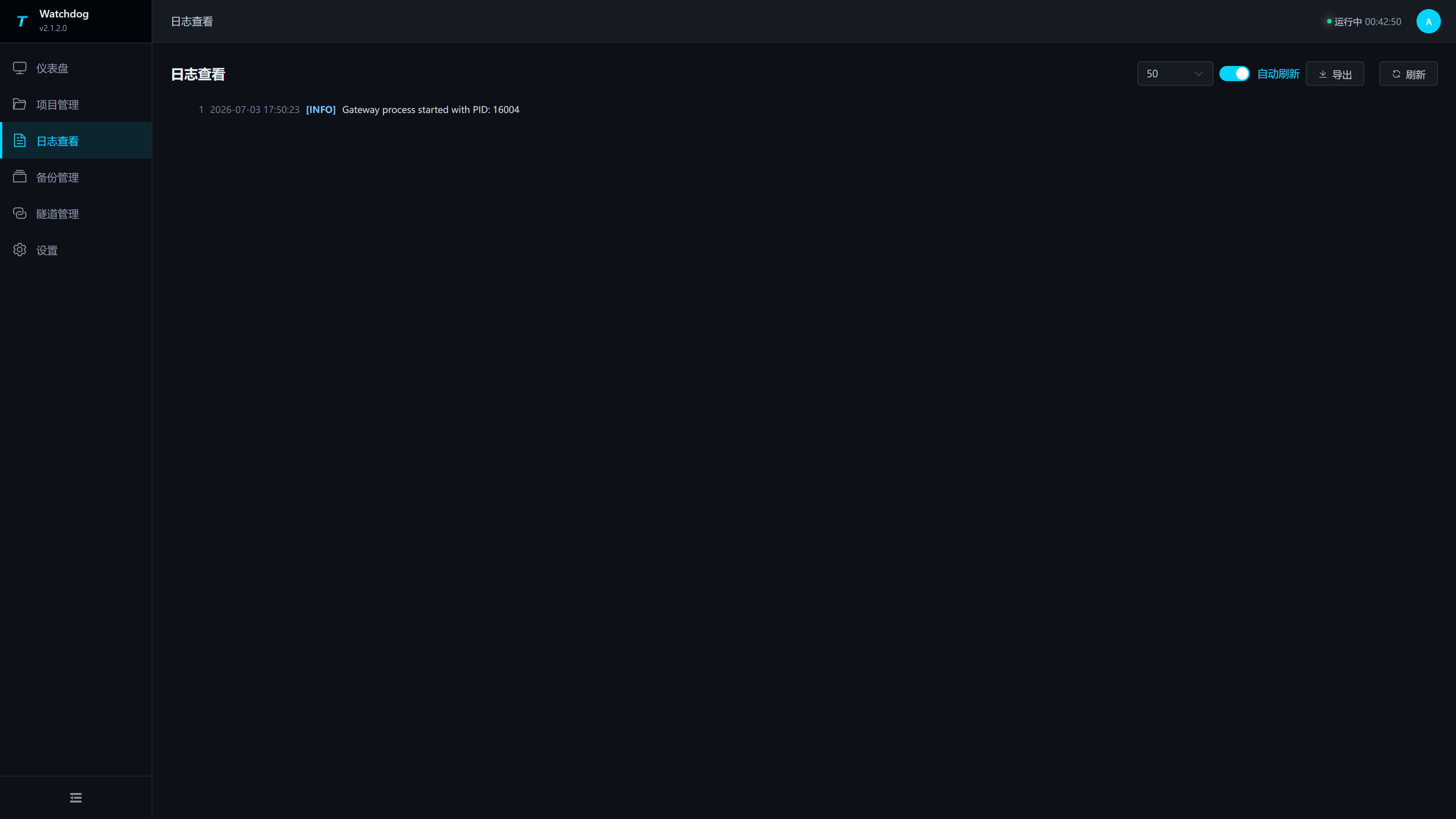
| Configuration Items | Description |
|---|---|
| Number of entries | Control the number of log rows to be read this time, with options of 50, 100, 200, or 500. When troubleshooting startup failure, it is recommended to choose 200 or 500. |
| Automatic refresh | Automatically refresh page logs after activation; It can remain on during extended inspections. |
| Export | Refresh the current logs and export to watchdog-logs-time.txt. |
| Refresh | manually reread the log. |
| Line Number | Log Stream displays line numbers, making it easier to locate the same anomaly with colleagues. |
Common inspection sequence:
- First, check the dashboard for the last error and the number of startup failures.
- Open “View Logs” and choose between 200 or 500 lines.
- Click “Refresh” to start viewing from the most recent restart or application of the project.
- After detecting port usage, package corruption, runtime missing, plugin missing, etc., return to the corresponding page to handle it.
Tunnel Management
Menu Path: Tunnel Management.
Watchdog tunnel client actively connects to the Studio Broker, exposing the internal TGateway service to a specified external address. This page offers both card and table views, with status automatically refreshing every 10 seconds, and you can also manually click “Refresh”.
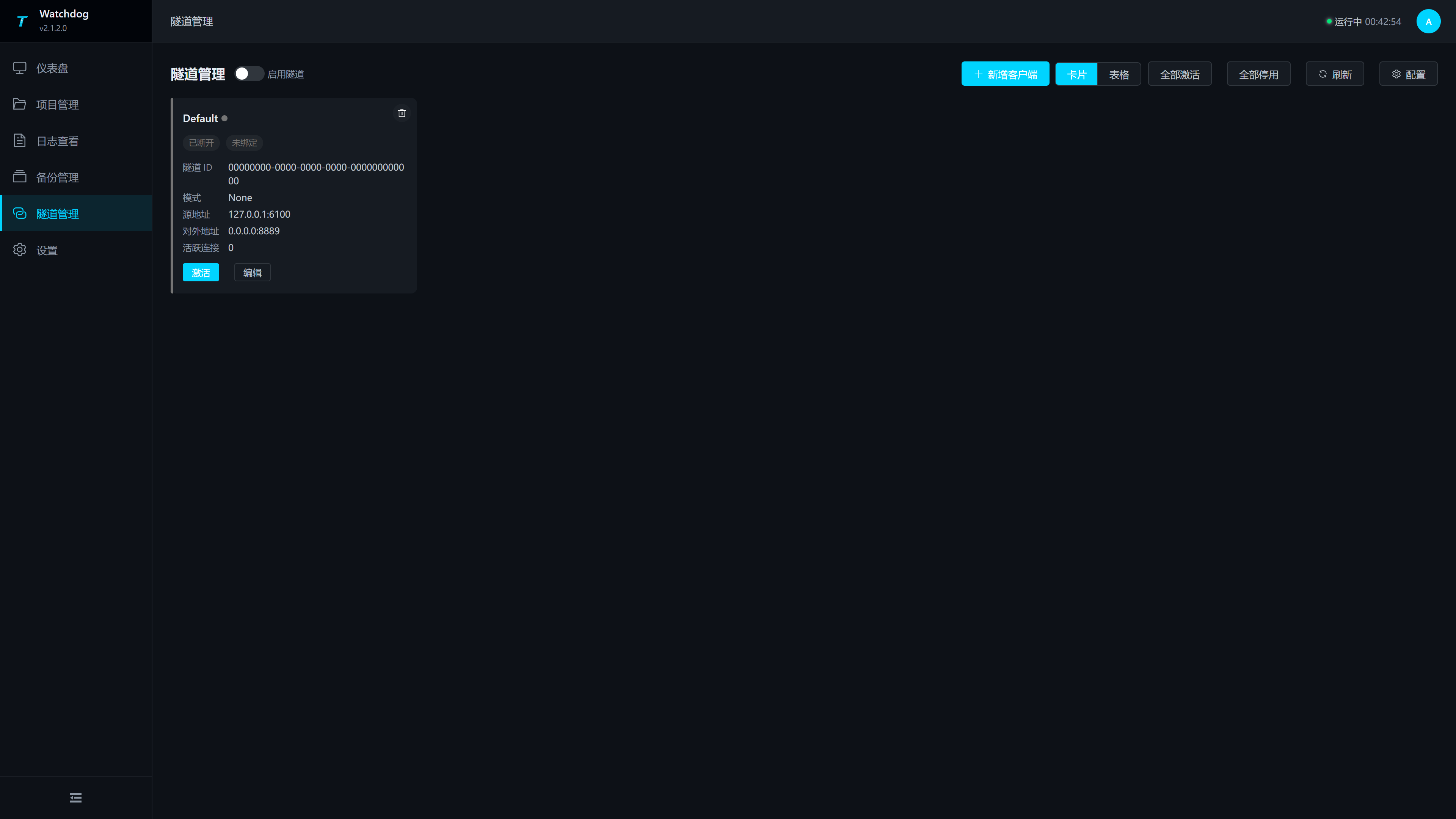
| Area or Operation | Instructions |
|---|---|
| Enable the Tunnel | global switch to control the Watchdog tunnel client functionality. |
| Add a client | Open the configuration drawer and add a client configuration. |
| List/card icons | The list icon opens the table; the grid icon opens cards. Select clients in the table for batch deletion. |
| Activate all | Activate all configured clients. |
| Disable all | Disable all clients. |
| Refresh | Instantly refresh client status and configuration. |
| Configuration | Open the tunnel configuration drawer. |
| Client Status | Displays client name, connection status, tunnel ID, source address, external address, and number of active connections. |
Tunnel Configuration Drawer
Click “Configuration” to open the tunnel configuration drawer.
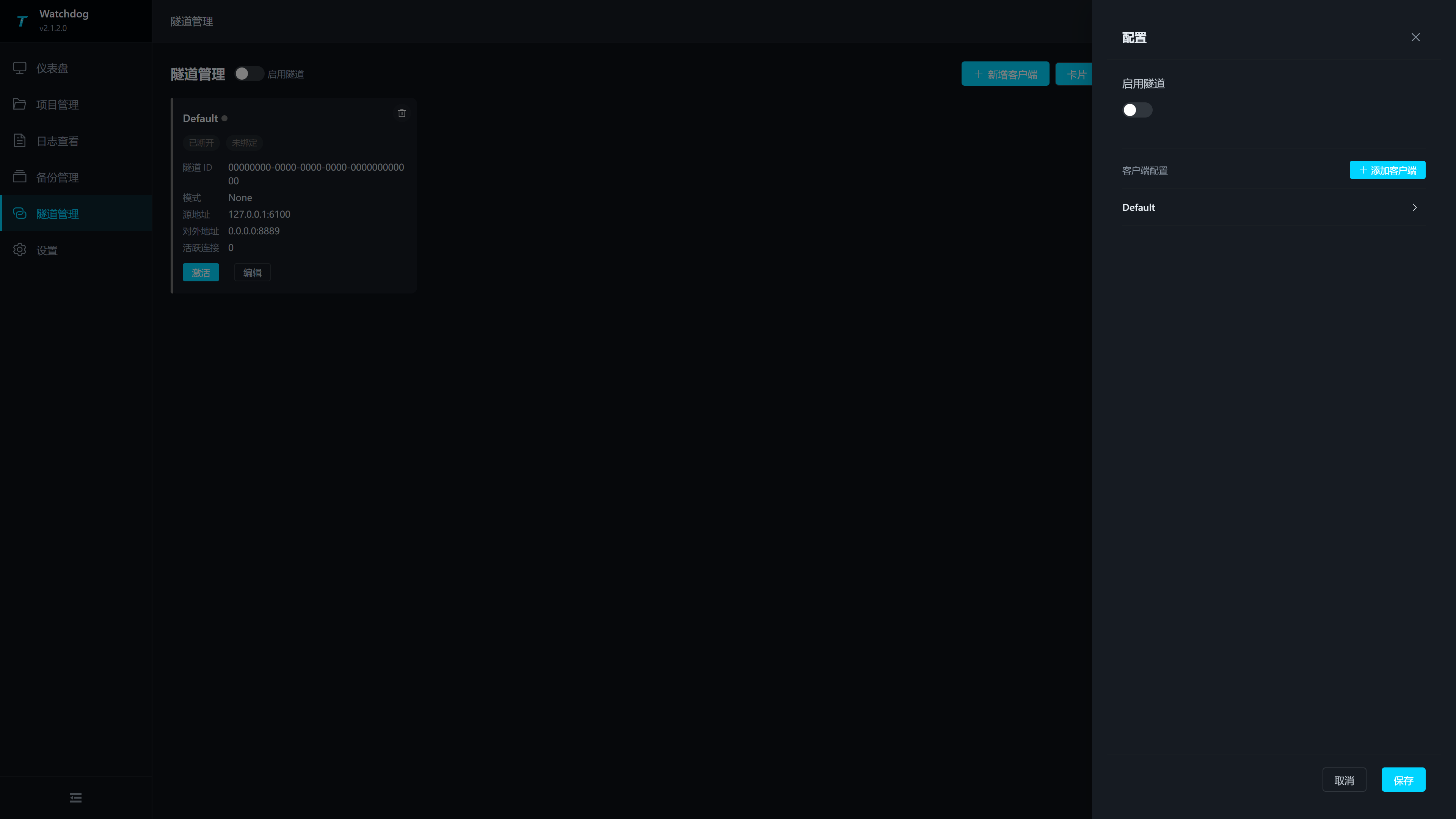
| Configuration Items | Description |
|---|---|
| Enable Tunnel | Control the global tunnel switch after saving. The top of the page switch also syncs this value. |
| Client Configuration | Displays the currently saved client. Each client can be expanded and edited. |
| Add a client | Add a client form to the drawer. |
| Save | Verify the client name, server address, port, source address, and external address before saving. |
Add Client Configuration
Click “Add Client” or “Add Client” in the drawer, and fill out the client form.
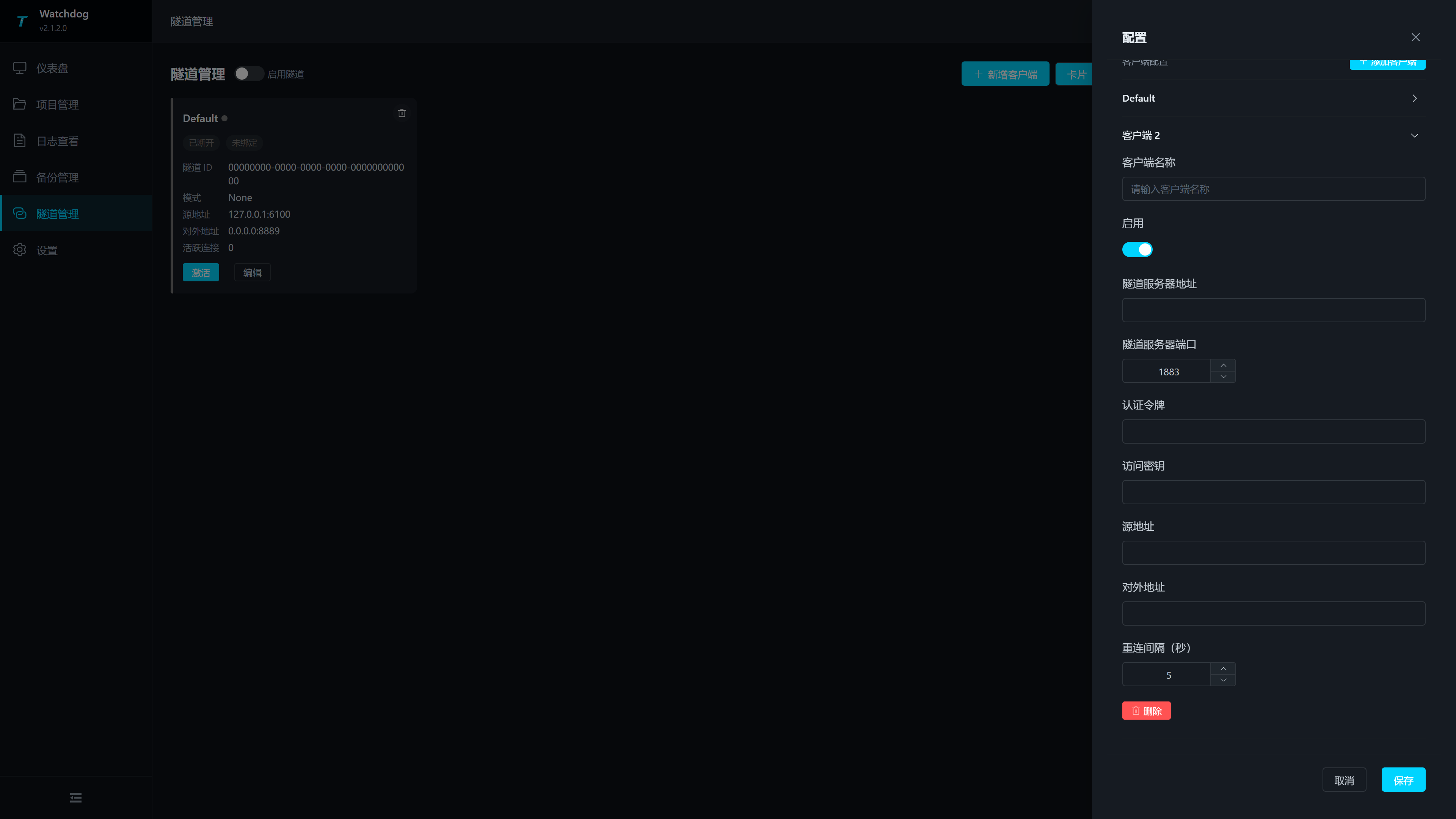
| Configuration Items | Description |
|---|---|
| Client Name | Must be unique within the same Watchdog; verification will be repeated before saving. |
| Enable | to control whether the client is included in the activation scope. |
| Tunnel server address | the IP or domain name of the server where Studio Broker is located. Watchdog must be accessible from the field network. |
| Tunnel server port | Studio Broker listening port, range 1-65535, should match the tunnel port saved in Studio Web’s “Intranet Tunneling”, commonly 7789; Other values are only filled in if Studio Broker is indeed changed to another port. |
| Authentication Token | is consistent with Studio Broker’s authentication token. This value is used for client-side connections to the broker; both case and space must be consistent. |
| access key | matches the access key for Studio Broker. When the Studio side enters the access key, Watchdog must enter the same value to bind the endpoint; When secondary verification is not used, both ends remain empty for easy troubleshooting. |
| Source address | The service address to expose on the site machine, such as 127.0.0.1:6100 for TGateway Web/API. Watchdog and TGateway share the same machine and runtime environment; use that machine’s actual listener address and port. |
| External address | Studio Broker side external listening address, for example, 0.0.0.0:8889. External visitors will access this port on the Studio server. |
| Reconnection interval (seconds) | Wait time for automatic reconnection after disconnection, minimum 1 second. If network jitter is frequent, increase the volume appropriately to avoid rapid reconnections. |
| Delete | Delete the current client configuration; Connected clients will be disabled before being deleted. |
Steps for Tunnel Joint Debugging
- Save the broker configuration and start the service on the “Intranet Tunneling” page in Studio Web.
- Enable tunnels in “Tunnel Management” on Watchdog Web.
- Add a client, fill in the Studio Broker address, port, and authentication token; When using the access key on the Studio side, enter the same access key here.
- Enter the source address, for example, the TGateway Web/API address
127.0.0.1:6100. - Enter the external address, for example
0.0.0.0:8889. - After saving the configuration, click “Activate.”
- Go back to Studio Web’s “Intranet Tunneling > Endpoint Information” to see if bound endpoints appear.
- Use an external network to access the external address and confirm access to TGateway Web or call the API.
Settings
Menu path: Settings.
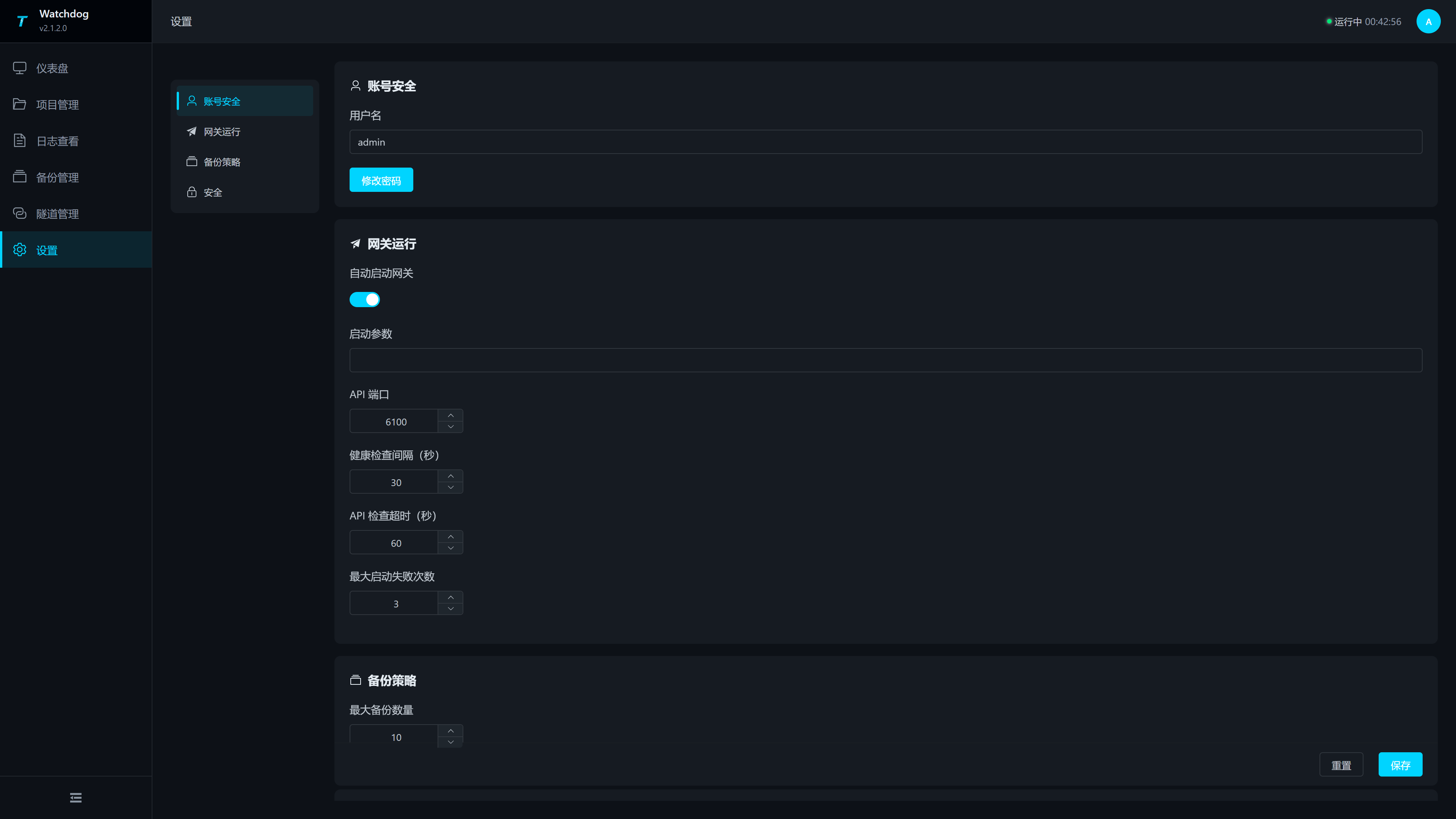
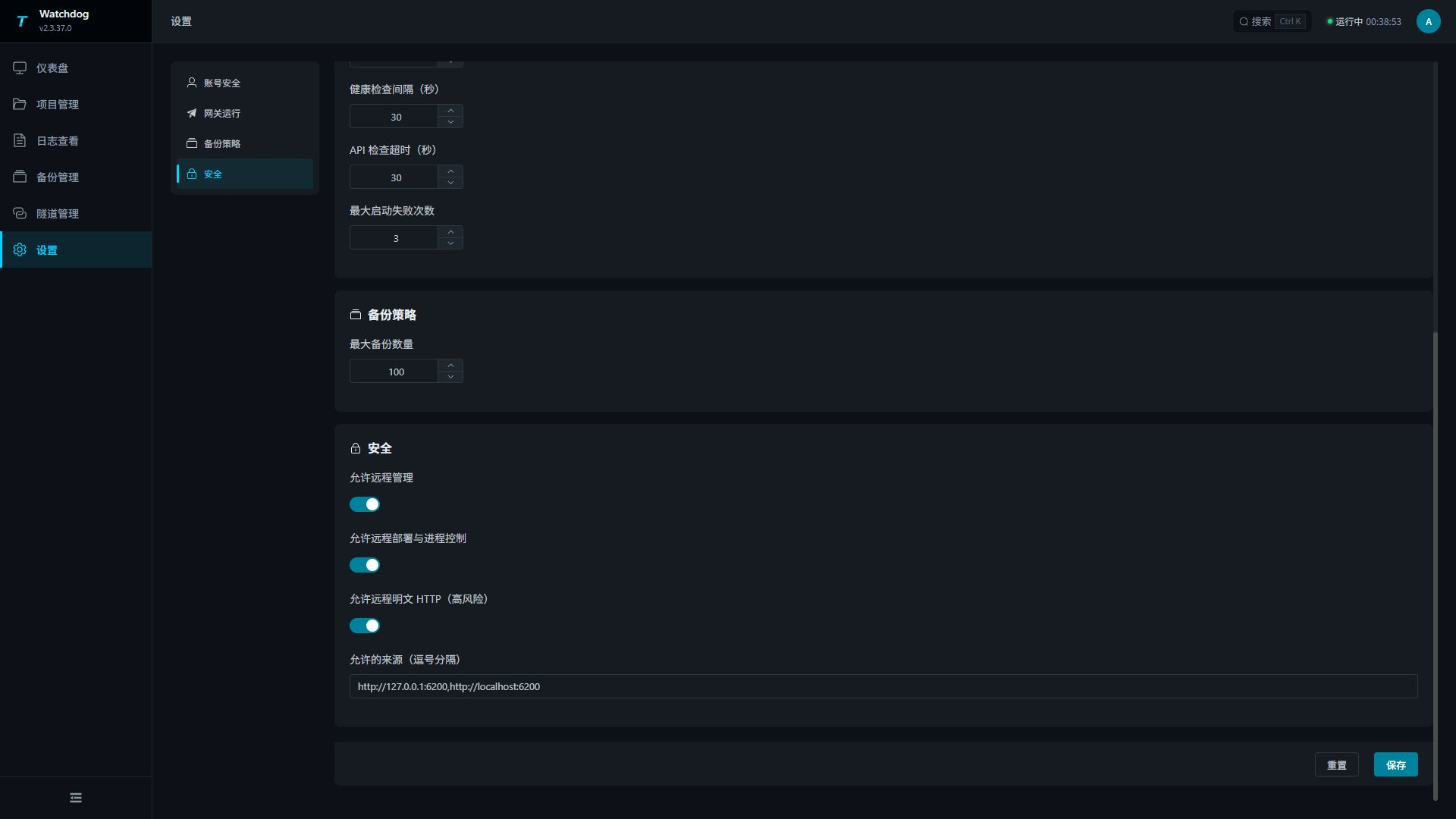
The settings page is divided into four groups according to the left navigation: Account Security, Gateway Operation, Backup Policy, and Security. After modifying the parameters, you need to click “Save” at the bottom of the page for persistence; Clicking “Reset” will restore the value read when the page was opened this time.
Account security
| Configuration item | Description |
|---|---|
| Username | Watchdog login username. |
| Change password | Open the password change popup. |
Gateway runtime
| Configuration item | Description |
|---|---|
| Enable watchdog | Control periodic health checks and automatic recovery. Manual dashboard controls remain available when disabled, and Watchdog still handles a gateway-requested restart. |
| Start gateway automatically | Whether Watchdog starts TGateway automatically after Watchdog starts. The bundled configuration enables this option so collection resumes automatically after a power outage or service restart. |
| Startup arguments | Command-line arguments appended when Watchdog starts TGateway. Enter them only when a listening address, environment option, or runtime option is required; otherwise leave this field blank. |
| API port | TGateway API port in the range 1-65535. The bundled configuration commonly uses 6100. Watchdog requests http://localhost:<api-port>/api/health/health locally. This is not the Watchdog login port; an incorrect value may cause the dashboard to report that the gateway has stopped and trigger a restart. |
| Health check interval | Interval in seconds between TGateway status checks; minimum 1. The bundled value is 30 seconds. A shorter interval detects failures sooner but calls the API more frequently. |
| API check timeout | Time in seconds to wait for a TGateway API response; minimum 1. The bundled value is 60 seconds. Increase it when the network is slow or the gateway takes longer to start. |
| Maximum startup failures | Number of consecutive startup failures before manual intervention is required; minimum 0. The bundled value is 3. A smaller value surfaces startup problems sooner, while a larger value may delay alarms. |
Backup policy
| Configuration item | Description |
|---|---|
| Maximum backups | Default 10, shared by manual and automatic safety backups. Setting 0 still retains at least one backup. Protected backups can temporarily increase the actual count beyond the limit. |
Security
| Configuration item | Description |
|---|---|
| Allow remote management | Allow management connections from other computers; required for Studio connections across machines. |
| Allow remote deployment and process control | Allow remote project uploads and application, backup restoration, and gateway process control. Disable when remote access is only needed to inspect status. |
| Allow remote plain HTTP (high risk) | Allow remote management over ordinary HTTP. Use HTTPS on public or untrusted networks. |
| Allowed origins | Web origins allowed to access the Watchdog API across origins. Separate multiple origins with commas, for example http://a.com,http://b.com. Leave blank to allow all origins; for public-network deployments, enter only trusted Web origins. |
Select Backup policy or Security in the left navigation to locate the corresponding group. Check the backup limit and remote management and deployment permissions before saving.
Click “Change Password” to open the password change pop-up window.
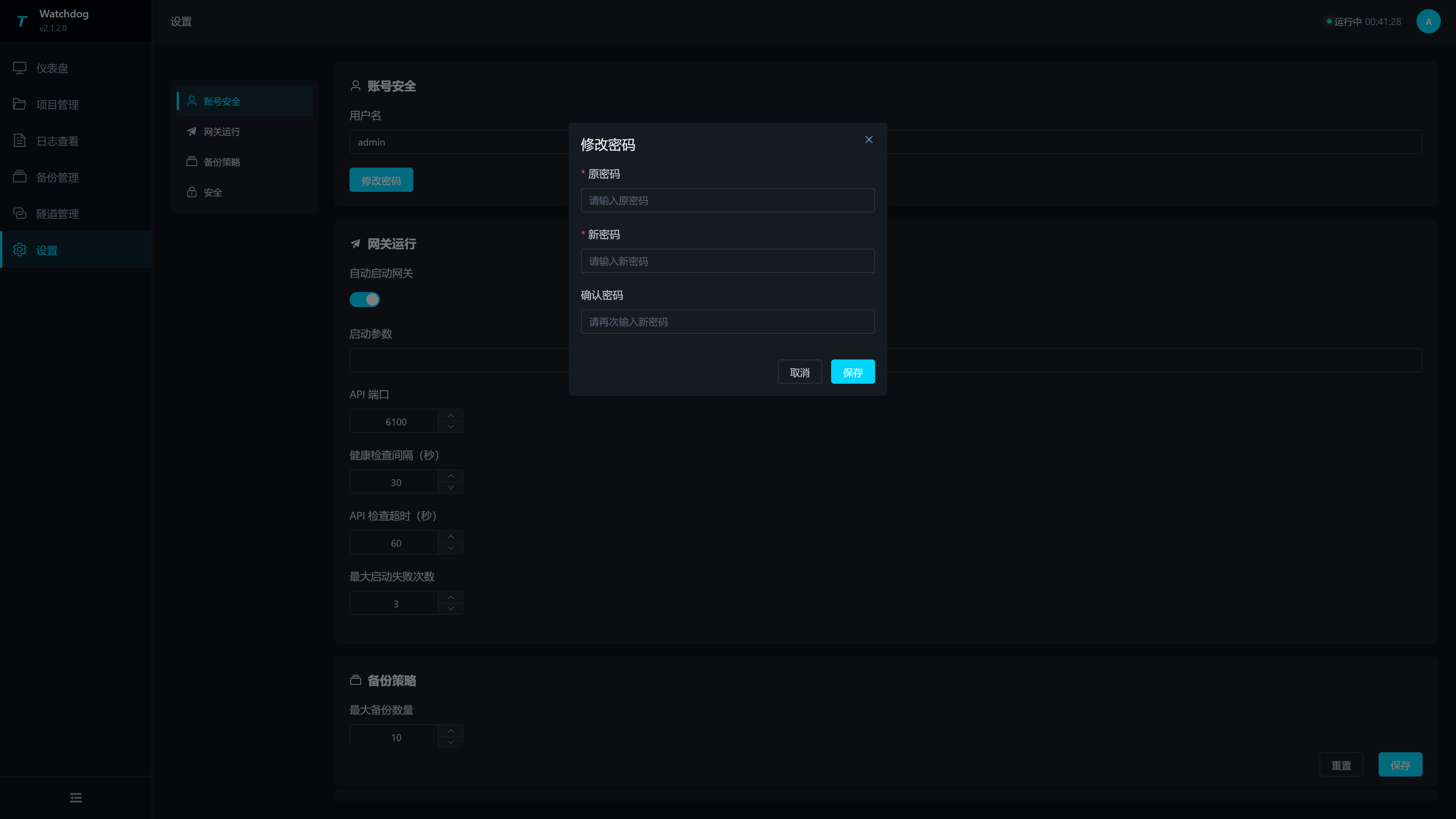
| Configuration Items | Description |
|---|---|
| Old Password | Current Login Password. |
| New password | The new password to set. |
| Confirm the password | Enter the new password again, but it must match the new password. |
Settings Recommendations
After modifying API ports, health check intervals, maximum boot failure counts, and other operating parameters, it is recommended to return to the dashboard to observe at least one health check cycle and confirm that the status reads normally.
Certificate maintenance and center enrollment
Open Tunnel management → Certificate maintenance → Import → Trusted peer CA to import the public PEM exported by Studio. Compare its fingerprint with Studio’s issuing CA. The panel also supports server PFX import/export and local identity creation or rebuild. See Management certificates for activation and renewal steps.
Use Connect to center with the center HTTP/HTTPS URL and a ten-minute single-use enrollment code from Studio Site management. Watchdog automatically configures both management tunnels. TLS is optional and follows the center tunnel setting; private-CA HTTPS/TLS requires the trusted CA to be imported first.
Studio integration and verification
Studio integration workflow
| Objective | Operation Order |
|---|---|
| Publish a new project from Studio | Create or import a project in Studio Projects → Configure Watchdog services and test connections → Upload project → Confirm the project in Watchdog Project Management → Check the Watchdog dashboard and logs. |
| Return a site project to Studio | Confirm the target project in Watchdog Project Management → Open Studio Projects → Download from Gateway → Select Watchdog and project, and change the local project name if needed → Download, then open directly in the editor and validate. |
| Remote Access to the Internal Network Gateway | Studio Launch Broker → Watchdog Configuration and activate the tunnel client → Studio View Endpoint → External Access Address. |
| Back up before release | Create a backup in Watchdog Backup Management → Upload from Studio Projects → Confirm the current project and its running state in Watchdog, then check the logs. |
Verify key tasks
| Task | Acceptance |
|---|---|
| Routine inspection | Watchdog is online, TGateway is running the correct project, and startup failures are not increasing. |
| Apply a project | The project has the Current marker and expected runtime state, with no package, plugin, port or runtime errors in logs. |
| Restore a backup | Check the restored project and runtime state, then verify at least one collection point and forwarding target if the gateway should run. |
| Change settings | Reopen the page to check saved values and observe at least one health-check interval on the dashboard. |
| Commission a tunnel | The client is connected, Studio lists its endpoint, and an external network completes a read-only request. |
A healthy Watchdog does not prove a healthy business data path. Sign in to TGateway after application/restoration and inspect site variables and forwarding targets.
Common Issues
| Phenomena | Handling Suggestions |
|---|---|
| Login Failure | Check Username, Password, and Watchdog Service Port; If you forget your password, you need to reset the configuration according to the on-site maintenance process. |
localhost is normal but IP cannot access | Check if Watchdog is listening at 0.0.0.0:6200, whether remote management and normal HTTP switches are enabled, and allow the firewall port. |
Page prompt importKey Error | Clear browser and proxy cache and republish the complete frontend static resource; The current page does not rely on subtle.importKey; the dynamic resources required for login must be able to load properly. |
| The login request has expired or is invalid | Click Login again. If the problem persists, refresh the page and retry. |
| Watchdog restarts and returns to the login page | Memory Bearer session is invalid; log in again. |
| The dashboard shows that the gateway has stopped | checks whether the current project exists, whether the API port is correct, whether runtime files are intact, and reviews the logs. |
| The number of startup failures continues to increase | Prioritize viewing port occupancy, missing plugins, project database exceptions, and runtime missing information in the logs. |
| Project upload failure | Check that the file is a complete .zip project package, is not corrupted, and that disk space and service permissions are adequate. |
| No status changes after applying the project | Refreshing project management and dashboard; If still unchanged, check the logs to confirm whether the application action failed. |
| Abnormal project after backup restoration | Restore to the previous confirmed runtime backup and check the runtime and plugin versions of the recovery target. |
| Tunnel shows as inactivated | Confirm that global “Enable Tunnel” is enabled and check if the client has been saved. |
| The tunnel is connected but not accessible | Check whether the source address is accessible on the Watchdog machine, whether the external address port is occupied, and whether the firewall is allowing access. |
| Studio side cannot see endpoints | Check whether Studio Broker is running and whether authentication tokens are consistent; When entering the access key on the Studio side, make sure the Watchdog access keys are exactly the same; When not using secondary verification, both ends should be left empty. |