On this page
Studio Web Operation Manual
This page is the task entry point for Studio Web. Studio centrally manages multiple sites and their projects, coordinates remote updates and tunnel access, and provides script analysis and code completion services to TGateway editors. The linked manuals cover deployment, site maintenance, and language-service setup.
For a new center and edge installation, follow Center and edge deployment through installation, enrollment, publishing, collection, synchronization, and maintenance.
Start using Studio
Sign in and check Overview
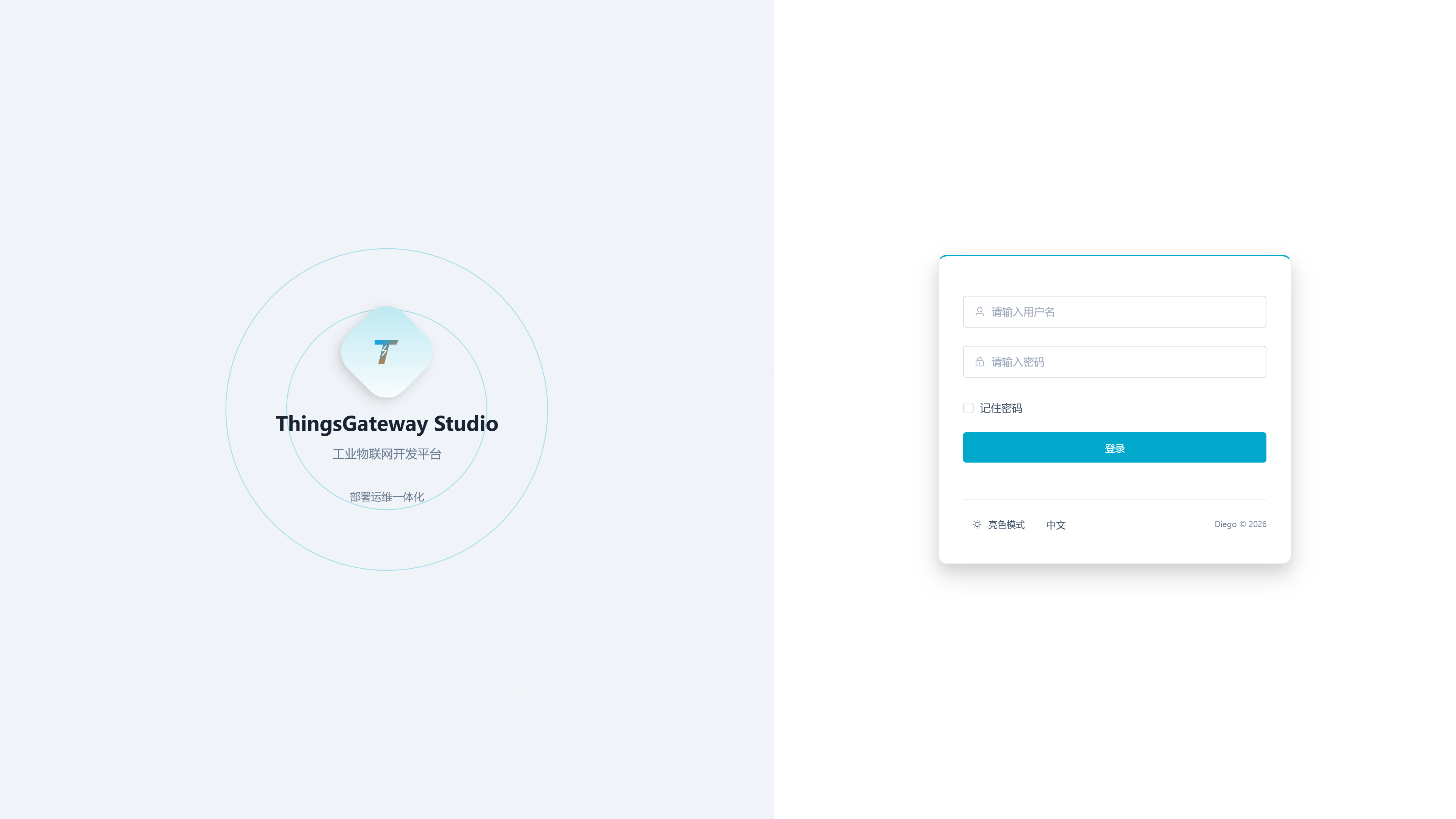
Open http://<server-ip>:5100, enter your username and password, and select Login. A new installation uses admin and 111111. Login opens Overview. Use Change password in the upper-right user menu to change your password. The page encrypts the login password; use HTTPS on public or untrusted networks to protect project packages and other data in transit.
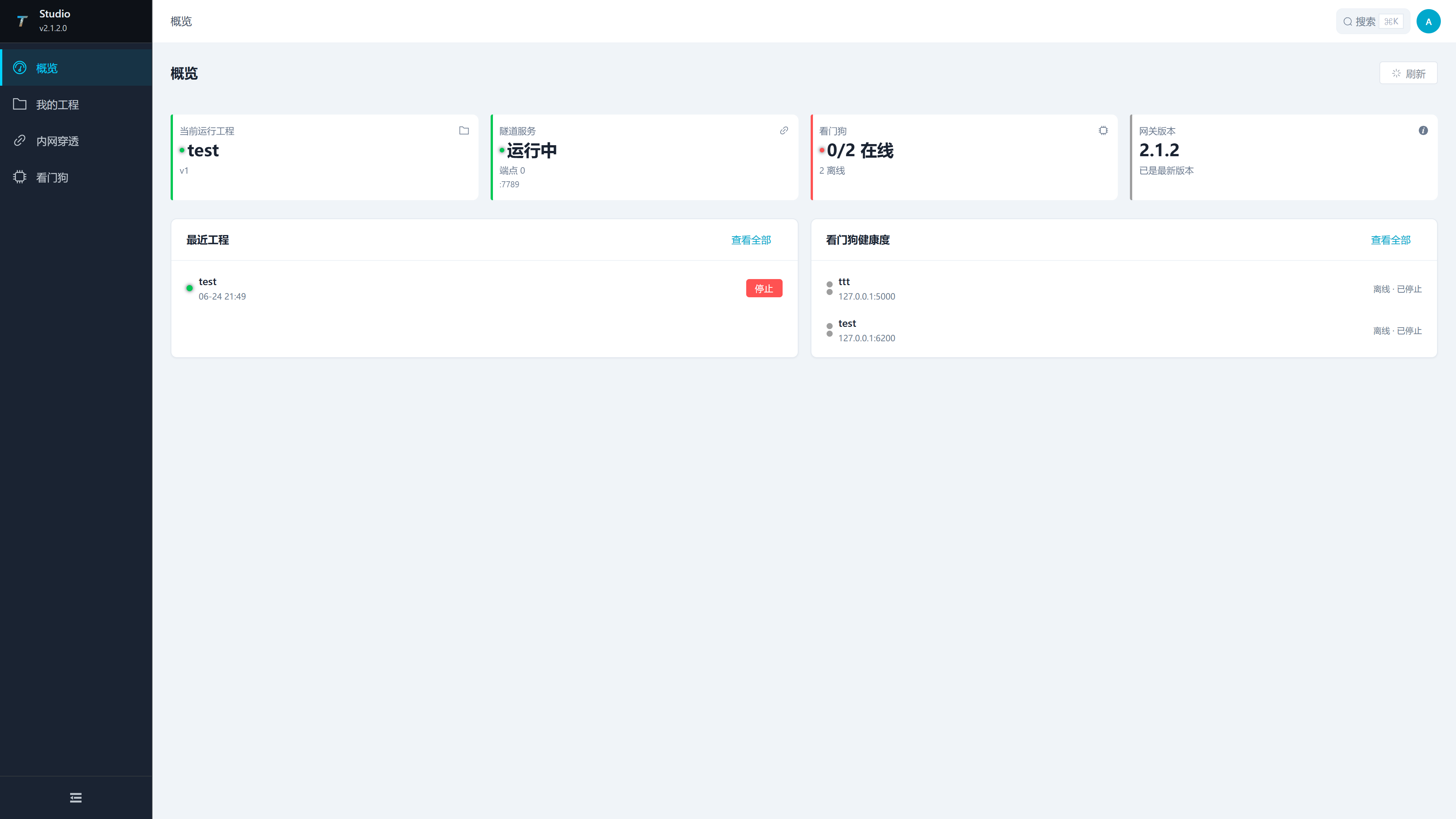
In Overview, check the names and ports of locally running projects, tunnel status, site connectivity, and recent projects. The menu order is Overview → NAT Traversal → Sites → Projects → Software Update.
Use Sites for daily site enrollment and maintenance. For local validation, use Projects, or run a separate Gateway on this computer and configure it through its Web interface.
The complete Studio release includes the matching gateway version and platform. Local runs start it directly. See Bundled gateway and project isolation for runtime requirements and isolated project content.
Appearance
The initial theme is dark, with primary-background text set to automatic contrast. Open Theme configuration in the upper-right user menu to change it. Restore defaults returns to dark mode and automatic contrast. Explicitly saved preferences remain in effect in the current browser.
Top search
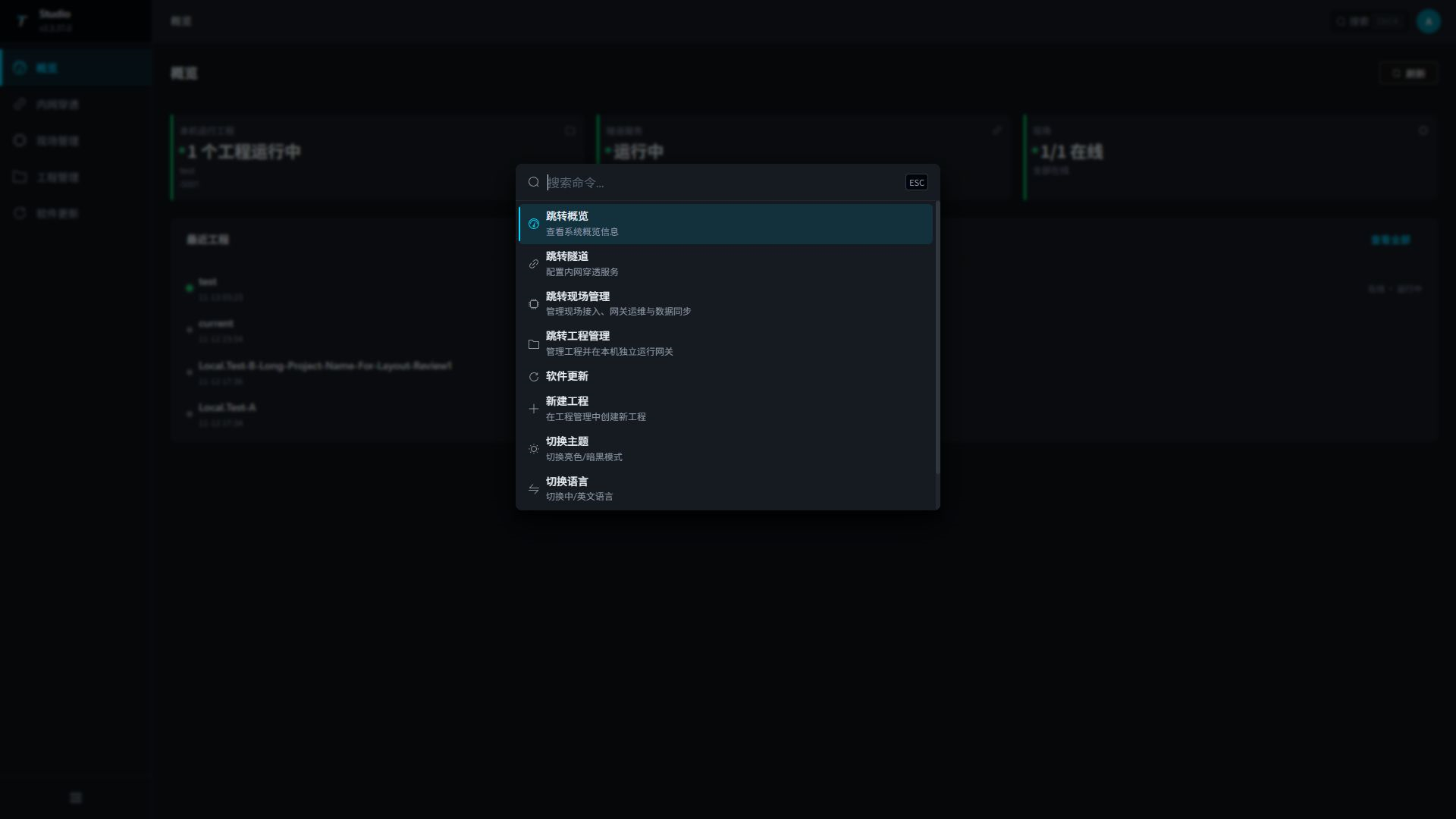
Select Search in the header, or press Ctrl+K (⌘+K on macOS). Type a page or action name, select a result with the arrow keys, and press Enter. Press Esc to close. Search opens Projects, Sites, NAT Traversal, or Software Update, and also provides project creation, project search, theme switching, and language switching.
Use Tab to focus a sidebar link and Enter to open it, with the navigation expanded or collapsed. On phones, open the navigation menu first; it closes after you select a page.
Before operating
- Identify the project, target site, OS and CPU architecture, and whether the gateway program also needs updating.
- Keep a usable project archive or Watchdog backup before uploading, overwriting, deleting, or restoring a project.
- Schedule production changes when collection, rules, and forwarding may be briefly interrupted.
- Include the site or production line in connection names to distinguish similar targets.
Choose an entry by task
| Task | Entry | Continue reading |
|---|---|---|
| Enroll a site, test Watchdog, and open Gateway | Sites | Site management |
| Configure the Studio tunnel broker | NAT Traversal | Tunnels |
| Create, rebuild, import, or export management certificates | NAT Traversal → Certificate maintenance | Management certificates |
| Apply a project, view logs, or restore a backup | Watchdog Web | Watchdog Web manual |
| Configure collection and forwarding | TGateway Web | TGateway Web manual |
| Create, import, export, or edit a local project | Projects | Projects |
| Run a local gateway to validate a project | Projects | Start local runtime |
| Upload a project to a site | Projects → Upload | Upload to Watchdog |
| Retrieve a site project | Projects → Download from gateway | Download a project |
| Manage multiple sites and projects | Site management and Projects | Site management and Projects |
| Remotely update one or more gateways | Site management → Batch Update Gateway Program | Batch updates |
| Use script analysis, completion, and diagnostics | Connect a TGateway editor to the Studio language service | Code completion and diagnostics |
| Update Studio | Software Update | Software updates |
Script analysis and code completion
Studio provides language services for TGateway Web script and custom-node editors, including member completion, signature help, hover documentation, and diagnostics. Maintain source code in the TGateway editor; the target gateway performs formal compilation, loading, and execution.
The editor uses the official language service by default. To analyze source code within your network, connect to a self-hosted Studio. Expand Roslyn Service at the top of the editor, enter a Studio root address reachable from the current browser, and connect. Follow Code completion, documentation, and diagnostics to verify the connection and suggestions.
Software updates
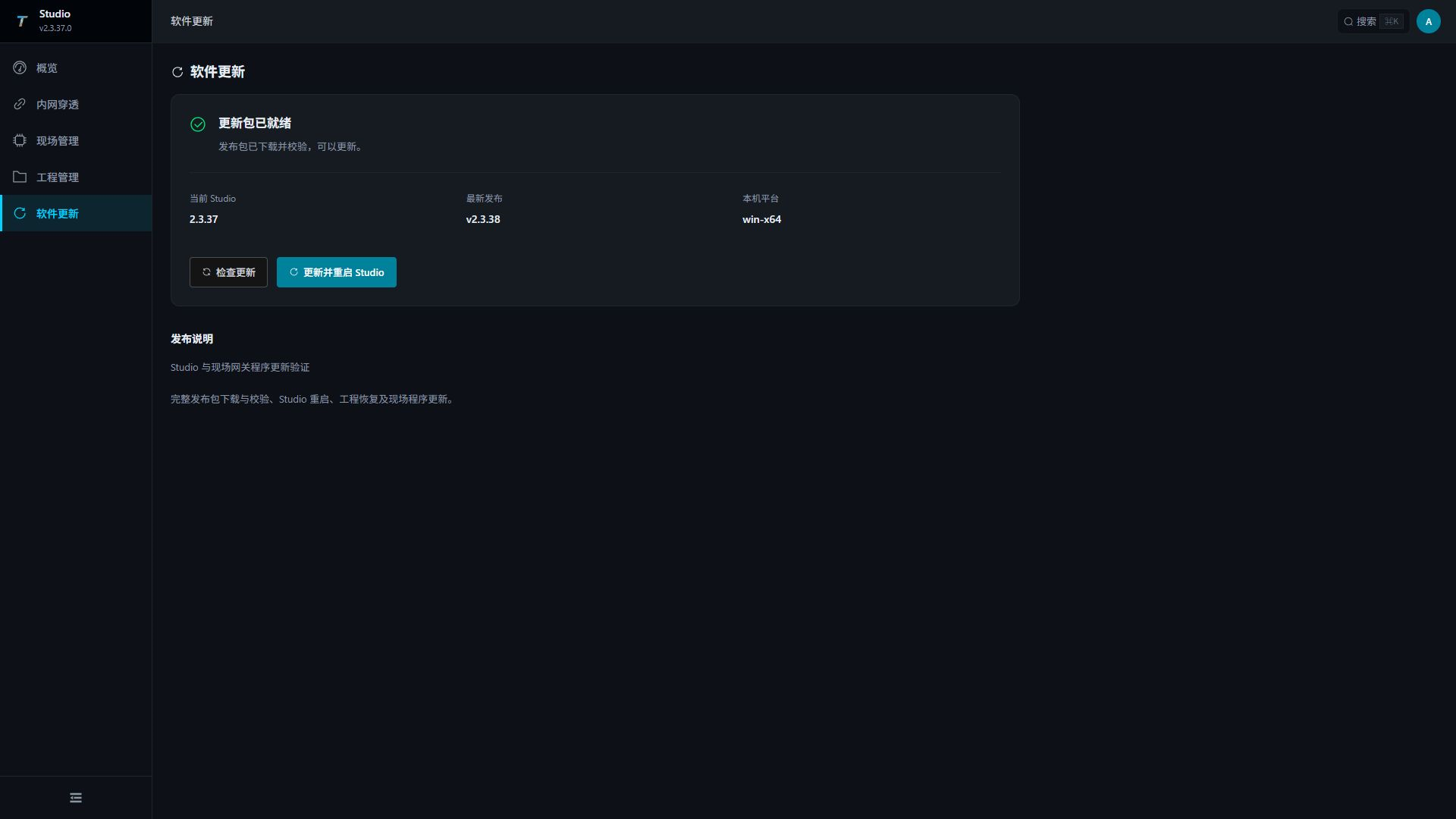
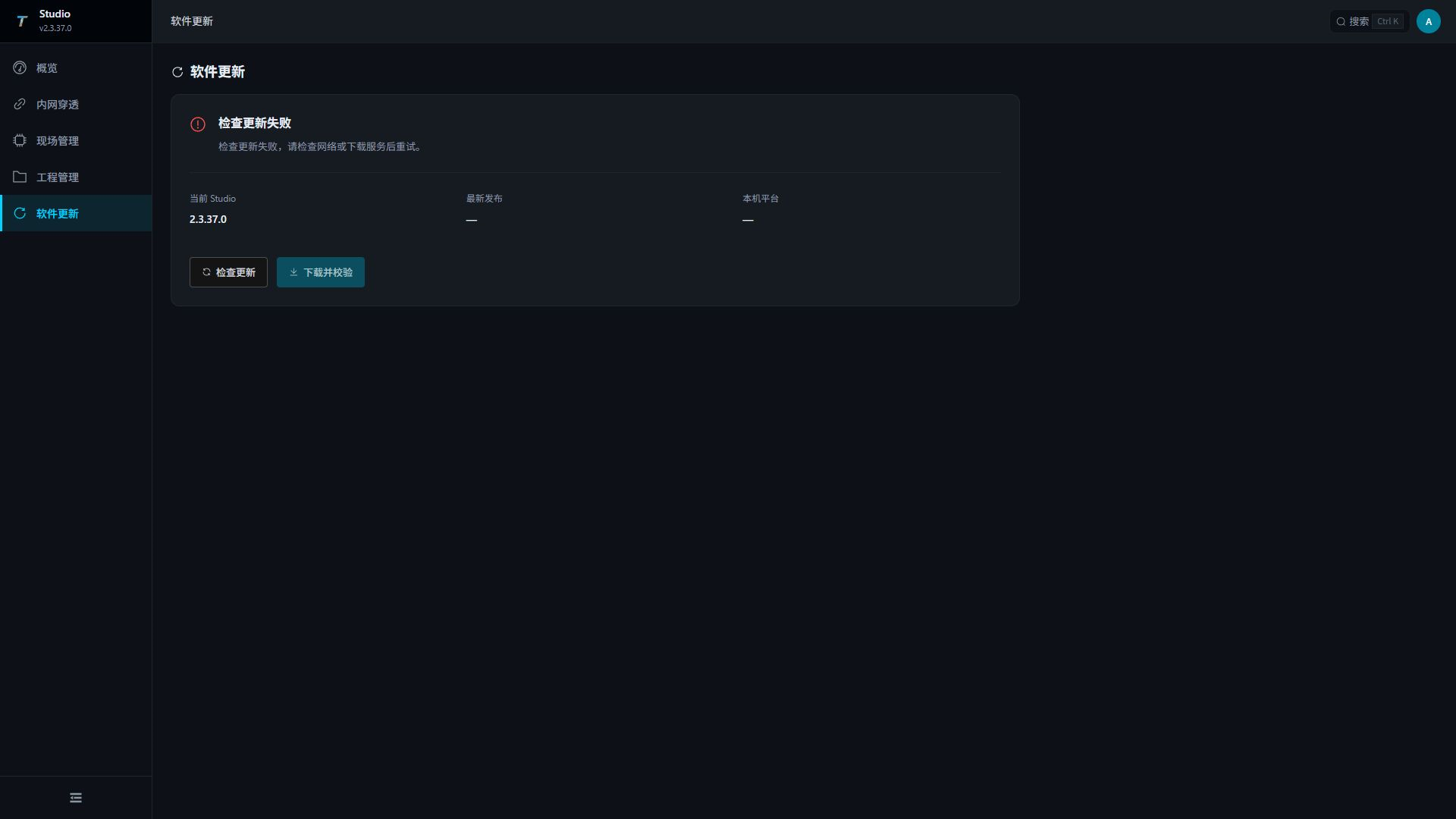
- Choose Software Update in the left navigation menu. On a phone, expand the navigation menu first. Check the installed Studio version, latest release, and platform.
- Select Download and verify. Studio downloads the complete package for this computer from the official download center while local projects continue running.
- Once verification completes, select Update and restart Studio, check the version, and confirm. Local projects and management connections briefly disconnect.
- Wait for reconnection and automatic page refresh. Verify the new Studio version and that previously running projects have resumed. Projects that were stopped remain stopped.
- To update sites, use Batch update gateway programs.
Updates install the latest release; historical version switching is unavailable. Ordinary complete release installations support direct updates. Update containers, Windows services, and systemd services through their deployment manager. The installation directory must be writable and have space for the archive, extracted package, and temporary program backup. Download or verification failure leaves the installed program running. Project data, site connections, accounts, management certificates, and host settings are retained.
Studio replaces its program files directly. Locked old program files are temporarily renamed with a .del suffix and automatically removed after restart.
Studio verifies the downloaded files again before installation. If verification fails, local projects keep running. If file replacement fails, Studio restores the affected program files and resumes previously running projects after restoration completes. Resolve file locks or permission issues, then download and verify the package again before retrying.
If checking for updates fails, the installed version remains visible. Select Check for updates to retry. A package that has already been downloaded and verified can still be installed. If an update fails, read the page error and check project status before trying again. After a reconnection timeout, refresh the page to confirm the installed version instead of resubmitting the installation. Reopening the page reads the current operation status.
If the download catalog request times out, check again later. For repeated timeouts or HTTP 502 errors, verify that the computer running Studio can reach the official download service. Provide the time and complete error message to the service maintainer so they can inspect upstream request failures. Local projects continue running while catalog queries fail.
Validate, publish, and restore
Create and validate a local project
- Open Projects and select New project or Import project.
- Save, then check the name and local port. Use the edit button beside the port to change it. This port affects local runs only and does not change site ports.
- Select Run locally for that project and wait for its running state.
- Select Open project to enter TGateway Web. Check the project configuration, channels, devices, and variables.
- Check one collected variable and one forwarding target. If the receiver is unavailable, inspect the target settings and logs, then verify an actual send when it becomes available.
The project should start, its Web page should open, the inspected configuration should belong to this project, and logs should have no recurring errors. See Projects for port editing, mobile controls, independent project data, and ZIP operations.
Publish to Watchdog
- Add the target in Sites, complete enrollment, and test the connection.
- Create a current-project backup in Watchdog Web.
- Select Upload in the project’s More menu and check the target gateway. Leave Also update gateway program off for configuration-only upload. Before including a program, match the bundled version and platform to the target OS and CPU.
- In Watchdog Web, confirm the applied project and runtime state. A manually stopped gateway remains stopped; start or restart it when operation is permitted.
- Sign in to the site TGateway and inspect collection and forwarding.
An upload completion message confirms transfer. Finish the runtime and data checks before treating deployment as complete. See Upload to Watchdog for parameters and checks.
Retrieve and restore projects
| Scenario | Procedure | Completion check |
|---|---|---|
| Retrieve a site project | Projects → Download from gateway → Select Watchdog and project → Change the local name if needed → Download → Open and edit → Validate locally → Upload again | The local name and content are correct, other local projects were not overwritten, and the site project name is unchanged. |
| Restore a backup | Watchdog Web → Backup management → Check the backup and restoration scope → Restore → Check dashboard and logs | The intended project and runtime state are restored and the site data path works. Download again to update a Studio copy. |
| Access an internal gateway remotely | Enable and save the Studio broker → Activate the Watchdog client → Check Studio endpoints → Perform an external read-only request | Broker, client, and endpoint are online, and the external address opens the target service. |
Product responsibilities
| Product | Responsibilities |
|---|---|
| Studio Web | Multiple sites and projects, project deployment and retrieval, remote gateway updates, tunnel broker, script analysis and code completion services, and independent local gateway processes. |
| Watchdog Web | Site project packages, the TGateway process, logs, backups, tunnel clients, and runtime settings. |
| TGateway Web | Channels, devices, variables, rules, forwarding, alarms, logs, and permissions. |
After uploading, verify both Watchdog and TGateway. Watchdog connectivity alone does not prove that site collection and forwarding are working.
Frequently asked questions
| Symptom | Action |
|---|---|
| Cannot sign in to Studio | Check that the service is running, port 5100 is reachable, and credentials are correct. |
| A local project does not open | Check its startup state and the Studio and TGateway logs. |
| Upload has no target gateway | Add and test the site in Site management first. |
| Watchdog is online but deployment fails | Check the target environment, project backup, remote deployment permission, and Watchdog logs. |
| Gateway cannot start after publishing | Check the target OS/CPU, GatewayApp completeness, and Watchdog startup logs. |
| Tunnel connects but access fails | Check the source address, external port, credentials, firewall, and Studio endpoint state. |