On this page
System Settings
Use System Settings to manage alarm recovery, network parameters, time synchronization, restart operations, configuration backups, and PING checks. For failover configuration, takeover, recovery, and troubleshooting, see Gateway Redundancy.
Operation boundaries
System settings are part of the operation and maintenance function. Before modifying the network, time, redundancy, or performing a restart, confirm the maintenance window, remote connection method, and backup configuration; Do not arbitrarily adjust these parameters during critical stages of equipment operation on the production floor.
Before changing settings
First, look at the terminology
| Terminology | On-site understanding |
|---|---|
| PING | network connectivity test. PING only indicates that the IP is reachable and does not necessarily mean that Web, database, MQTT, or PLC ports are always available. |
| DHCP | automatically acquires IP, gateway, and DNS. Production gateways are generally recommended to use a fixed IP to avoid address changes after reboot. |
| DNS | domain name resolution server. When using domain names to connect to services like MQTT, OPC UA, Webhook, NTP, etc., you need to have a usable DNS. |
| NTP / UTC | NTP is the server for automatic time calibration; UTC is the Universal Standard Time. Alarms, historical data, and log checks rely on accurate timing. |
Function Entry
After logging into TGateway Web, enter “System Management → System Settings.”
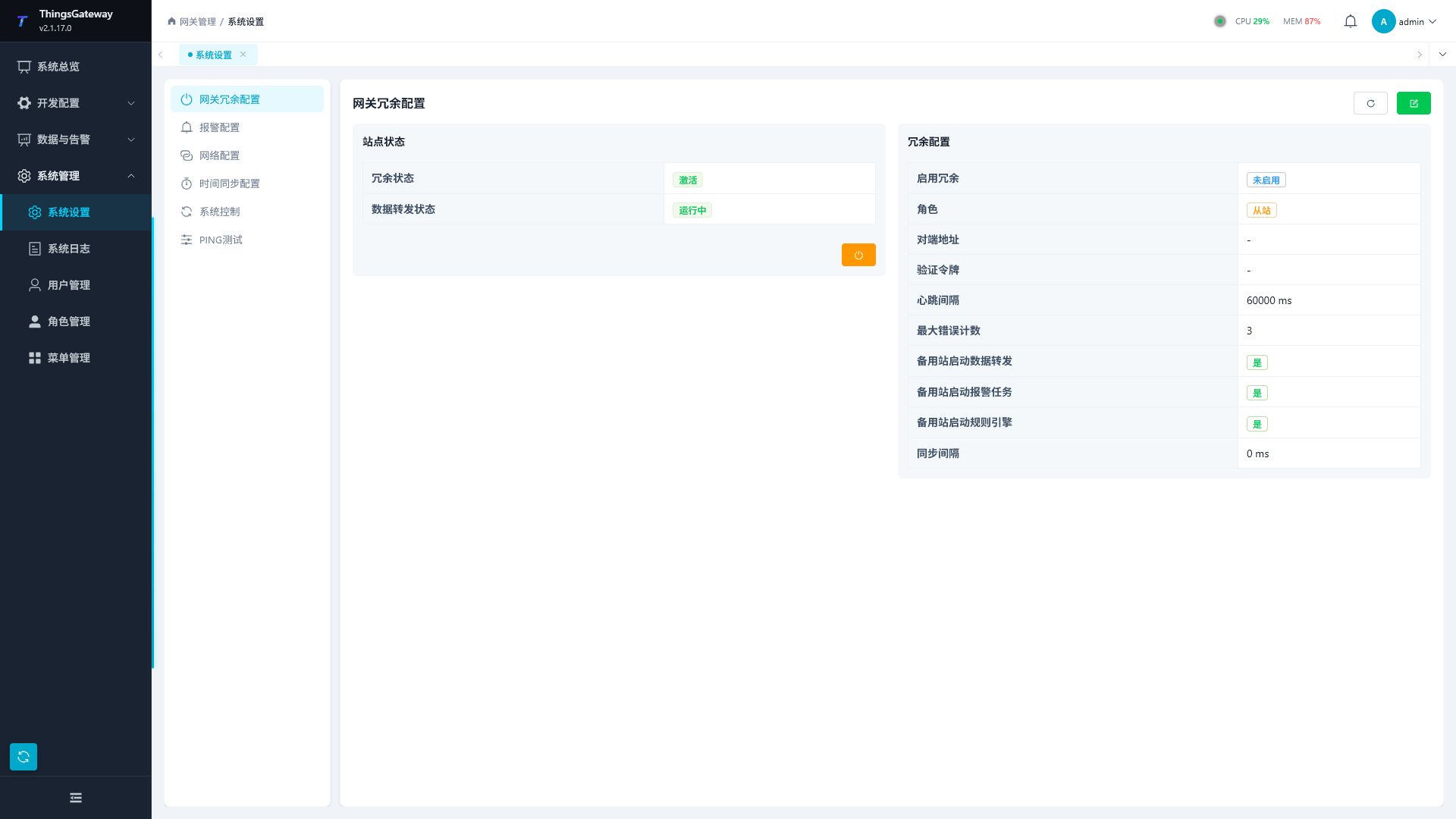
Module List
| Module | Purpose |
|---|---|
| Gateway Failover | Open the dedicated Gateway Redundancy manual for pairing, data synchronization, automatic takeover, manual switching, and troubleshooting. |
| Alarm Configuration | Configure whether the alarm is removed directly from the real-time alarm list after recovery. |
| Network Configuration | View network card information and edit DHCP, IP, subnet mask, gateway, and DNS server. |
| Time Sync Configuration | View local time, UTC time, and time zones, manually set system time, configure NTP servers, and sync intervals. |
| System control | Restart the TGateway, restart the application, download and configure database backups. |
| PING Test | Perform connectivity tests on specified IPs or domain names, checking successes, failures, packet loss rates, average latency, and per-packet results. |
Alarm Configuration
Click “Alarm Configuration” on the left. This module is used to set the handling method after alarm recovery.
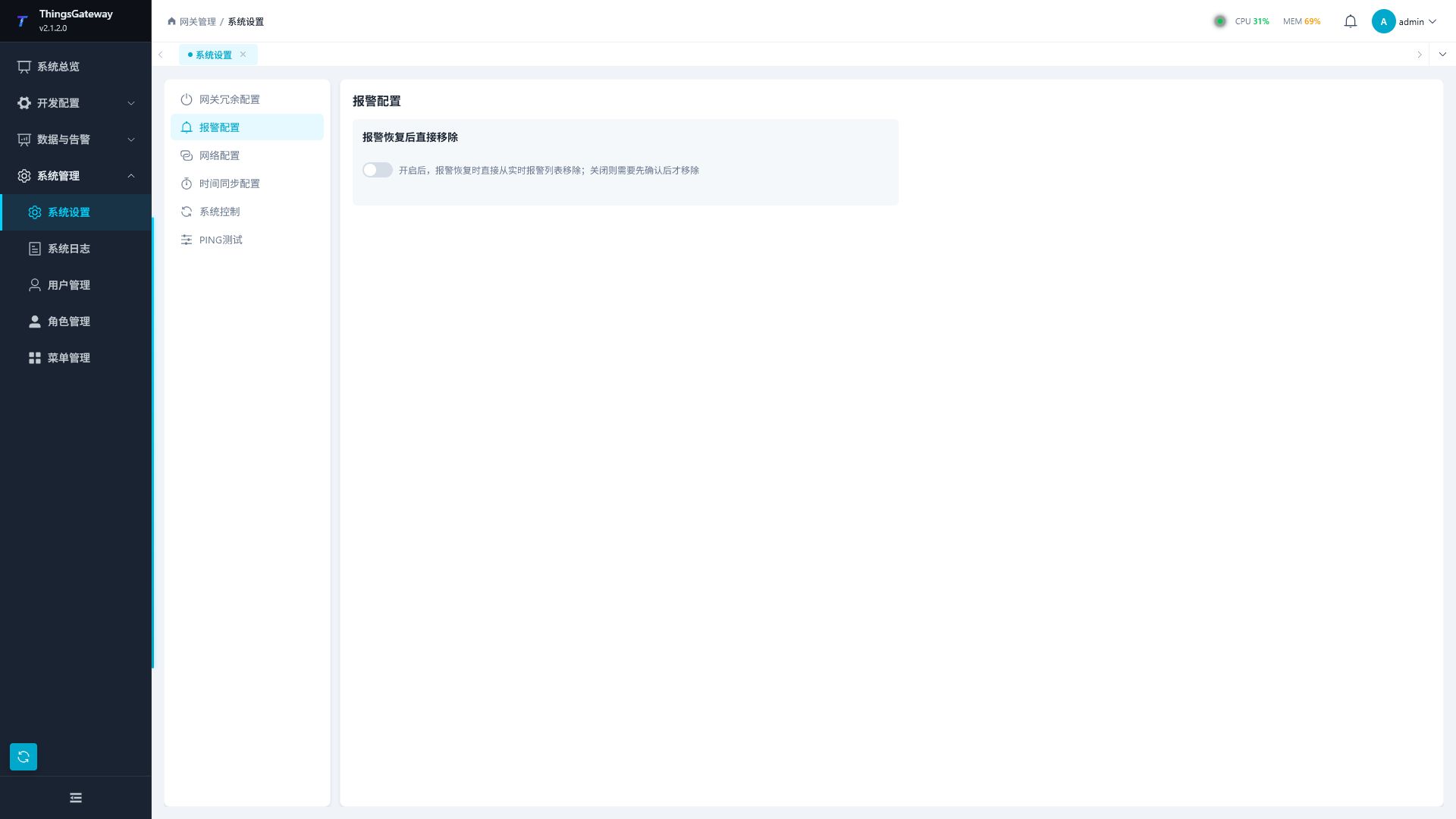
| Configuration Items | Description |
|---|---|
| Remove immediately after alarm recovery | Once enabled, remove alarms from the real-time alarm list during recovery; When closed, the restored alarm still needs to be confirmed before being removed. |
The switch will save immediately after switching. Before modifying the production environment, confirm the duty and alarm confirmation processes to avoid premature removal of alarms during resumption.
Network and time
Network Configuration
Click “Network Configuration” on the left. The page displays the current network card list and supports refreshing and editing.
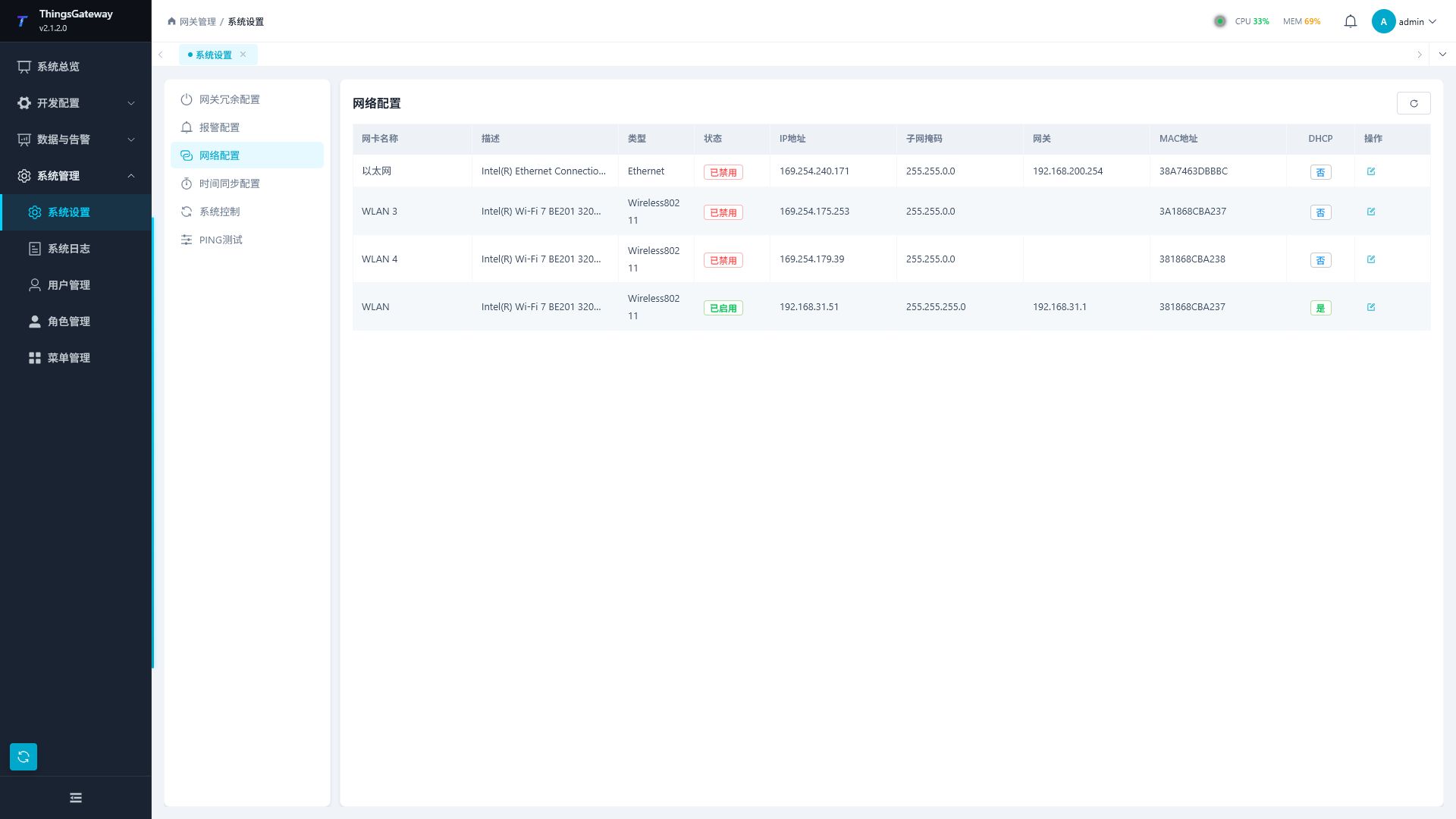
The list shows IPv4 and IPv6 addresses with prefixes separately. Edit an interface and select its IPv4 or IPv6 tab.
| Column | Description |
|---|---|
| Network card name | Network interface name. |
| Description | Network interface description. |
| Type | Network interface type. |
| Status | Enabled or disabled status. |
| IPv4 / IPv6 addresses | Current addresses and prefixes for each protocol; — means no available address. |
| Gateway | Default Gateway. |
| MAC address | physical address of the network card. |
| DHCP | whether DHCP is enabled. |
| Operation | Open the network configuration side panel. |
When editing network configurations, the following fields can be maintained.
| Configuration Items | Description |
|---|---|
| Network Card Name | Read-only displays the current network card. |
| Enable DHCP | After activation, the system automatically obtains network parameters. |
| IP address | displayed and editable when DHCP is closed. The fixed address of the gateway operating host in the field network should be filled in. |
| Subnet mask | displayed and editable when DHCP is closed. It must match the on-site network segment plan; incorrect entries will prevent devices on the same network segment from accessing it. |
| Gateway | displayed and editable when DHCP is closed. When accessing cross-subnet devices, NTP servers, or external platforms, the correct default gateway must be provided. |
| DNS Server | supports multi-value input and allows you to choose or manually create DNS addresses. When accessing MQTT, Kafka, OPC UA, Webhook, or NTP services using domain names, you need an available DNS. |
Note
Modifying the network card, gateway, or DNS may cause the current web connection to be interrupted. Before saving, please confirm the remote access method and backup connections on site.
After enabling DHCP, IP, subnet masks, gateways, and DNS are assigned by the network environment, and addresses may change after device reboot or lease updates. When the production gateway requires a fixed access address, static IPs are prioritized or fixed leases are bound to the on-site DHCP server.
Configure IPv6
IPv6 configuration supports Windows and Linux interfaces managed by NetworkManager. Linux requires an executable nmcli. Containers normally cannot manage host interfaces directly; check deployment permissions when loading fails.
- Edit the intended interface, select IPv6, and wait for the current settings.
- Enable automatic IPv6 configuration, or disable it to enter static addresses, a gateway, and DNS servers.
- Enter one address and prefix per line, such as
2001:db8:10::20/64. Use the actual site network plan. - Save and confirm the interface and protocol. Saving applies only the selected protocol tab, not the other tab’s draft.
- Reconnect, refresh the list, and verify IPv4, IPv6, and the intended service separately.
| Setting | Description |
|---|---|
| Automatic IPv6 | Uses operating-system automatic address configuration. |
| IPv6 addresses | Static addresses with prefix lengths, one per line. |
| Gateway | IPv6 default gateway according to the site routing plan. |
| DNS servers | Separate DNS settings for IPv6; multiple addresses are supported. |
Time Sync Configuration
Click “Time Sync Configuration” on the left. The page is divided into two sections: “System Time” and “NTP Configuration.”
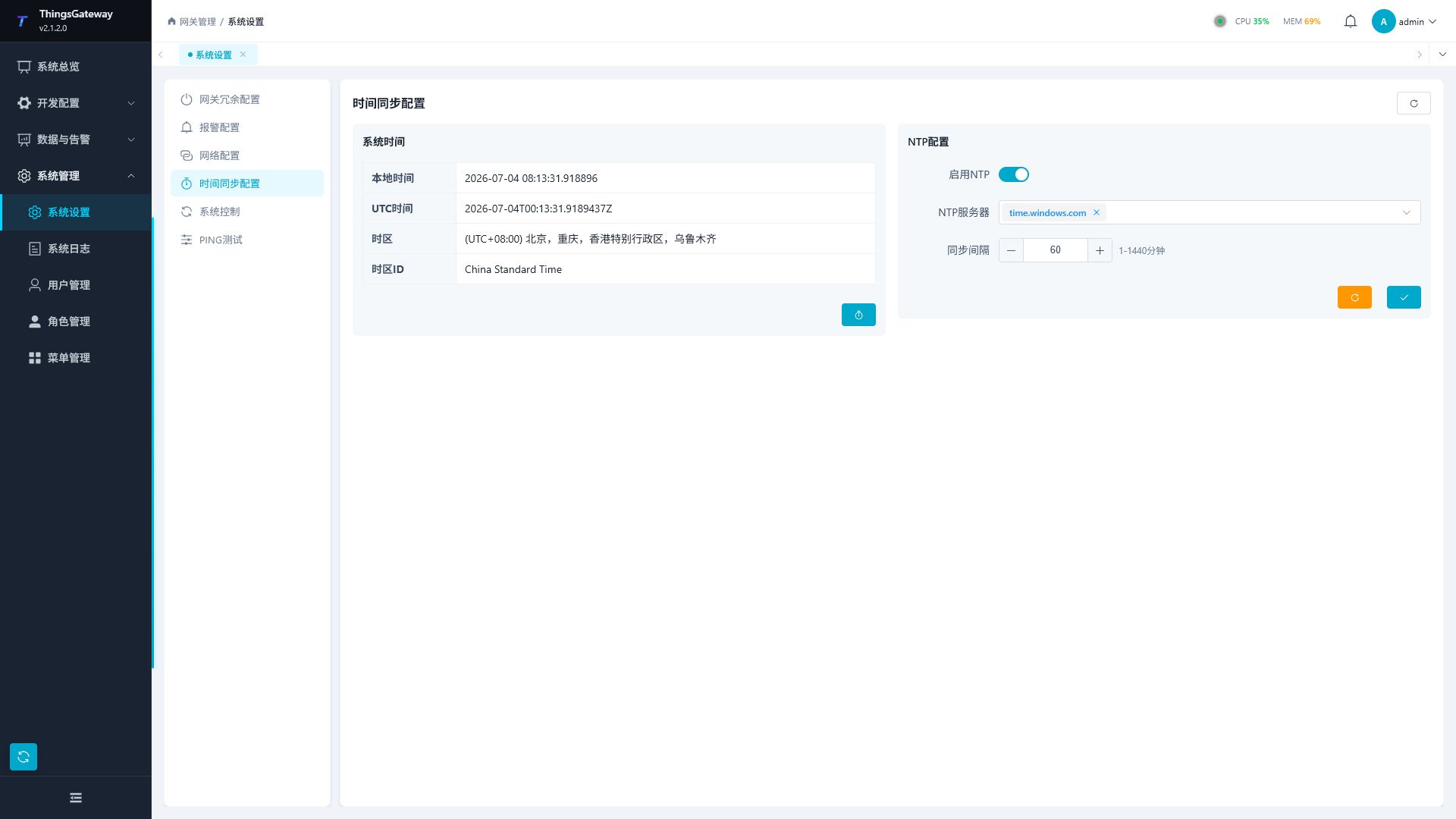
| Area | Configuration Items | Description |
|---|---|---|
| System time | Local time | Host local time. |
| System time | UTC time | current UTC time. |
| System time | Time zone | Name of the host time zone. |
| System time | time zone ID | Host time zone identifier. |
| System Time | Set Time | Open the “Set System Time” side panel, select a new time, and confirm save. |
| NTP Configuration | Enable NTP | Control whether NTP Auto-Sync is enabled. |
| NTP configuration | NTP server | displays after enabling NTP, supporting multi-selection, filtering, and manual creation. |
| NTP configuration | synchronous interval | displays a range of 1 to 1440 minutes after enabling NTP. |
| NTP configuration | instant synchronization | executes NTP synchronization instantly. |
| NTP configuration | save | save NTP enabled status, server list, and sync interval. |
Manually setting system time affects collection timestamp, alarm time, historical data storage time, and certificate verification. After enabling NTP, you should specify the time server that the gateway can access; When the intranet cannot access the public network, use the on-site intranet NTP server. The synchronization interval is measured in minutes, ranging from 1 to 1440.
System maintenance
System Control
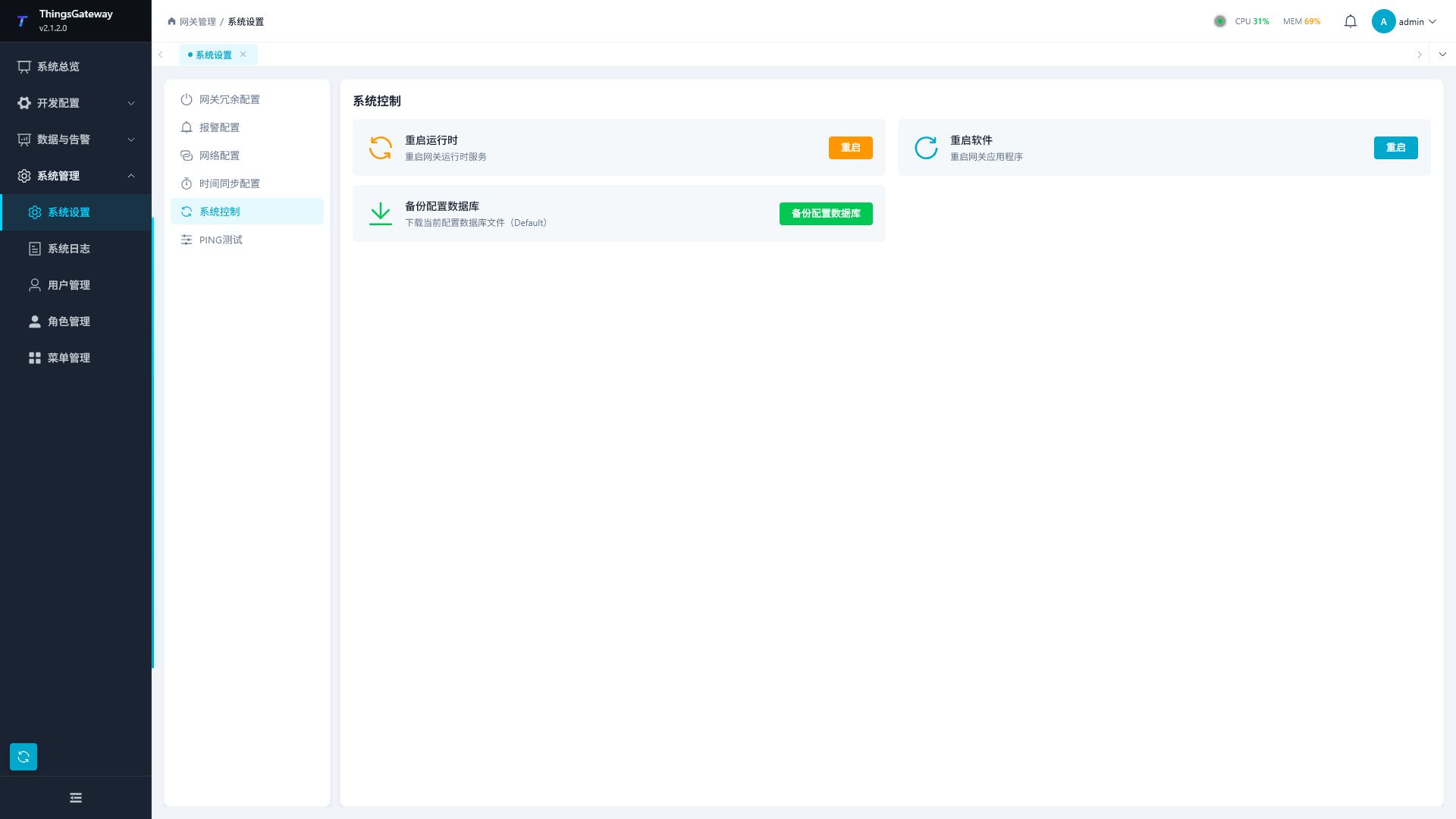
Click “System Control” on the left. This module provides runtime reboot, application restart, and configuration database backup.
| Operations | Description |
|---|---|
| Restart the Runtime | Restart the TGateway. A confirmation popup will appear before execution. Suitable for scenarios such as reloading the runtime after saving or restarting to recover abnormal collection. |
| Restart the software | Restart the application. After execution, the web connection will be interrupted and you need to reconnect. Suitable for scenarios where the application itself is abnormal or system parameter adjustments require a full reboot. |
| Backup Configuration Database | Download a coherent SQLite single-file snapshot containing WAL committed data that can be opened independently for configuring backups or delivering archives. For large-scale configuration, modify network parameters, adjust dual-machine hot standby, or back up before release, it is recommended. |
Note:
Operations involving runtime or application restart may affect collection, data forwarding, and web connections. Please perform in the maintenance window.
Restore a configuration backup
- Back up the current configuration and prepare a working account from the backup.
- In System Control, click Select Backup and Restore and select a nonempty
.db,.sqlite, or.sqlite3configuration backup up to 512 MiB. - Review the filename and overwrite warning, confirm, and wait for validation and restart. This replaces configuration, users, and permissions; a historical-data database is not a configuration backup.
- Reconnect after restart and log in with the restored account. An accepted request only schedules restoration and restart; verify devices, variables, forwarding, rules, and permissions afterward.
Back up external history databases, certificates, and other deployment files separately. Excel point tables do not replace the complete configuration database.
PING Test
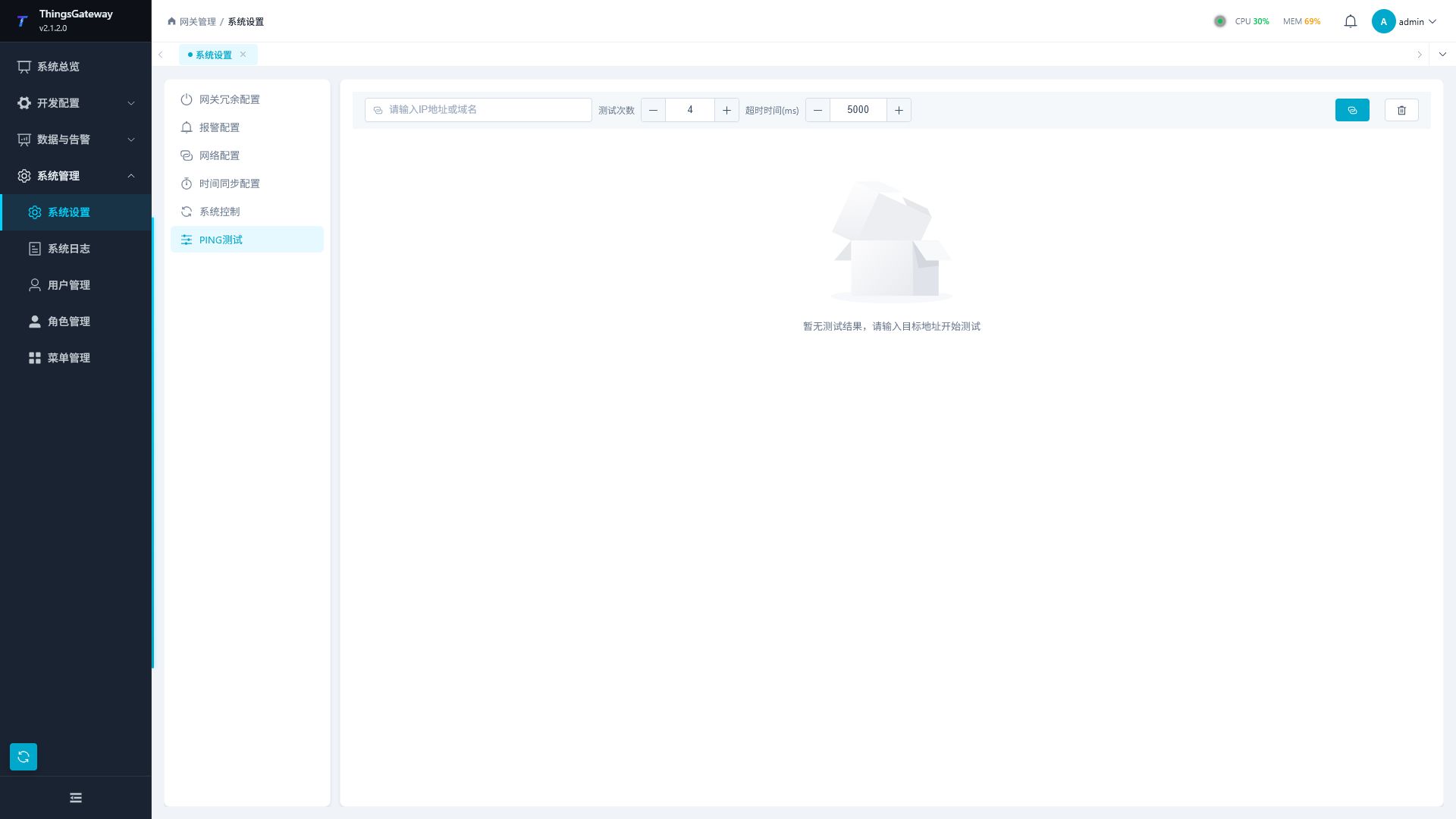
Click “PING Test” on the left. After entering the target address, you can set the number of tests and timeout, then click Start Test.
| parameters | Description |
|---|---|
| Destination address | IP address or domain name to be tested. |
| Number of tests: | number of PING requests, ranging from 1 to 20. |
| Timeout | Timeout per request, ranging from 1000 to 30,000 milliseconds. |
| Start testing | perform PING tests. |
| Clear results | Clear the current test results. |
After testing, the page displays summary cards and packet-by-package tables.
| Results | Explain |
|---|---|
| Target hosts | Actual response target hosts. |
| Number of Successes | Number of Successful Responses. |
| Number of failures | Number of times no response or errors occur. |
| Packet loss rate | failure rate. |
| Average latency | Average round-trip time for successful requests. |
| Delay range | Minimum and maximum round-trip times. |
| Packet-by-packet results | Status, response address, latency, TTL, and error messages for each request. |
successful PING only indicates that the network layer is reachable and cannot prove that MQTT, OPC UA, database, or Webhook service ports are available. If ping succeeds but business connection fails, continue to check the destination port, firewall, account password, certificates, and protocol configuration.
Related Links
- Collection Configuration - Channel, Device, Variable, Alarm, and Value Filtering Configuration
- Data Forwarding - Configuration of Historical Data, Real-Time Data, Historical Alarms, etc.
- Development Interface: Gateway API Documentation - Settings Page Related Interfaces