On this page
Studio Projects
Open Projects in the Studio menu to maintain projects and run them locally. This workflow is optional: you can also run a separate Gateway on this computer and use its Web interface for configuration and debugging. Use Site management for field access and remote maintenance. For complete end-to-end operation, refer to the Studio Web User Manual.
For installation, enrollment, collection, deployment and synchronization, follow Center and edge deployment.
This page covers local project creation, isolation, validation, packaging, deployment and retrieval. See Site management for multiple-site connections and batch program updates, and Watchdog for applying a project and supervising its site process.
Project preparation and lifecycle
Entry and preparation
Open Studio Web → Projects. Prepare a project name, local Web port and matching OS/CPU runtime. For site deployment, first save and test the target in Site management. Keep an export/backup before overwriting an existing project.
Page Purpose
Projects maintains local projects and supports local runs, import and export, upload to Watchdog, and download from Watchdog.
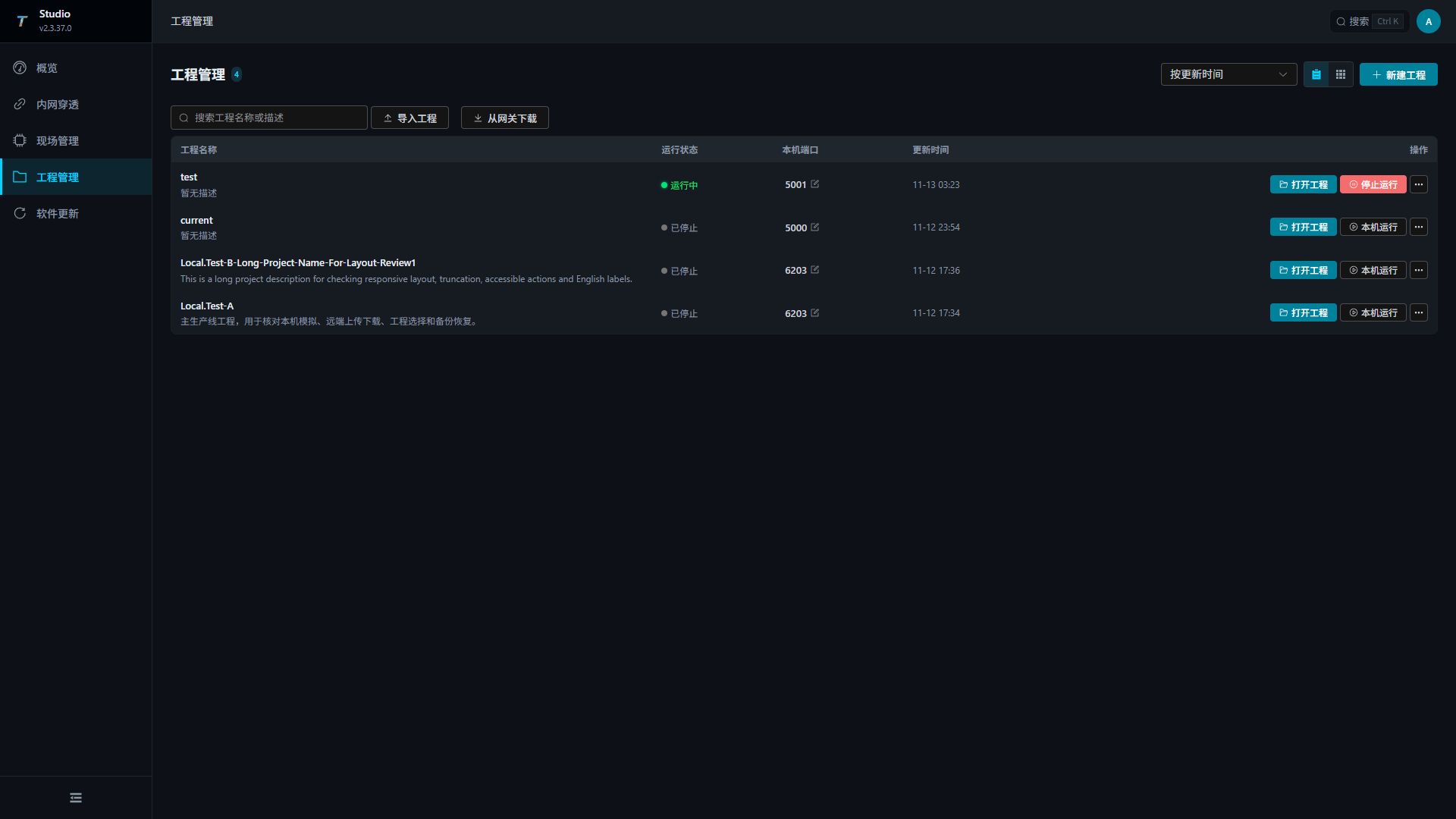
| Area or Operation | Description |
|---|---|
| Sort | supports sorting by update time, creation time, or name. |
| Project search | Filter local projects by name or description. Import and Download from Gateway are beside the search field. |
| View Switching | Switch between list and card views on desktop. Phones use cards with all actions; returning to desktop restores the previous view. |
| Create a New Project | Open the project drawer and create a local project. |
| Stop Runtime | Stop an individual running project; other projects continue running. |
| Import the project | Import local projects from the ZIP project package. |
| Download from the gateway | Download the package from the configured Watchdog service. |
| Local Port | Displays the port and its edit control. Stop the project before changing its port. |
| Project Operations | Use Open Project to enter the editor. Each project also supports start/stop, edit, export, upload, and deletion. |
Bundled gateway and project isolation
The Studio release package includes the complete gateway for the same product version and platform. Local runs start this bundled gateway directly. Import, export, and configuration-only upload package the project directly. Install .NET 10 Runtime as described in Quick Start.
Projects share the gateway program bundled with Studio. Each project runs in its own process and keeps the following content in its own data directory:
| Project content | Description |
|---|---|
| Project information and configuration | Project name, description, local Web port, and separate appsettings*.json and Configuration/ files at the project root. |
| Databases | Project databases and other business databases are isolated. Configure separate databases or connections for external database services. |
| Scripts, nodes, and rules | Scripts, custom nodes, user extensions, and rule-engine configuration travel with the project. |
| OPC UA certificates | Application certificates, private keys, trust lists, and rejected certificates belong to the project. |
| Resources and protocol state | Project public resources, IEC 61850 files, and SNMP state belong to the project. |
A new project does not inherit another project’s databases, scripts, nodes, user extensions, caches, or OPC UA certificates. Studio and Watchdog accounts, management certificates, and tunnel enrollment settings belong to their host services and are not project content.
Each project’s Configuration/ is read and saved independently, including database connections, Web settings, JWT, logging, and license state. Bundled defaults only supply missing configuration files and never replace existing project files. Studio passes the local listening port separately, preserving the on-site port saved in the project configuration.
Local runs preserve existing relative database locations. For example, Data Source=custom.db continues to open the original database at the project root rather than creating DB/custom.db. Project-local SQLite files explicitly declared in the database configuration, such as archives/custom.db, also participate in Watchdog uploads, downloads, project switching, and backup restoration. After migrating or downloading a project, confirm that its existing data is available before editing and publishing it. Store custom plugin history databases under OTHERDB. Keep business data out of Logs, PluginCache, and temporary directories, which are excluded from project transfers and backups.
PluginCache at the project root is local runtime cache, not project content. It is excluded from project import, export, upload, download, backup, and restore. Folders with the same name inside project resources remain user content and are transferred intact. Watchdog uses the existing on-site cache; the Studio cache is never copied to it. Switching projects on the same Watchdog keeps using the on-site cache without switching, clearing, or overwriting it. Restoring a project does not roll back the on-site cache.
One Studio instance can run multiple projects at the same time. If a local Web port is occupied, startup reports the conflicting port and does not start that project; other running projects continue. Logs, local PluginCache, SQLite plugin history, scripts, custom nodes, and OPC UA certificates use each project’s own directory. Stopping, exporting, or uploading one project affects only that project. Plan additional protocol listening ports, external databases, and hardware connections separately so projects do not compete for the same external resources.
Project Lifecycle
| Stages | Studio Operations | Explanation |
|---|---|---|
| Create | Create a new project or import a ZIP | It is recommended to clearly state the project name and description to facilitate publishing, backup, and feedback identification. |
| Local Debugging | Run locally → Open project | Studio starts this project’s gateway. Continue configuring channels, devices, variables, and scripts in Gateway Web. |
| Publish | Upload to Watchdog | Select the target Watchdog and enable Also Update Gateway Program only when needed. |
| Return | Download from the gateway | Download projects from the on-site Watchdog back to Studio for easy troubleshooting and secondary maintenance. |
| Archiving | Exporting ZIP | used for version retention, migration, or delivery. |
Maintain and verify a local project
Create or Edit a Project
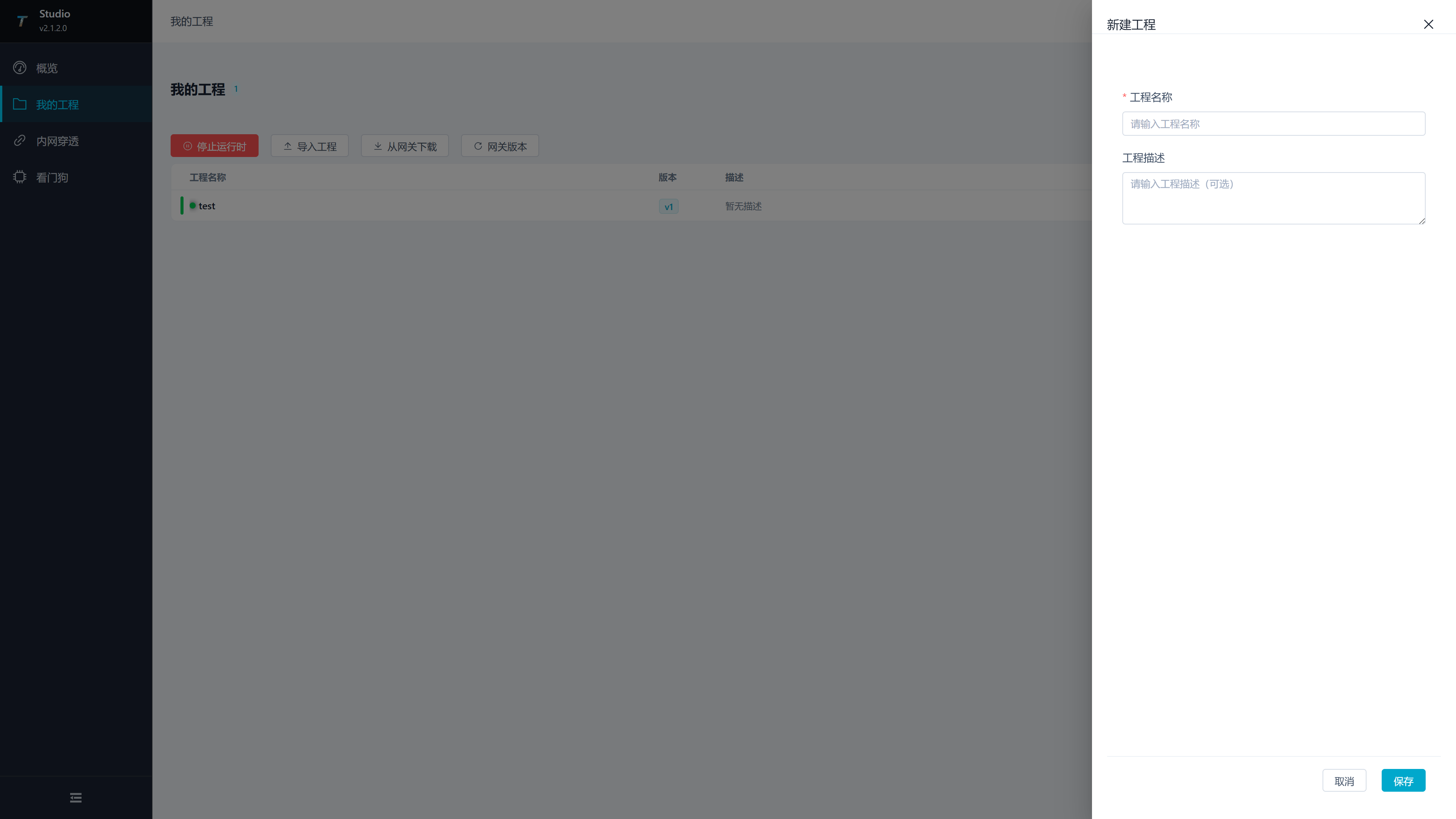
Click “New Project,” or click “Edit” in the More Projects menu to open the project drawer.
| Configuration Items | Description |
|---|---|
| Project Name | Required, length check is 2-50 characters. It is recommended to include information about the site, production line, or equipment group. |
| Project Description | Optional, used to record usage, version notes, site differences, or maintenance notes. |
| Local Port | Project Web port for local runs. Range: 1-65535; default: 5000. Choose a port that is not used by another project or service. Stop this project before changing its port. |
| Save | Create a project, or update its name, description, and local port. |
| Cancel | Close the drawer. A save already submitted continues; a new draft opened afterward remains independent. |
Start Local Runtime
Click Open Project in the table or card to open TGateway Web after both the service and editor entry are ready. With a keyboard, focus the button with Tab and press Enter or Space. Run Locally starts the project; Stop stops it. Clicking the name or row does not open the editor. Mobile cards retain the port, Open Project, start/stop, and More controls.
| Status | Page Performance | Operation Suggestions |
|---|---|---|
| Not running | The start/stop button displays Run Locally. | Wait for startup to finish; the card displays a loading mask during startup. |
| While Running | Display the project status and the start/stop button can stop it. | Click Open Project to enter TGateway Web. |
| Multiple projects running | Projects with different ports show their own running status. | Open or stop each project independently. |
| Port conflict | Startup fails and reports the occupied port. | Edit the local port and retry; other projects keep running. |
Developer Runtime Instructions
Projects starts and stops each project’s local gateway. After entering TGateway Web, follow the TGateway operation manual to configure channels, devices, variables, scripts, nodes, and data forwarding.
Change the local port
- Find Local port in the table or card and select its edit button.
- Stop a running project first. Open the edit panel, enter an available port, and save.
- Select Run locally, confirm startup, then select Open project. Projects with different ports can run at the same time.
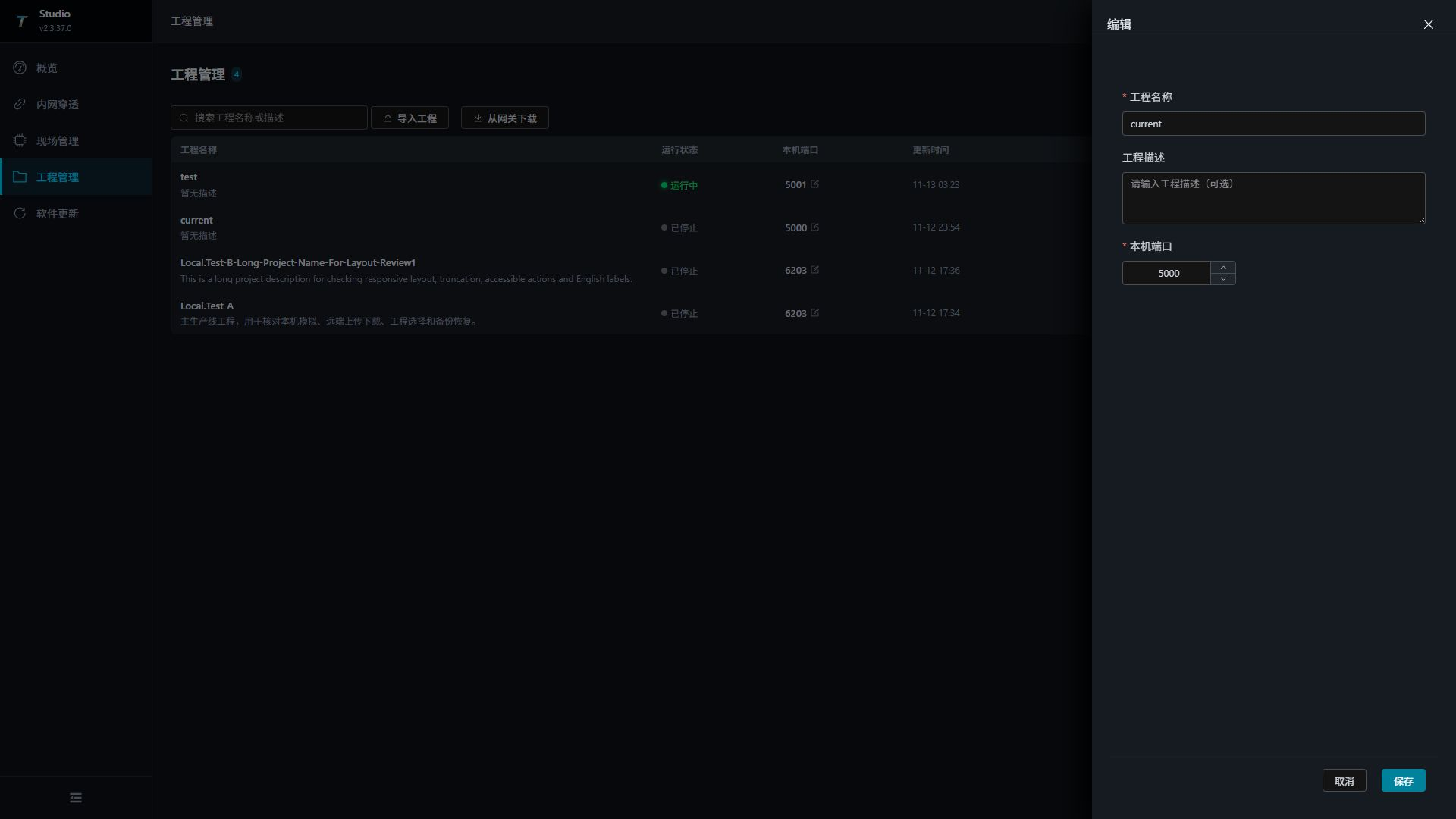
The local port affects only this project’s local run in Studio. It does not change the site Gateway or Watchdog listening port, the saved site connection, or tunnel mappings. Configuration uploads retain the site port saved in the project. Configure the site’s actual listener at the site; ports entered in Studio Site management only tell Studio where to connect.
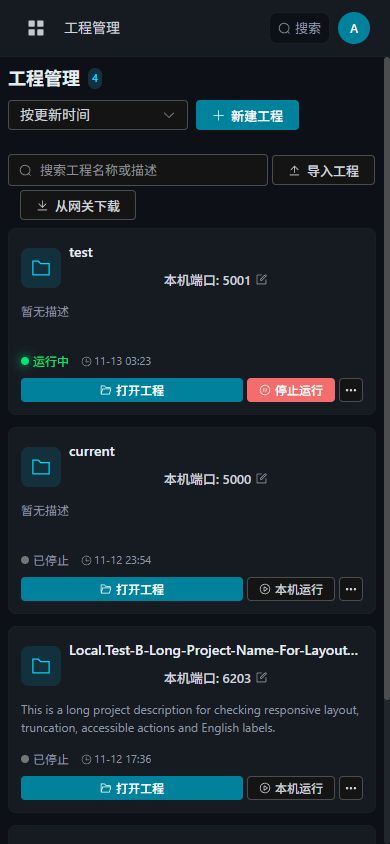
Use Projects on a phone
Mobile cards retain the local port, edit control, Open project, start/stop, and More menu. Use these buttons directly; clicking or double-clicking the card does not open the editor. Open More to export, upload, or delete a project.
Import Project
Click the toolbar “Import Project” and select the ZIP project package.
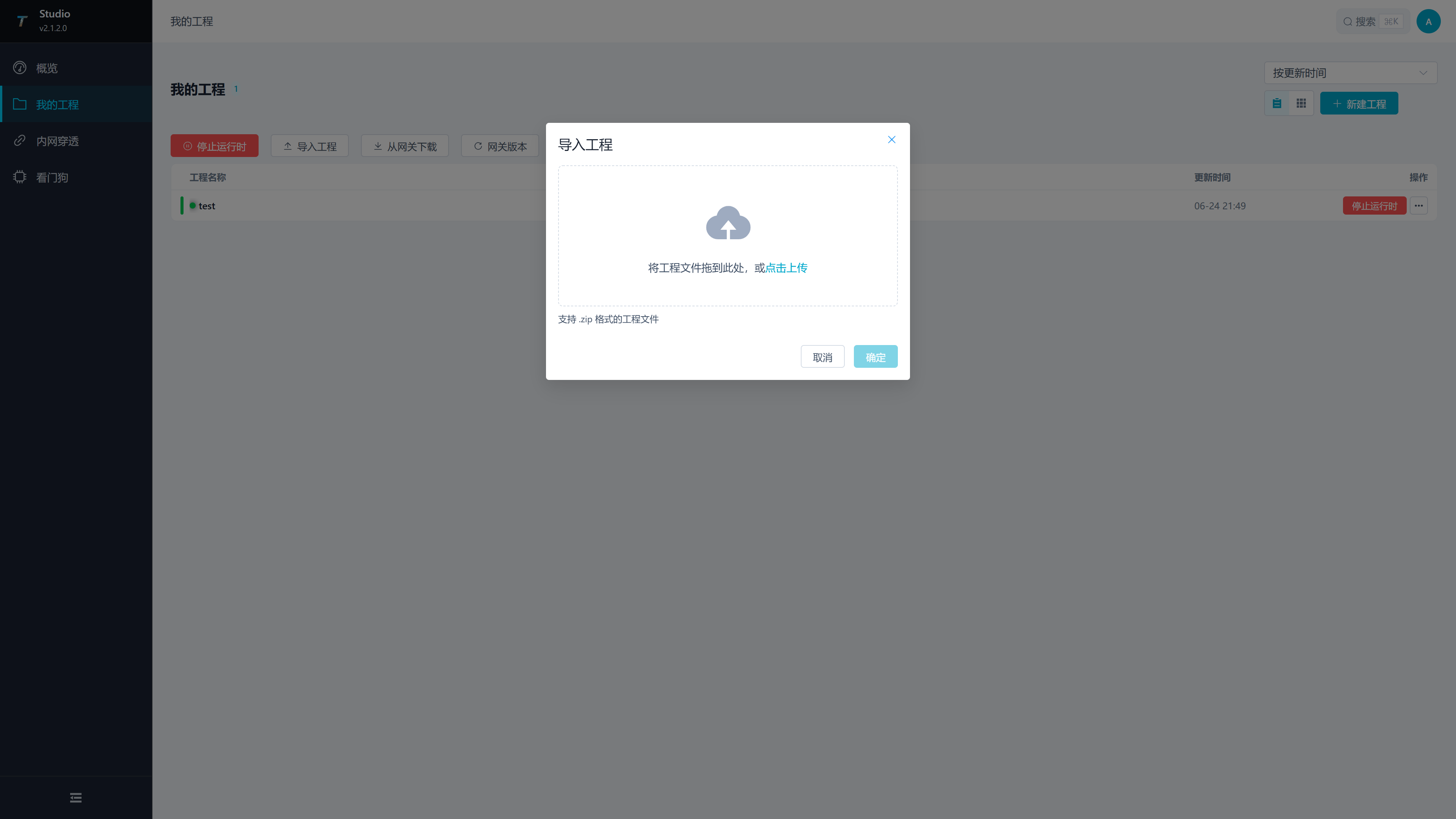
| Configuration Items | Explanation |
|---|---|
| Project Package | Only complete ZIP project packages with valid project.json at the archive root are accepted. Empty, program-only, or outer-folder packages are rejected. Drag a package into the upload area or click to select. |
| Import Project Name | Optional. After filling it out, import using the name; If not filled in, use the original name of the project package. |
| Confirm | Import is available only while a ZIP is present in the visible file list. Removing it requires a new selection; closing and reopening clears the selection. |
After importing, check the project name, description, and update time, then start the local runtime to verify the configuration. A regular ZIP import retains the local port stored in the package. Check for local port conflicts before starting and change the port under Edit when needed.
Export Project
Click “Export” in the project’s More menu. The browser downloads a ${project-name}.zip project package for migration, archiving, direct Watchdog upload, or troubleshooting.
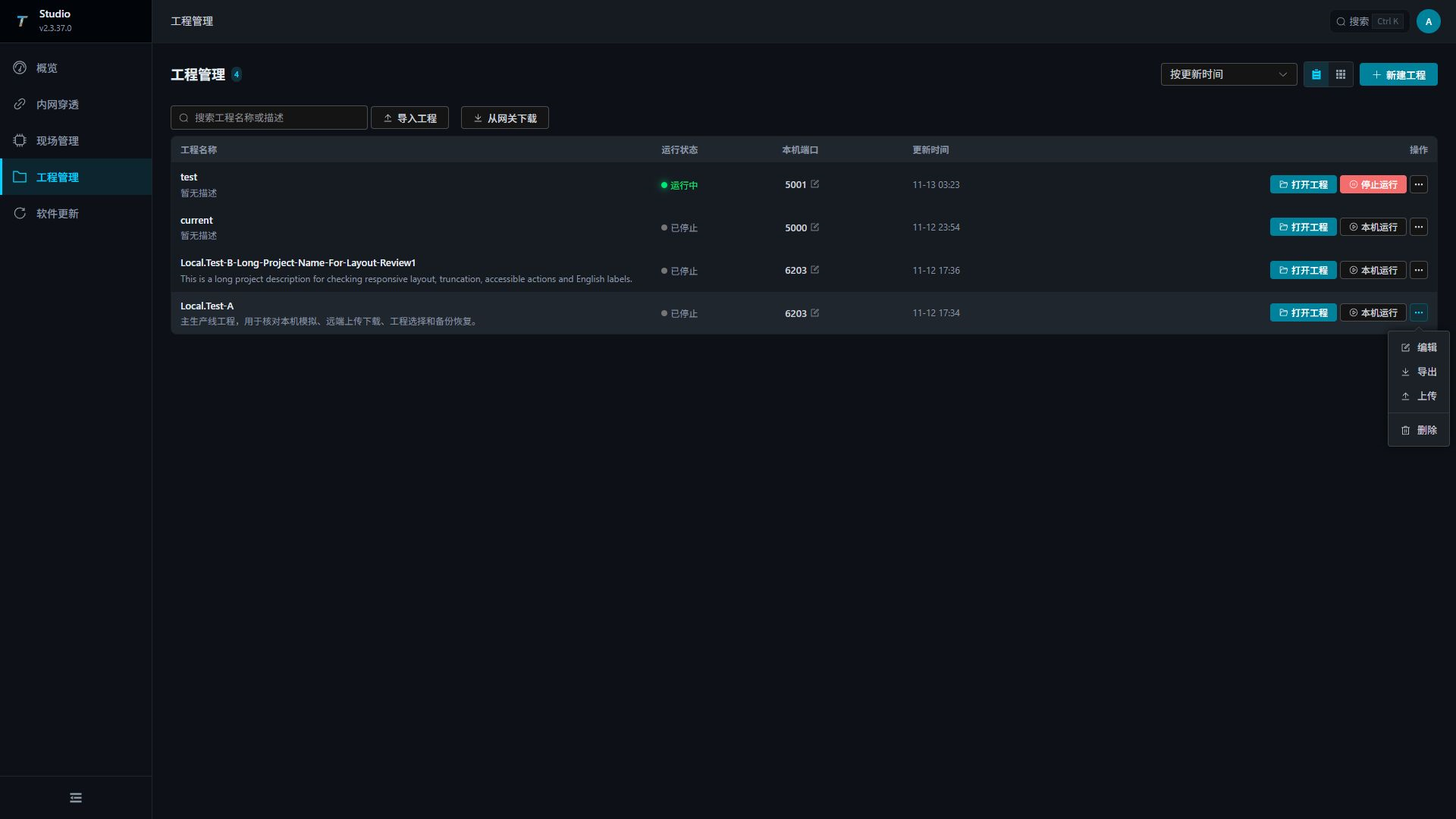
Studio exports and Watchdog downloads use the same ZIP structure: project.json and project directories are directly at the archive root. Use the complete original ZIP without adding an outer folder. For a manual Watchdog upload, the ZIP filename determines the target project name; renaming the ZIP changes that name.
| Usage Scenarios | Description |
|---|---|
| Version Archive | Export before and after deployment for rollback and comparison. |
| Migration Delivery | Move the project to another Studio or hand it over to on-site personnel. |
| Troubleshooting | Exporting on-site works to maintenance personnel for reproduction. |
Exporting or uploading a running local project briefly stops that project’s gateway to produce a consistent package. Schedule the operation when interruption is acceptable. Use the page to export or download the complete project; copying only a SQLite .db file can omit unmerged WAL data and other project files.
Publish and retrieve site projects
Upload your project to Watchdog
Click Upload in the project’s More menu to open the upload drawer.
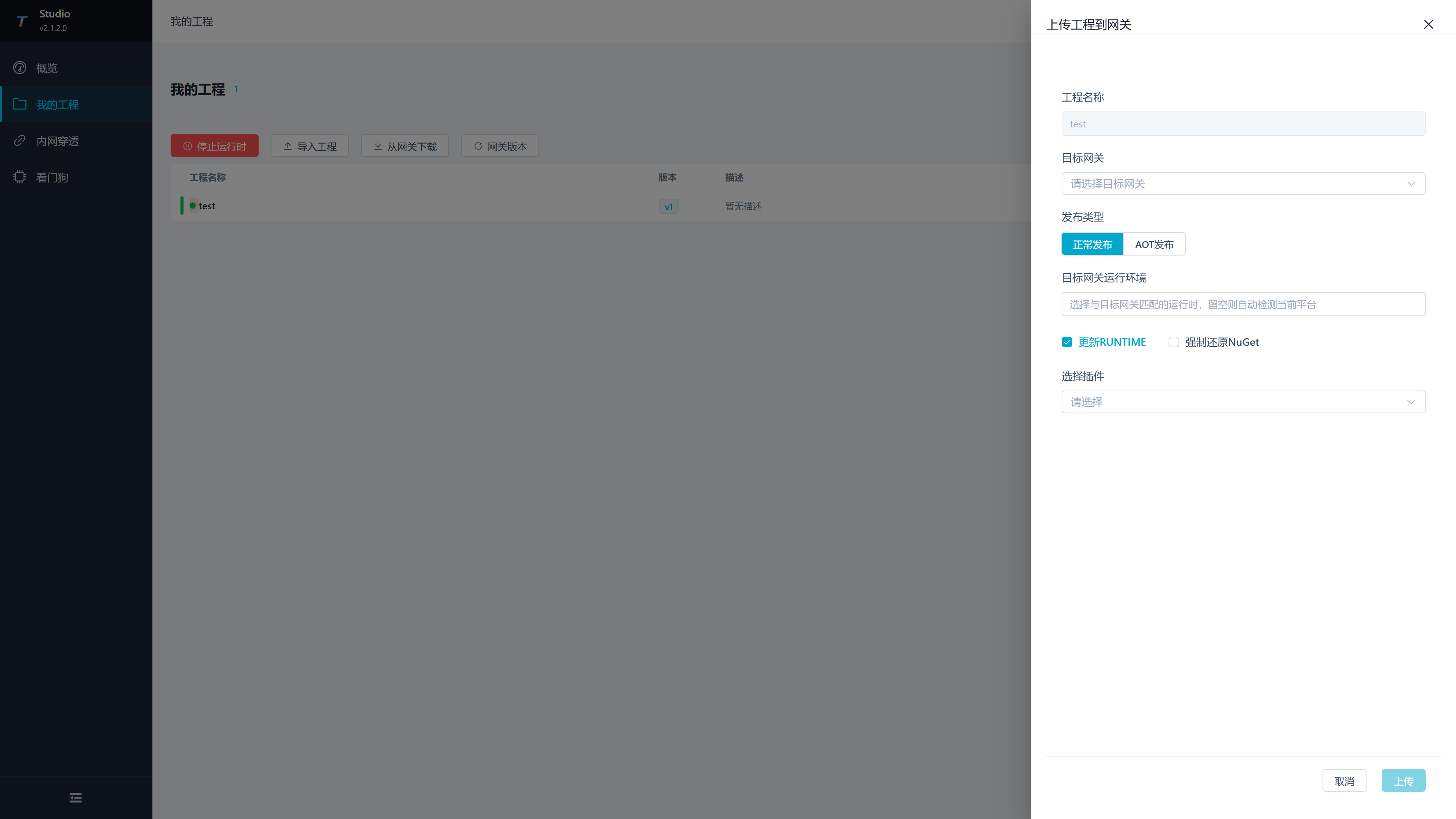
| Setting | Description |
|---|---|
| Project Name | Read-only name of the project to upload. |
| Target Gateway | Select a saved site. If none is available, add and test it in Site management first. |
| Also Update Gateway Program | Off by default: upload project data and use the matching gateway already installed on the target. When enabled, include the bundled gateway and update the target program. The target OS and CPU architecture must match the bundled platform. |
| Upload | Available after selecting the target gateway. |
Pre-Release Checks
- Test the target Watchdog connection in Site management.
- Create a current-project backup in Watchdog Web and download a separate project archive when needed.
- For configuration-only updates, leave Also Update Gateway Program off and confirm that the target has the matching gateway version installed. The target platform need not match the Studio computer.
- To include gateway binaries with the project, check the Studio package version and platform before enabling Also Update Gateway Program. For another platform, first update the official program package through Site management, then upload project configuration only.
- Confirm that a brief interruption is acceptable, then upload.
Post-Release Checks
- Confirm the expected current project in Watchdog Web.
- Check the dashboard state and startup failure count. If the gateway was manually stopped before upload, it stays stopped; start or restart it when operation is permitted.
- Review Watchdog logs for package, runtime, and port errors.
- Sign in to the target TGateway and check project configuration, a collected variable, and a forwarding target.
Download the project from the gateway
Click the toolbar “Download from the gateway” to open the download drawer.
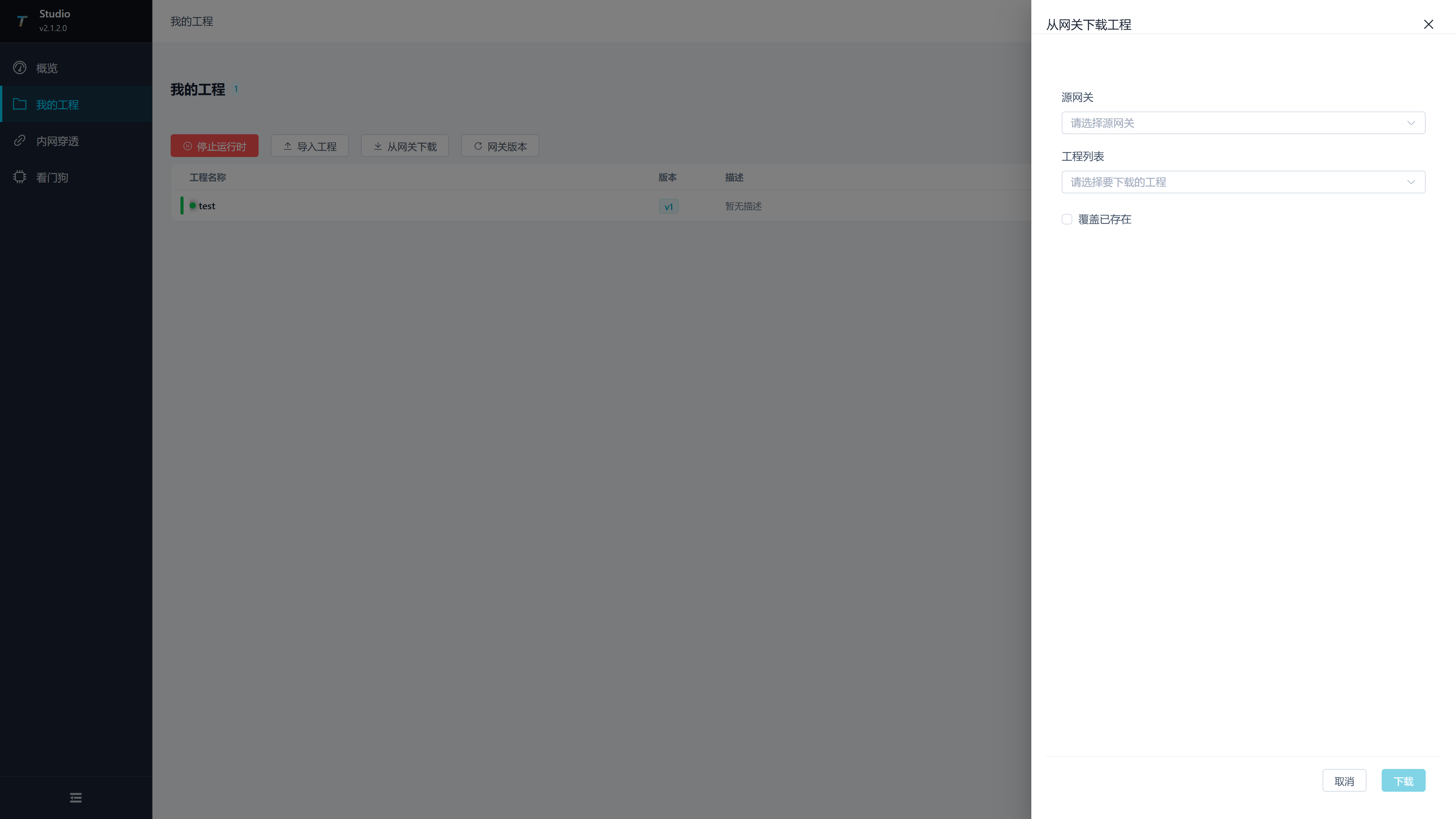
| configuration from the gateway | Description |
|---|---|
| Source gateway | Select the configured Watchdog service. |
| Project List | Select the package on that Watchdog. After switching the source gateway, the project list will be reloaded. |
| Local Project Name | Defaults to the selected remote name. Change it to create a separate local copy; the site project is not renamed. |
| Overwrite Local Project with This Name | Finds the local target by Local Project Name. Without this option, a name conflict is rejected. |
| Download | Select a source gateway and remote project, then enter a valid local name. |
Downloading the current project retrieves the latest live site content. Downloading a non-current project retrieves its saved content. A project downloaded to Studio for the first time uses the default local Web port 5000; check for conflicts before starting. Local names cannot contain paths, reserved filename characters, consecutive dots, leading or trailing spaces, or a trailing dot. A new local name creates an independent project, leaving the original local project and the site project unchanged. Stop the target local project before overwriting. Overwrite retains the target’s identity, path, creation time, and local Web port while replacing its content.
Open the downloaded local project in TGateway Web, edit it, and check databases, scripts, custom nodes, rules, and OPC UA certificates. After saving and validating locally, upload it to Watchdog again. Restoring a backup on Watchdog does not update the local copy; download the project again to retrieve the restored site content.
Frequently Asked Questions
| Phenomena | Handling Suggestions |
|---|---|
| New Project Fails to Save | Check if the project name is empty and if the length is between 2 and 50 characters. |
| Open project cannot open TGateway Web | Check this project’s startup state and port conflicts. Stop and restart only this project when necessary. |
| The upload drawer has no target gateway | Add the site in Site management and test the connection. |
| Upload failure | Check the Watchdog connection, project package, disk space, and service logs. When Also Update Gateway Program is enabled, also check the bundled platform. |
| Empty download project list | Check whether the source Watchdog is online, whether the account and password are correct, and whether there are project packages in Watchdog project management. |
| Gateway cannot start after publishing | Check the gateway version, target OS and CPU architecture, GatewayApp completeness, and Watchdog startup logs. |