On this page
Data Synchronization
Data synchronization writes a variable from one collection device to a variable on another. Each rule is a one-way mapping for setpoint coordination, state transfer, or periodic refresh.
Open the page
Sign in to the WEB configuration interface and open Development Configuration → Data Synchronization. Search by rule name, filter by sync mode or enabled state, and use pagination, sorting, and automatic refresh.
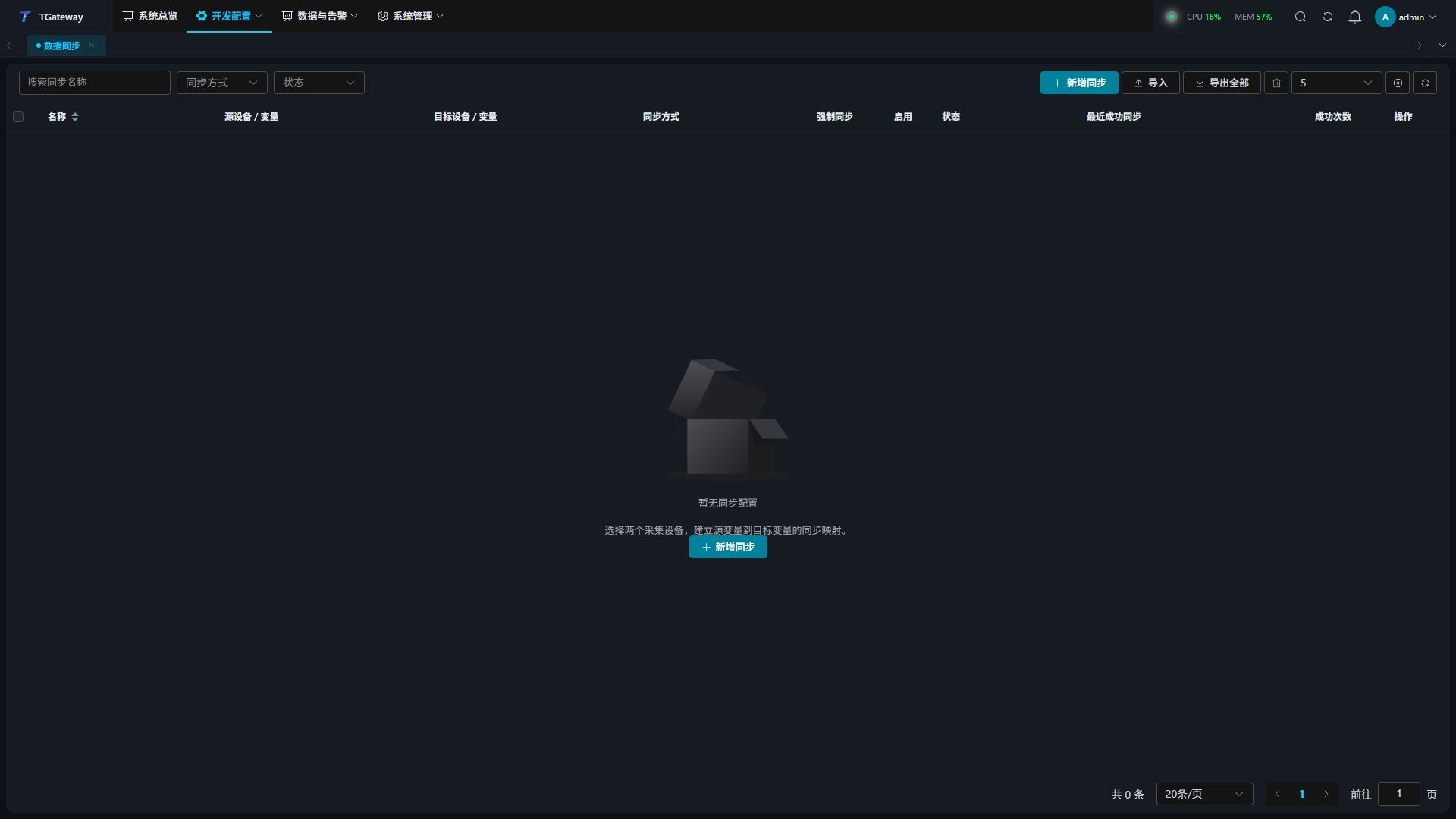
Create a synchronization rule
- Create two different collection devices and their variables in Collection Configuration. Confirm that the source variable can be read.
- Enable the target variable and allow variable RPC writes. Its access mode must permit writes, and it must not use a special method. Source and target must have the same data type and array length.
- Click Add sync, enter a name, and select the source device, source variable, target device, and target variable. For large variable lists, search by name and load more results as needed.
- Select On change or Interval, and enable Force sync if required. For initial field configuration, leave the rule disabled, save it, and verify the mapping before enabling it.
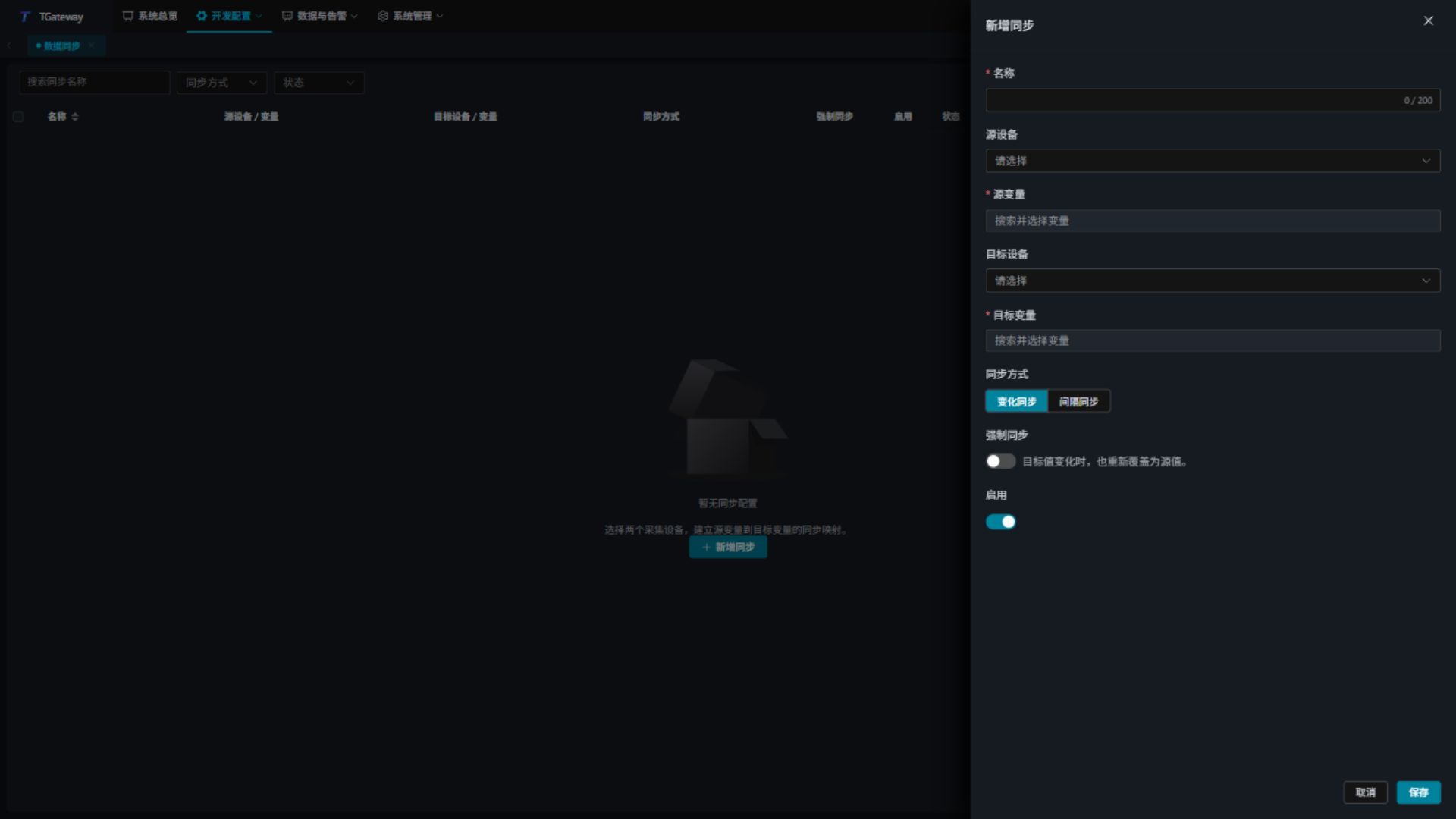
- Enable the rule and inspect State, Last successful sync, and Successful writes. Verify the actual value on the target device. Writes require an online source device with a valid collected value.
Parameters
| Parameter | Description |
|---|---|
| Name | Identifies the rule and matches existing rules during Excel import. Include the synchronized object or purpose. |
| Source device / Source variable | Collection device and readable variable that supply the value. Memory devices cannot be synchronization endpoints. |
| Target device / Target variable | Another collection device and its receiving variable. Variable RPC writes must be allowed; read-only and special-method variables cannot be targets. |
| Sync mode | On change writes when the source changes; Interval writes periodically. See the behavior below. |
| Sync interval (ms) | Visible in Interval mode. Accepts 100–86400000 milliseconds. Actual completion also depends on collection periods, scheduling, and device communication time. |
| Force sync | Also overwrites the target when a target change is collected. When disabled, a target-only change does not trigger an On change write. |
| Enabled | Enables execution. Disabling retains the configuration and stops subsequent synchronization by this rule. |
Choose a sync mode
On change
The rule initially aligns the target with the source, then synchronizes subsequent source changes. Ordinary On change mode does not continuously write an unchanged source value.
For example, map a temperature setpoint on the production PLC to a setpoint on the coordinated PLC. Change the source setpoint and verify that the successful-write count increases and the target updates. Then hold the source steady and observe the target and count.
Enable Force sync when the source must maintain the target value. Under suitable commissioning conditions, change the target and verify that it returns to the source value after the target change is collected. Force sync depends on collection and communication; it does not instantly intercept external writes.
Interval
Interval mode writes again at the configured period even if the source is unchanged. Edit the rule, select Interval, enter a period such as 5000 milliseconds, and save. Observe multiple successful writes and verify the target value.
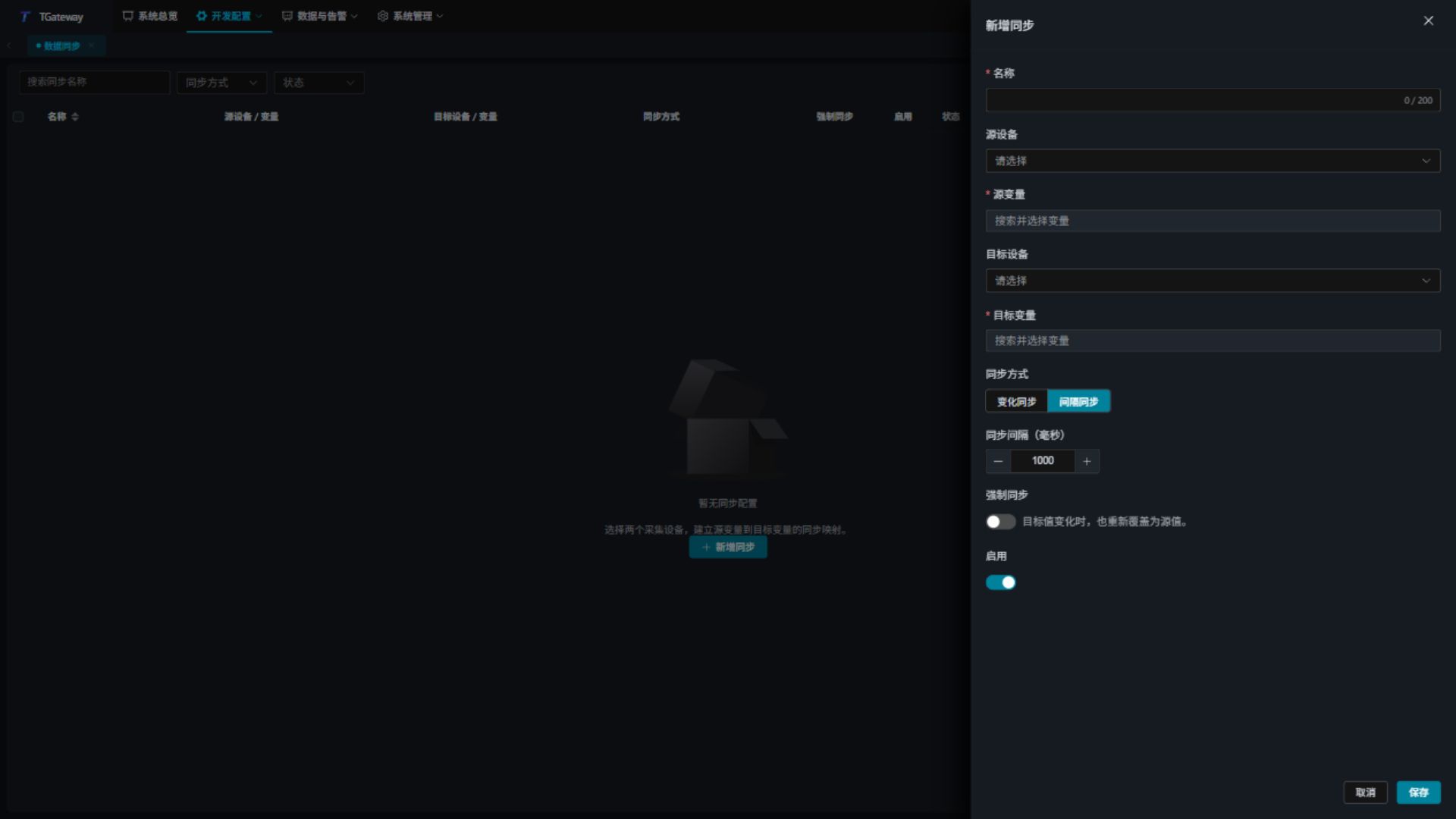
With Force sync disabled, an externally changed target is realigned on a subsequent periodic write. Enabling Force sync also allows a collected target change to trigger correction. Choose a period that respects the device’s permitted write rate and avoids unnecessary repeated writes.
Common operations
Monitor and maintain rules
Use a row’s Edit action to change its mapping or parameters, or its enabled switch to control execution. Select rows for bulk deletion. Export a backup before deletion; disable a rule when only a temporary stop is needed.
| State or metric | Meaning |
|---|---|
| Stopped | Data tasks have not started or have stopped. |
| Disabled | The rule is disabled. |
| Standby | This gateway is the redundancy standby and performs no writes. |
| Waiting for source data | No usable source data is available. Check source connectivity and collection. |
| Syncing | The rule is participating normally. In On change mode, an unchanged source does not need to keep increasing the count. |
| Sync failed | The latest write failed. Hover over the state for details, then check target communication and write conditions. |
| Variable unavailable | A referenced variable is unavailable. Select valid variables and save the rule. |
| Last successful sync / Successful writes | Successful writes for the current runtime generation. Restarting or reloading configuration may reset these values; they are not permanent audit totals. |
Failed writes are retried and do not increase the successful-write count. After recovery, verify both the target value and subsequent successful records.
Export and import Excel configuration
- Click Export all and save the
.xlsxfile. All rules are exported regardless of filters, page, or selection. An empty configuration still exports complete headers as an import template. - Edit the
DataSyncworksheet in Excel. Keep its name and column headers, and follow the table below. Referenced devices and variables must already exist; import does not create them. - Click Import, then Upload in the Import Excel dialog. Select the file, verify its name, and click Import.
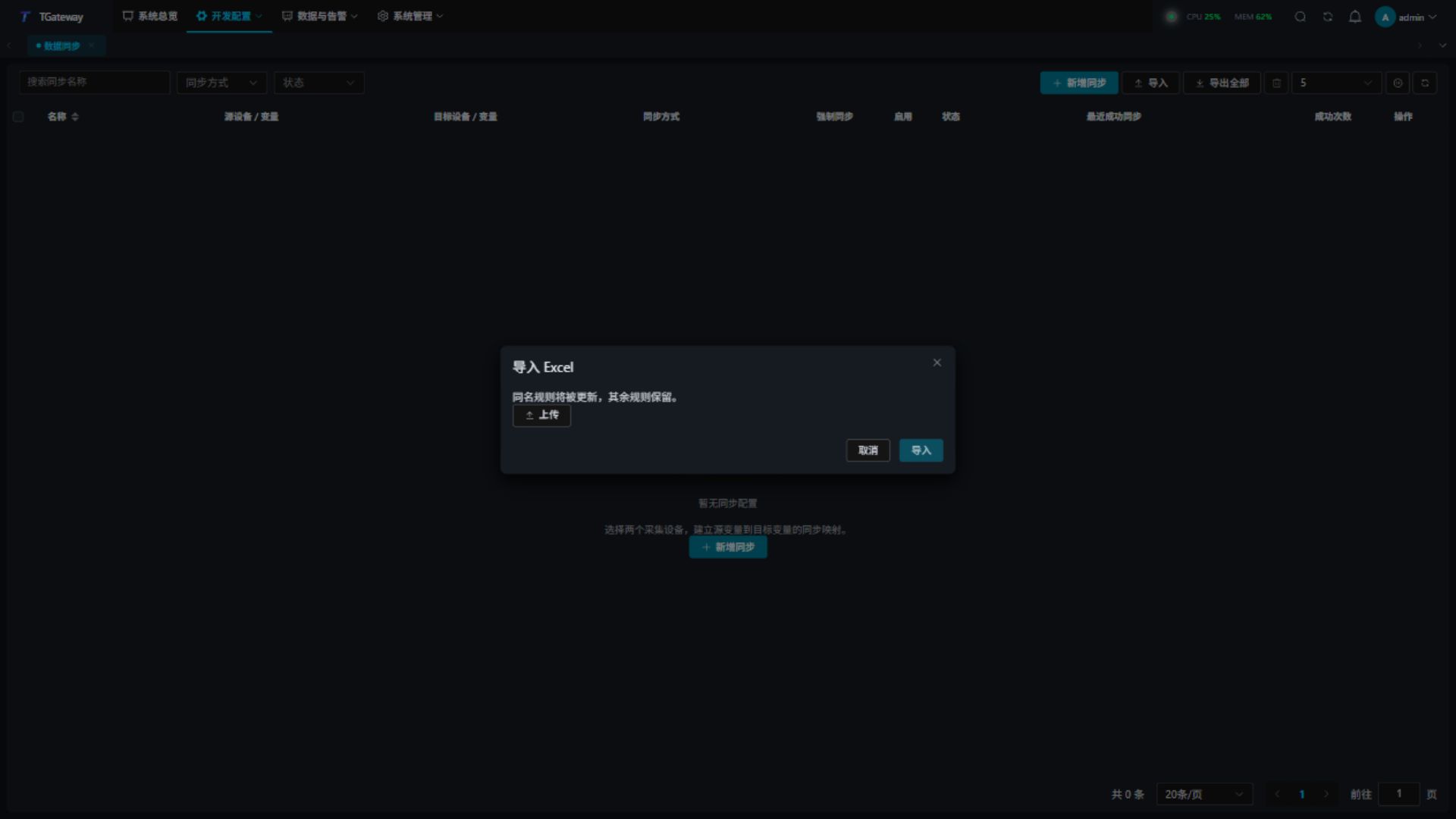
- After import, verify source and target mappings, sync modes, enabled states, and runtime results. If errors are reported, correct the file and import again.
| Excel column | Required value |
|---|---|
| Name / 名称 | Rule name. Matching is case-insensitive; an existing rule is updated with its identity retained. Duplicate names in the file are rejected. Renaming a rule creates a new rule. |
| Source device / 源设备, Source variable / 源变量 | Existing device and variable names, matching the current configuration. |
| Target device / 目标设备, Target variable / 目标变量 | Existing receiving device and variable names, matching the current configuration. |
| Mode / 同步模式 | OnChange or Interval; do not substitute the translated display label. |
| Interval (ms) / 间隔(毫秒) | An integer from 100 to 86400000. Keep a valid value for On change rules as well. |
| Force sync / 强制同步 | True or False. |
| Enabled / 启用 | True or False. |
Both English and Chinese headers are recognized. The entire file is validated before a single merge: matching rules are updated and rules absent from the file are retained. Any error cancels the import without partial changes. Each import accepts up to 100000 nonempty configuration rows, and disabled rules must also satisfy validation.
Use device and gateway redundancy
With device redundancy configured, rules bind to the primary configuration’s variable identity and use the currently active device endpoint. Do not create duplicate mappings for standby devices or treat them as independent variable configurations. See Collection Strategy for device redundancy settings.
With Gateway Redundancy, only the working node performs synchronization writes. The standby displays Standby, and the new working node continues after takeover. Rule configuration is transferred with gateway redundancy configuration snapshots. During commissioning, verify target writes and states before and after switching, and avoid two working nodes controlling the same target.
This page configures variable writes between collection devices. The redundancy page’s data synchronization interval controls data synchronization between gateway nodes and serves a different purpose.
Grant permissions
In Role Management, grant the Data Synchronization menu and appropriate permissions. Viewing, saving, deleting, exporting, and importing are separate permissions. Saving also controls the enabled switch. Grant viewing for monitoring, and grant configuration or Excel operations only to users who need them.
Notes
- Only one enabled rule may write to a target variable. Synchronization loops are rejected; do not configure mutually overwriting
A → BandB → Amappings. - Source and target data types and array lengths must match. Types are not automatically converted. Review variable read or write transformations when conversion is needed.
- Forced and interval synchronization repeatedly write to the target. Verify the target address, write permissions, and permitted field values, then commission a small set of rules first.
- Choose intervals according to source collection periods and target response capacity. Page auto-refresh updates the display only and does not change execution periods.
Troubleshooting
| Symptom | Action |
|---|---|
| The menu or an action is unavailable | Check menu, view, and operation permissions. Sign in again after authorization changes. |
| A target variable cannot be selected | Select another collection device. Ensure the variable is enabled, permits RPC writes, allows writing, and has no special method. |
| Saving reports a mapping conflict or loop | Review target variables and directions of enabled rules. Adjust or disable conflicting rules. |
| The rule keeps waiting for source data | Confirm that the source is online and its enabled variable has a valid value. Complete Collection Debugging first. |
| Sync failed | Inspect the state details, target connection, station ID, address, and write permissions. After recovery, verify successful records and the actual target value. |
| An externally changed target is not restored immediately | Ordinary On change mode follows source changes. Enable Force sync for target-change correction and ensure the target change is collected. Interval mode also depends on the next execution period. |
| The successful-write count stays unchanged | This is normal when an On change source is unchanged. A restart or reload can also reset the count. |
| Excel import fails | Keep the DataSync worksheet. Check device and variable names, duplicate rule names, mode values, integer milliseconds, and Boolean values. Correct the reported errors and retry. |