On this page
Upload Templates and Message Formats
Define variable scope, routing, field names, and types before changing templates. This page uses MQTT client forwarding to explain common upload templates. Addressing, acknowledgement, and delivery rules remain specific to each target plugin.
Open Development Configuration → Data Forwarding, edit the target’s properties, and open Upload Template Configuration. Establish default messages with the MQTT client first.
Configure and preview a template
Separate the configuration layers
| Setting | Controls |
|---|---|
| Group variable scope | Which devices and variables enter the target. Templates do not add missing members. |
| Entity script | Upload objects and additional fields; retain fields required by later templates. |
| Topic template | Destination and routing groups. |
| Content template | Body fields, text, and types, configured separately for variables, devices, alarms, and plugin events. |
Records generally pass through group selection and entity shaping before Topic and content generation. Referenced fields must exist in the resulting object.
Generate JSON with numeric values
- Enable Variable List Upload, disable dictionary upload, and use one test variable.
- Select
Jsonfor variable content and enter the template below. - Preview, fix syntax or field errors, then save the target.
- Inspect a new raw message at an independent subscriber. Check that
valueis numeric andqualityis Boolean.
{
  "tag": "${Name}",
  "device": "${DeviceName}",
  "value": ${Value},
  "quality": ${IsOnline},
  "raw": ${RawValue},
  "address": "${RegisterAddress}"
}
This is template text; ${...} is replaced during generation. Keep numbers and Booleans outside quotes and strings inside quotes. "value":"${Value}" produces "1234", while "value":${Value} preserves numeric 1234.
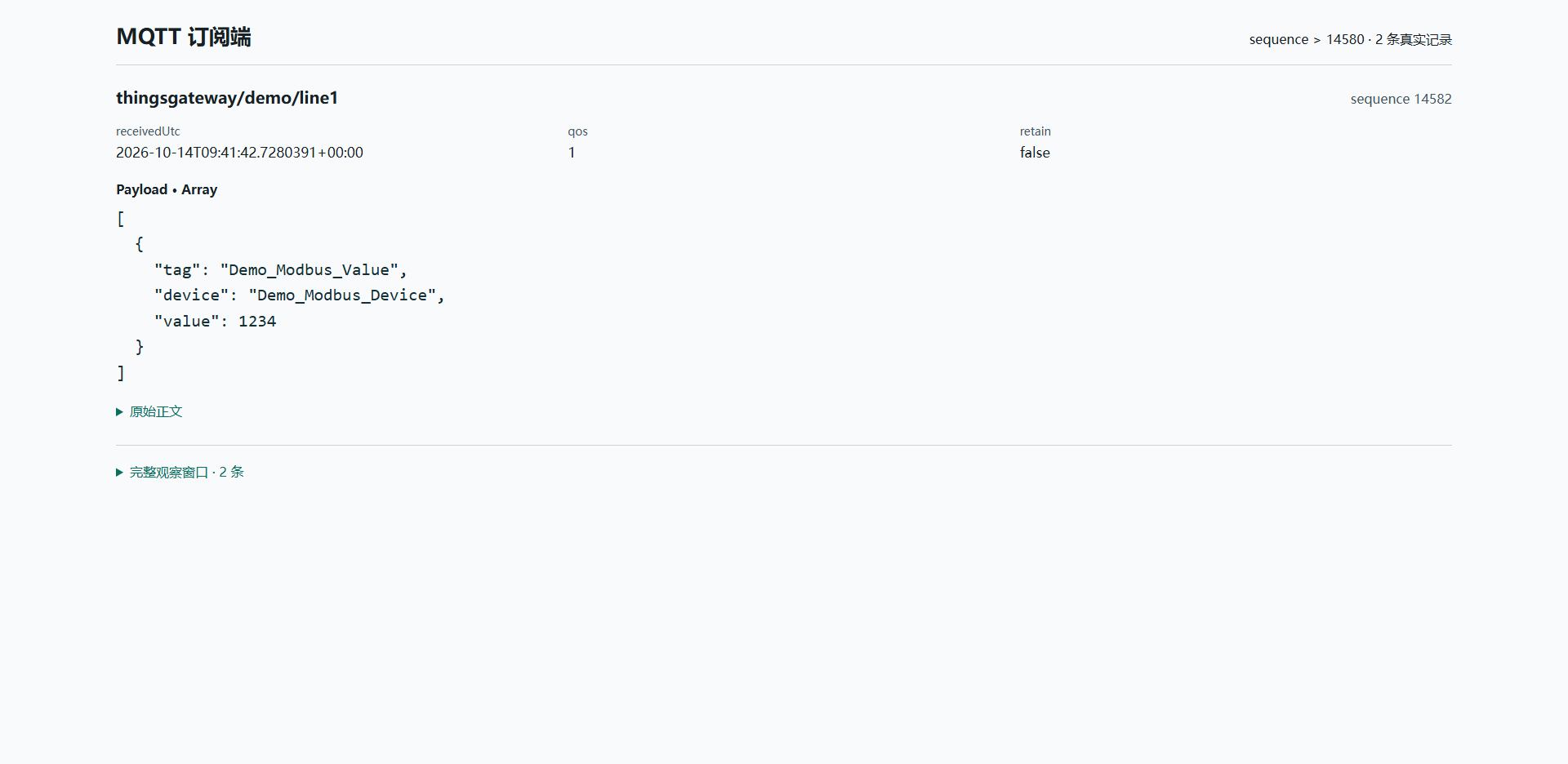
Preview uses sample objects. Actual delivery must be checked against the selected device, variable, and new sample.
Template and message reference
Lists, dictionaries, and individual messages
| Configuration | Actual structure |
|---|---|
| Default entity, list enabled | Array of variable entities. |
| Default entity, list disabled | One default variable object per message. |
| Dictionary and list enabled | Device-name and variable-name dictionary. Without content templates, leaves are complete entities or script outputs. With a template, each leaf is its rendered result. |
Text content, list enabled | Array of strings, one rendered template per record. |
Json content, list enabled | Array of JSON values whose types follow the template; this page’s object template produces objects. |
| Content template configured, list disabled | A JSON string containing the rendered content. Parse that outer string, then parse its JSON contents if required. |
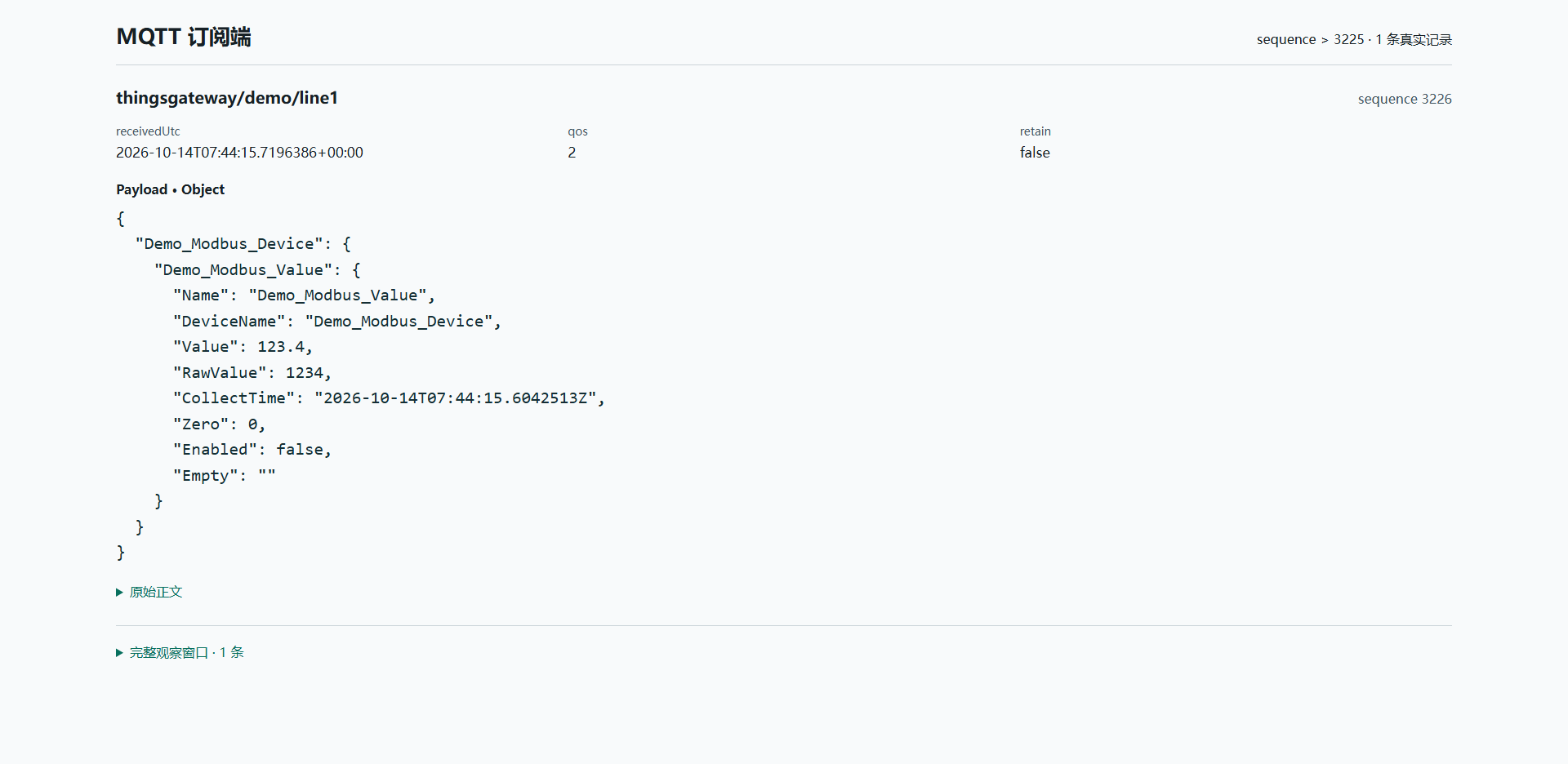
Dictionary without a content template: read each leaf’s Value for the value. Other entity fields are omitted below.
{
  "Demo_Modbus_Device": {
    "Demo_Modbus_Value": {
      "Name": "Demo_Modbus_Value",
      "DeviceName": "Demo_Modbus_Device",
      "Value": 1234,
      "RawValue": 1234,
      "IsOnline": true
    }
  }
}
Dictionary keys cannot represent every historical change of the same variable. For replay, check batch/model merging and preserve source times; see Offline Compensation.
With default entity serialization, JSON Ignore Null omits null object properties while numeric 0, Boolean false, and empty strings remain. Explicit null values generated by a content template are not automatically removed; Text content is not rewritten either. Compare those four values in the same script object without a content template, then inspect the actual payload for any custom template.
An entity script only changes upload objects. For example, it can output Value=123.4 and RawValue=1234 while collection still displays 1234. Use the variable read expression to change its engineering value, and avoid applying conversion twice.
Placeholder formats
| Syntax | Effect |
|---|---|
${Name} | Current object’s name. |
${Name|upper} | Uppercase uploaded name without renaming the source variable. |
${DeviceName|lower} | Lowercase device name. |
${Value|number:0.00} | Numeric text with two decimal places; inside quotes it becomes a string. |
${CollectTime|unixms} | Unix milliseconds. |
${CollectTime|datetime:yyyy-MM-dd} | Formatted date text. |
${NoSuchField|default:unknown} | Default text for a missing or null value; empty strings do not trigger it. Check spelling before permitting a default. |
Formatting does not correct clocks or change sample time. Agree on timestamp units and time zones with the receiver.
Devices, alarms, and plugin events
The four entity types have separate templates. Variables expose fields such as Name, DeviceName, Value, RawValue, CollectTime, and IsOnline. Device, alarm, and event templates use their own fields.
- Fill the Topic for each required type; an empty Topic does not publish that route.
- Configure that type’s list, dictionary, and content settings.
- Generate a real device-state change, alarm lifecycle, or plugin event.
- Match identity and event time at the receiver. Variable messages do not verify alarm delivery.
See Available entity fields for the complete field list and Script Management for type selection. Device scripts can expose routing states; alarm scripts should retain identity, severity, and lifecycle. Plugin events read the actual ObjectValue, for example ${ObjectValue.count}.
Target-variable Data1–Data10 are additional settings. Default entities do not automatically include them. Read and output them explicitly in an entity script, then reference that output from the template. Verify saved settings, script execution, and receiver fields separately.
Confirming the template dialog still requires saving the target. Reopen it to verify persistence. To restore default messages, clear unused content templates and entity scripts and restore list/dictionary settings, then verify new data.
Common upload settings
These are the shared MQTT target defaults. Connection, routing and delivery acknowledgements remain specific to each plugin.
| Setting | Default | Configuration |
|---|---|---|
| JSON indentation | Enabled | Disable to reduce payload size. |
| Ignore JSON nulls | Enabled | Controls null-property omission in default entity serialization. Explicit nulls generated by content templates remain. |
| Device list upload | Enabled | Publish devices as a list; disable for one message per device. |
| Variable list upload | Enabled | Publish variables as a list; disable for one message per variable. |
| Variable dictionary upload | Disabled | Applies to list mode; DeviceName → Name leaves contain complete entities or script outputs, whose Value field holds the value. |
| Alarm list upload | Enabled | Publish alarms as a list; disable for one message per alarm. |
| Alarm dictionary upload | Disabled | Applies only to alarm-list mode; groups by device and variable. |
| Plugin-event list upload | Enabled | Publish plugin events as a list; disable for one message per event. |
| Entity scripts | Empty | Select saved scripts for device, variable, alarm, or plugin-event entities; script output is used for Topic and payload rendering. |
Available entity fields
| Entity | Available fields |
|---|---|
| Variable | Id, Name, DeviceName, Value, RawValue, LastSetValue, CollectGroup, CollectTime, CreateTime, ChangeTime, IsOnline, DataType, Unit, RegisterAddress, OtherMethod, Description, ProtectType, RpcWriteEnable, Remark1 to Remark5, ValueInited, IsMemory |
| Device | Id, Name, ActiveTime, DeviceStatus, PluginName, Description, LastErrorMessage, Remark1 to Remark5 |
| Alarm | AlarmId, VariableId, Name, DeviceName, AlarmCode, AlarmLevel, AlarmLimit, AlarmText, RecoveryCode, AlarmTime, EventTime, FinishTime, ConfirmTime, ConfirmText, AlarmType, EventType, Remark1 to Remark5 |
| Plugin event | DeviceName, ObjectValue |
After an entity script runs, placeholders resolve against its output. Device, variable, alarm and event templates use their own fields; an empty Topic disables publication for that entity.
Troubleshooting
| Symptom | Action |
|---|---|
| JSON preview syntax error | Check braces, commas, quotes, and substituted values. Cancel an invalid draft and reopen saved configuration. |
| Missing preview field | Check spelling, entity type, and script output. Do not conceal required-field errors with defaults. |
| Extra quotes or escapes | Check list mode and content path; parse the actual outer type. |
| Correct Topic, wrong body | Check Topic, entity script, and content independently. |
| Receiver shows old content | Check saving, subscription, the new receive window, and retained messages. |
| Restore default format | Clear custom content and unused scripts, save, and inspect a new message. |