On this page
For routine site enrollment, use a single-use code from Studio Site management to configure both Watchdog and Gateway management tunnels. TLS is optional and must match at both ends. Before enabling private-CA TLS, create or import the Studio identity and import its public CA into Watchdog. See Management certificates for creation, renewal, import, export and activation.
Intranet Tunneling
Intranet Tunneling allows the TGateway service on the intranet where Watchdog is located to expose to a specified external address via the Studio Broker. Studio provides the broker, while Watchdog creates clients and forwards local or intranet services.
Roles and prerequisites
Roles
| Role | Interface | Function |
|---|---|---|
| Studio Broker | Studio Web > intranet tunneling | receives Watchdog client connections and listens for access traffic at external addresses. |
| Watchdog Client | Watchdog Web > Tunnel Management | Actively connects to Studio Broker, forwarding local or intranet services to the Broker. |
| Source address | Watchdog client configuration | the target services accessible to Watchdog machines, such as 127.0.0.1:6100. |
| External Addresses | The Watchdog client configuration | the Broker side listens to addresses for external access, such as 0.0.0.0:8889. |
Typical Access Link:
Prerequisites
- The site Watchdog and TGateway run on the same machine. The source address must be reachable from that machine.
- Studio’s Broker listener and external ports must be reachable, unoccupied and allowed by the firewall.
- Match the authentication token, optional access key and TLS mode at both ends. Private-CA TLS requires the trusted CA before activation.
- For routine enrollment, use the single-use code in Site management; manual client configuration below is for explicit endpoint maintenance.
Configure the Broker and client
Studio Broker Configuration
Menu Path: Studio Web > Intranet Tunneling.
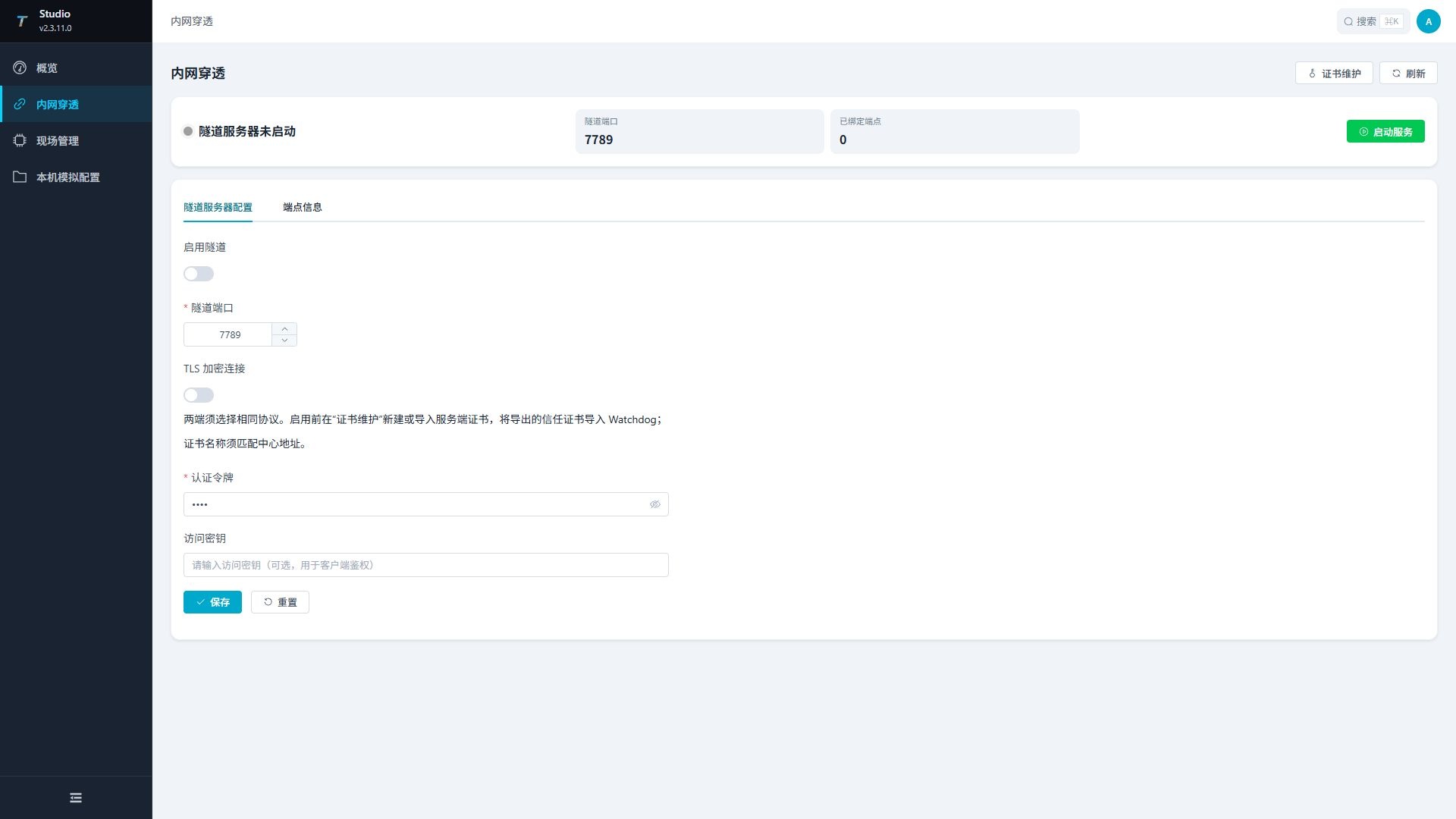
The top of the page displays the broker’s current status, listening port, and number of bound endpoints. The “Refresh” button in the upper right corner rereads the status.
| Configuration Items or Actions | Instructions |
|---|---|
| Enable Tunnel | Whether Studio Broker Configuration is enabled. |
| Tunnel Port | Watchdog client connects to the Broker’s port, range 1-65535. The default value is 7789, and this port needs to be allowed to be allowed in the firewall of the server where Studio is located. |
| Authentication Token | the first authentication value used by the Watchdog client when connecting to the Broker. The default value is Dmtp, which is required. Studio and Watchdog must be exactly the same. |
| Access Key | Secondary checksum used by the Watchdog client when binding tunnel endpoints. After filling out the Studio side, the Watchdog side must enter the same value; When secondary verification is not used, both ends remain empty for easy troubleshooting. |
| Save | Save the form and apply its enabled state. Enabling starts the service; disabling stops it. |
| Reset | Reload the saved configuration and discard the page without saving the changes. |
| Start the service | Available only when the saved configuration is enabled. Restart after a manual stop; an unsaved switch change does not enable the service. |
| Stop service | stop a running broker. |
Recommended order
Enable the tunnel and save, then confirm that the broker is running. Save again after changing the port, authentication token, or access key. If the configuration is saved but not applied, resolve the port or certificate issue and click Start. Start is unavailable while the saved configuration is disabled.
Studio Endpoint Information
View the bound Watchdog client endpoint in the “Endpoint Information” tab. When the broker is not running, the endpoint list is empty.
| Column | Description |
|---|---|
| Tunnel Label | Watchdog client name. |
| Tunnel ID | The tunnel identifier generated by this binding. |
| Tunnel mode | Current tunnel mode. |
| External address | Broker-side address where external visitors connect. |
| Binding Time | The time when the client was successfully bound. |
When the Watchdog client shows as connected but Studio has no endpoints, it is usually due to inconsistent access keys, an external port occupied, or client binding failure.
Watchdog Client Configuration
Menu Path: Watchdog Web > Tunnel Management.
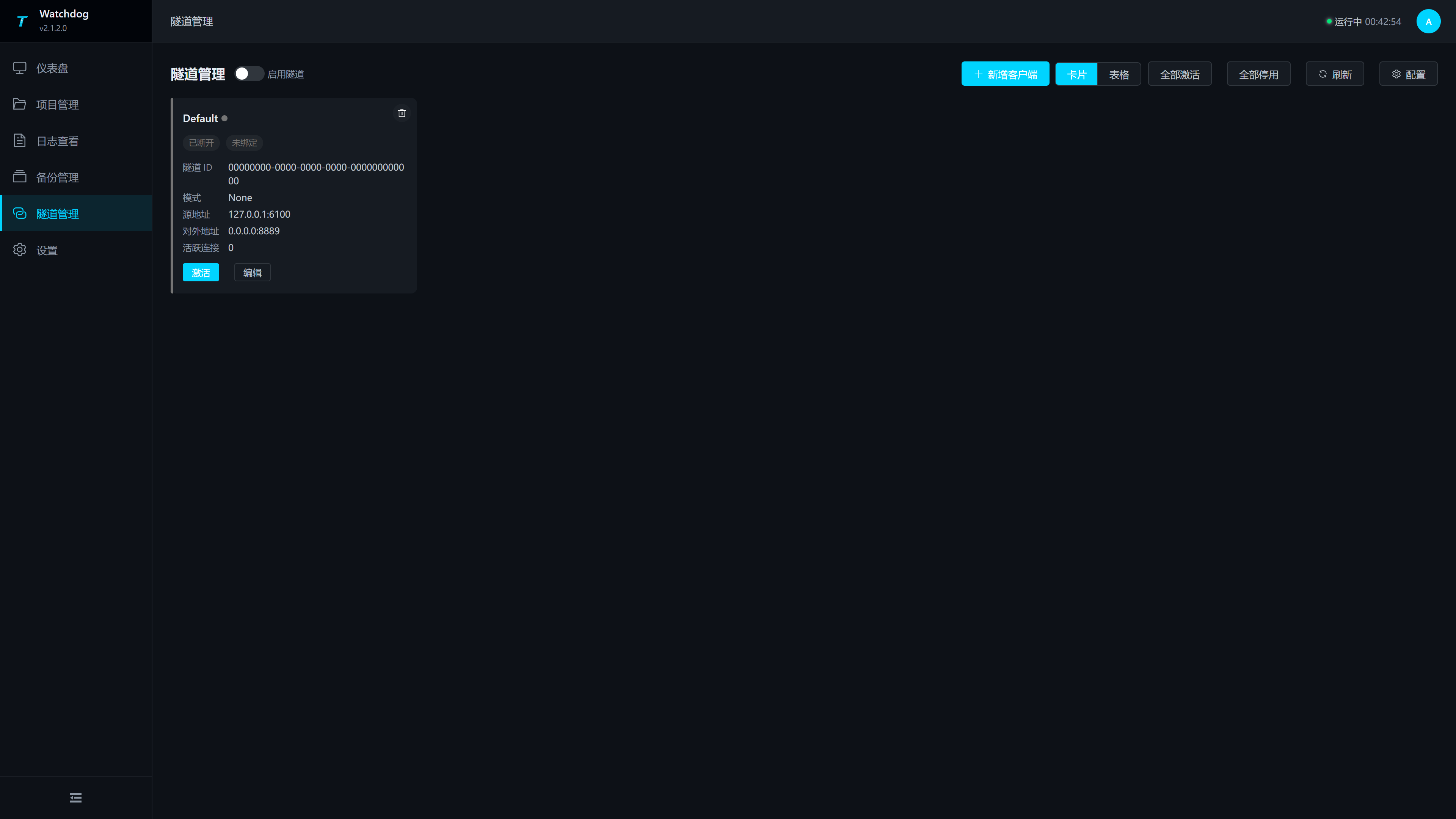
| Operations | Instructions |
|---|---|
| Enable Tunnels | Enable or disable the Watchdog tunnel feature globally. |
| Add a client | Open the configuration drawer and add a client. |
| List/card icons | The list icon opens the table; the grid icon opens cards. Select clients in the table for batch deletion. |
| Activate all | Activate all configured clients. |
| Disable all | Disable all clients. |
| Configuration | Open the full configuration drawer. |
| Refresh | Reread client status. |
Configure Drawer
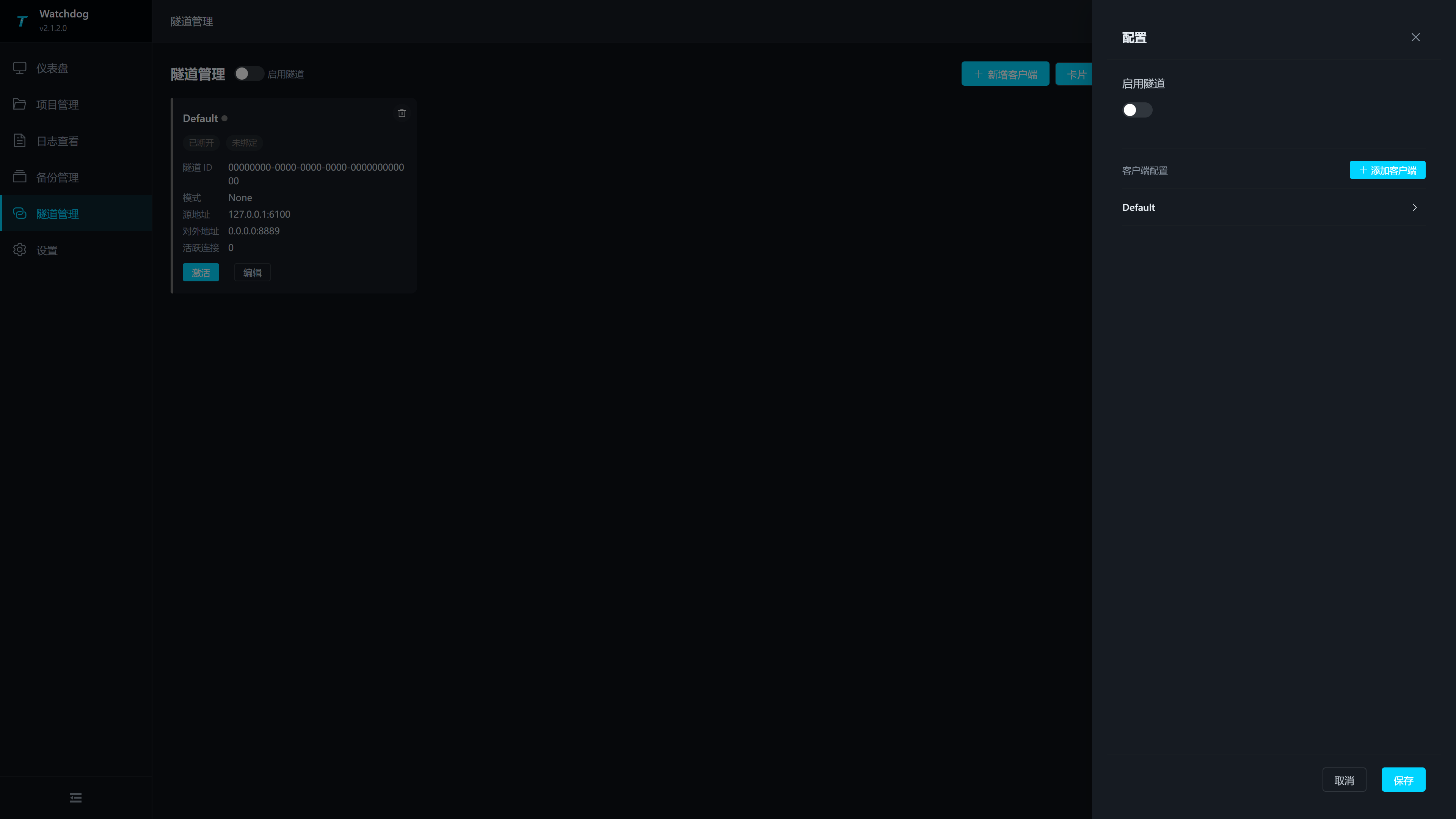
| Configuration Items | Description |
|---|---|
| Enable the Tunnel | global toggle and save for effect. |
| Client Configuration | Displays saved clients and can expand editing. |
| Add client | Add client configuration. |
| Save | Save global switches and all client configurations. |
Client Forms
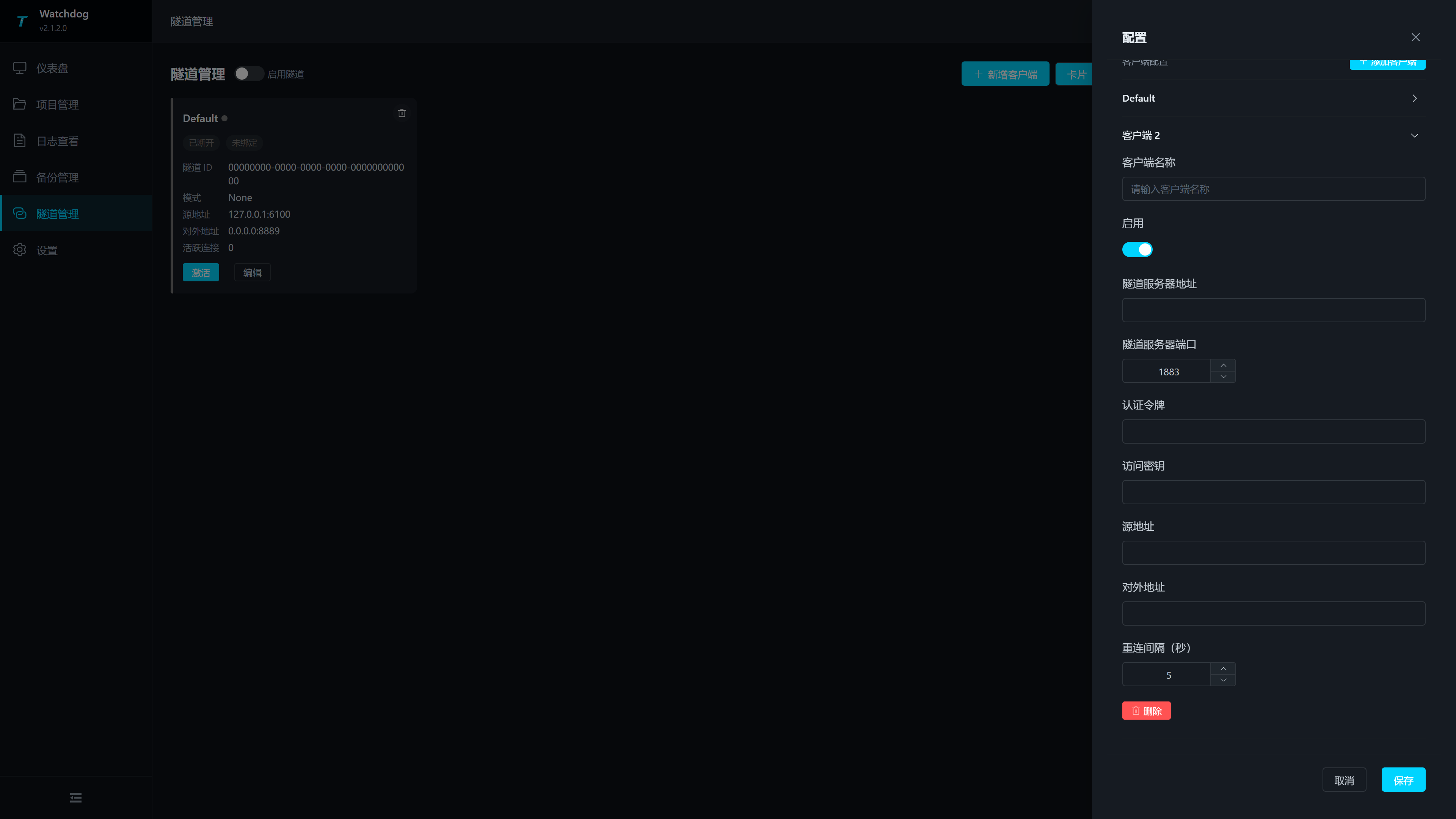
| Configuration Items | Description |
|---|---|
| Client name | required; duplicates are not allowed within the same Watchdog. |
| Enable | to control whether the client participates in activation. |
| Tunnel server address | Studio Broker’s server IP or domain name. |
| Tunnel server port | Studio Broker port, range 1-65535. Enter the Broker port saved in Studio Web’s “Intranet Tunneling” section, commonly 7789; Other values are only filled in if Studio Broker is indeed changed to another port. |
| TLS connection | Match the Studio Broker TLS mode. For a private CA, first import Studio’s public trust certificate through Certificate maintenance and verify that the center address matches the certificate. |
| Authentication token | is the same as Studio Broker’s authentication token. |
| access key | matches the access key for Studio Broker. When entering the access key on the Studio side, the Watchdog side must enter the same value; When not using secondary verification, both ends are left empty. |
| Source Address | The target service address to expose on the site machine, such as 127.0.0.1:6100 for TGateway Web/API. Watchdog and TGateway share the same machine and runtime environment; verify the local listener address and port. |
| External addresses | Broker-side listening addresses, for example, 0.0.0.0:8889. External visitors ultimately access this port of the Studio server. |
| Reconnection interval (seconds) | Wait time for automatic reconnection after client disconnection. If network jitter is frequent, increase the volume appropriately to avoid continuous rapid reconnections. |
When saving, it checks the client name, broker address, source address, external address, and port range. Duplicate client names cannot be saved.
Commission and verify
Joint Debugging Process
- Open “Intranet Tunneling” in Studio Web.
- Enable the tunnel, enter the broker port, authentication token, and access key, then select Save.
- Confirm that the broker starts automatically. After a manual stop, use Start service to resume the saved enabled configuration.
- Open “Tunnel Management” in Watchdog Web and enable “Enable Tunnel.”
- Add a client and fill in the Studio Broker address, port, authentication token, and access key.
- For the source address, enter the TGateway address accessible to the Watchdog machine, for example,
127.0.0.1:6100. - For external addresses, fill in the broker-side exposed address, for example,
0.0.0.0:8889. - After saving the client configuration, click “Activate.”
- Return to the “Endpoint Information” tab in Studio Web and confirm that the corresponding tunnel label and external address appear.
- From an external network, open
http://<studio-server-ip>:<external-port>and confirm that TGateway Web is accessible.
Verify the result
Confirm the client is connected and bound, the expected endpoint appears in Studio, and an external machine can complete one read-only request through the exposed address. A connected client without a bound endpoint is insufficient; verify the local source service separately.
Parameter Example
| Parameter | Example Value | Description |
|---|---|---|
| Studio Broker address | 203.0.113.10 | A Studio server address accessible to the public network or Watchdog. |
| Broker port | 7789 | Watchdog client connection port. |
| Authentication token | Dmtp | consistent on both ends. It is recommended to switch to a higher strength value for the production environment. |
| Access key | site-key-001 | When the Studio side enables secondary verification, both ends are consistent; When not enabled, both ends are left empty. |
| TGateway service on a | 127.0.0.1:6100 | Watchdog machine at source address 127.0.0.1:6100. |
| External address | 0.0.0.0:8889 | Studio server listens for ports accessed from outside. |
| External access address | http://203.0.113.10:8889 | Address used by external visitors. |
Security and Network Check
| Checklist | Explanation |
|---|---|
| Port Release | Studio Broker port and outbound address port both need to be released within the firewall. |
| Authentication Information | Authentication tokens must match the Watchdog client. The access key is a secondary checksum, and when the Studio side enters it, the Watchdog side must also enter the same value; When not in use, both ends are left empty. |
| Source address connectivity | The source address should be accessible on the Watchdog machine. |
| External port occupies | The external address port cannot be occupied by other processes on the Studio server. |
| Access Scope | In production environments, do not arbitrarily expose management ports to the public network; if necessary, use a firewall whitelist. |
Common Issues
| Phenomena | Handling Suggestions |
|---|---|
| Studio Broker Startup Failure | Check whether the Broker port is occupied, whether the port range is correct, and whether the configuration has been saved. |
| Watchdog client is not activated | Confirm that the global “enable tunnel” for Watchdog is enabled and save client configurations. |
| The client shows ‘Not Connected’ | Check whether Studio Broker is running, whether the server address and port are reachable, and whether the firewall is allowing access. |
| If connected but not bound to | Studio, enter the access key, check if the Watchdog access key matches; At the same time, check whether the external address port is occupied. |
| Studio endpoint list is empty | Switch to the “Endpoint Information” tab and refresh; If it remains empty, check the binding failure message in the Watchdog log. |
| TGateway is inaccessible externally | Check whether the external port, firewall, source address, and TGateway itself are running. |